- Get Started
- Video Tutorials
- Knowledge Base
- Channels
- Listings
- Inventory
- Orders
- Settings
- FAQs & Troubleshooting
How to Sync Listing from Shopify 、Amazon、TikTok、eBay、Etsy、WooCommerce、Shein Store to Temu Store?
4Seller supports migrating products from Shopify, Amazon, TikTok, eBay, Etsy, WooCommerce, and Shein to list on Temu. This migration process involves copying and pasting; original store data will not be deleted.

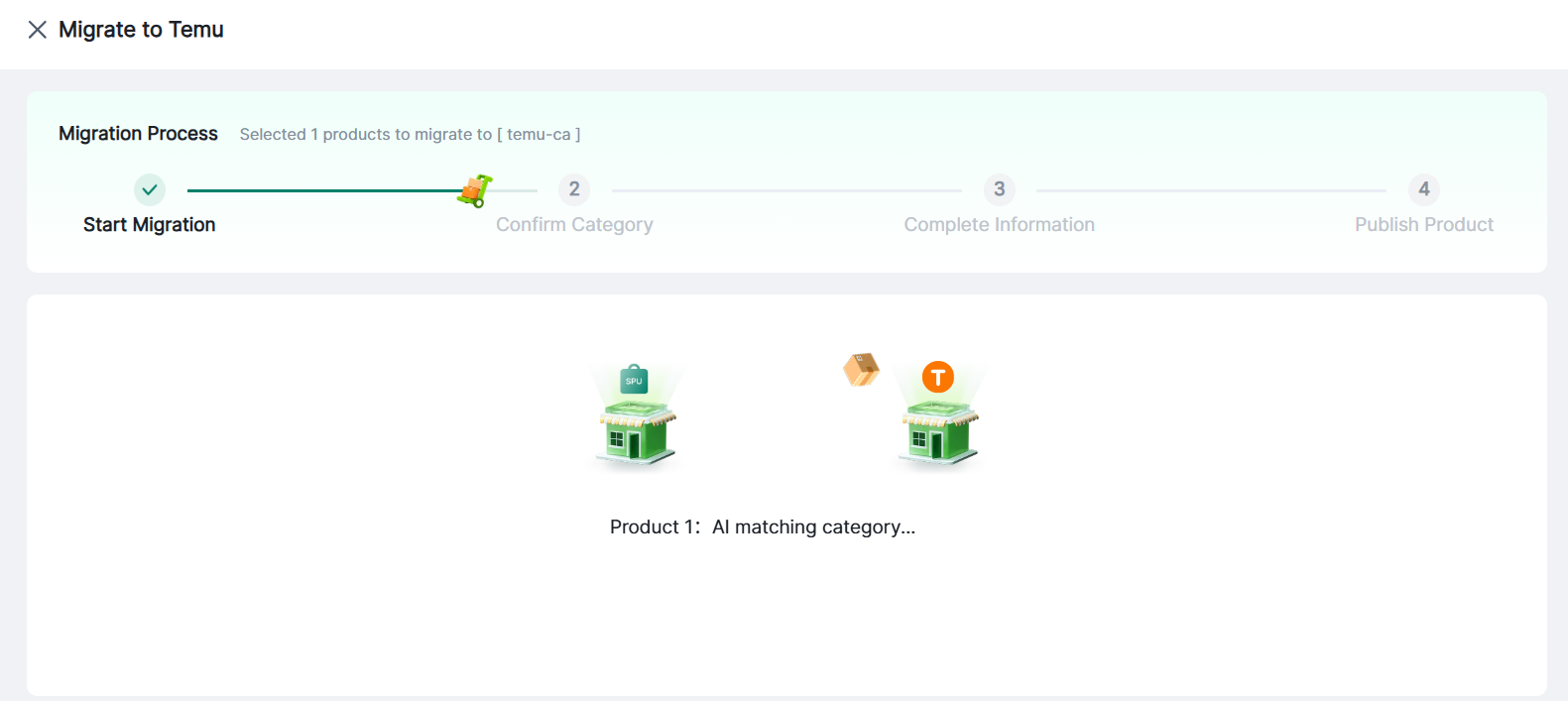
The migration workflow consists of 4 steps: Start Migration → Confirm Categories → Supplement Information → Publish Products. These steps are designed to enhance listing efficiency; products are published directly to the platform upon completion.

I. Migration Entrance

1. Individual or Bulk Migration

(1) Migration Page:

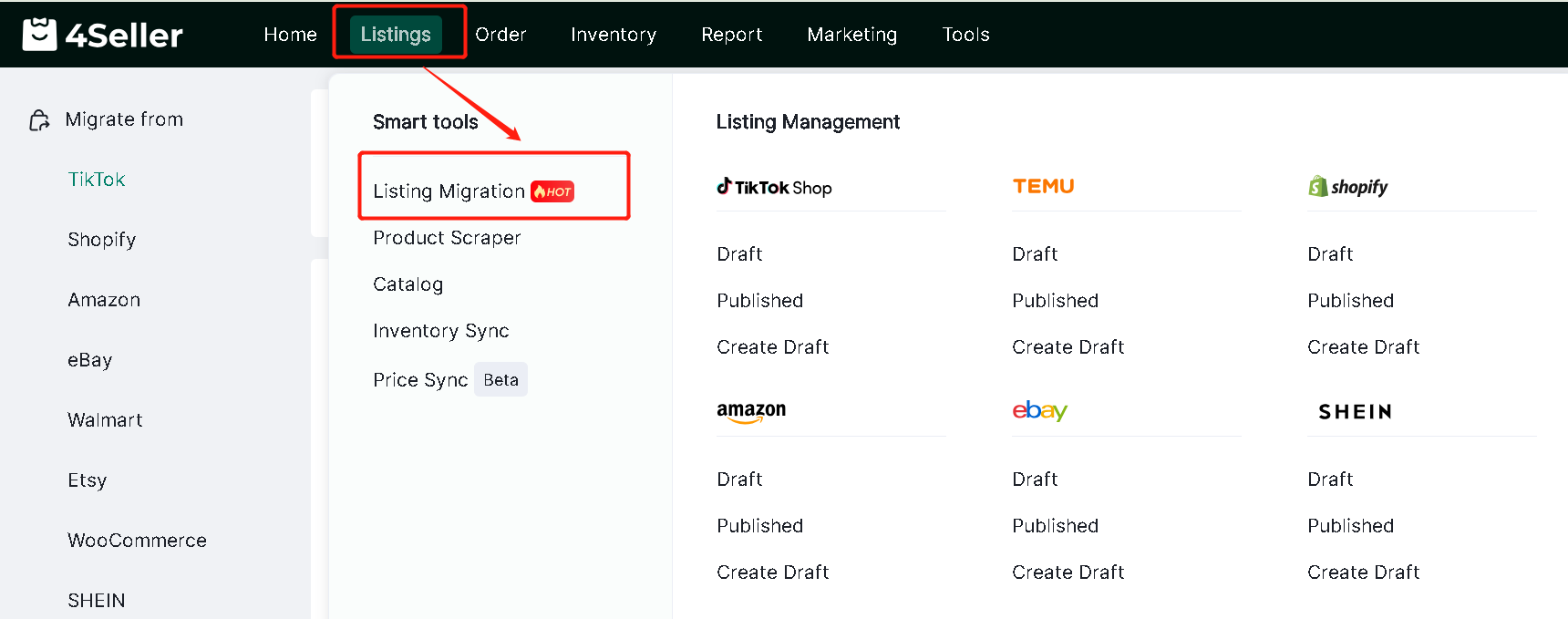
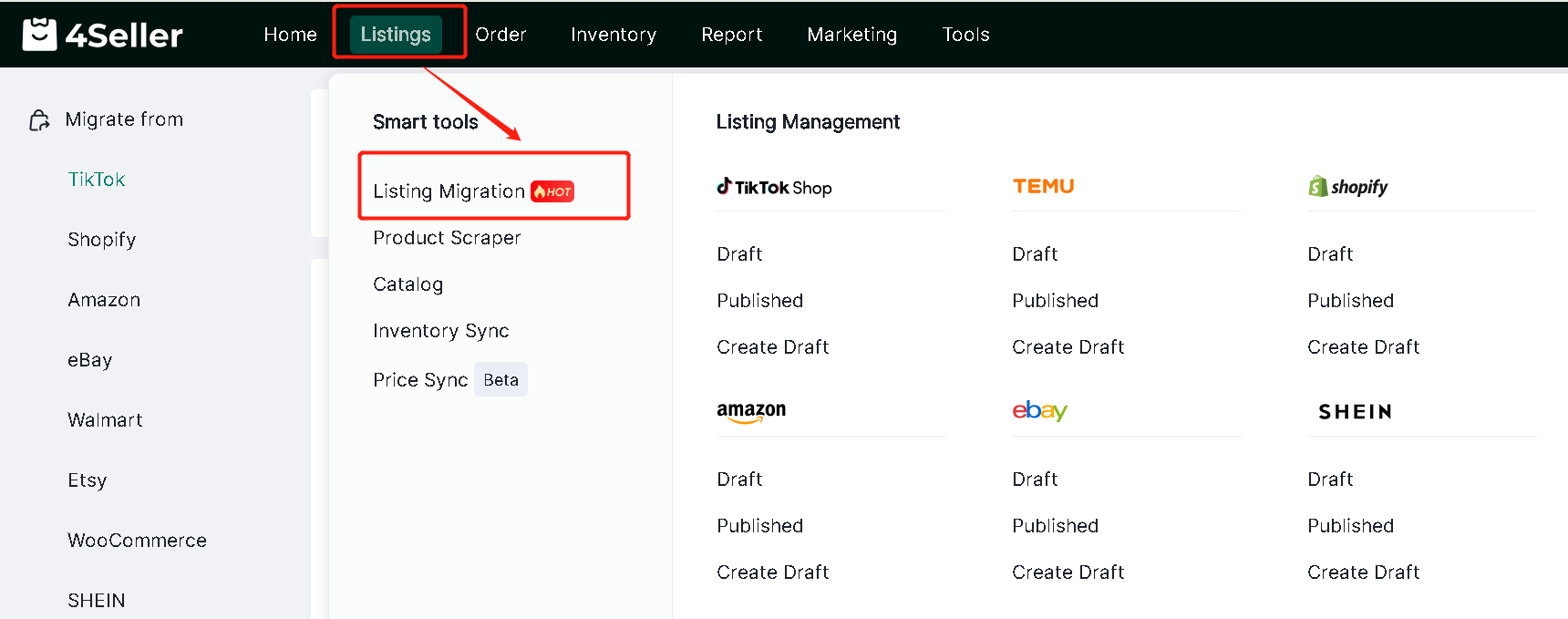
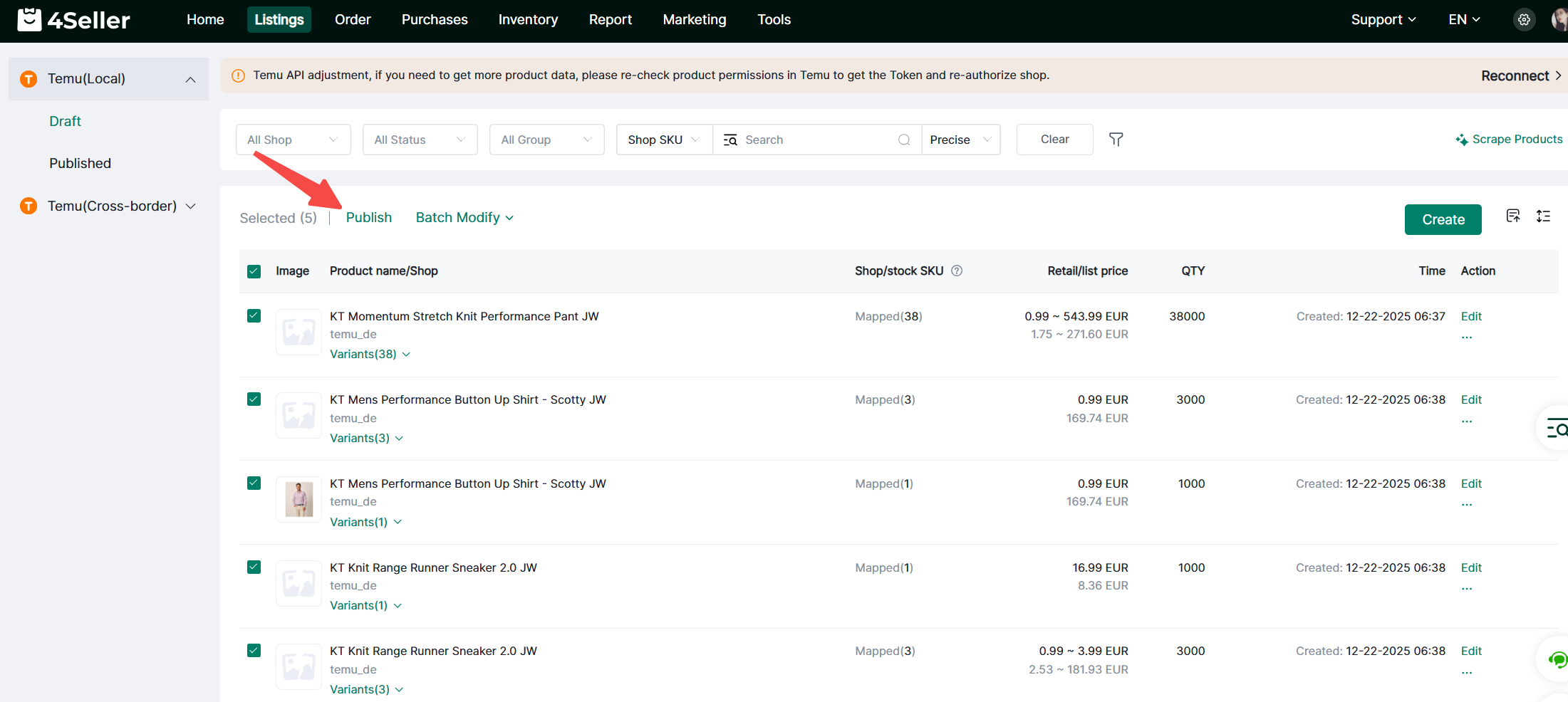
① Click Listings → Listing Migration


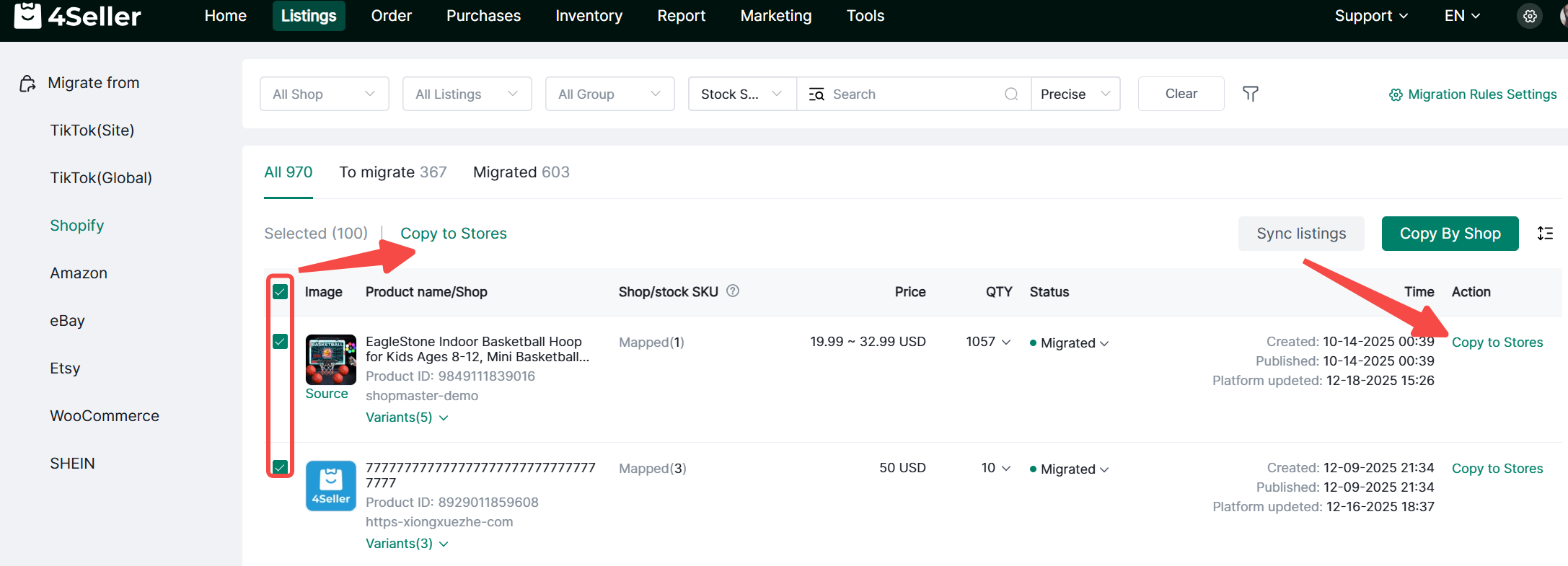
② Migrate from xx Platform→Select individual products to migrate to your store or check multiple items and click Copy to Stores

(2) Migration from Published Product Pages on Each Platform

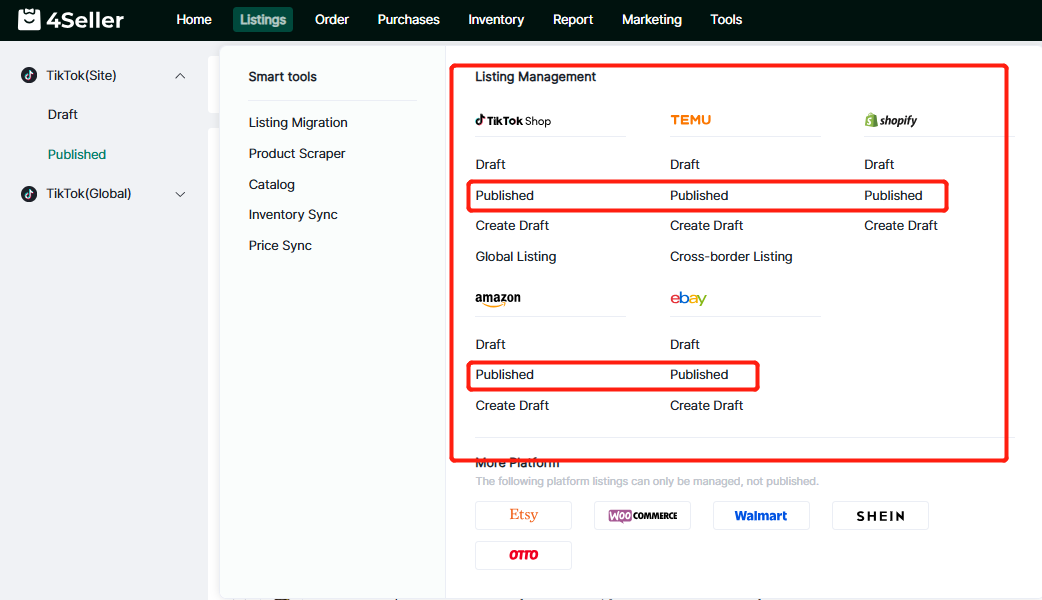
① Click Listings→ Enter the published product page for the corresponding platform


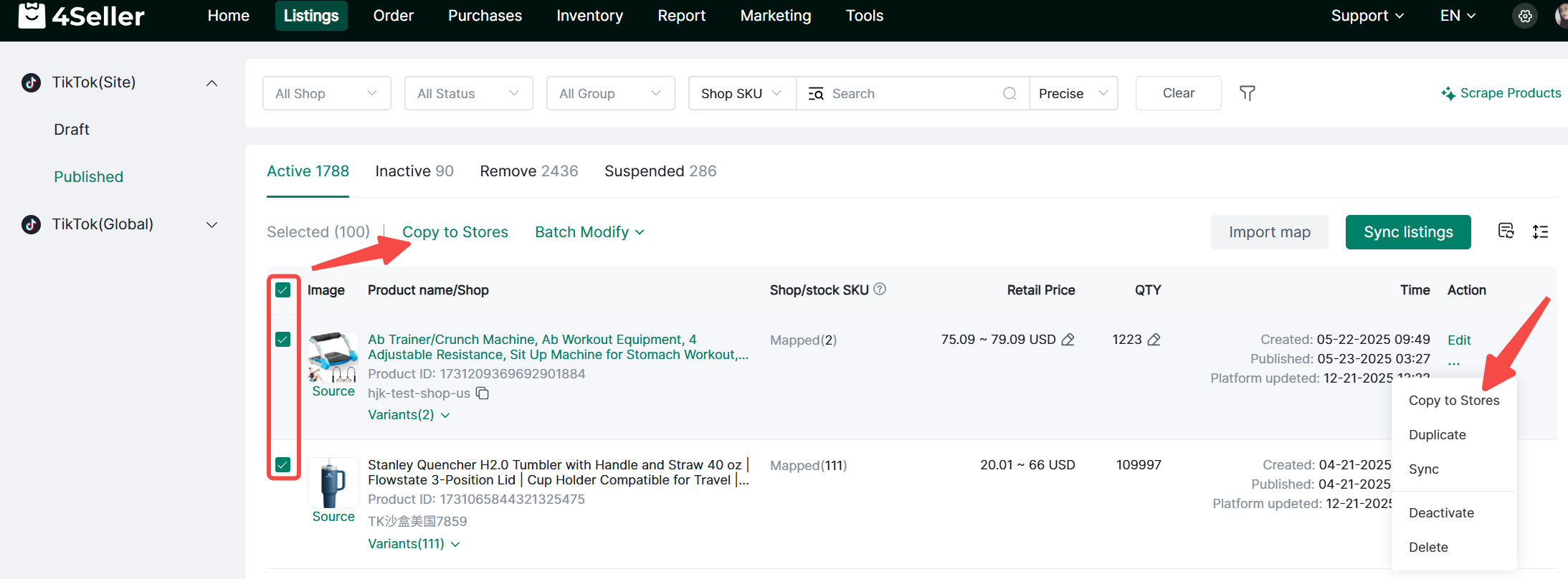
② Select individual products to migrate to your store or check multiple items and click Copy to Stores

2. Entire Store Migration (Only available when platform product count is below 2000)

(1) Migration Page:

① Click Listings → Listing Migration


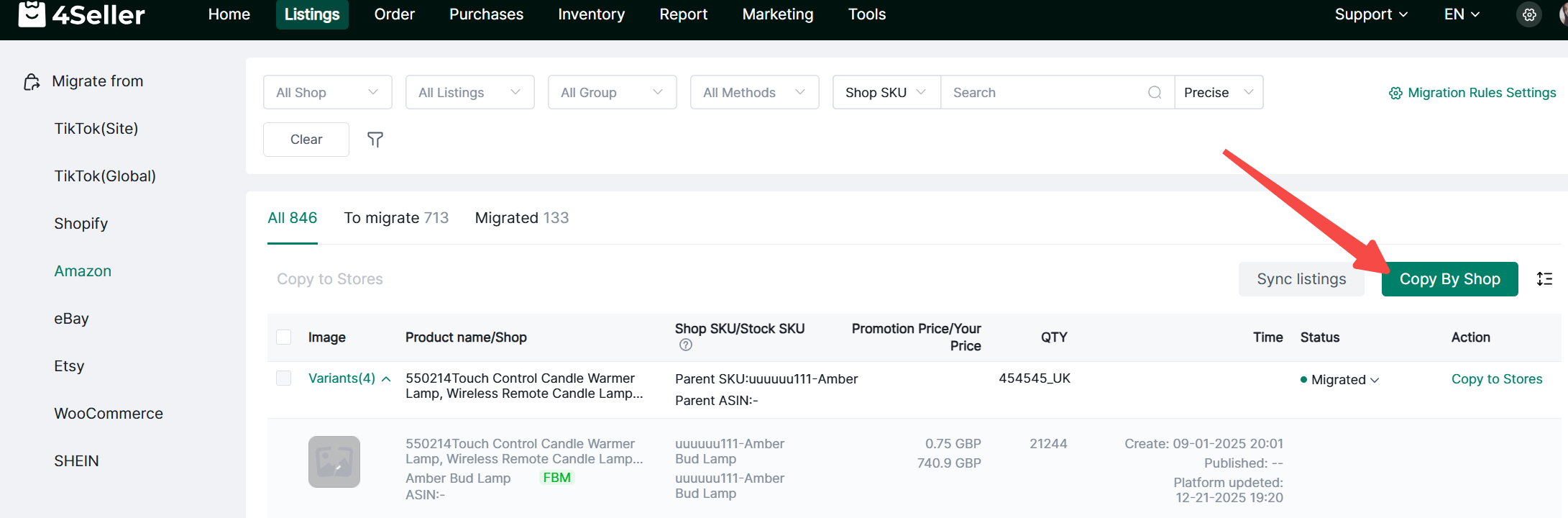
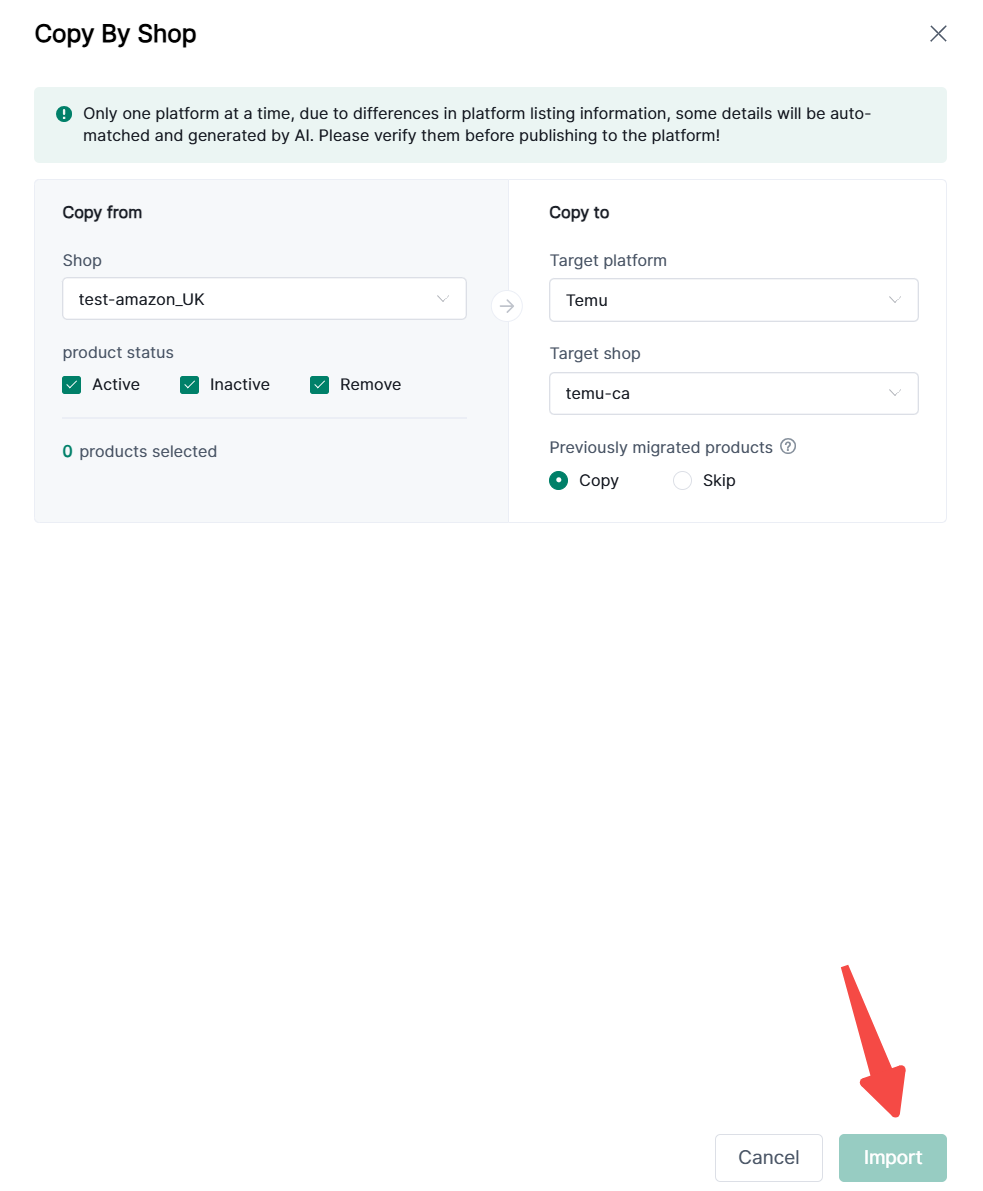
② Click Copy by  Shop


(2) Migration via Published Products Page on Each Platform

① Click Listings → Enter the Published Products page for the corresponding platform


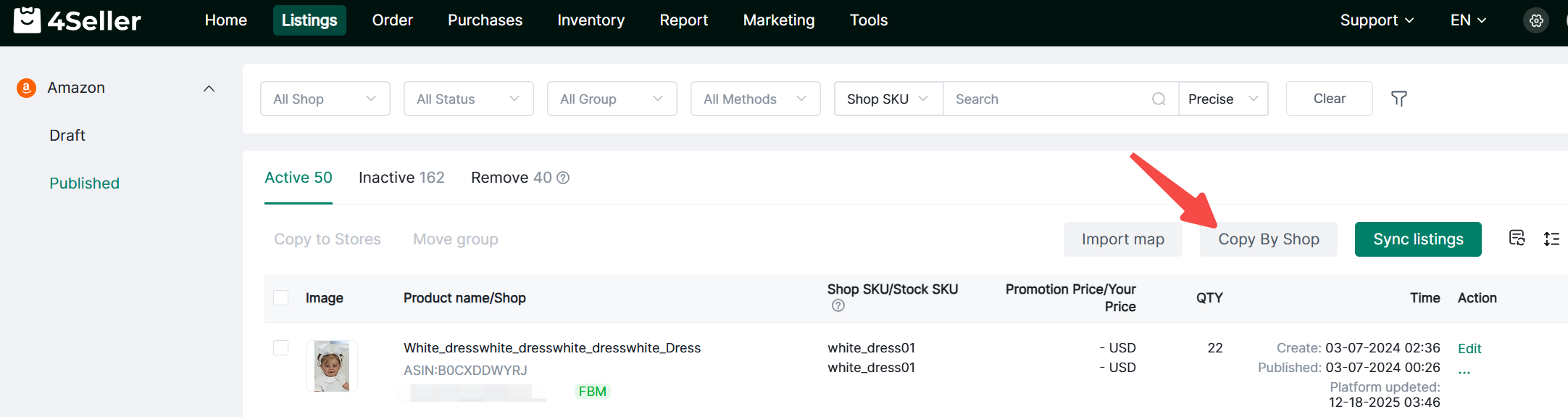
② Click Copy by Shop


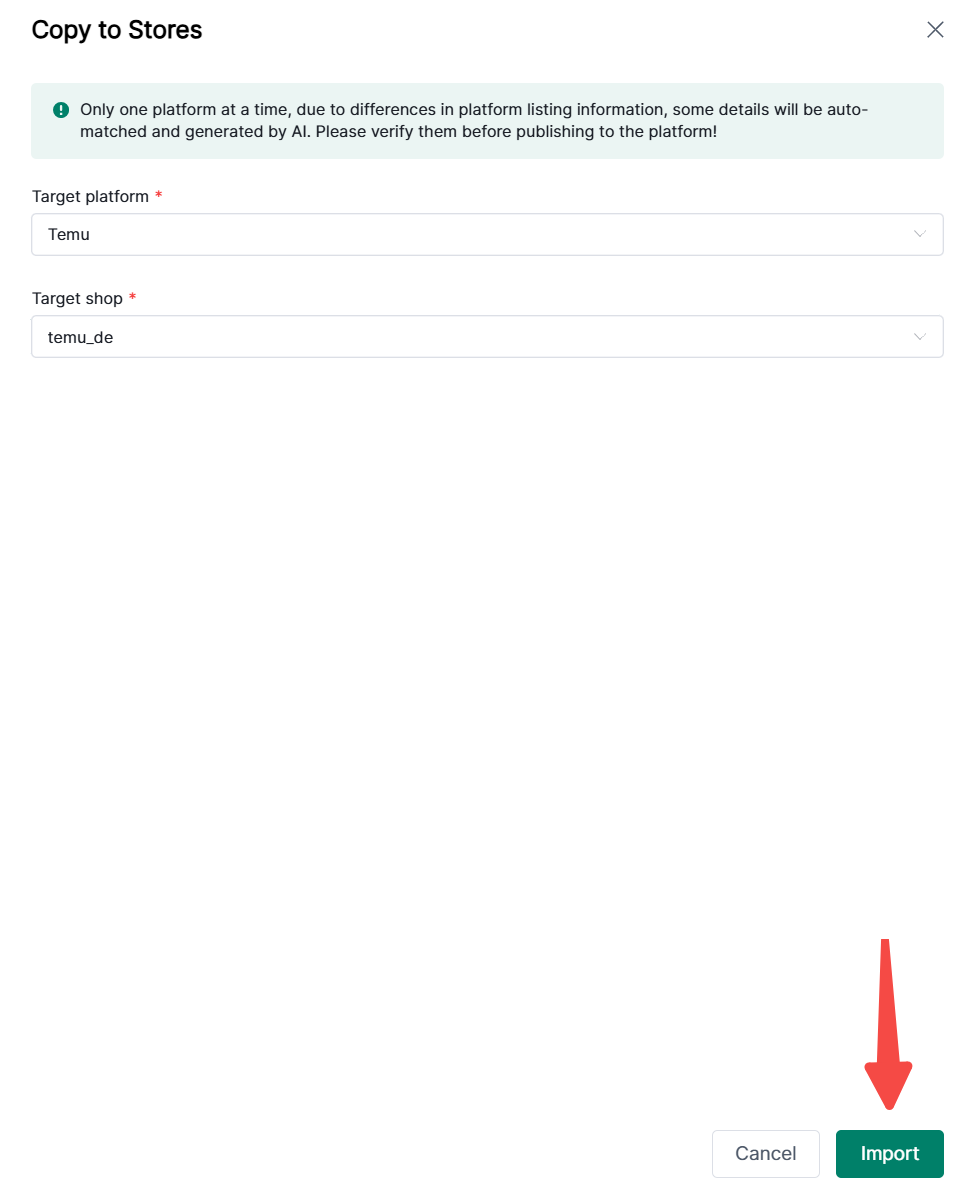
1. Select the Temu store to migrate from the dropdown

(1) Individual or batch migration:click import after select


(2) Copy by shop: Select product statuses and whether to skip previously migrated items


Note:

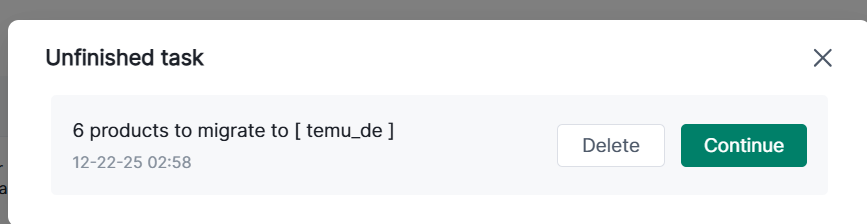
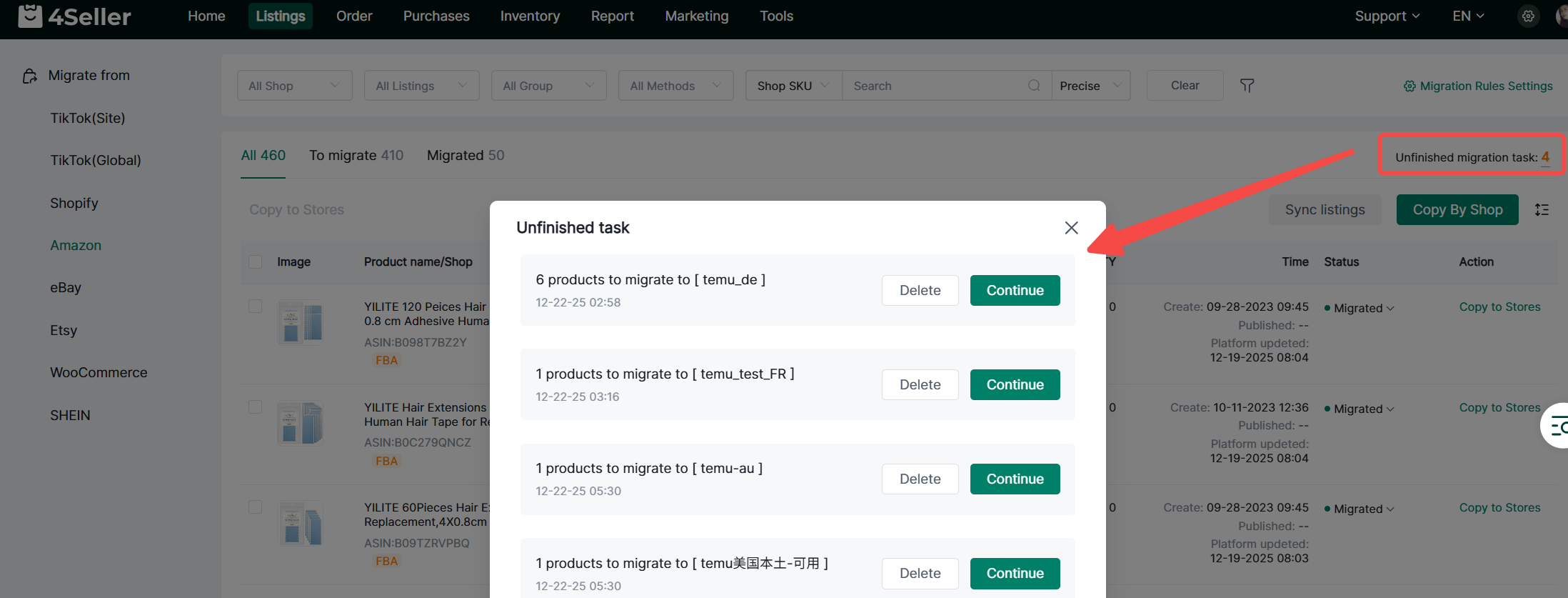
① Only one migration task can run per store simultaneously. If an unfinished task exists, a pop-up will appear. Choose to continue the existing task or start a new one (unfinished tasks will be deleted). Confirm after selection.


② To view pending tasks, if multiple exist, they will appear in the list. Click Continue or Delete.


II. Start Migration
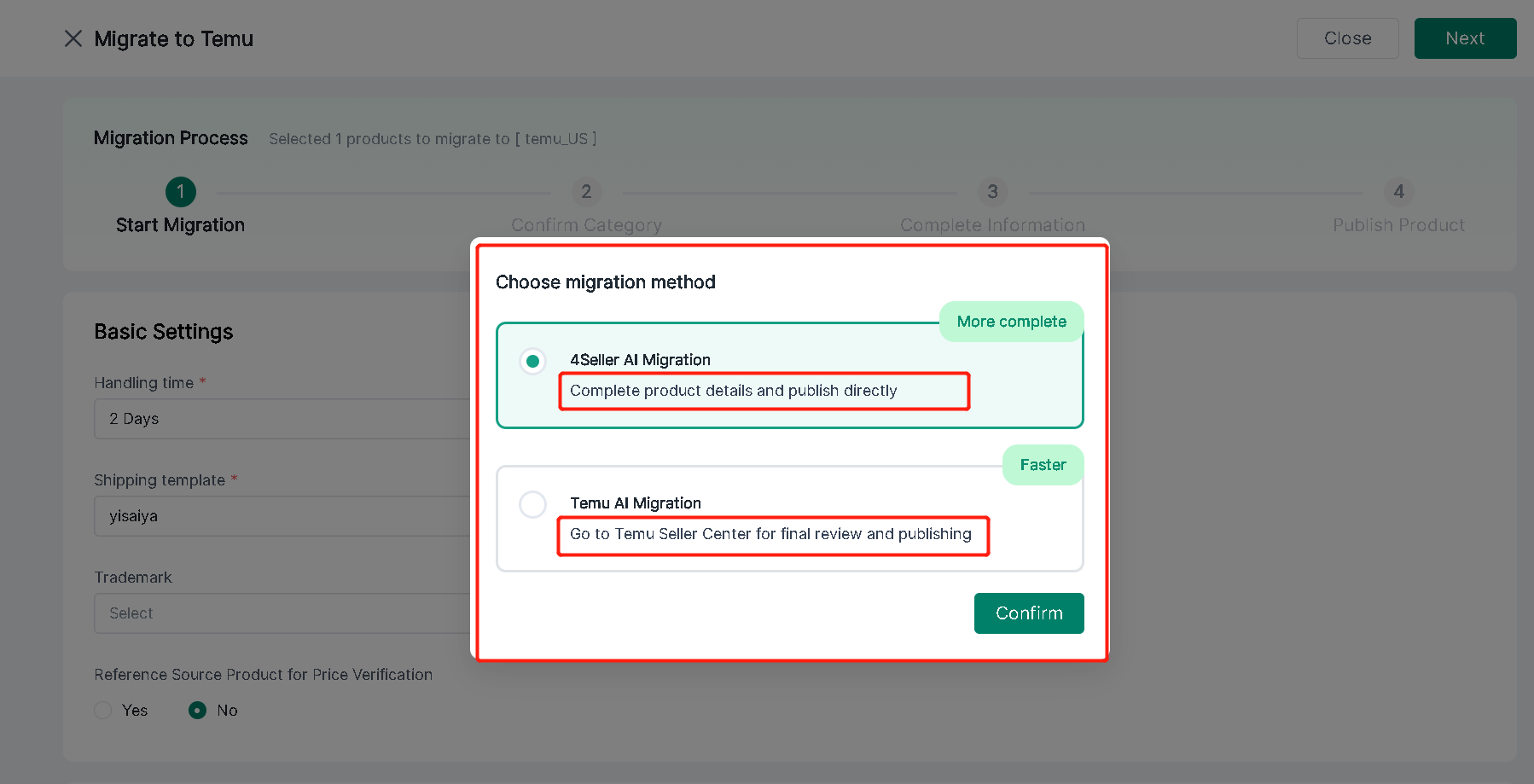
Note: Will enter Page to select 4Seller  Ai Migration or TEMU Ai Migration.


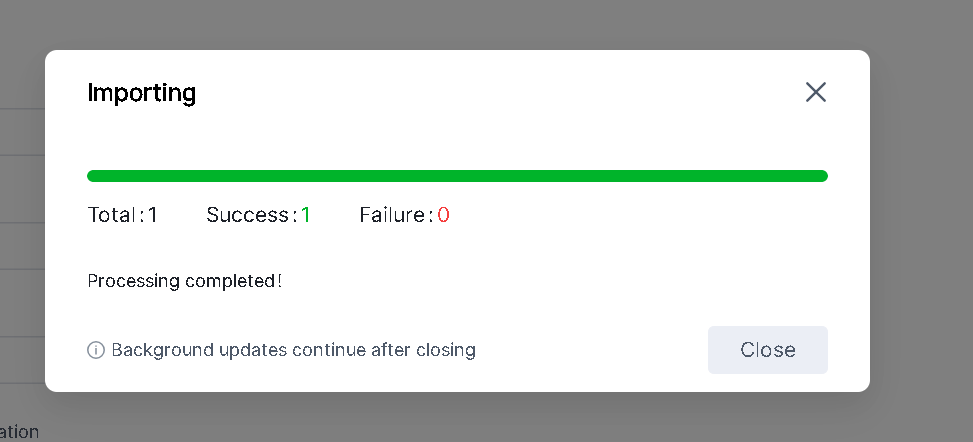
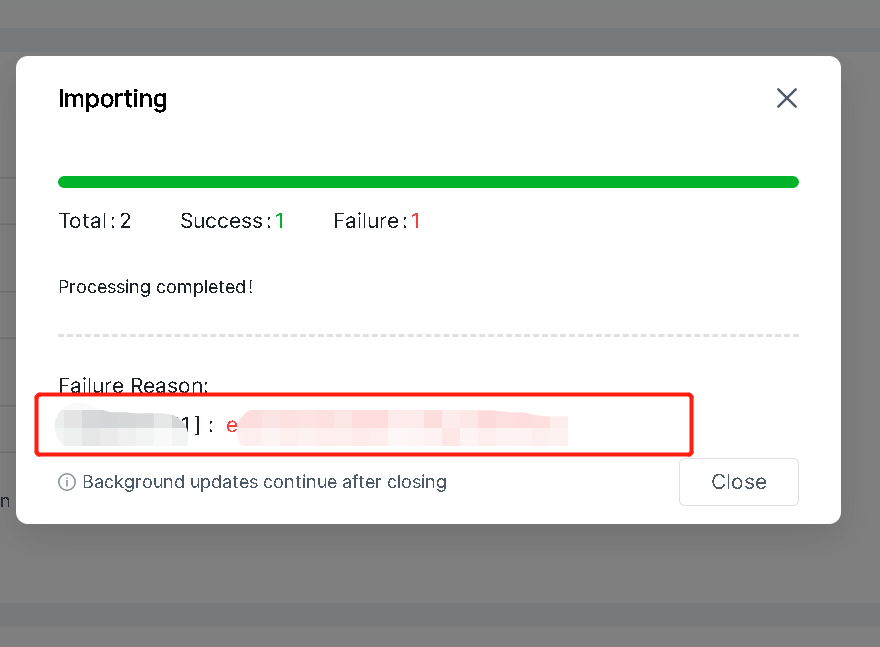
If Choose TEMU Ai migration, will import to TEMU bakend and you can check in TEMU backend with the listing.


If import failed, will show the reason and you can follow the reason to edit infomation from them migrate again.


If Follow 4Seller AI migration, you can follow below steps.

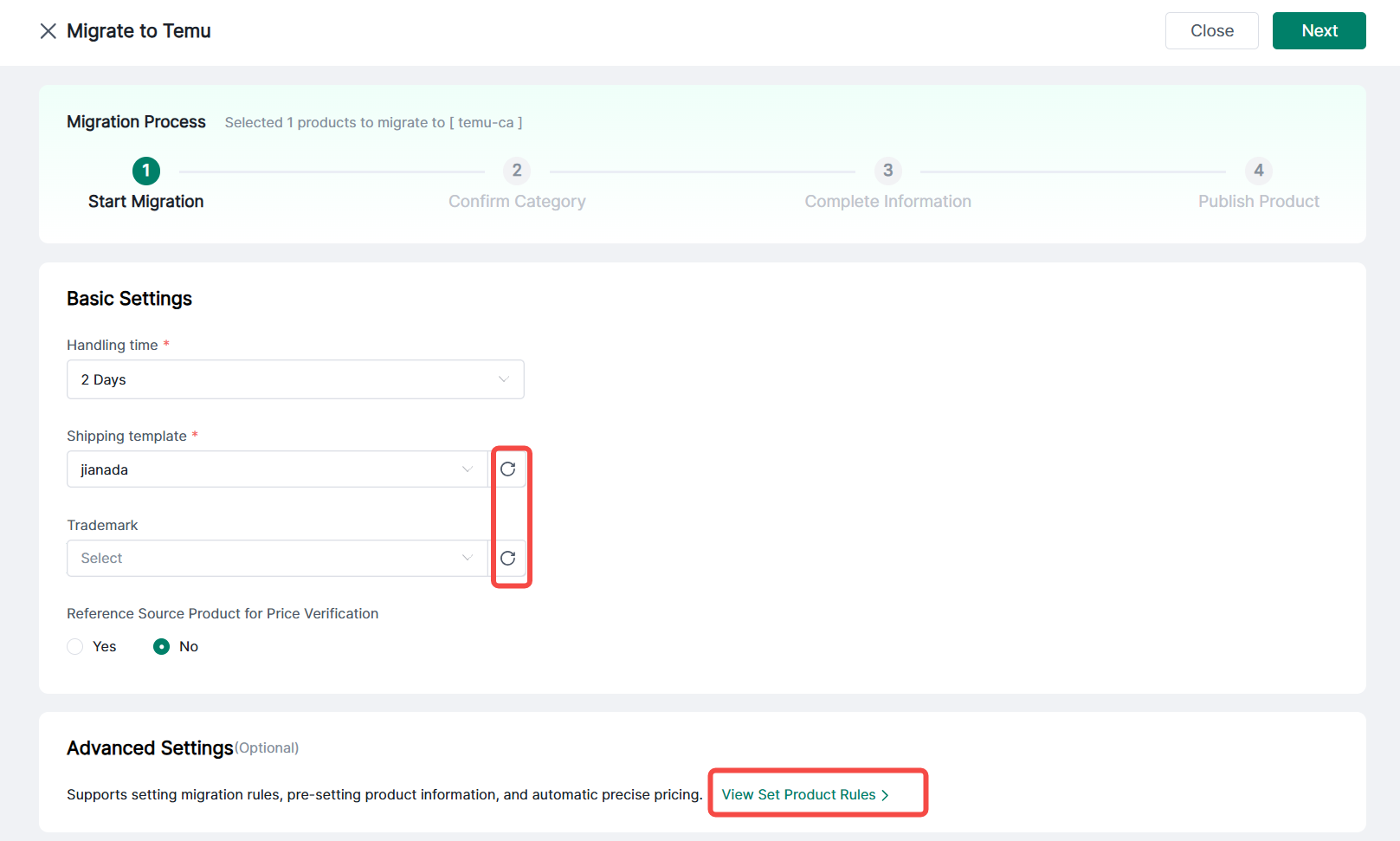
1. Basic Settings:

(1) Select shipping time (required). Default: 2 business days.

(2) Logistics template (required). Refresh to select; otherwise, default template applies.

(3) Trademark: Optional. Unselected by default. Select from dropdown after refreshing.

(4) Reference source product pricing: Optional. Default “No.” Selecting “Yes” transmits source product link to platform.

Note: If “Priority Matching Rule” is checked for shipping time/template, product rules will be prioritized.

2. Advanced Settings:

View existing product rules or click “Set Now” to create new rules.


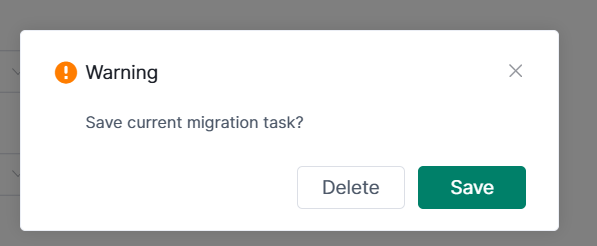
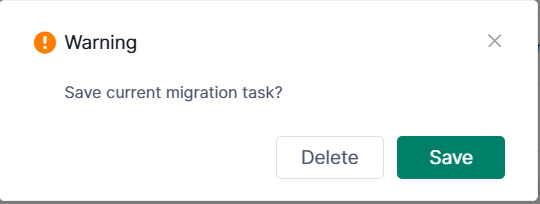
Note: Closing this page directly via the X button will trigger a pop-up warning.


(1) Save: Archives this migration task.

(2) Delete: Clears the current migration task.

3. After completion, click Next to proceed to the category matching page.


III. Confirm Categories

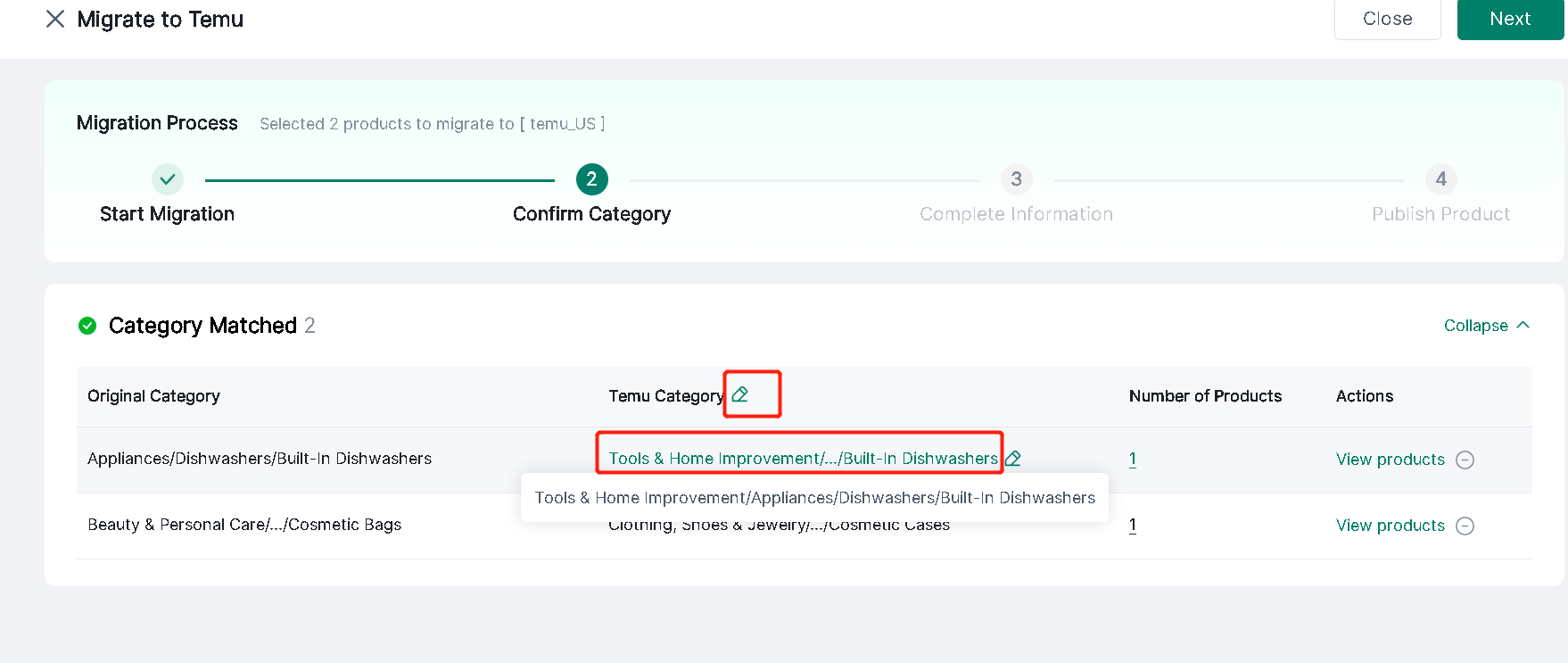
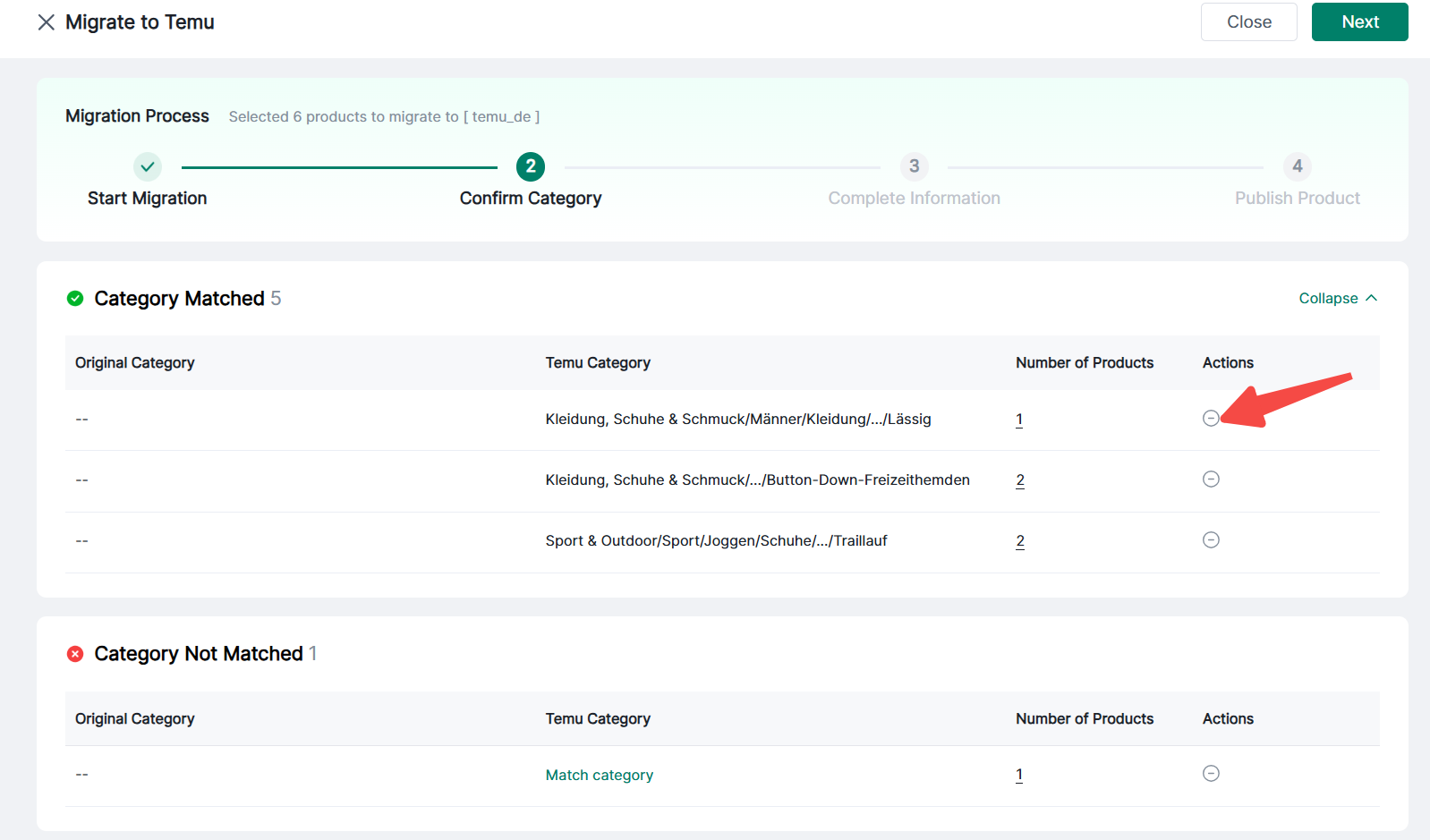
1. The page displays the number of products matched and unmatched to categories.

(1) Click View Details to see original categories and Temu destination categories.

(2) Click “Match Category” to manually match items in bulk;


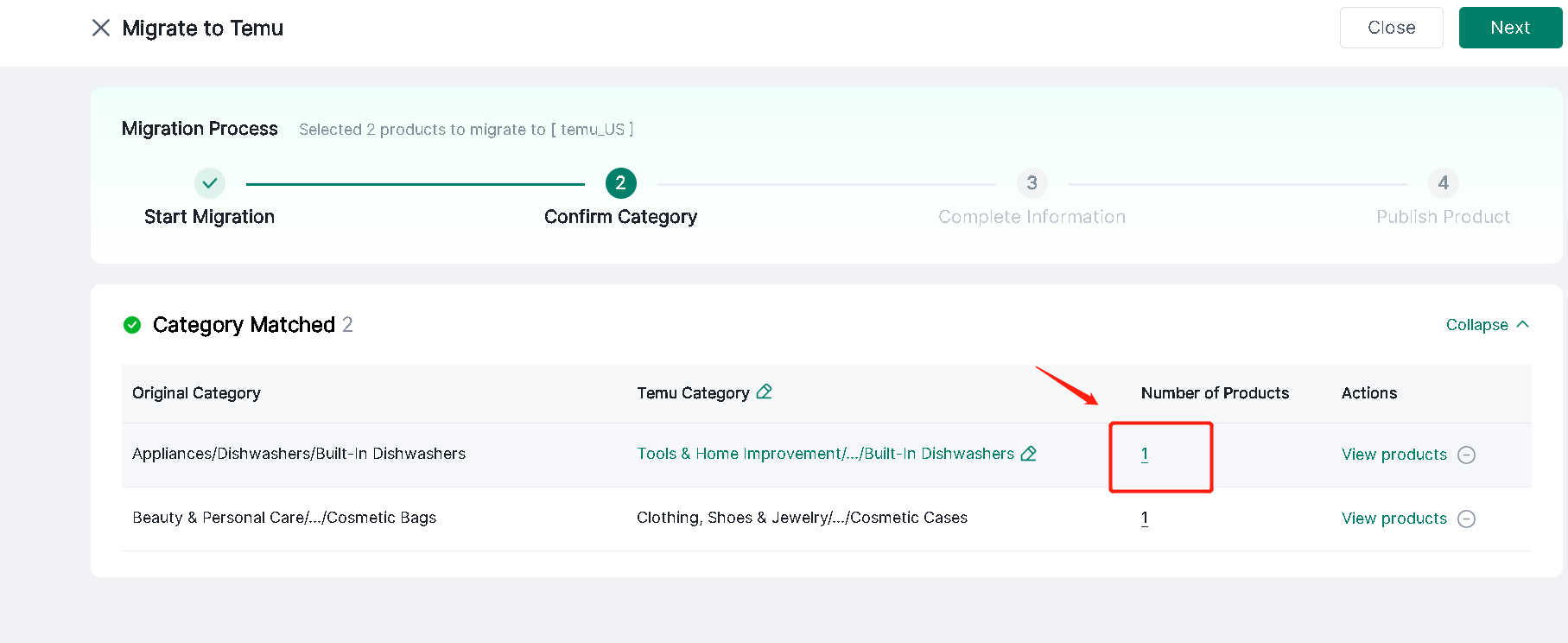
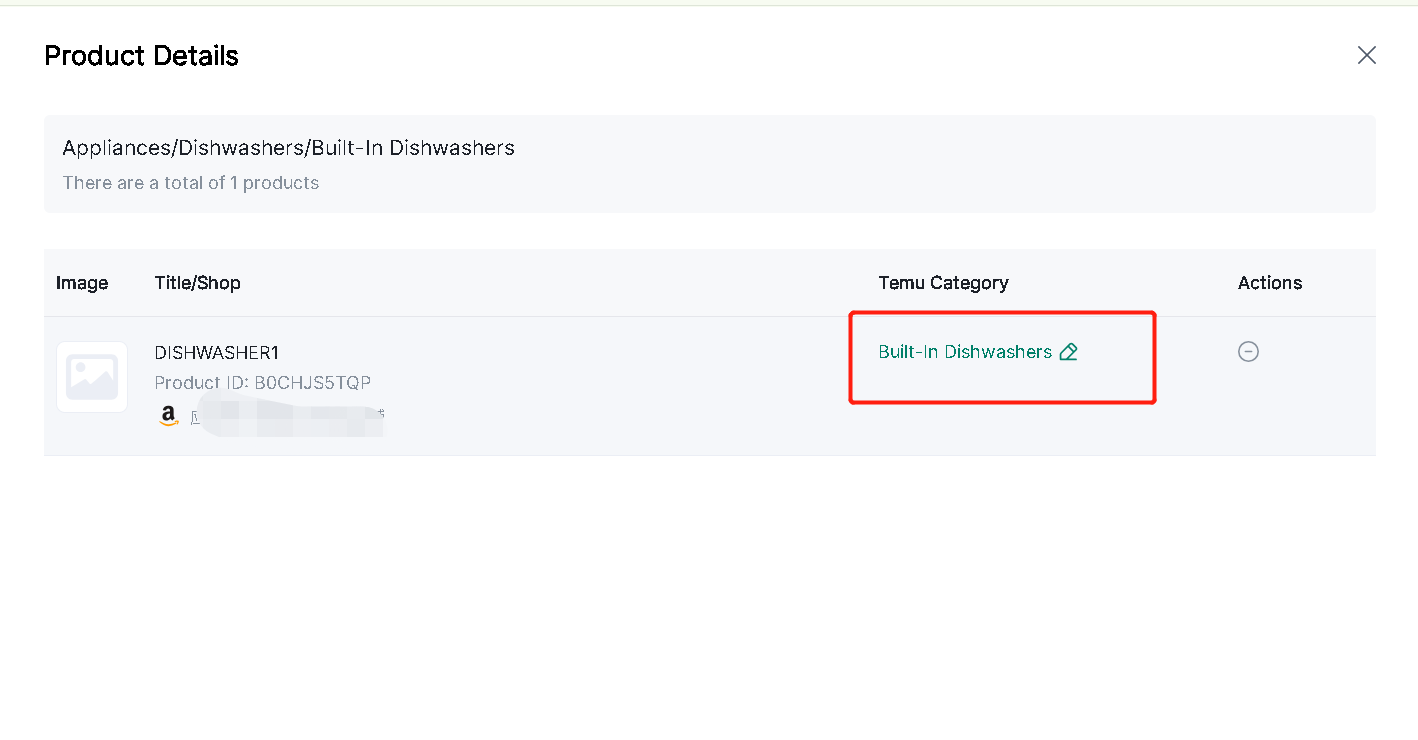
(3) Click the number below the item count to view specific products and manually adjust individual category assignments. The count updates after each item is matched;


(4) Click the “-” icon to remove an item from migration;


Note: Clicking Close or X on this page will trigger a pop-up window


(1) Selecting Save archives this migration task;

(2) Selecting Don't Save will clear the migration task

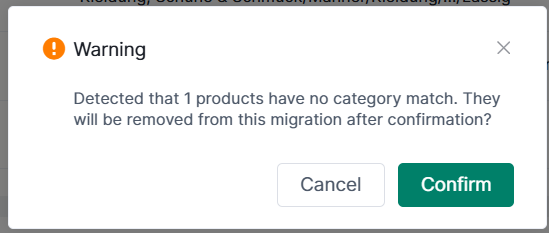
2. Click Next. If unmatched items exist, confirmation will remove them during migration


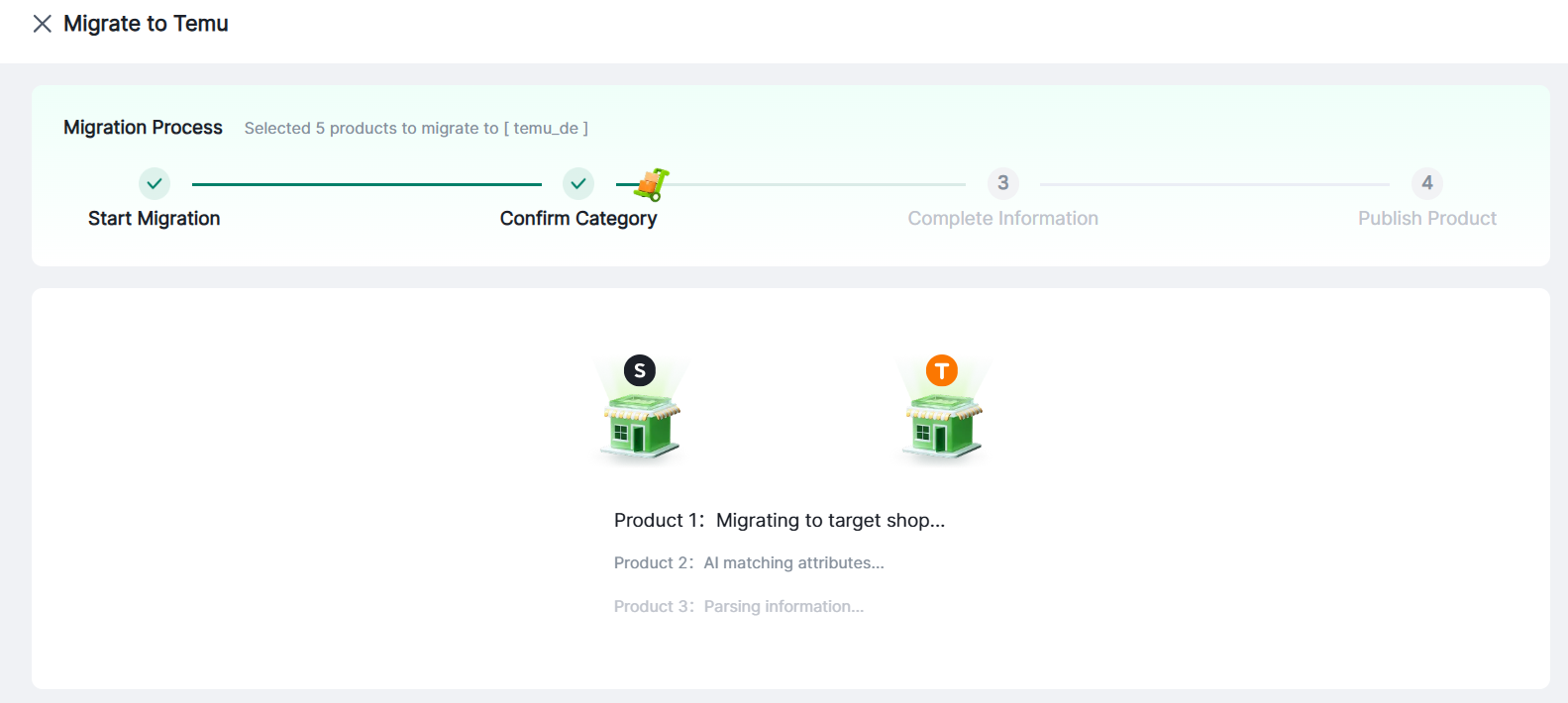
3. Wait for the progress bar to complete loading

(1) Successfully migrated items proceed to the Information Supplement page. Exiting here archives the task.


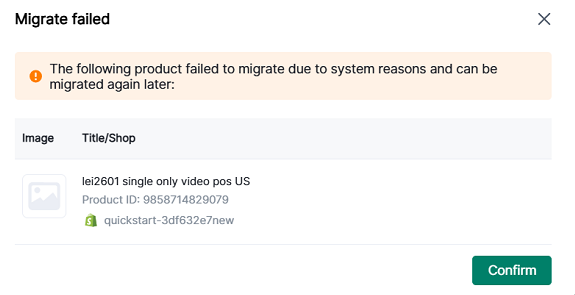
(2) If any items fail to migrate, a pop-up will appear stating: “The following product failed to migrate due to system reasons and can be migrated again later.”


Note: Clicking Close on this page will prompt a save confirmation pop-up box. Clicking Save archives this page.

Due to differing platform requirements, migrated item information must be supplemented and modified before successful publication.

IV. Supplementary Information

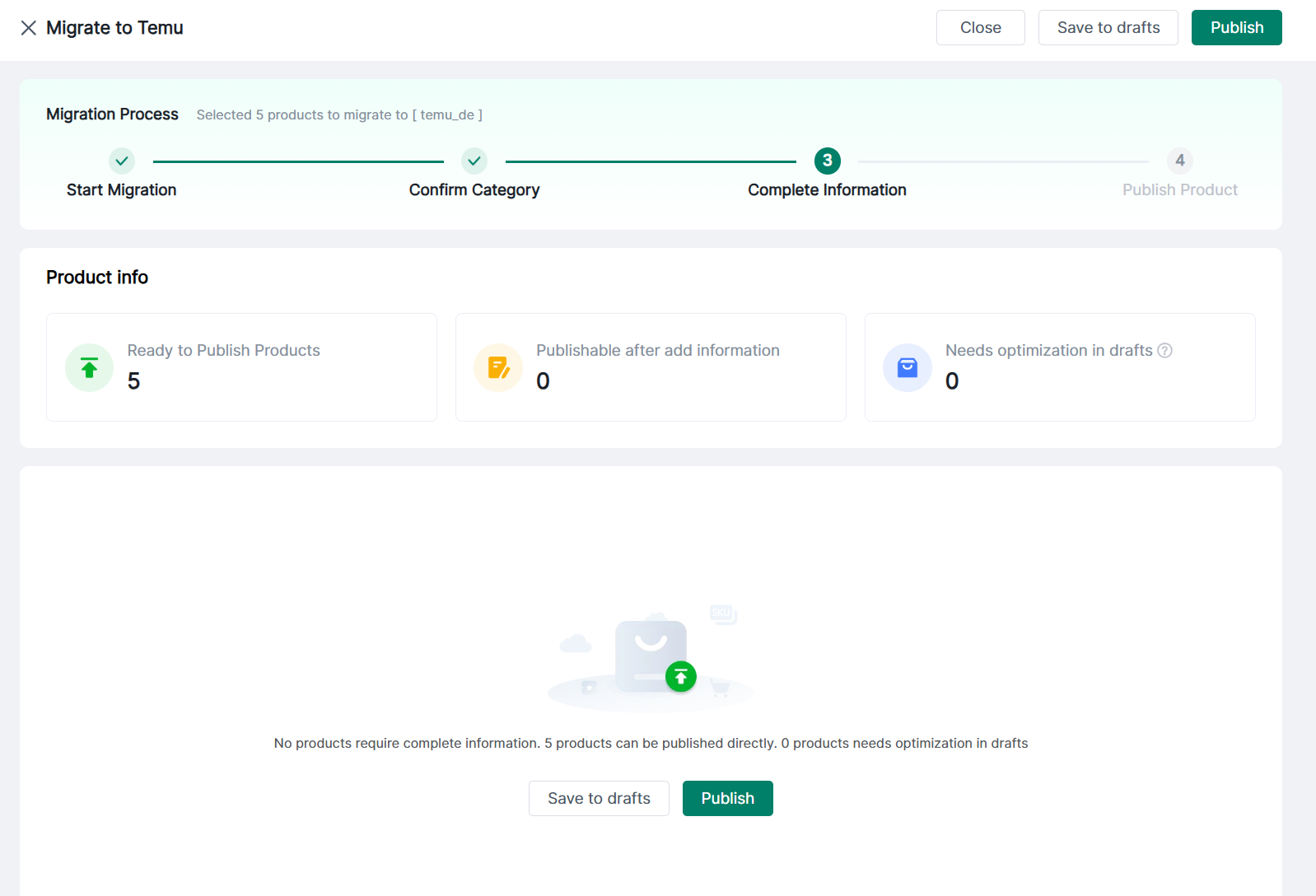
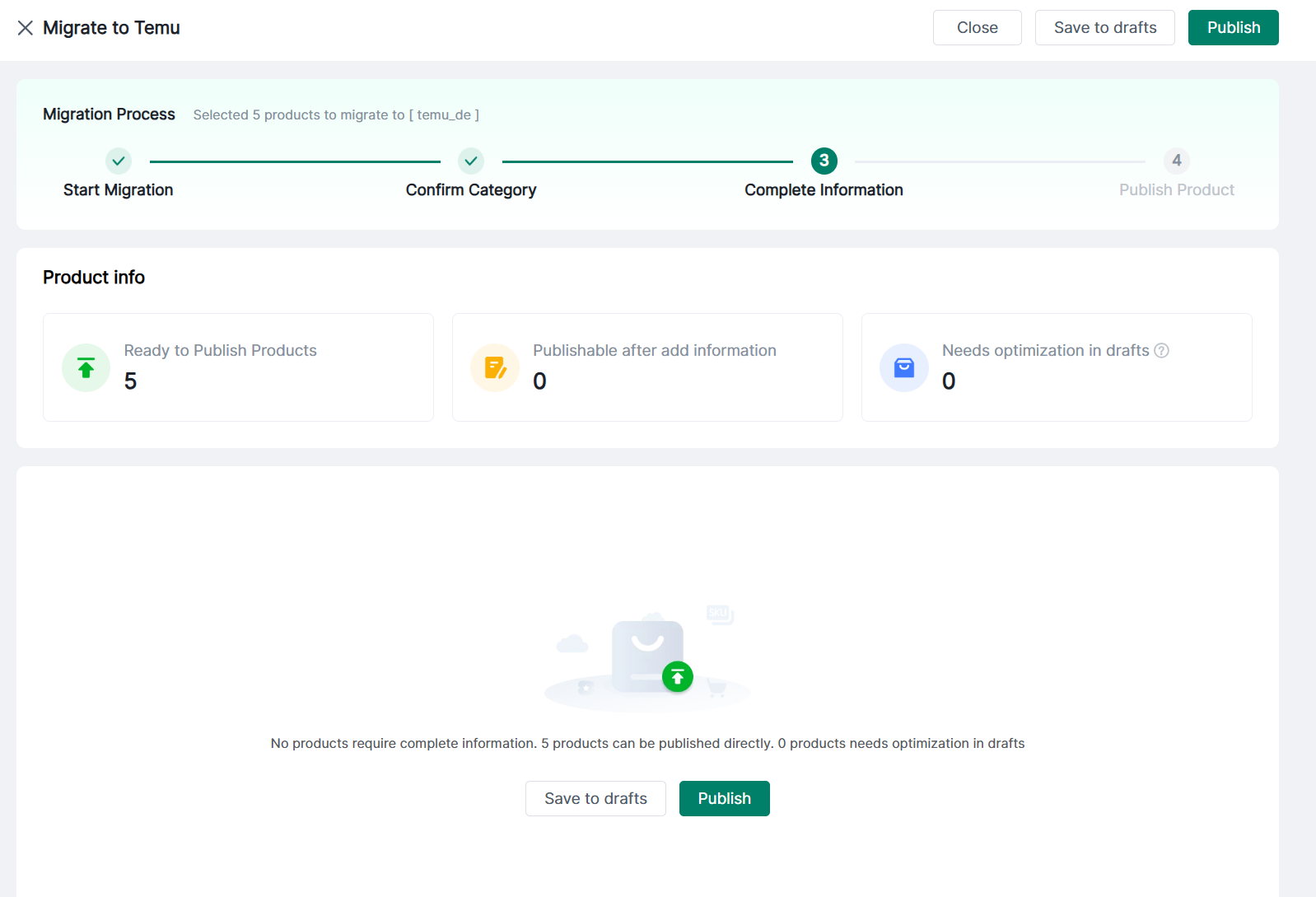
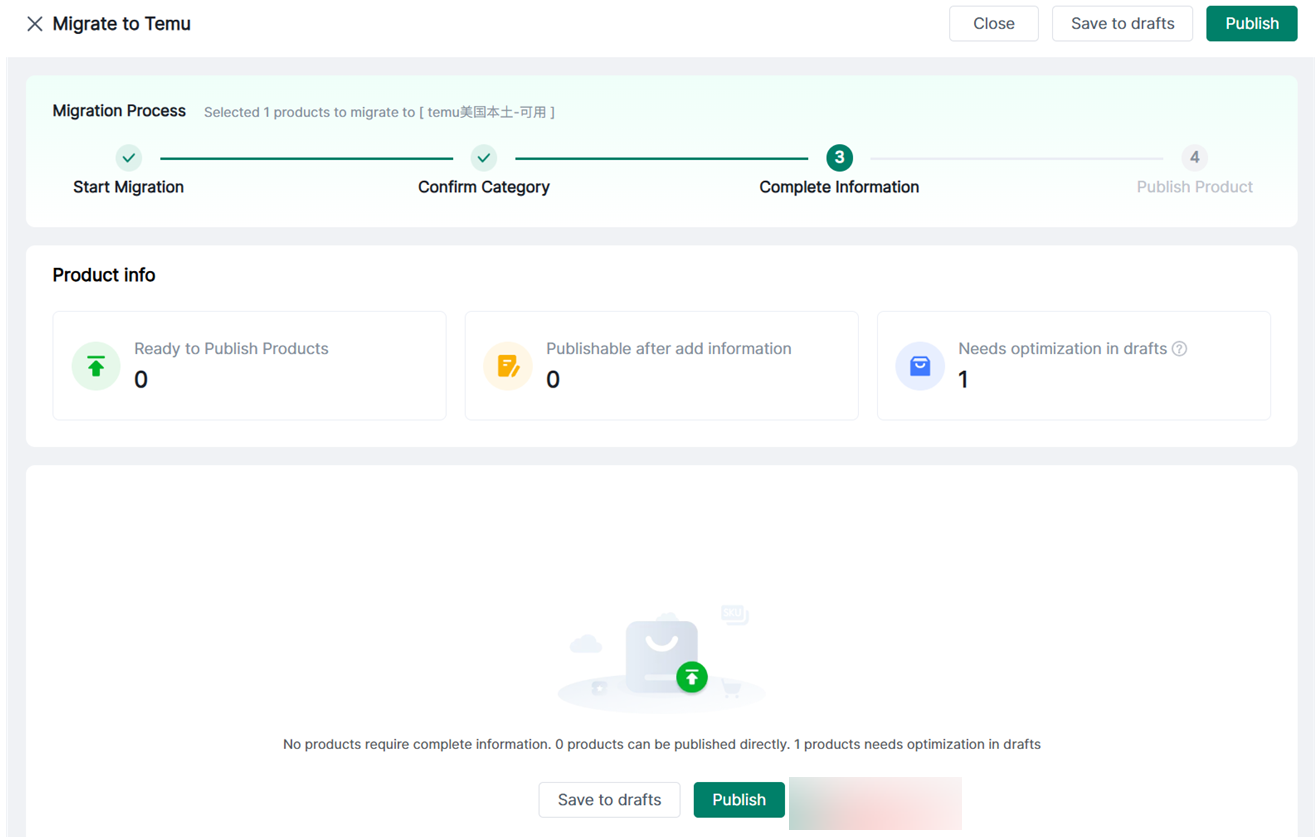
1. Eligible Products: Items meeting the platform's listing requirements

2. Products Eligible for Publication After Supplementing Information: Items lacking the information listed below

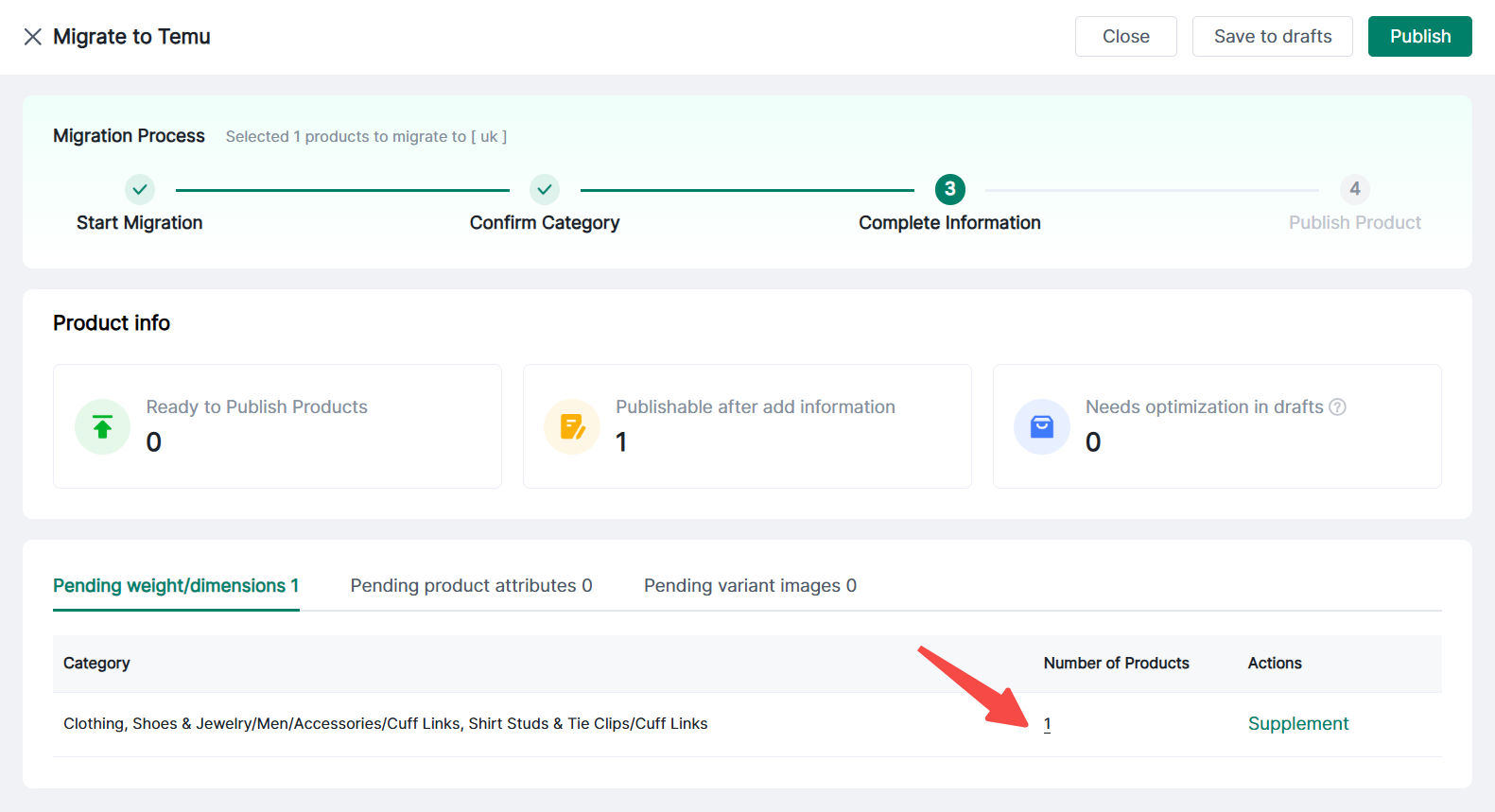
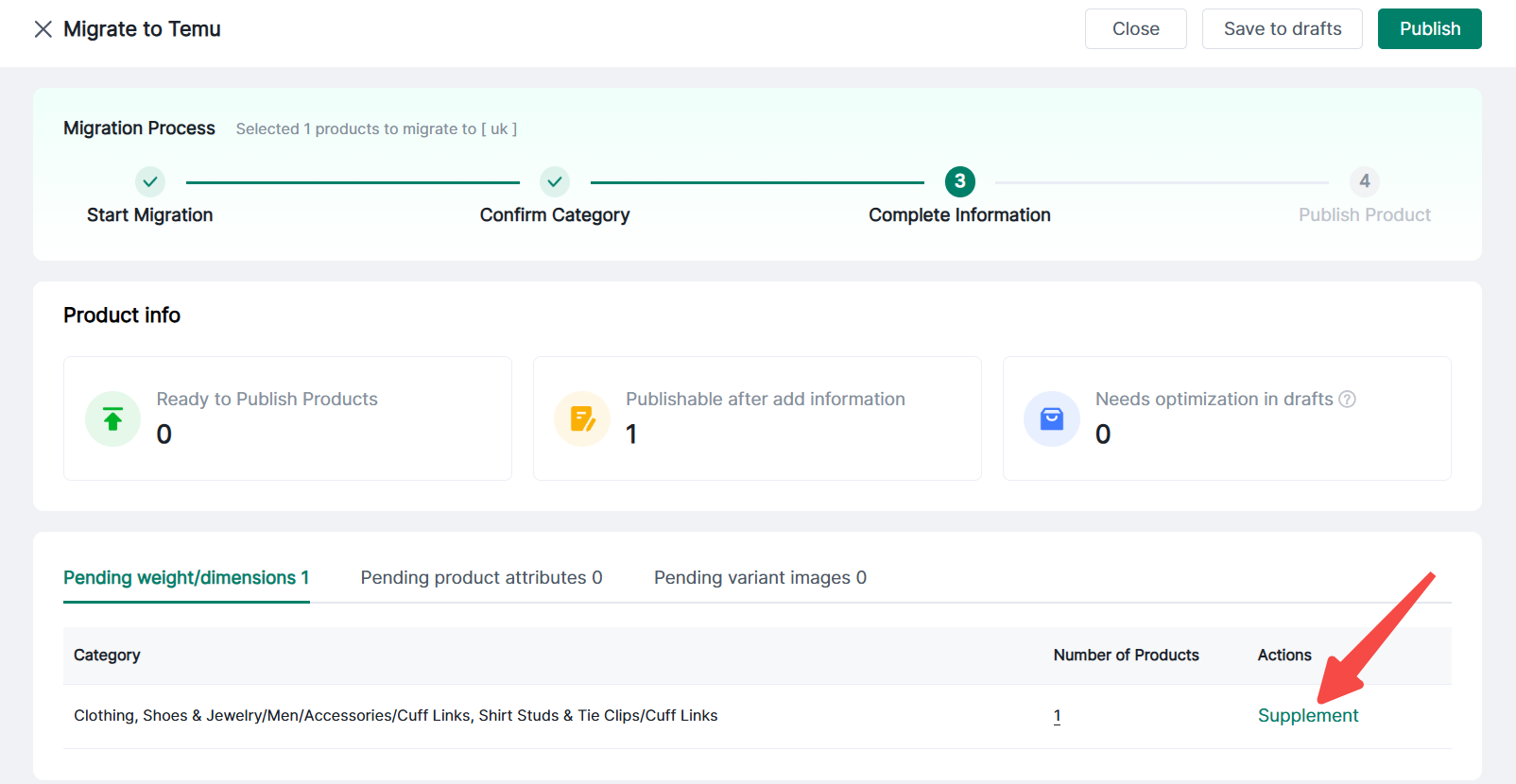
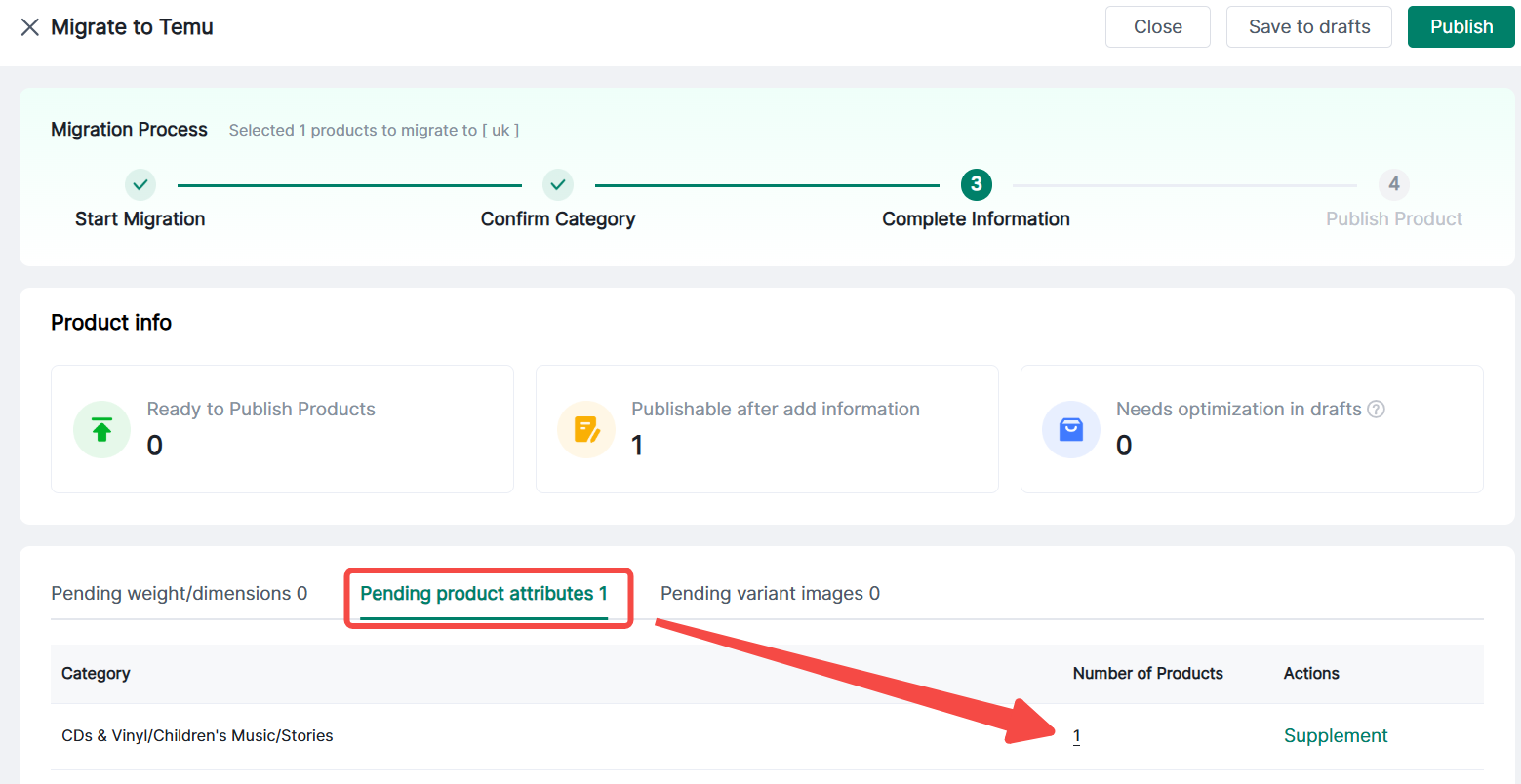
Supplementary information falls into three categories: Weight/Dimensions to be supplemented, Product Attributes to be supplemented, Variant Images to be supplemented. The right side displays the number of products lacking each type of information. Click different modules to supplement information accordingly.


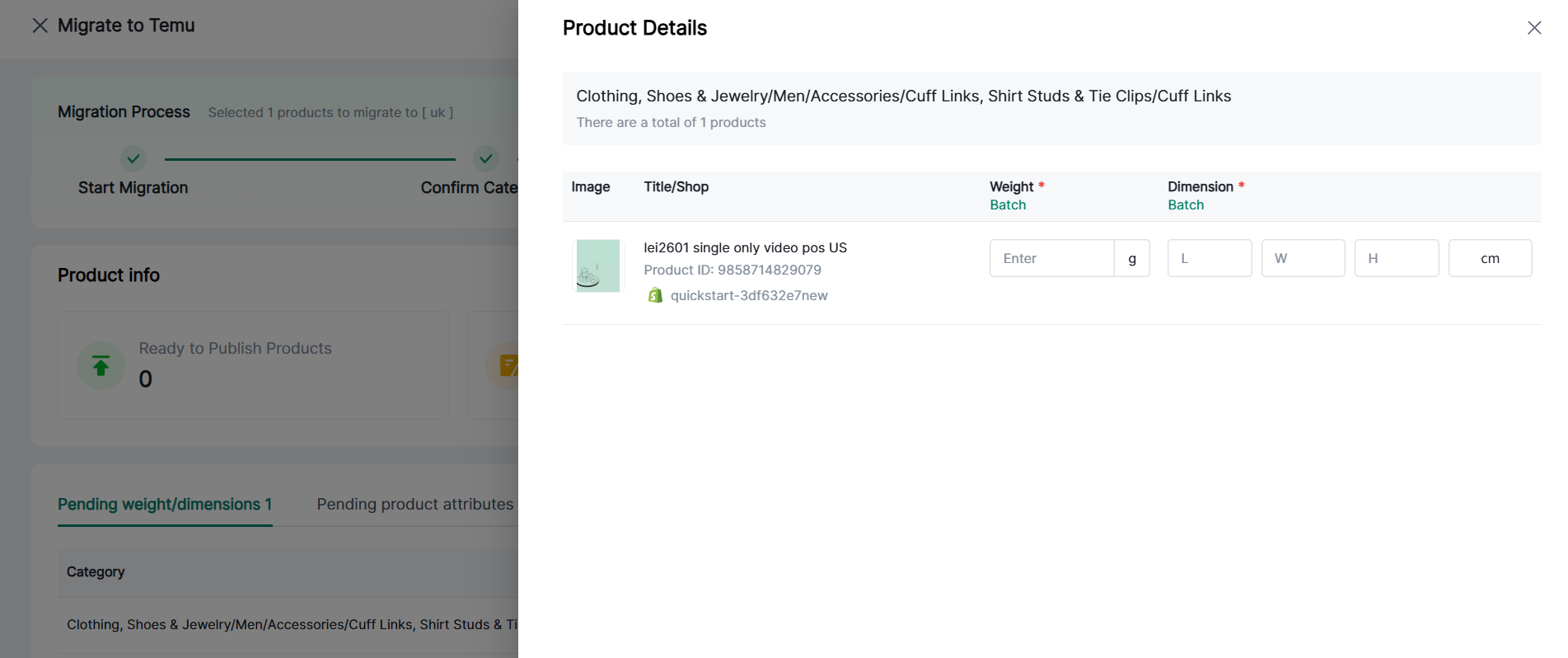
(1) Weight/Dimensions to be supplemented: Select only variants lacking weight or dimensions

① Individual product supplementation: Click the specific product quantity to enter the single-item information supplementation page.


② Batch supplementation: Click “Supplement” to uniformly add information for products within the same category.


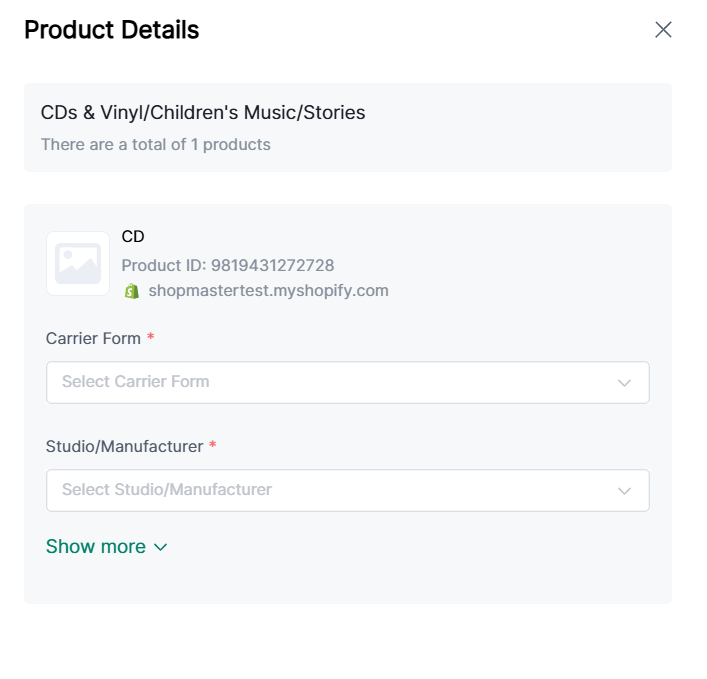
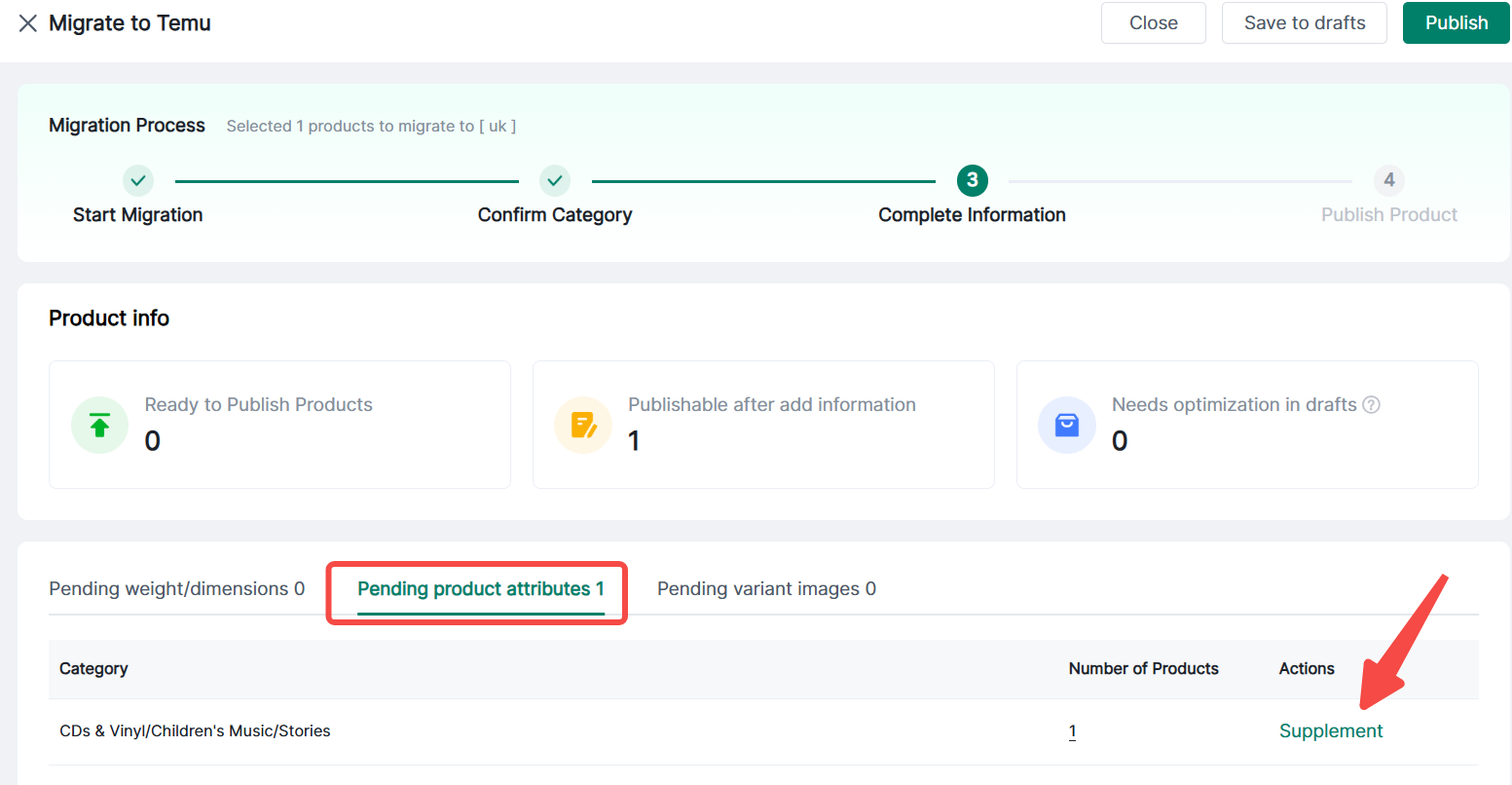
(2) Product attributes to be supplemented

① Individual supplementation: Click the specific product quantity to enter the single-item information supplementation page.


② Batch supplementation: Directly click “Supplement”.


(3) Variant images requiring supplementation. You may select to apply to same color.

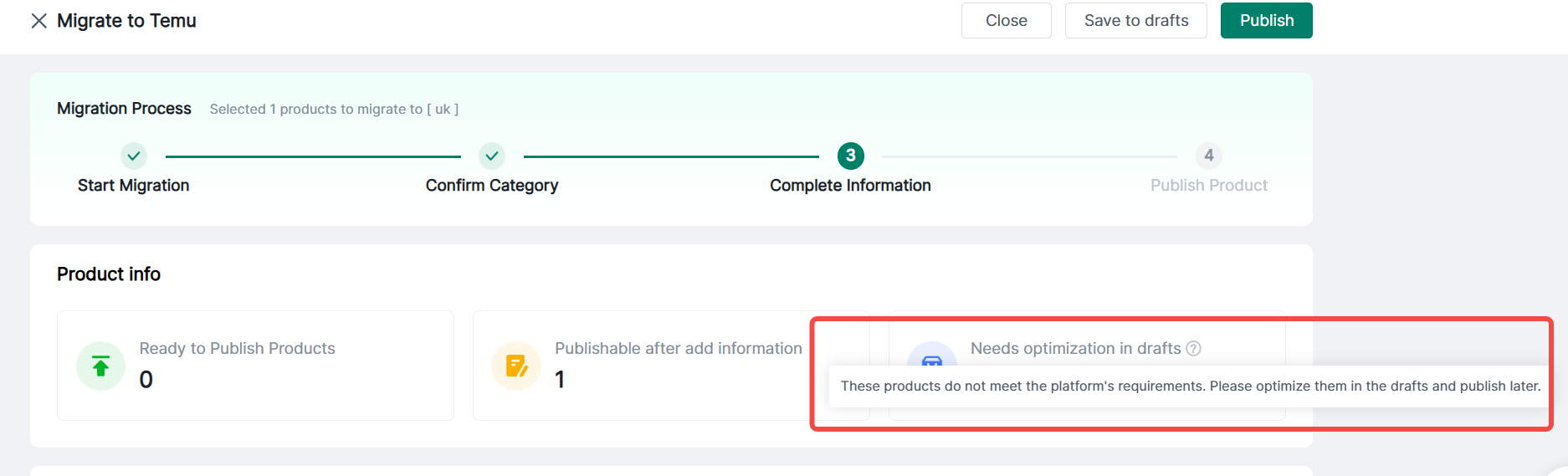
3. Requires Draft Optimization: These products do not meet the platform's requirements. Please optimize them in the drafts and publish later.


4. A pop-up window will appear after all supplementation is complete.


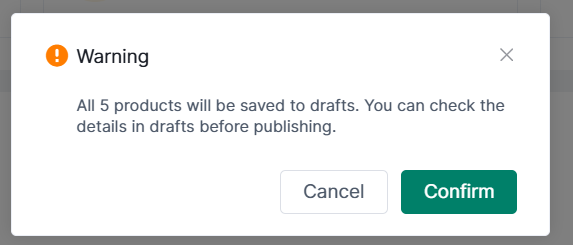
(1) Clicking “Save to Draft” will display a pop-up window.


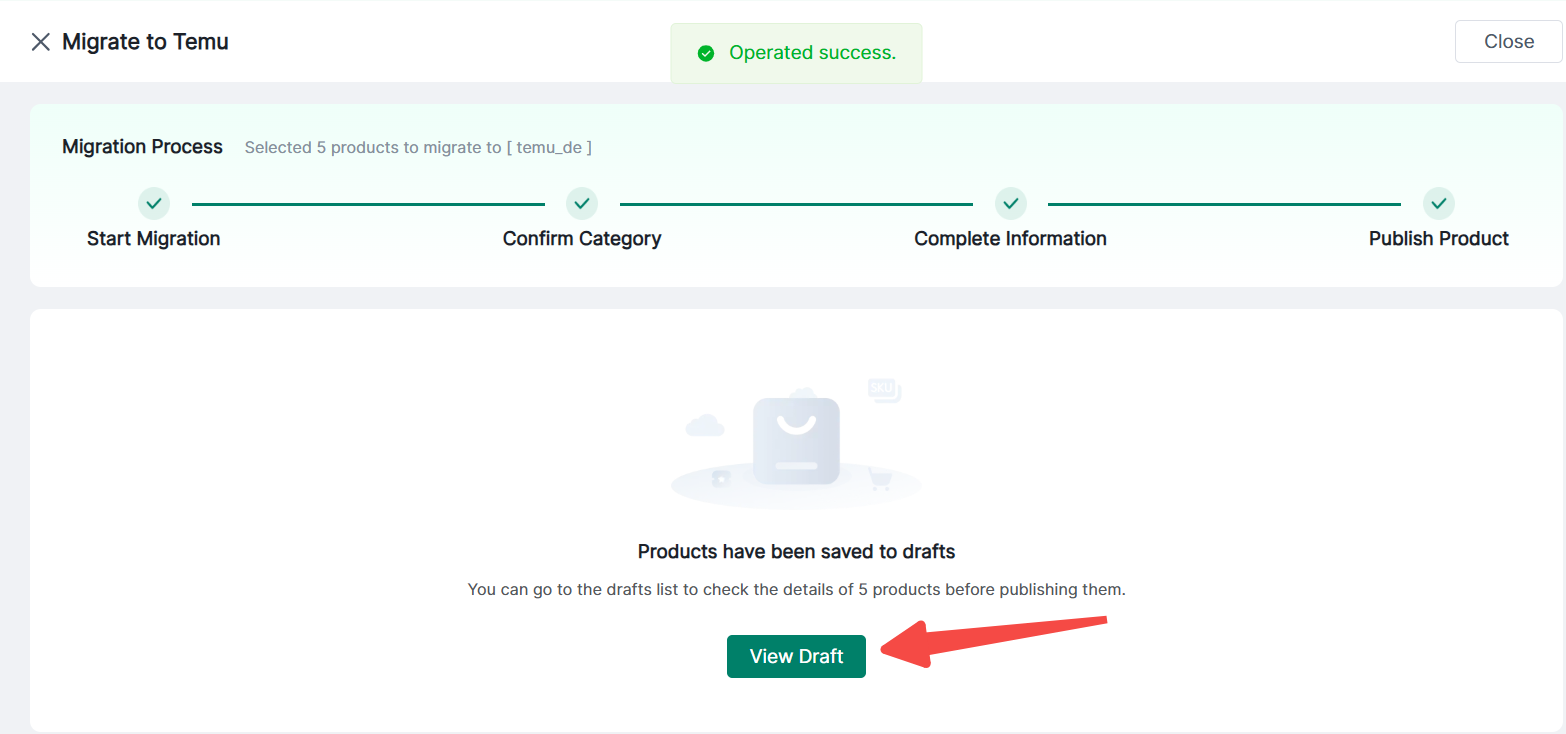
① Click “Confirm” to save all products to Draft mode. You may click to view Draft.


(2) Click “Publish” to proceed to the product publishing page


V. Publishing Products

1. After clicking “Publish,” a confirmation page will appear

(1) If products requiring supplementary information exist

(2) If no products require supplementary information, a pop-up will confirm: “xx publishable products will be published. Confirm?”

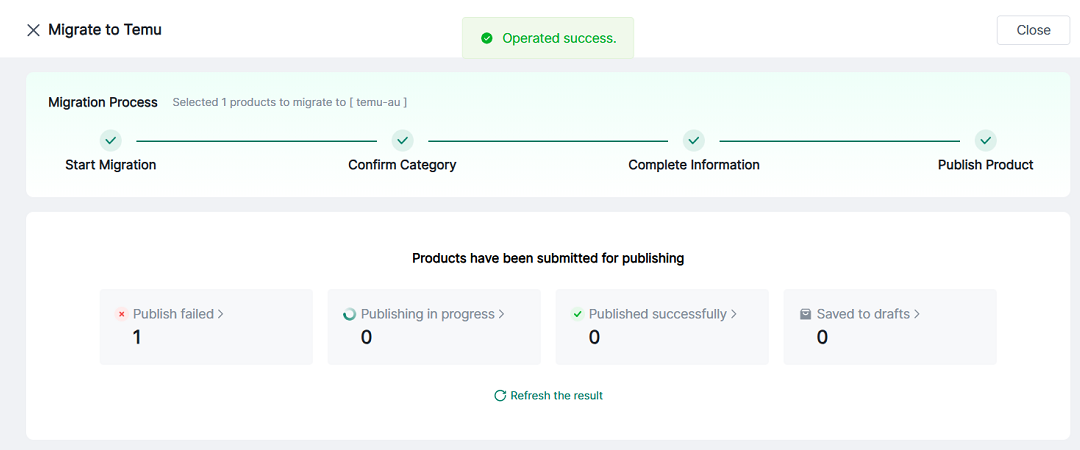
2. Product publishing status will display below


(1) Publishing failed: Redirects to the draft page for failed products in this task

(2) Publishing: Redirects to the draft page for items currently publishing in this task

(3) Published Successfully: Redirects to the published items page for this task

(4) Saved as Draft: Redirects to the draft page for items requiring additional information or optimization in this task

3. Save as Draft: Click View Draft to jump to the drafts section, displaying products saved during this migration process


Any problem feel free to contact 4Seller Support Team: support@4seller.com.