- Get Started
- Video Tutorials
- Knowledge Base
- FAQs & Troubleshooting
How to perform 2FA
To better safeguard users' account security, 4Seller has introduced two‑factor authentication.

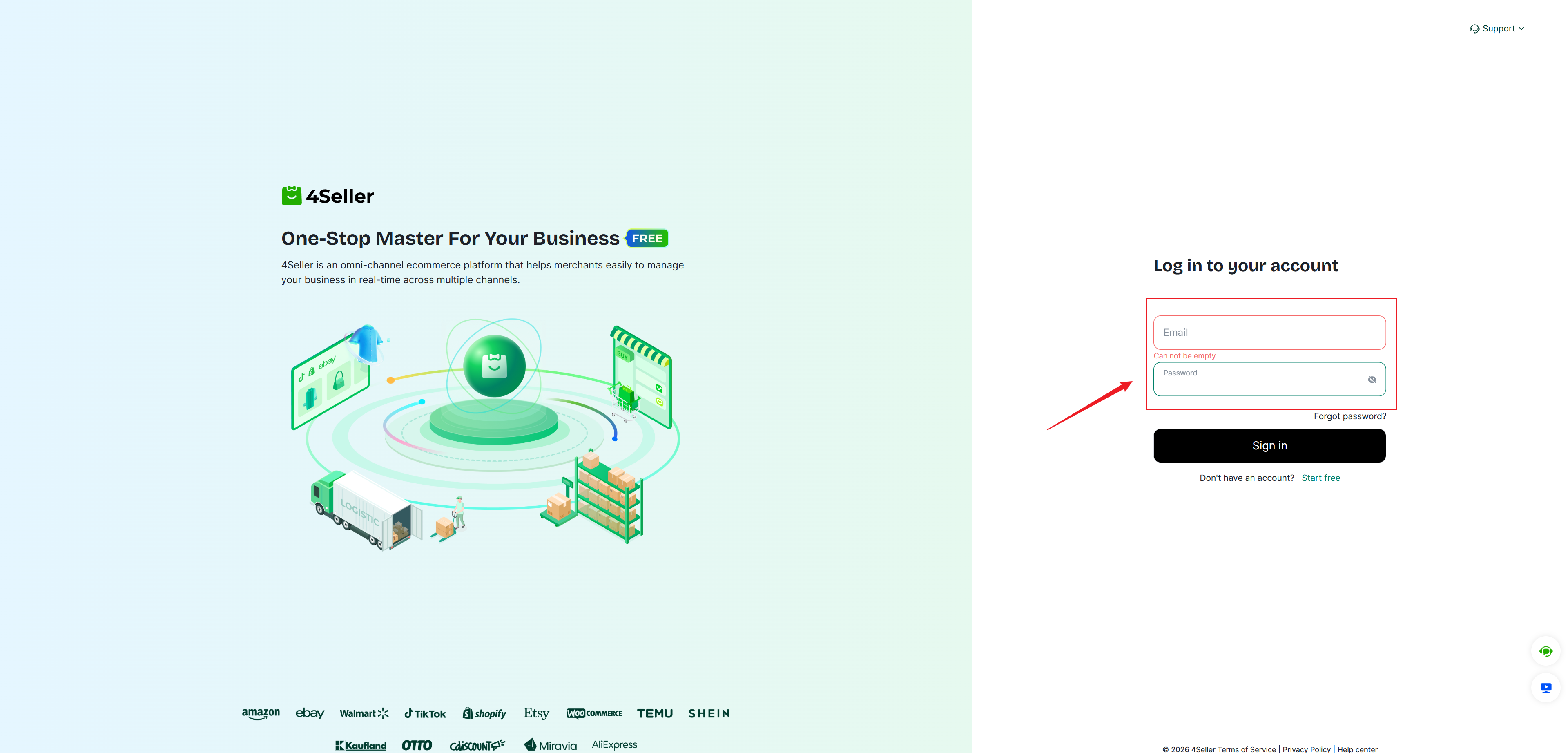
Step One: On the login page, enter your account, password and verification code, then click Log In to proceed with 2FA.


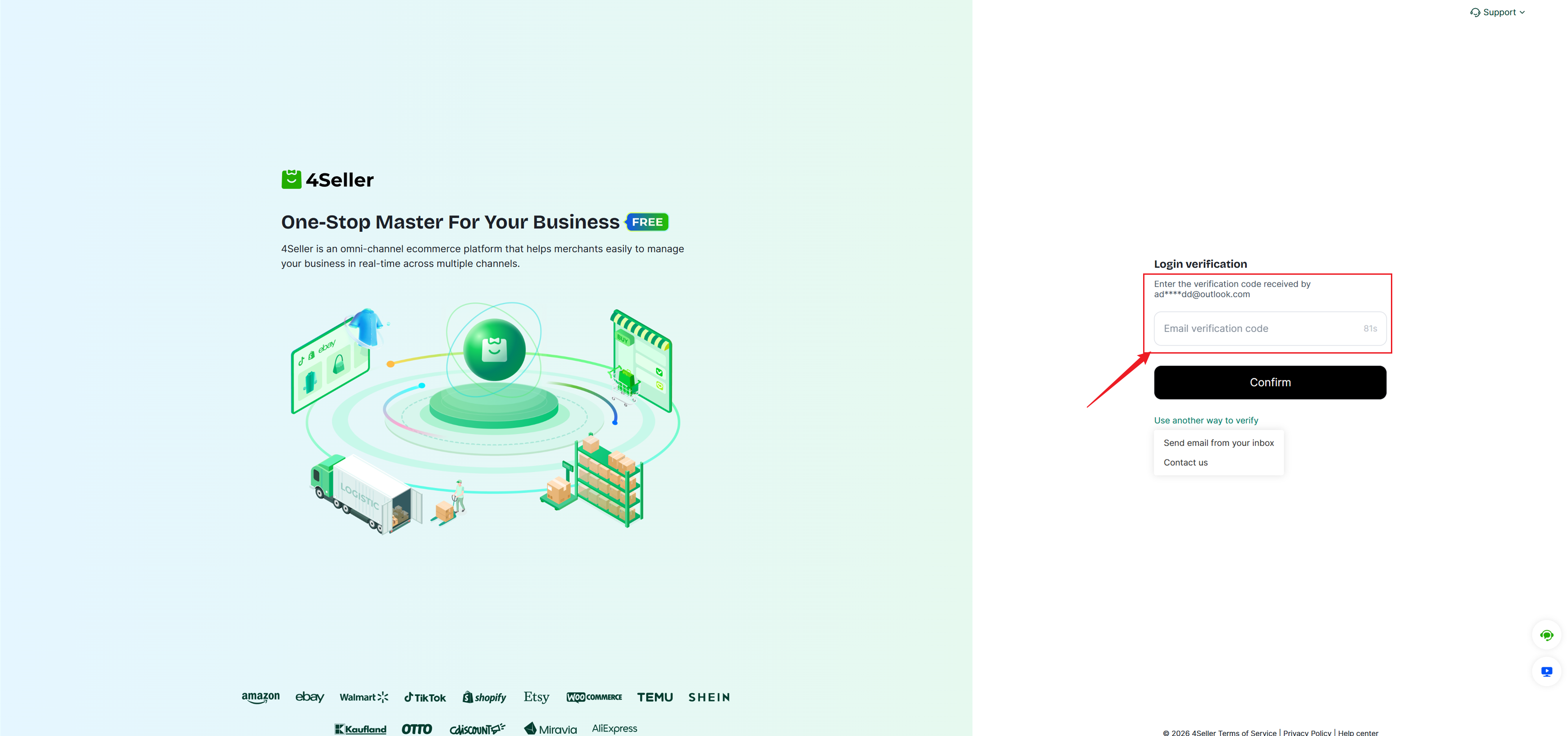
Step Two: Go to the verification page

1.Go to the email verification page, where you need to enter the verification code.


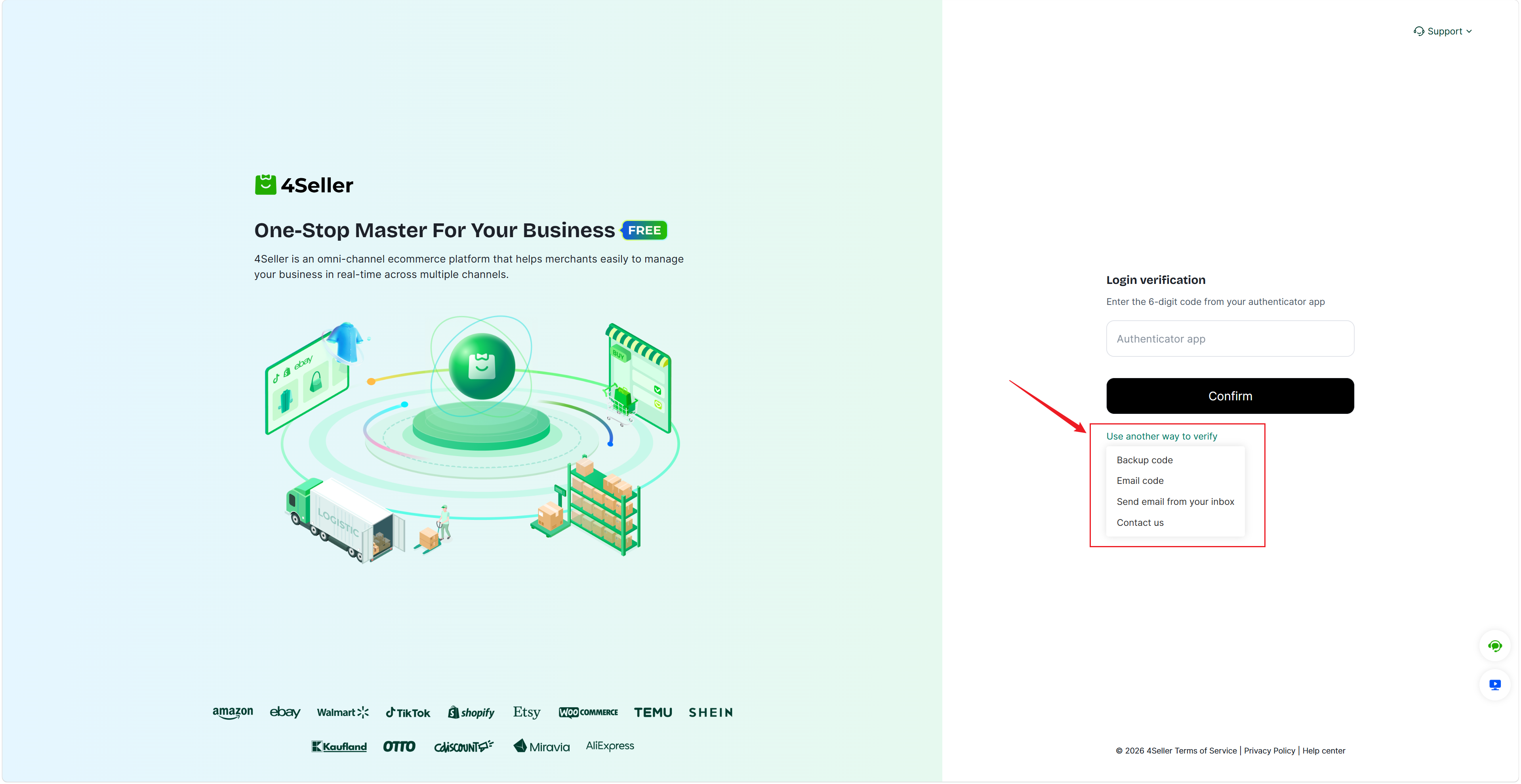
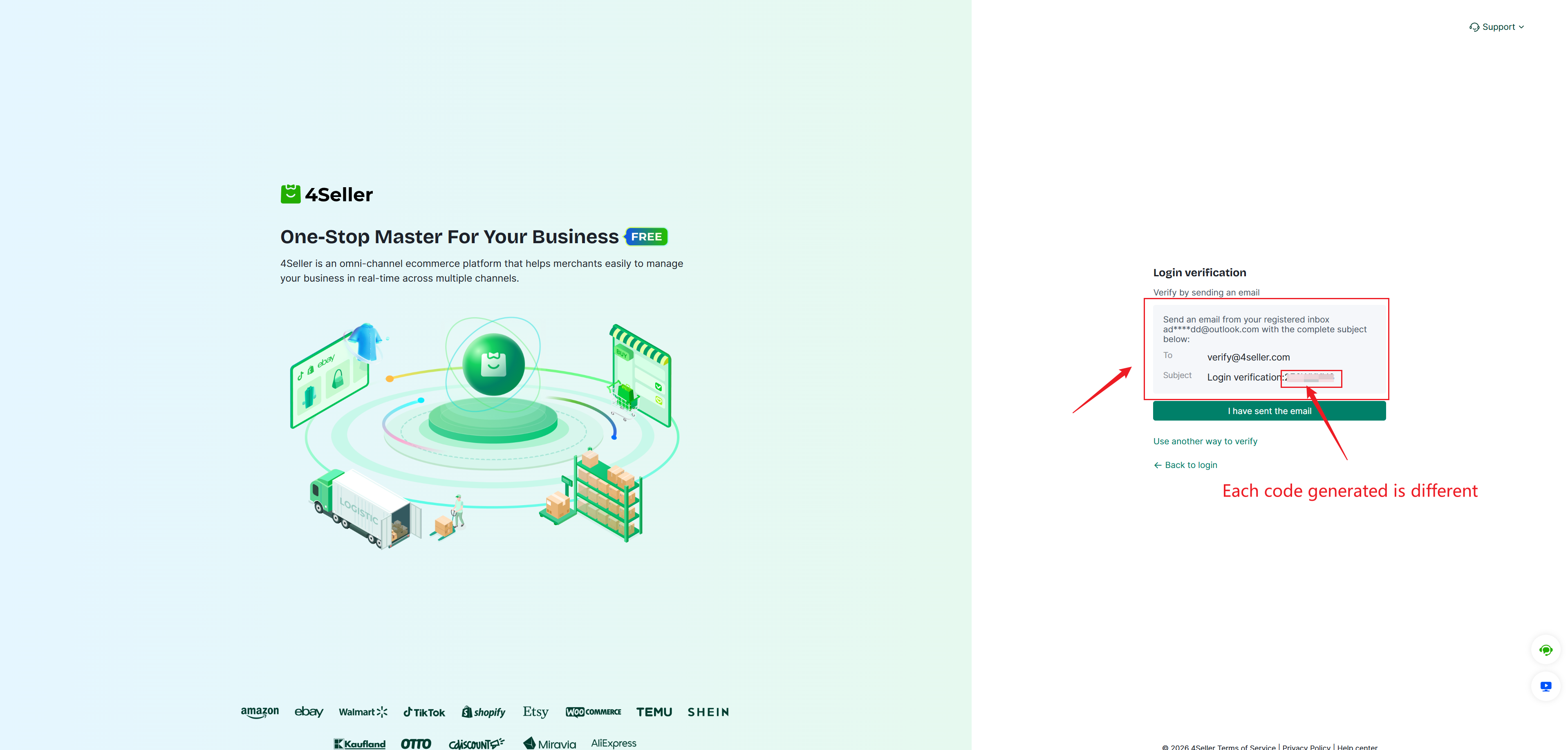
2. You may also select other verification methods,including: user‑initiated emails, SMS verification, authenticator app, backup codes, etc.


1)If you choose to send an email on your own initiative, please send an email from your registered email address to verify@4seller.com. Set the email subject to “Login verification: XXXXXX” (where XXXXXX is a dynamic code. Please use the dynamic code displayed when you log in, refer to the screenshot below). The email body can contain any text.


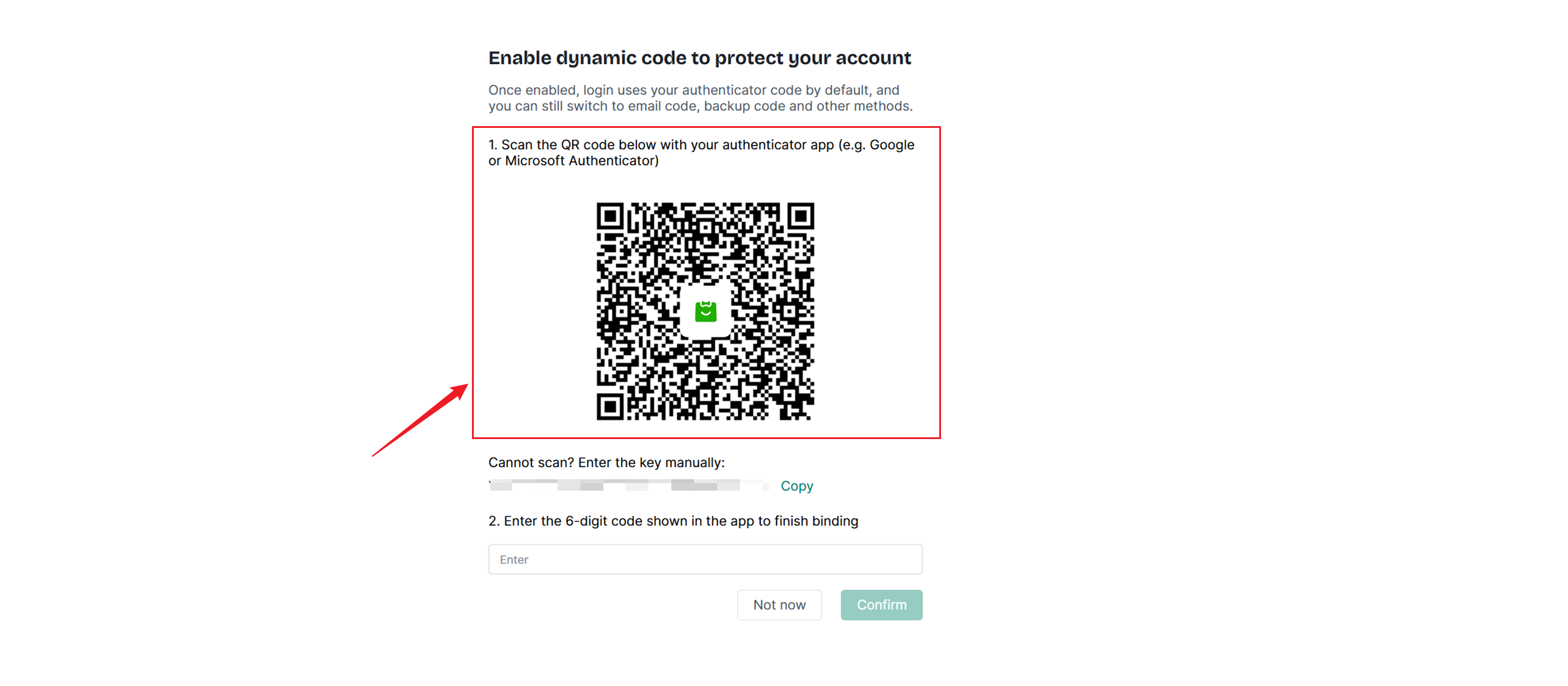
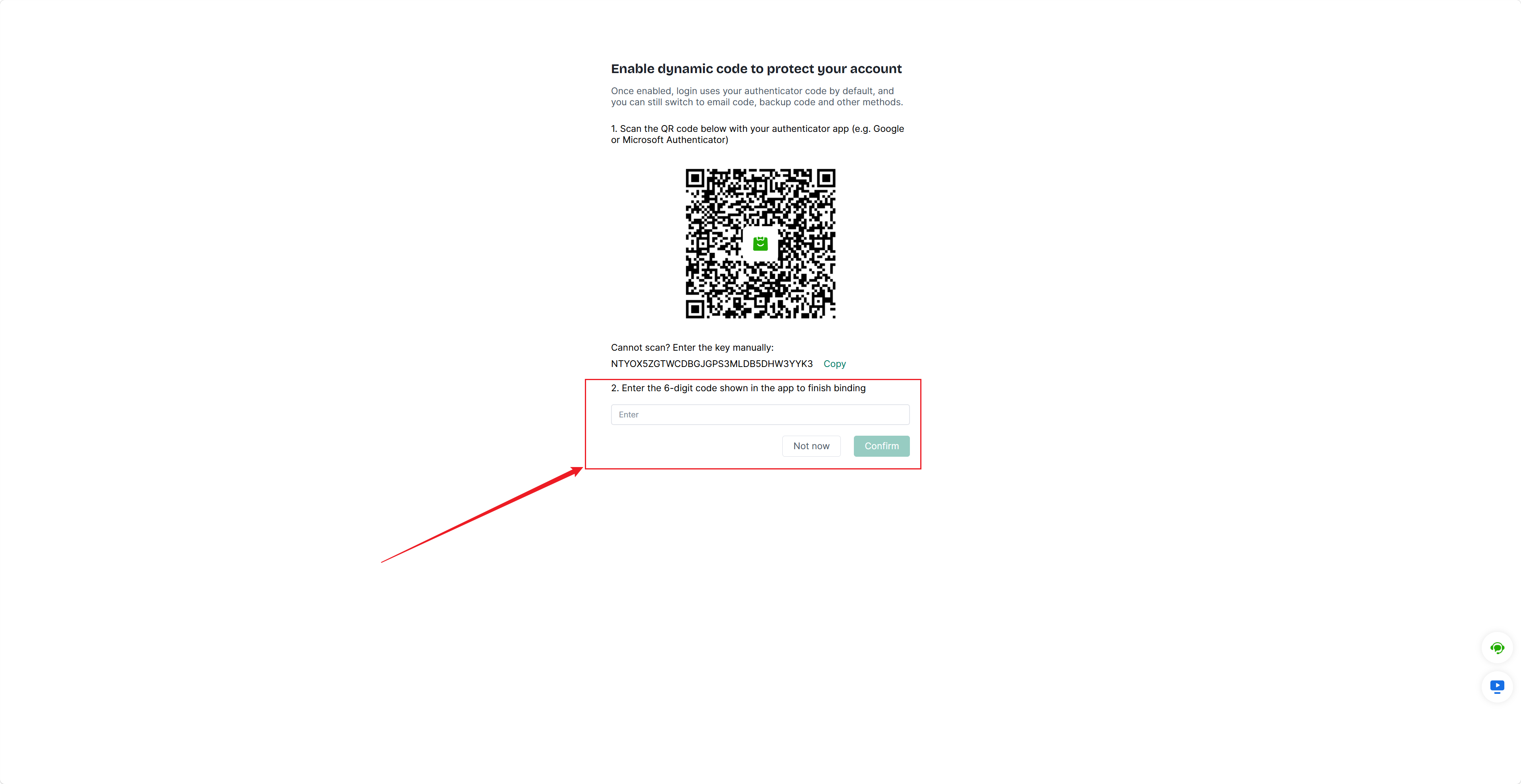
2) If you want to select the authenticator app as your two‑factor authentication method (recommended by 4Seller), you must first complete identity verification via another two‑factor authentication method. Then scan the QR code with your authenticator app and enter the generated dynamic verification code into the input box in Step 2 to finish binding the authenticator app. After successful binding, you can complete two‑factor authentication directly by using the dynamic verification code generated by the authenticator app for subsequent logins.


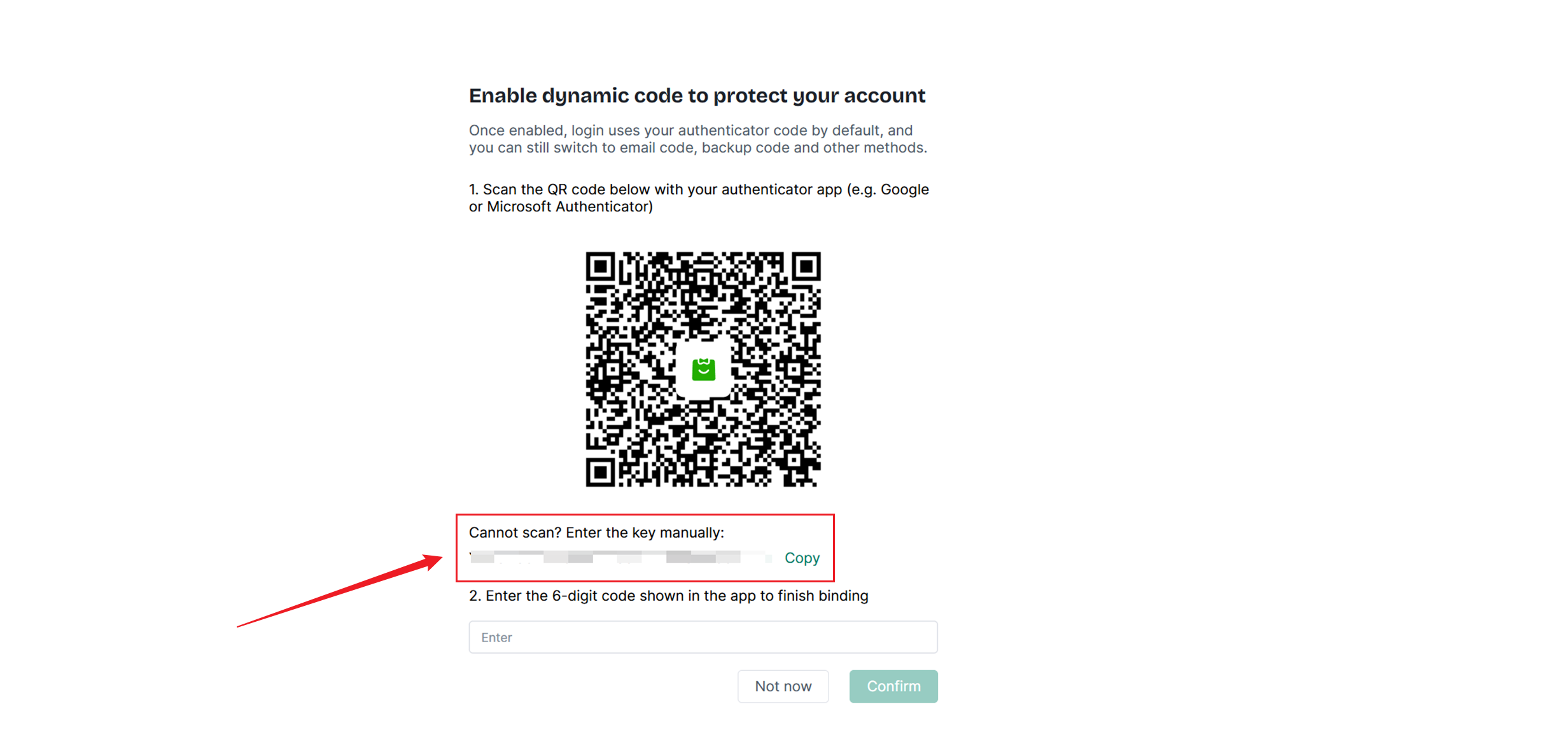
3) If you do not wish to scan the QR code or encounter issues preventing you from scanning it, you may choose to enter the secret key manually. Copy the secret key below and paste it into the corresponding field in your authenticator app.


Note: To bind an authenticator, you first need to download the Google Authenticator or Microsoft Authenticator app on your mobile phone. Alternatively, you may install the Google Authenticator or Microsoft Authenticator browser extension.

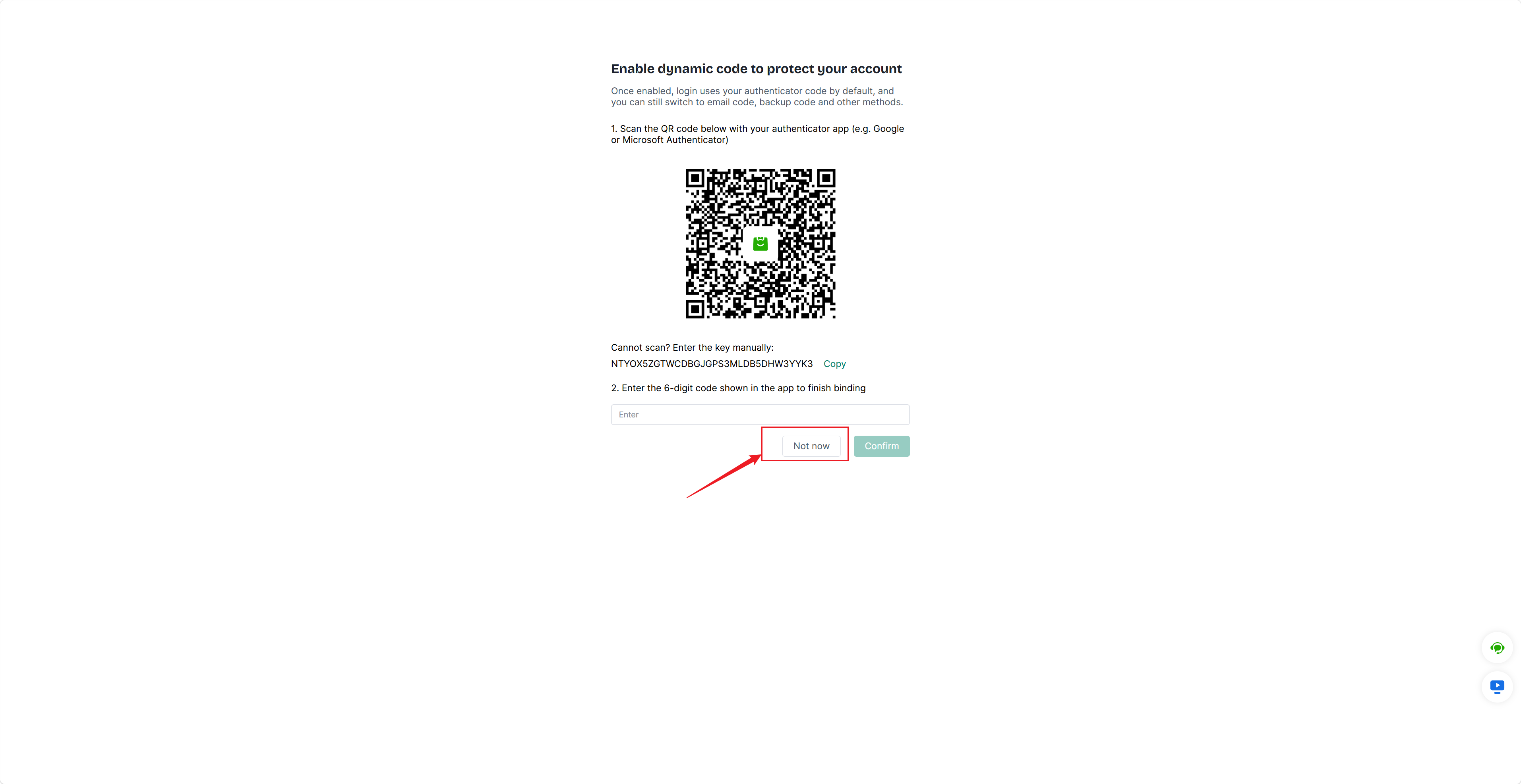
If you do not wish to enable the dynamic verification code feature, select Not now on the screen shown below to skip this setup.


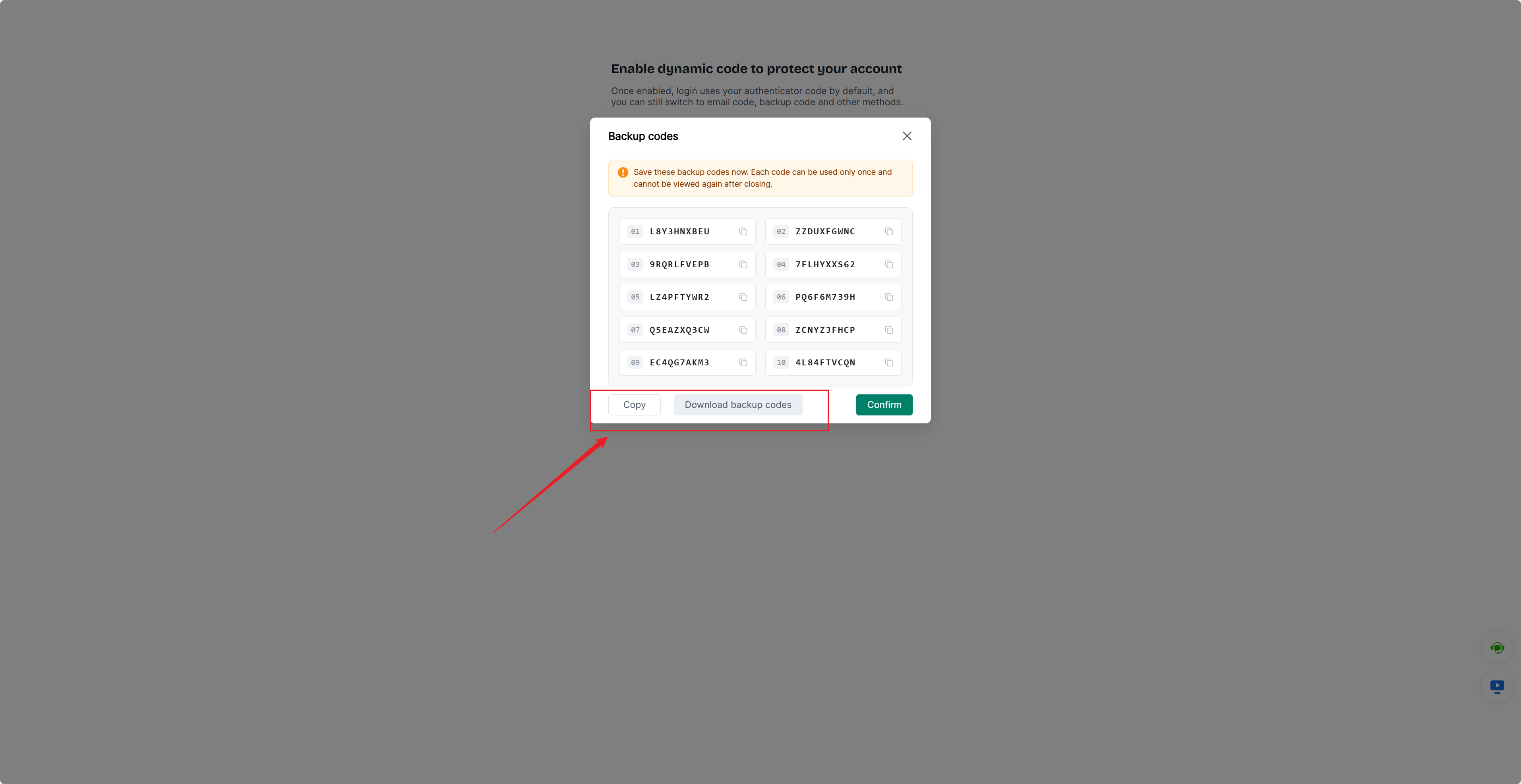
4)If you need to log in by using backup codes, copy your backup codes for safekeeping or download the backup‑code file when the following pop‑up window appears. After saving them, you can select backup‑code login for subsequent sign‑ins.

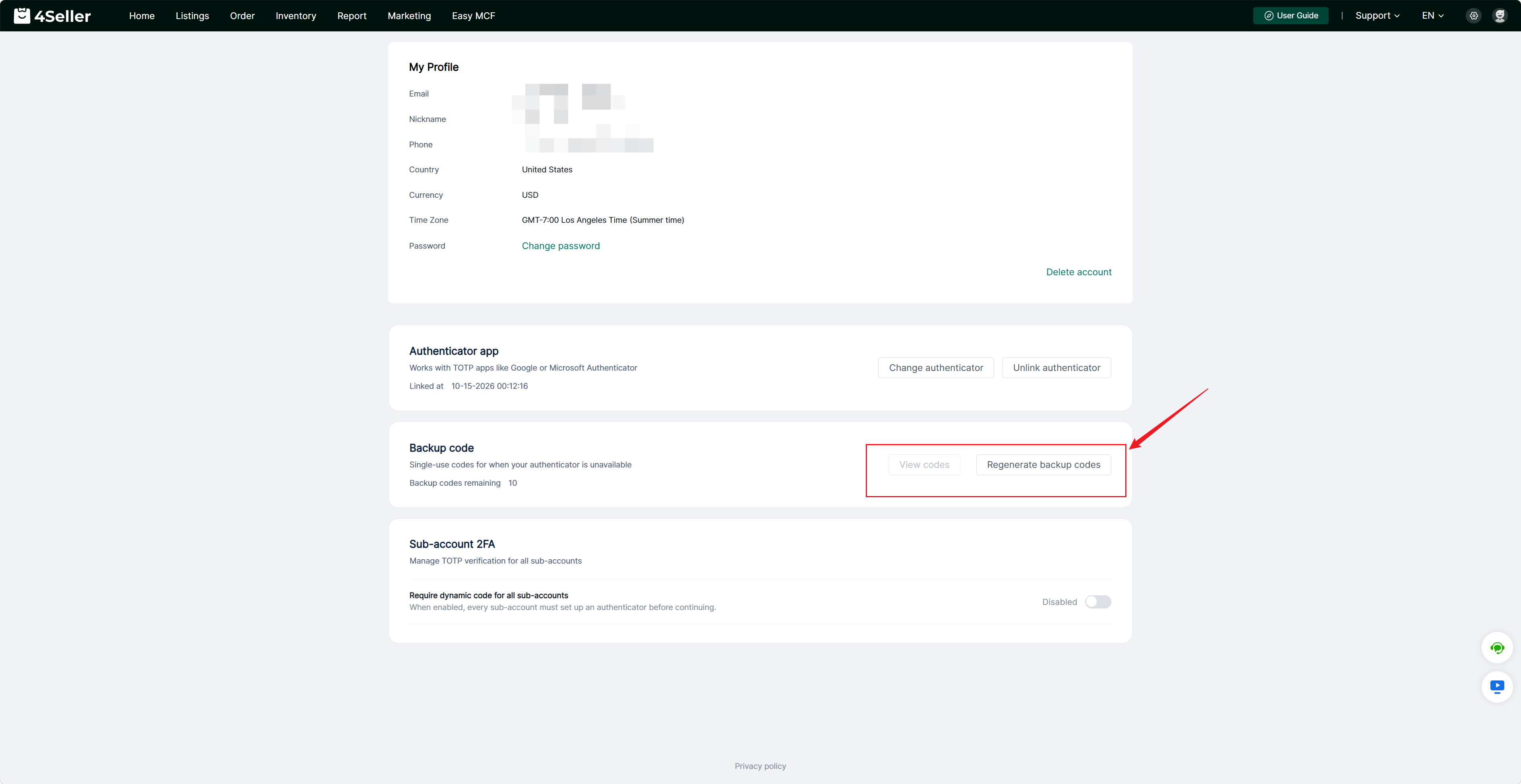
Notes: ① Each backup code can only be used once; ② Backup codes in the pop‑up window cannot be viewed once the window is closed; ③ After all 10 verification codes are used up, you need to regenerate new codes under Profile‑Backup Codes. Previously generated backup codes will become invalid upon regeneration.


5)Phone or WhatsApp Verification: If you are a local seller in Europe and America and your account is bound with a phone number, you may also select phone verification code as your two‑factor authentication method during login.

About Binding / Unbinding the Authenticator App and Generating Backup Codes

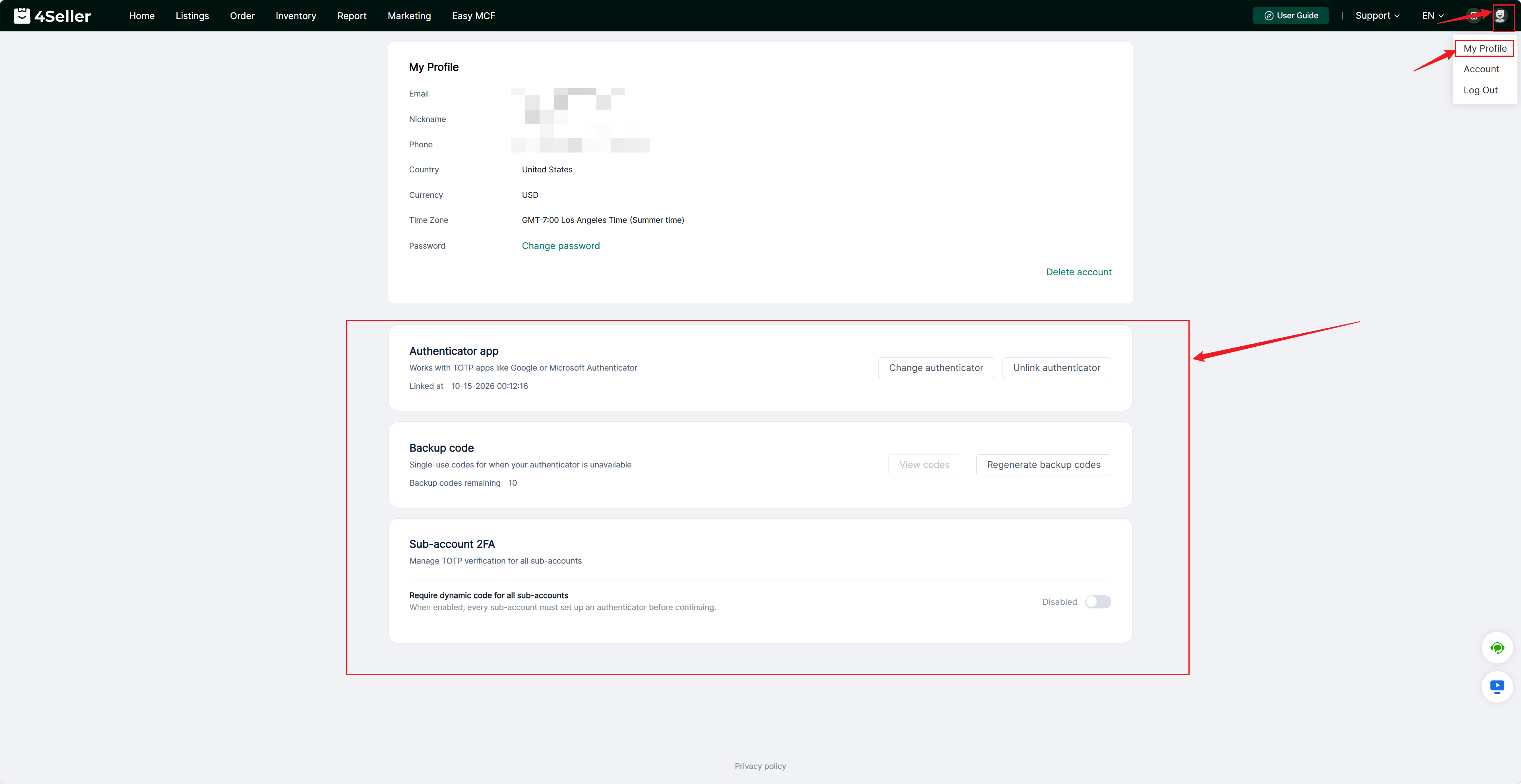
You may change or unbind your authenticator under Profile. Before changing or unbinding the authenticator, you must verify with the dynamic verification code from your currently bound authenticator to complete the new binding or unbinding operation.


In addition, you can also click Regenerate Backup Codes under Profile to generate a new set of backup codes. After generation, click View Backup Codes to check them. Note: You will not be able to view the codes after this single access. Once you click Regenerate, all previously‑generated backup codes will become invalid.


About Two‑Factor Authentication for Sub‑Accounts

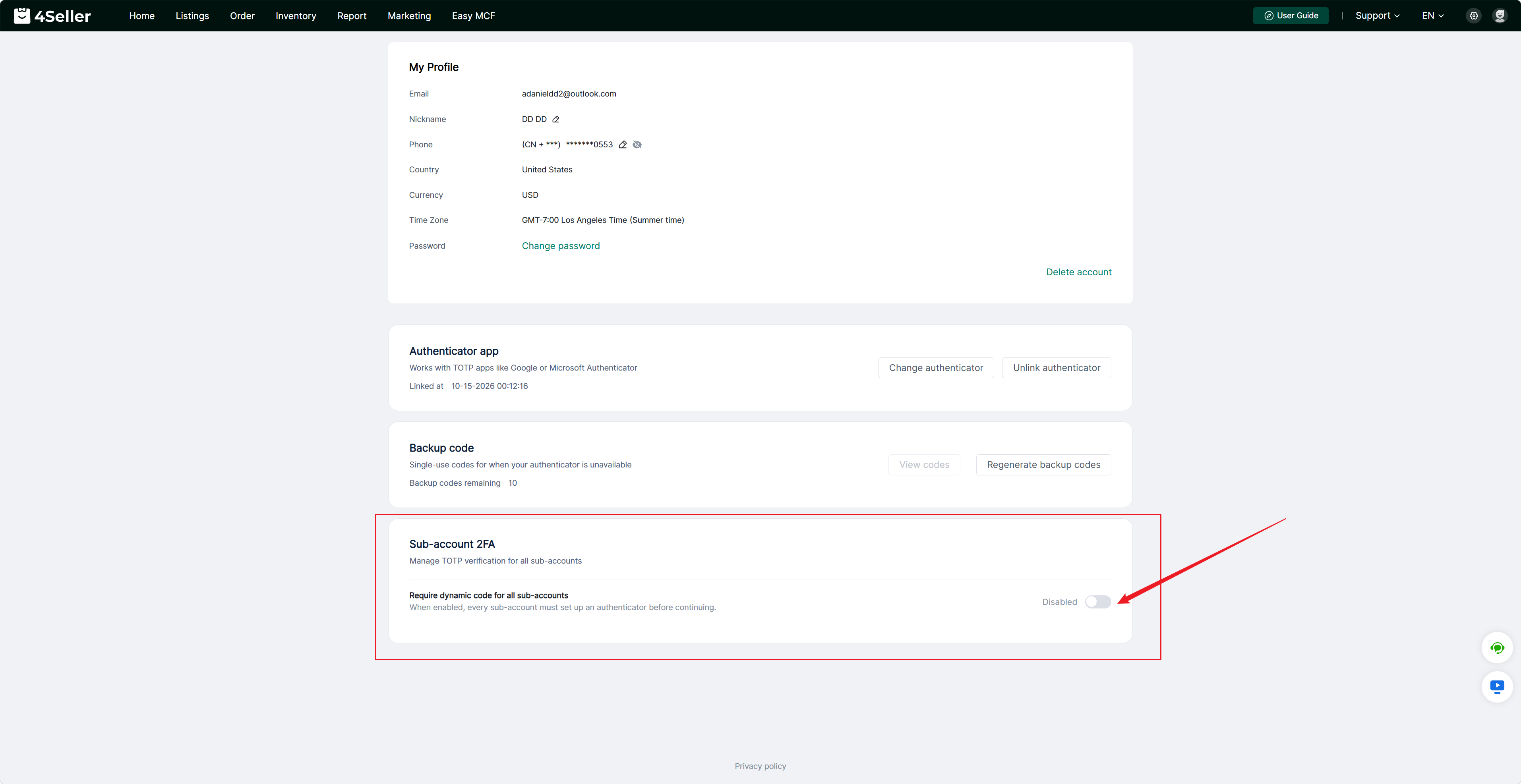
Two‑factor authentication is not required for sub‑accounts. However, if you want all sub‑accounts to enforce two‑factor authentication the same as the main account, you need to enable it here.


Any problem just feel free to contact 4Seller support team: support@4seller.com