- Get Started
- Video Tutorials
- Knowledge Base
- Channels
- Listings
- Inventory
- Orders
- Settings
- FAQs & Troubleshooting
How to Use Inventory?
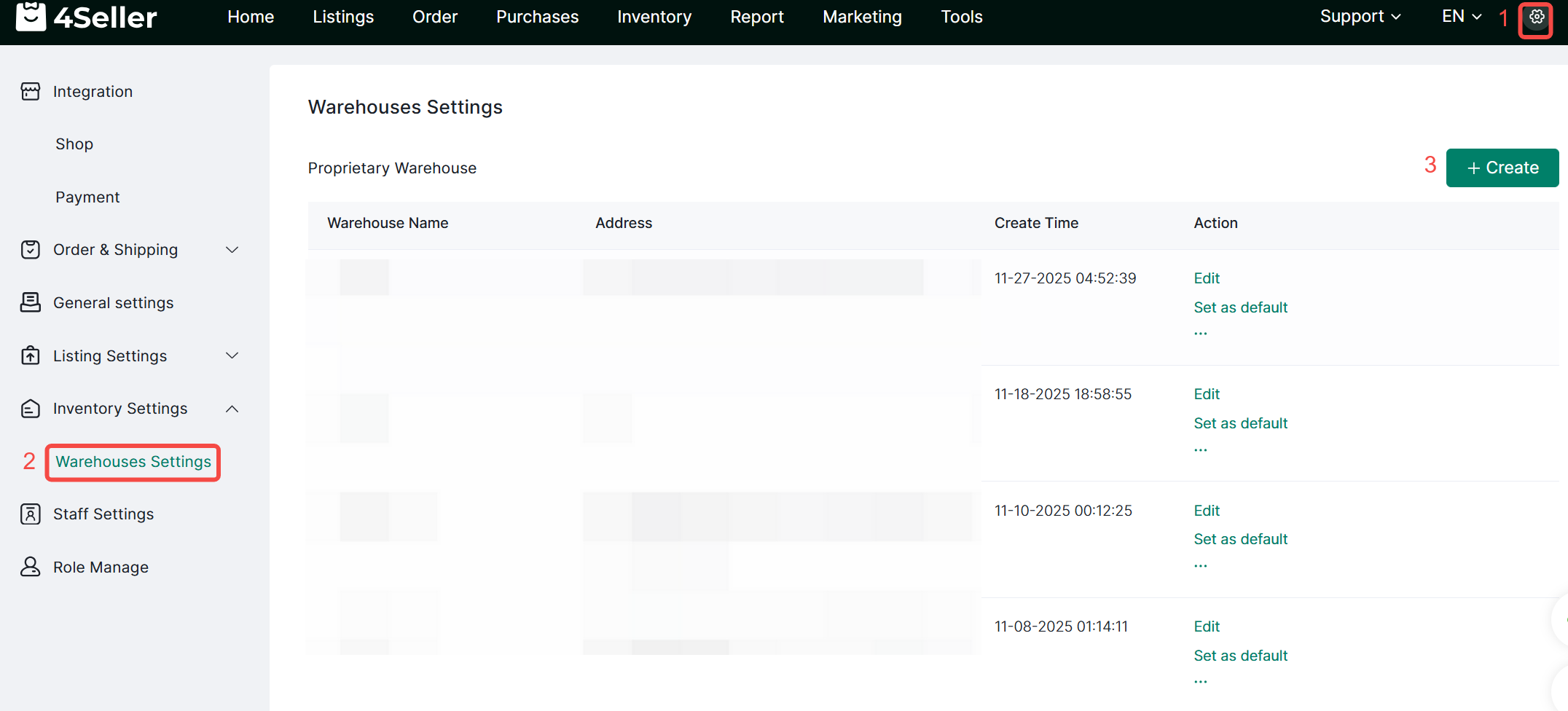
Before adding SKU Inventory Information and adjusting Inventory, warehouse and location information need to be set up in advance.1、How to Set Warehouse?
① Go to the setting icon> Inventory Settings> Warehouse Settings>Click Create
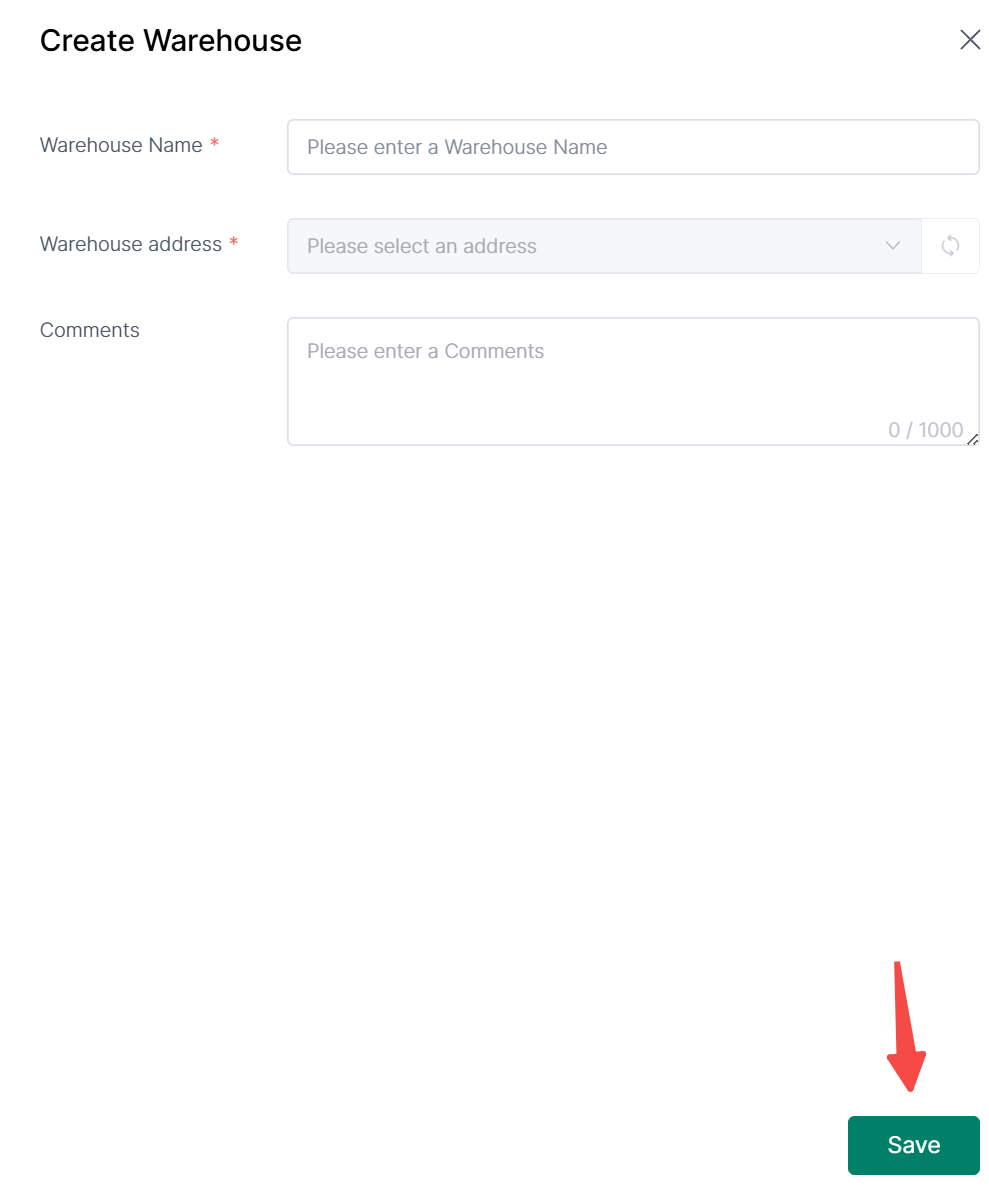
② Fill the warehouse name and address details > Click Save
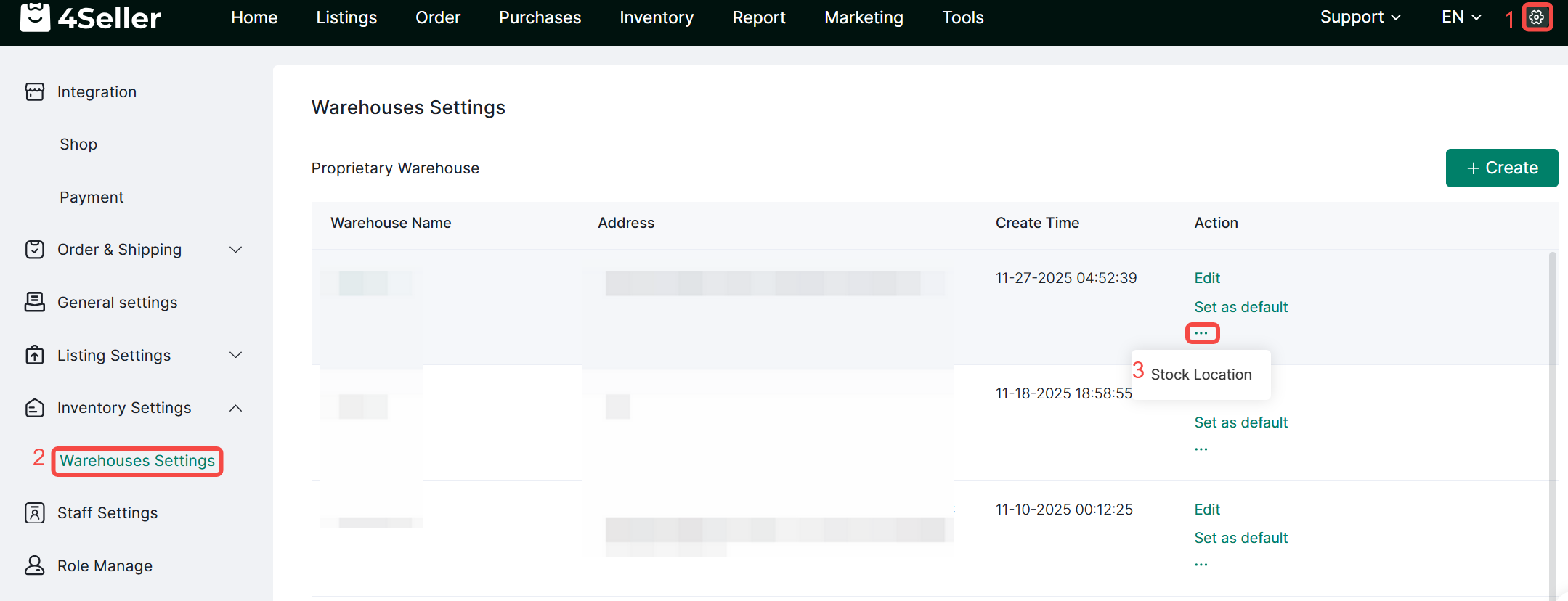
2、How to Set Location?
① Go to the setting icon>Inventory Settings>Warehouse Settings> Stock Location
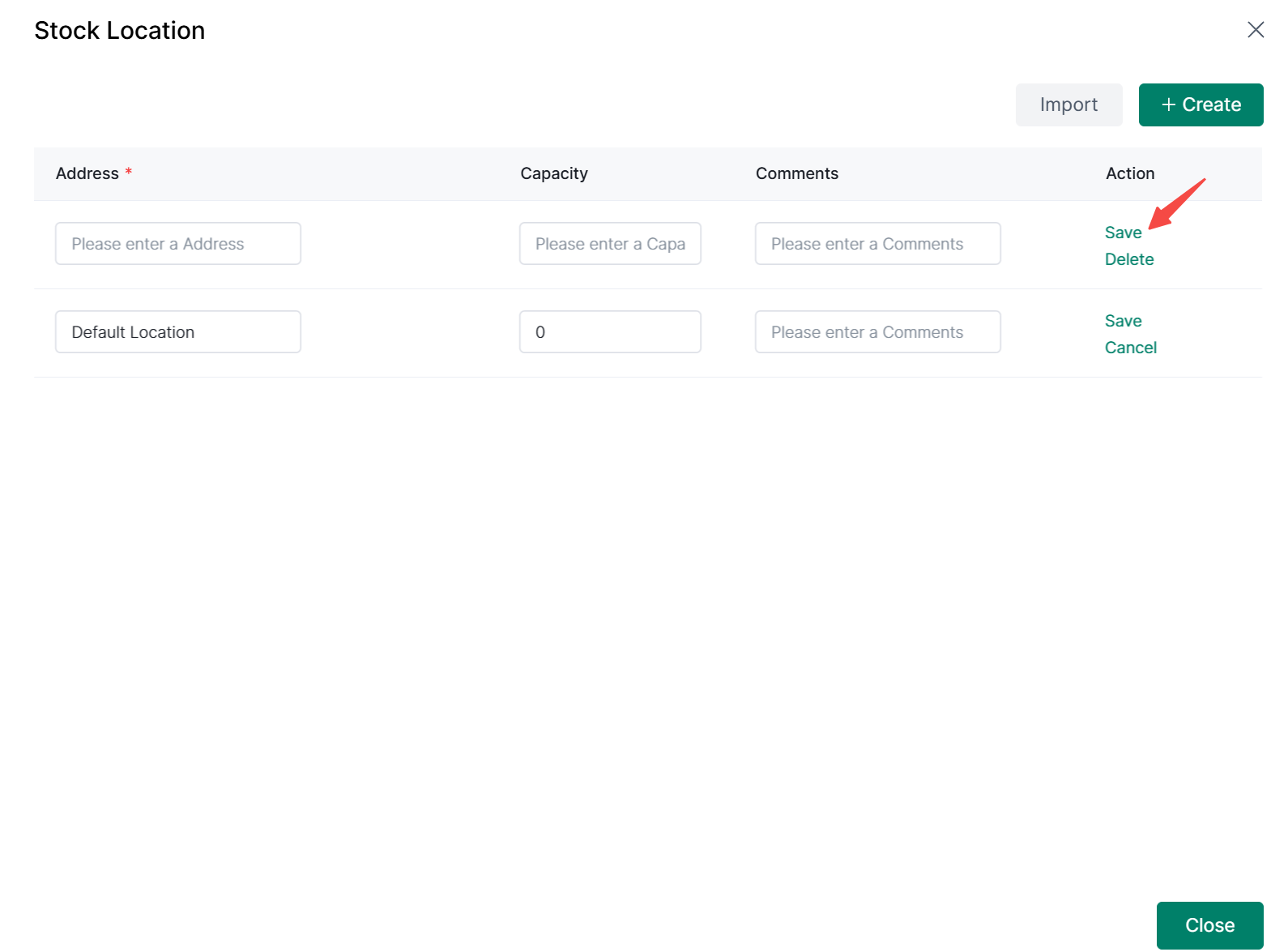
② Fill the address, capacity and comments information>Save
3、How to Add SKU Inventory Information Individually?
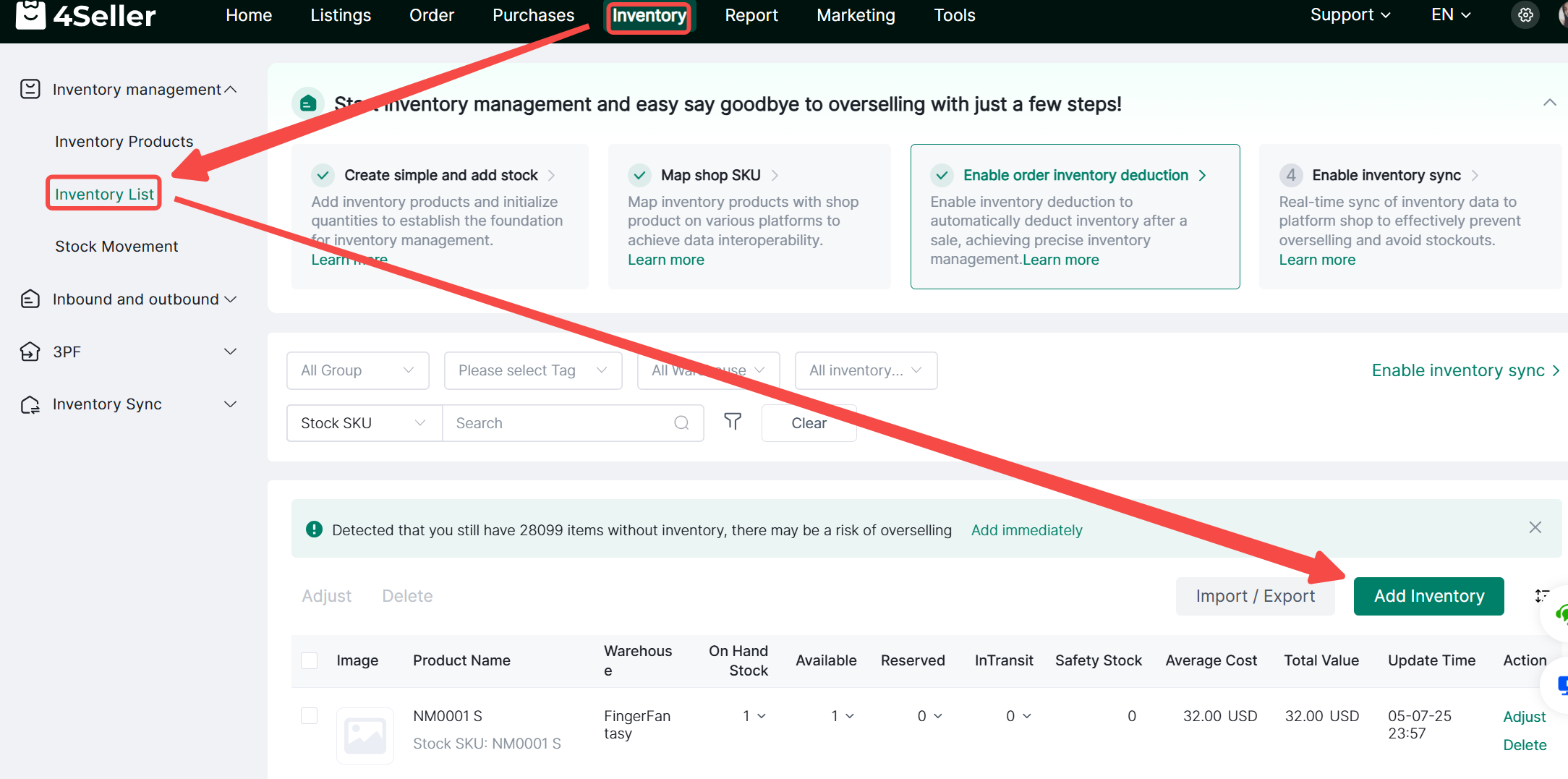
① Inventory> Inventory List>Add Inventory
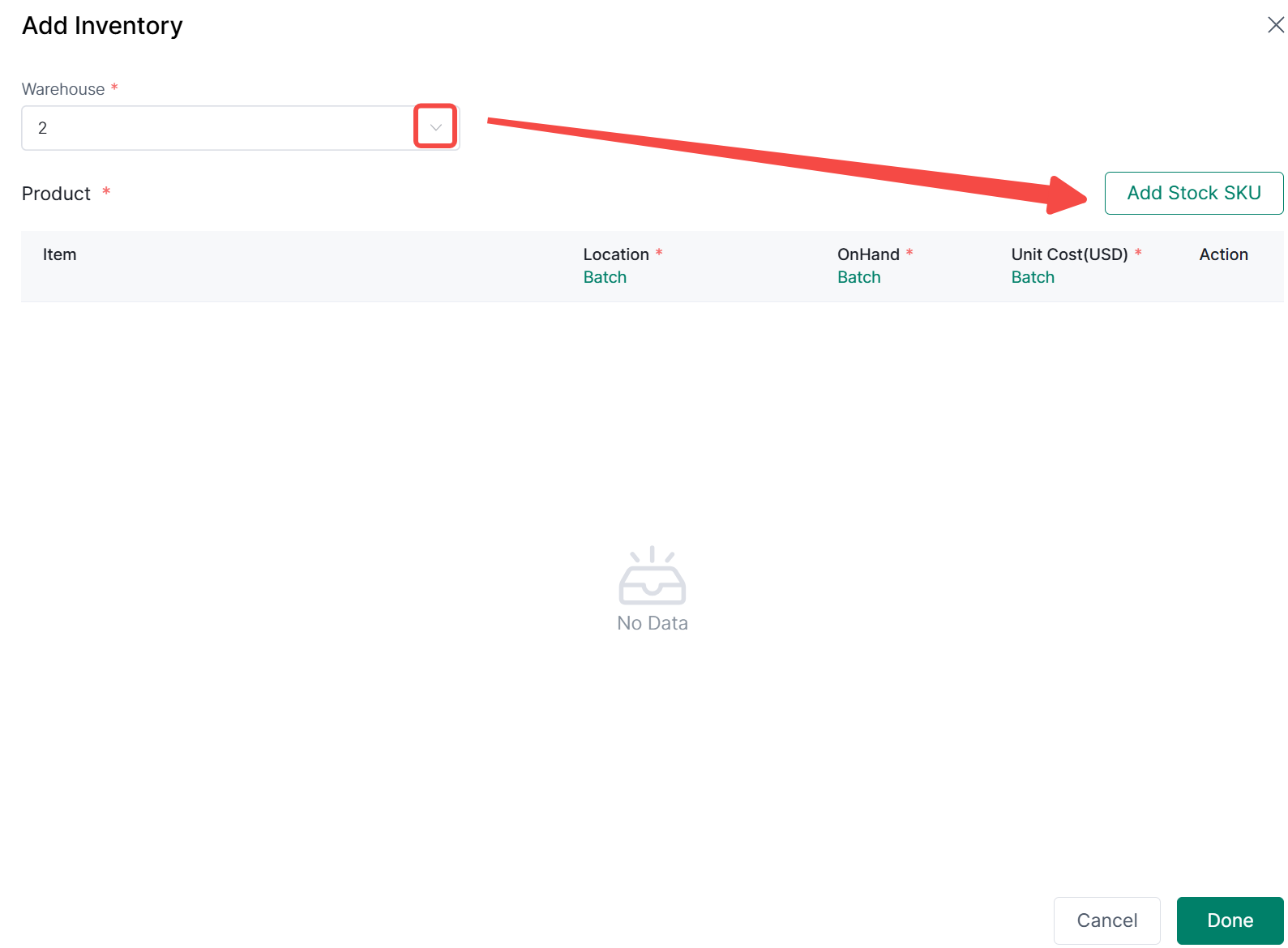
② Select the warehouse> Click on Add Stock SKU
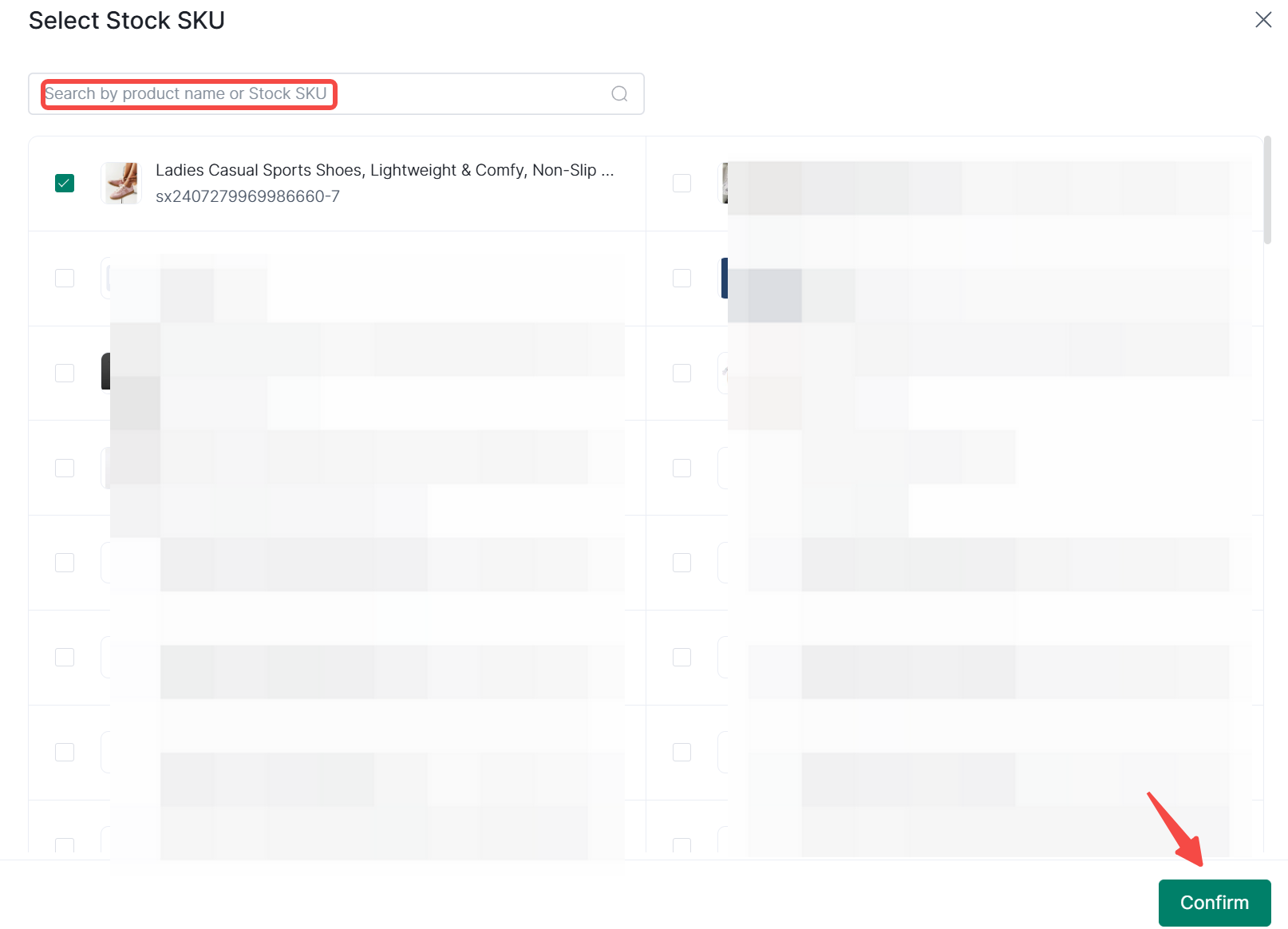
③ Search by product name or SKU to select SKU> Select the product you want to add> Confirm
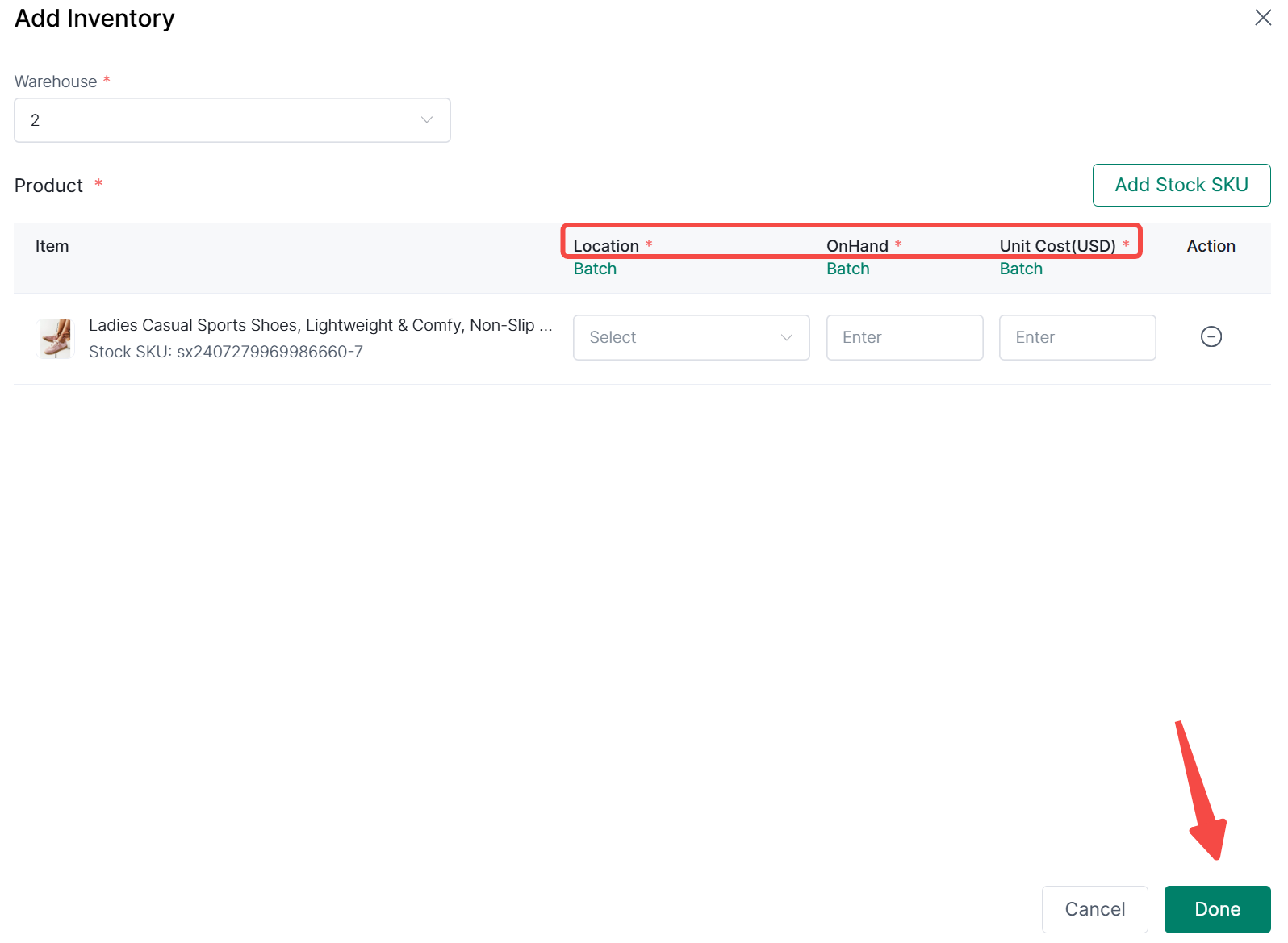
④ Select the location from the dropdown menu> Fill the On Hand Quantity and Unit Cost > Click Done
-
If multiple SKUs are selected, click Batch to batch edit all SKUs information including Location, On Hand Quantity and Unit Cost in the list.
4、How to Add SKU Inventory Information via Template?
① Go to inventory> Click on "Import inventory"
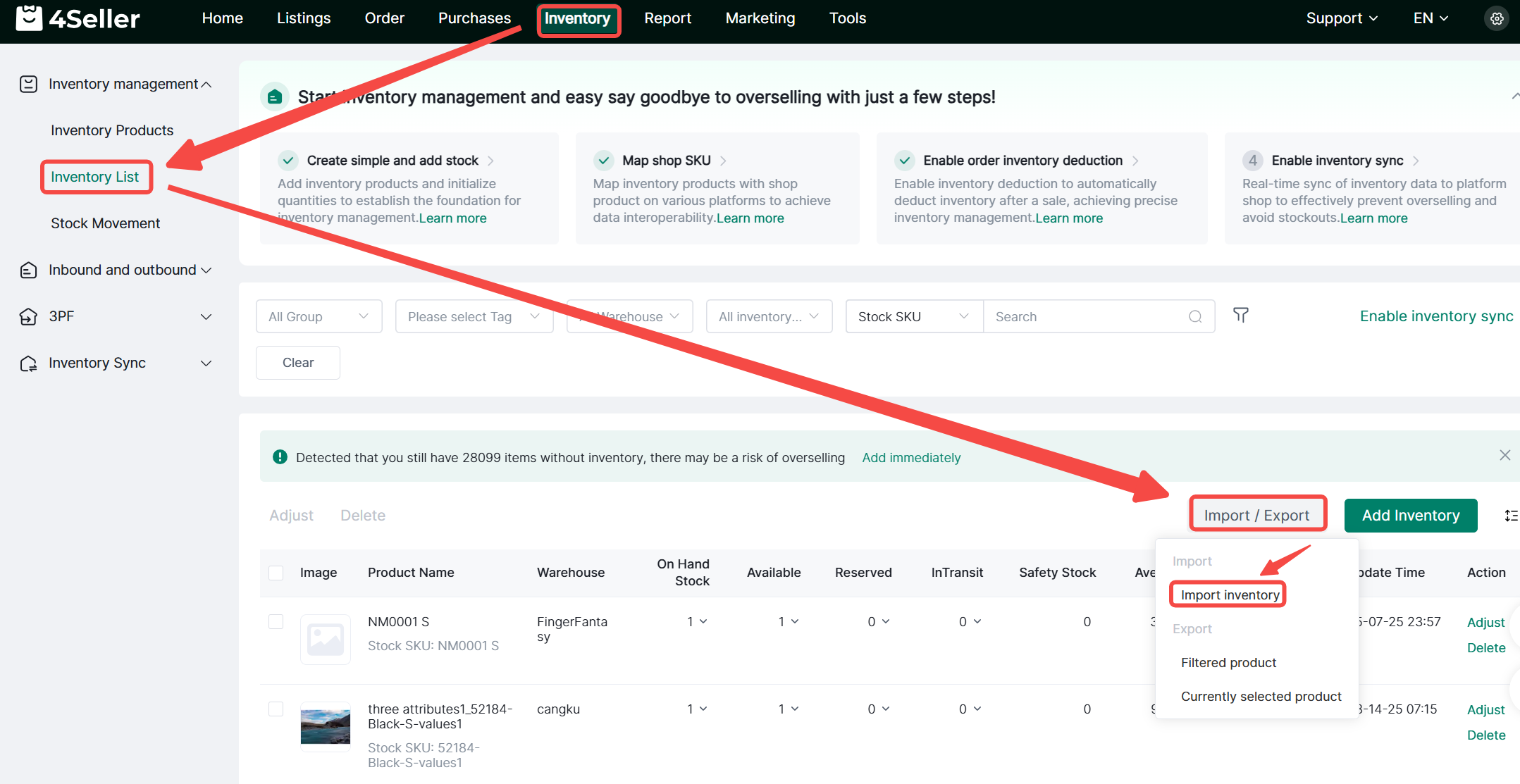
② Download the inventory template
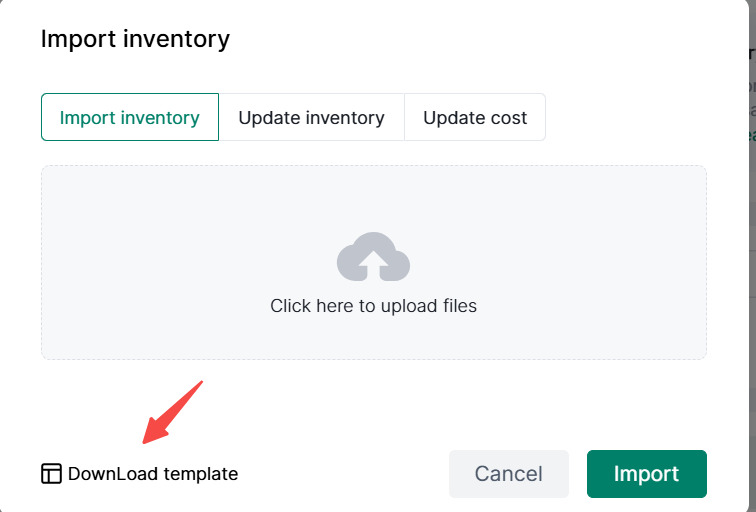
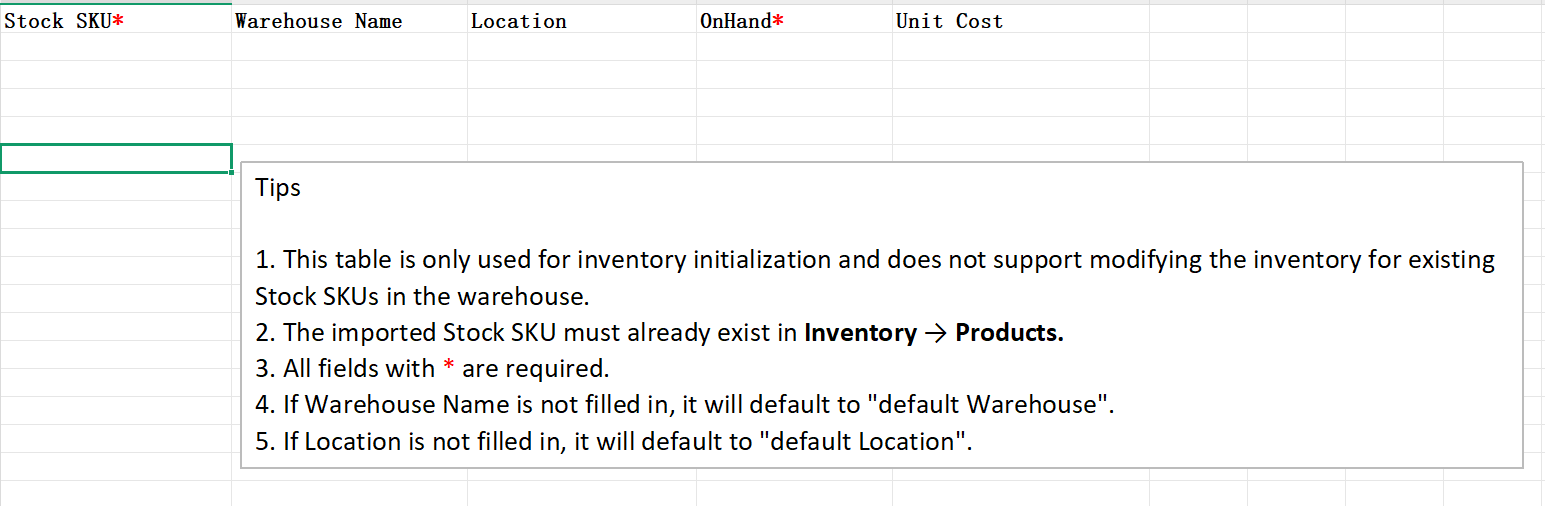
③ Fill the SKU, warehouse Name, Location, On Hand Quantity and Unit Cost into the Excel spreadsheet
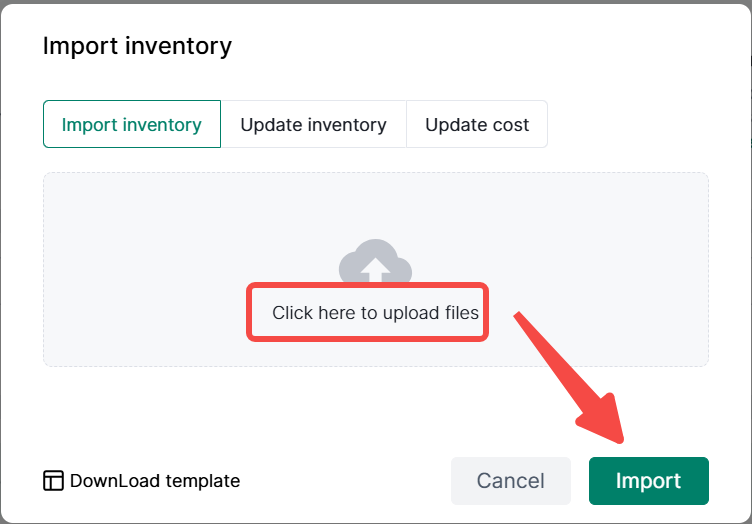
④ Upload the Excel spreadsheet> Click Import
5、How to Adjust Inventory Individually?
① Click Adjust
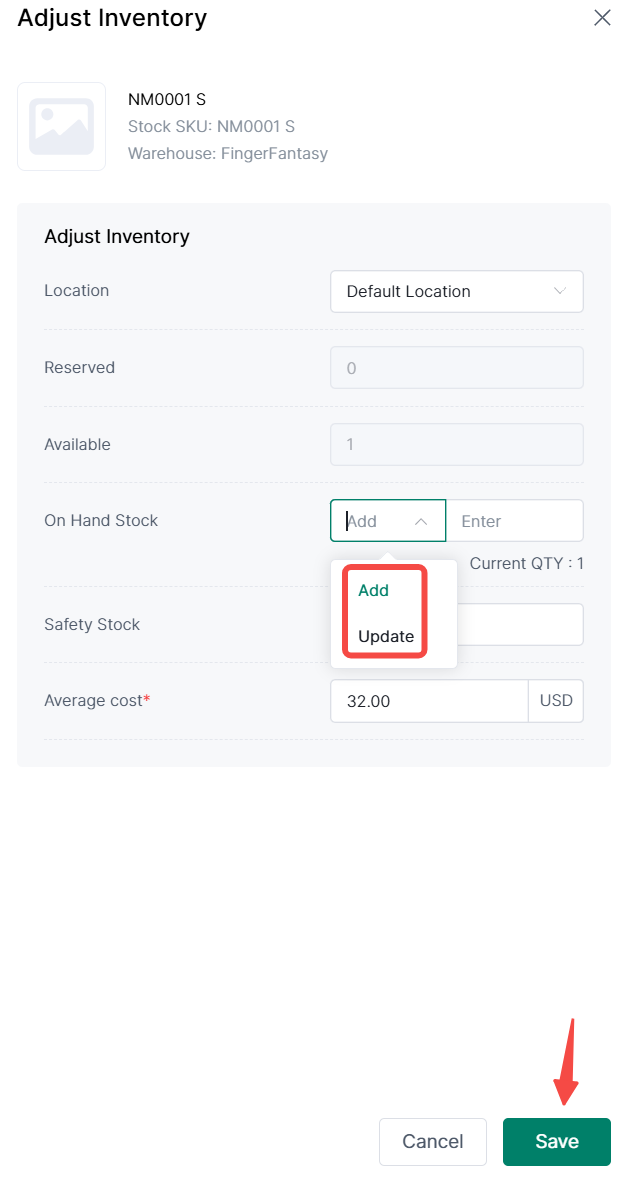
Click Adjust to adjust the inventory information including the Location, On Hand Quantity and Average Cost
Click Delete to delete the whole product inventory information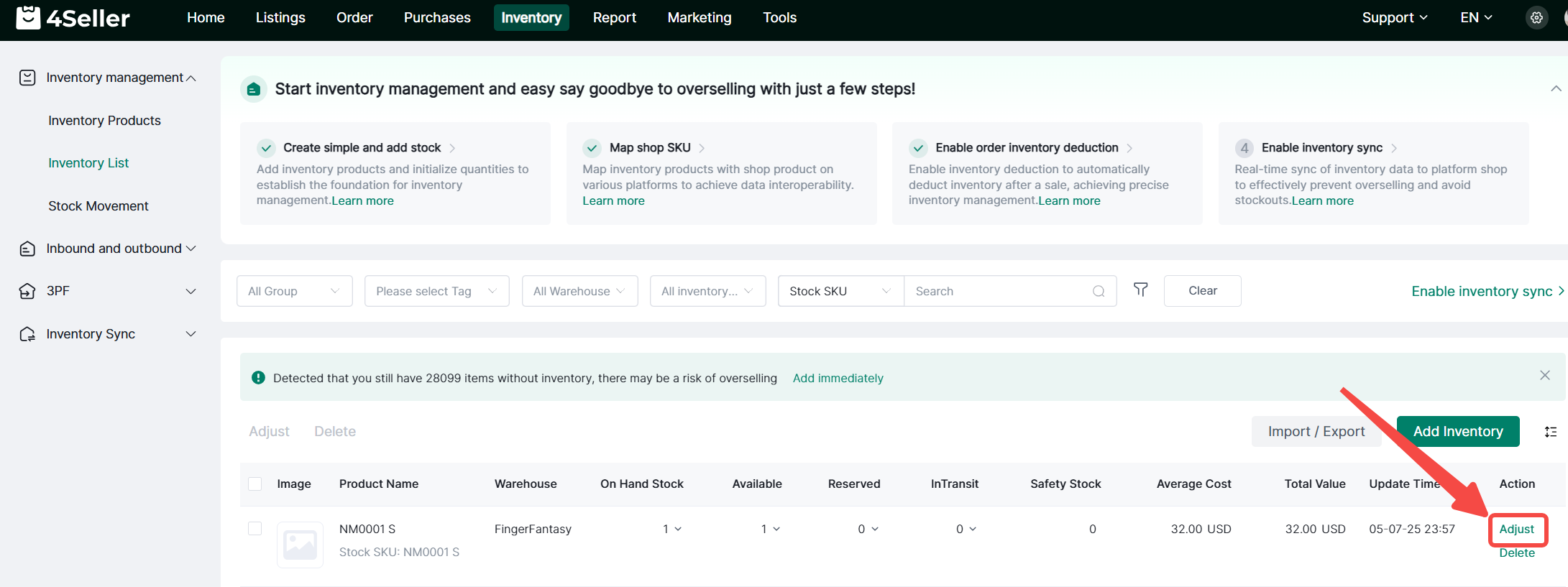
② Change the location、onhand stock and average cost information as you want> Click Save
③ The modified Warehouse Name, On Hand Stock and Average Cost will be displayed in the warehouse list.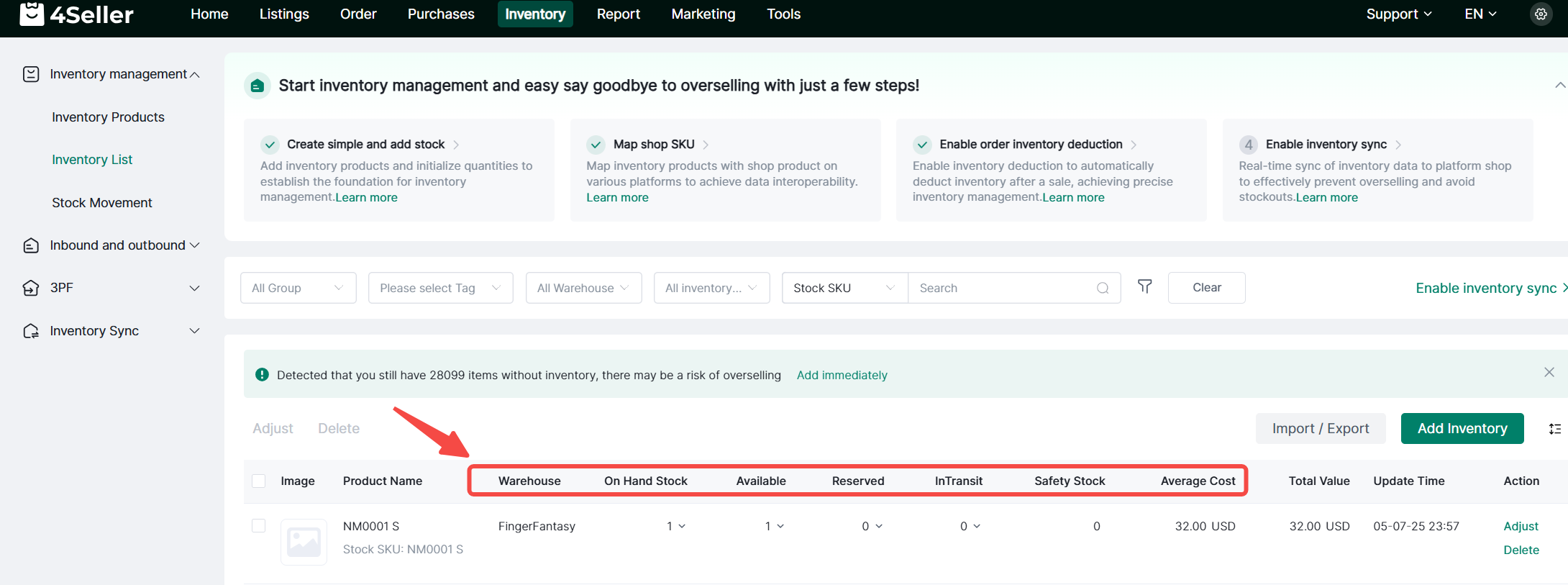
6、How to Adjust Inventory Information in Bulk?
① Select the multiple SKUs to add inventory> Click Adjust to batch edit all SKUs information including On Hand Quantity and Unit Cost in the list.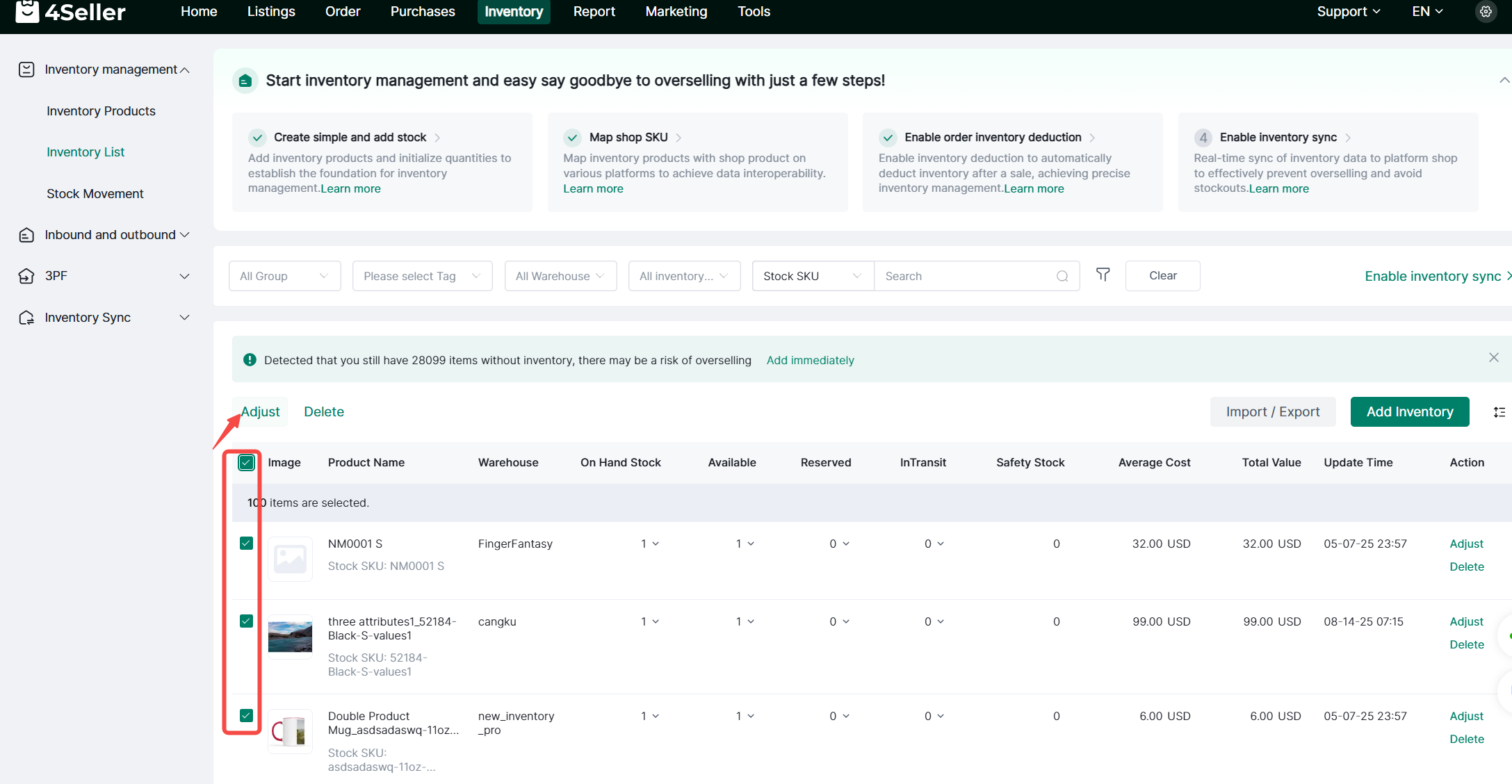
② Click "Save" to finish adjusting inventory information in bulk.
Definition
-
OnHand: Represents the total stock quantity. It is typically used to record the actual inventory quantity of your warehouse products. (Reserved Inventory + Available Inventory)
-
Available: Inventory that can be allocated. When orders are synced to 4Seller, the system checks if the matched product SKU has enough available inventory for allocation. If not, inventory alert will be triggered.
-
Reserved: Inventory quantity that has been allocated to orders. When an order is synced to 4Seller, the system locks the inventory for that order. The locked inventory will not be allocated to other orders.
-
Safety Stock: A user-defined safe inventory value. If the inventory quantity falls below this value, 4Seller will generate an inventory alert to remind you to replenish the stock.
If you have any further questions or suggestions, please do not hesitate to contact our support team.