- Get Started
- Video Tutorials
- Knowledge Base
- FAQs & Troubleshooting
How to Connect OTTO to 4Seller Within MCF Tools?
Updated on 09 Feb,2026Copy Link
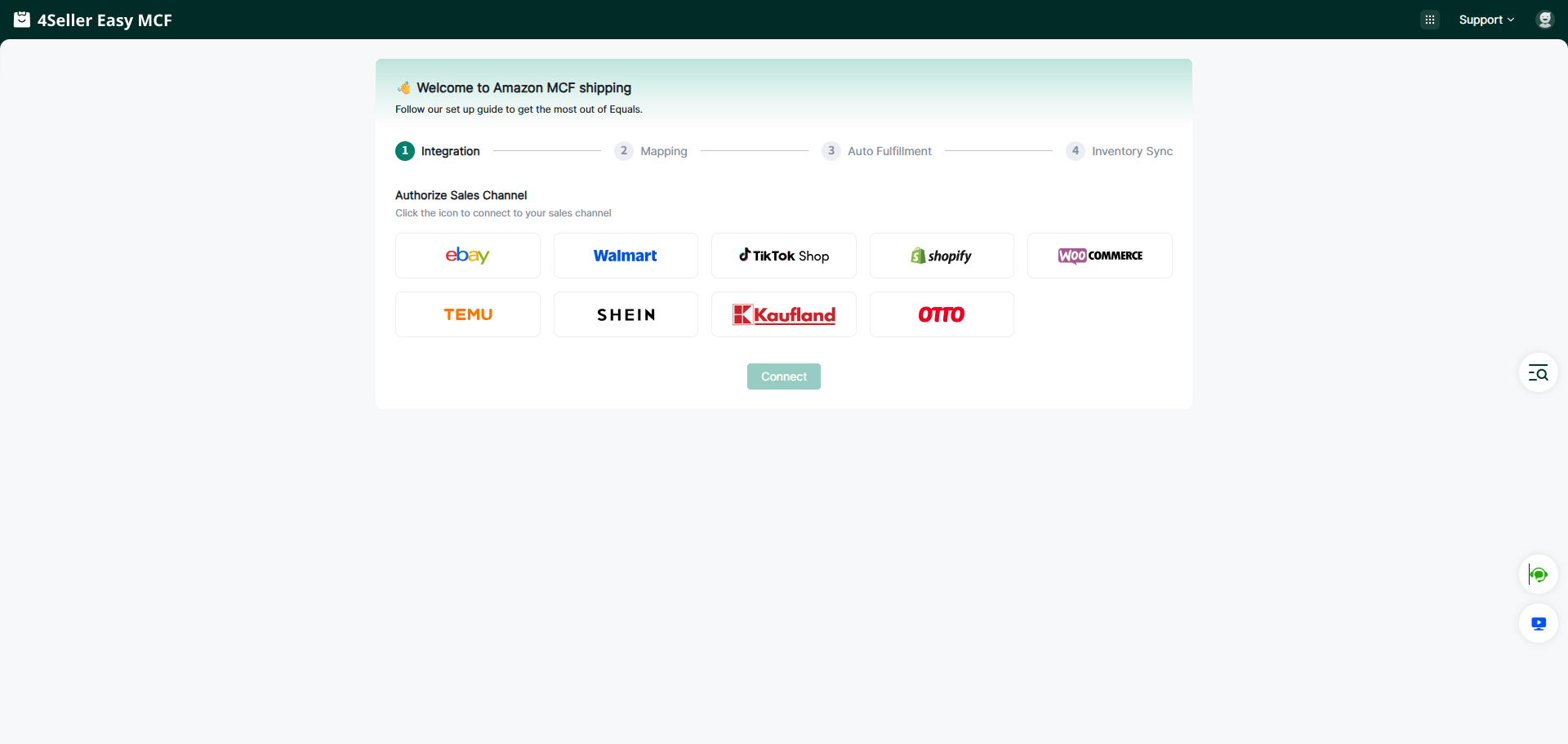
On MCF Tools , you can enter the authorized OTTO store page through two Entrances:Entrance 1: On the guide page, if you are a new user, you can set up your Sales Channel in the MCF guide Wizard , and click the OTTO store icon to enter the store authorization page.
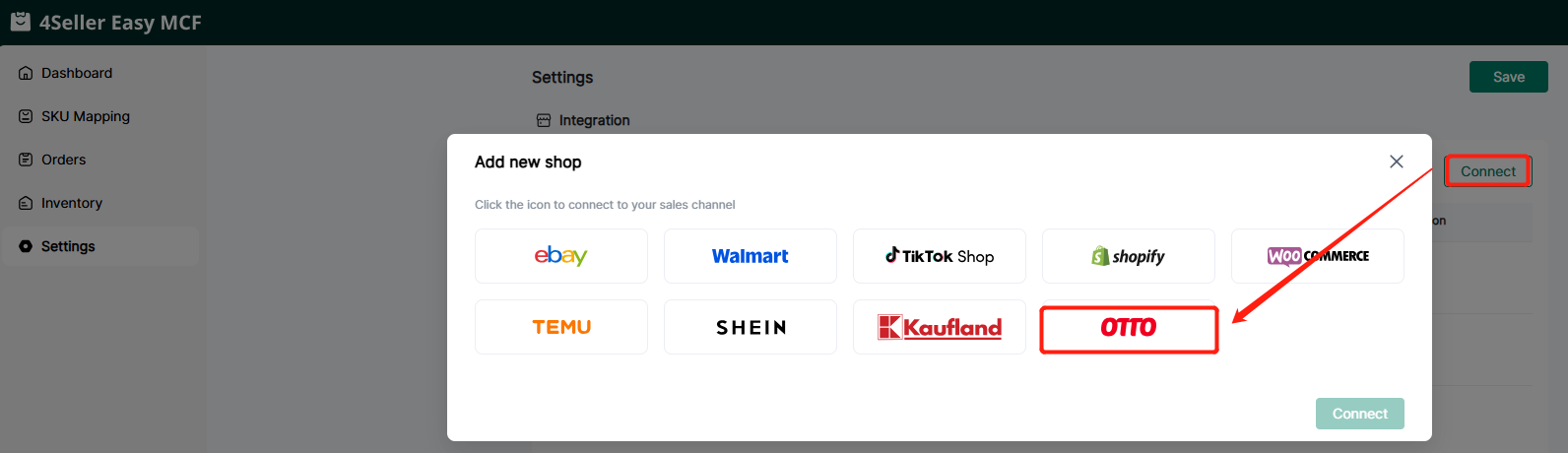
Entrance 2: On the Setting page, no matter whether you have authorized the store before, you can authorize the store here. Click Shop Manage in Settings, and then click the OTTO icon to enter the store authorization page.
Step1: Connect OTTO
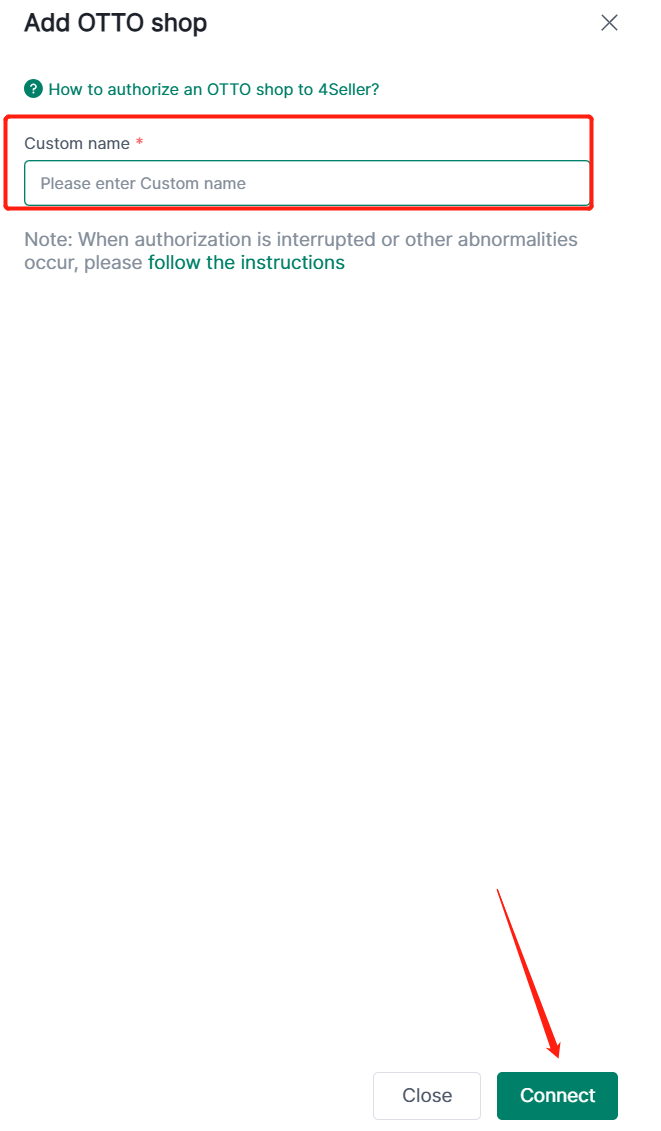
Enter to OTTO suthorize page, fill custome name, click connect.
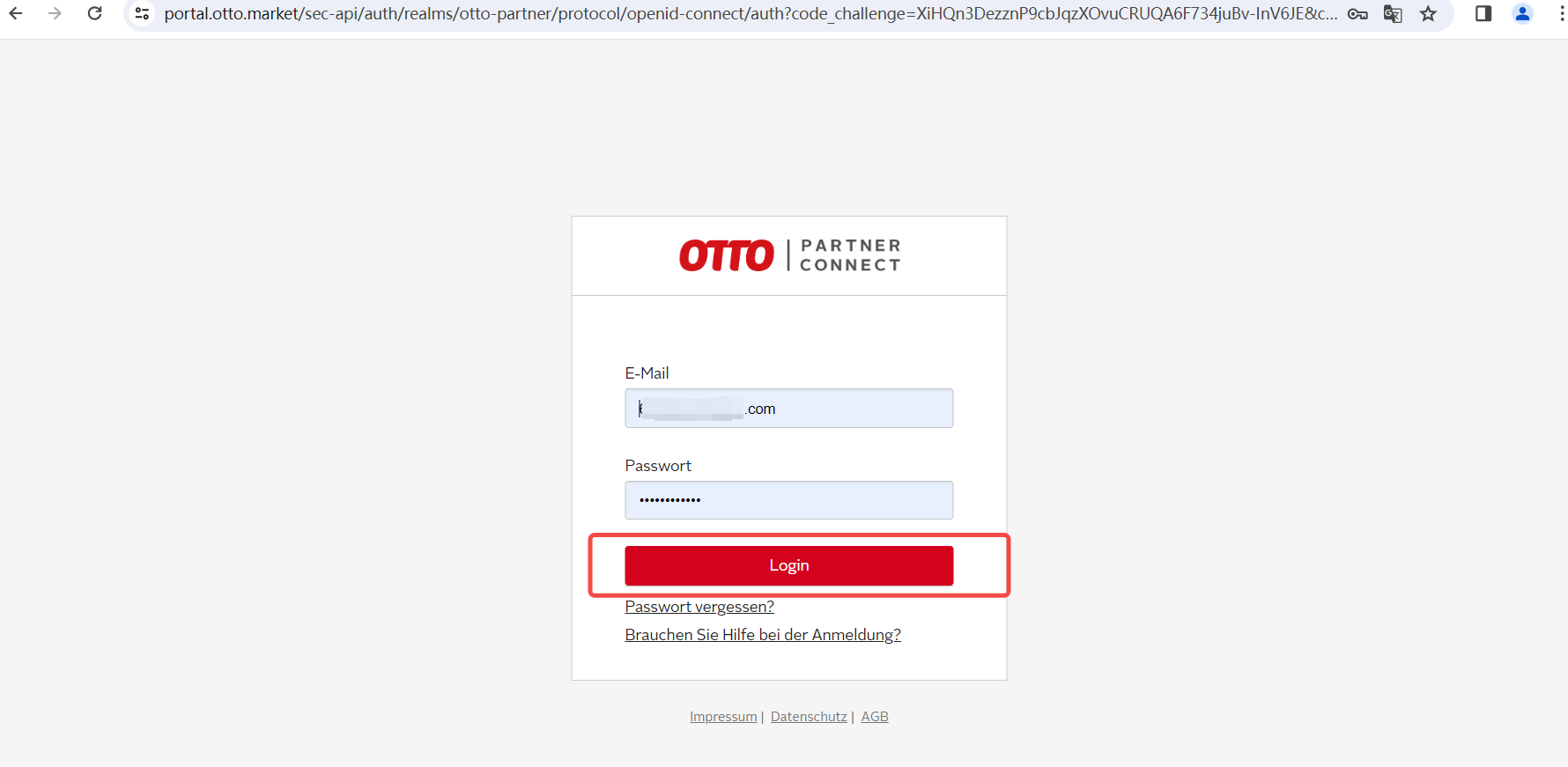
Step 2: After click connect, will turn to the OTTO log in page, fill the OTTO account and password information to log in. (4Seller only support OTTO main account to integrate).
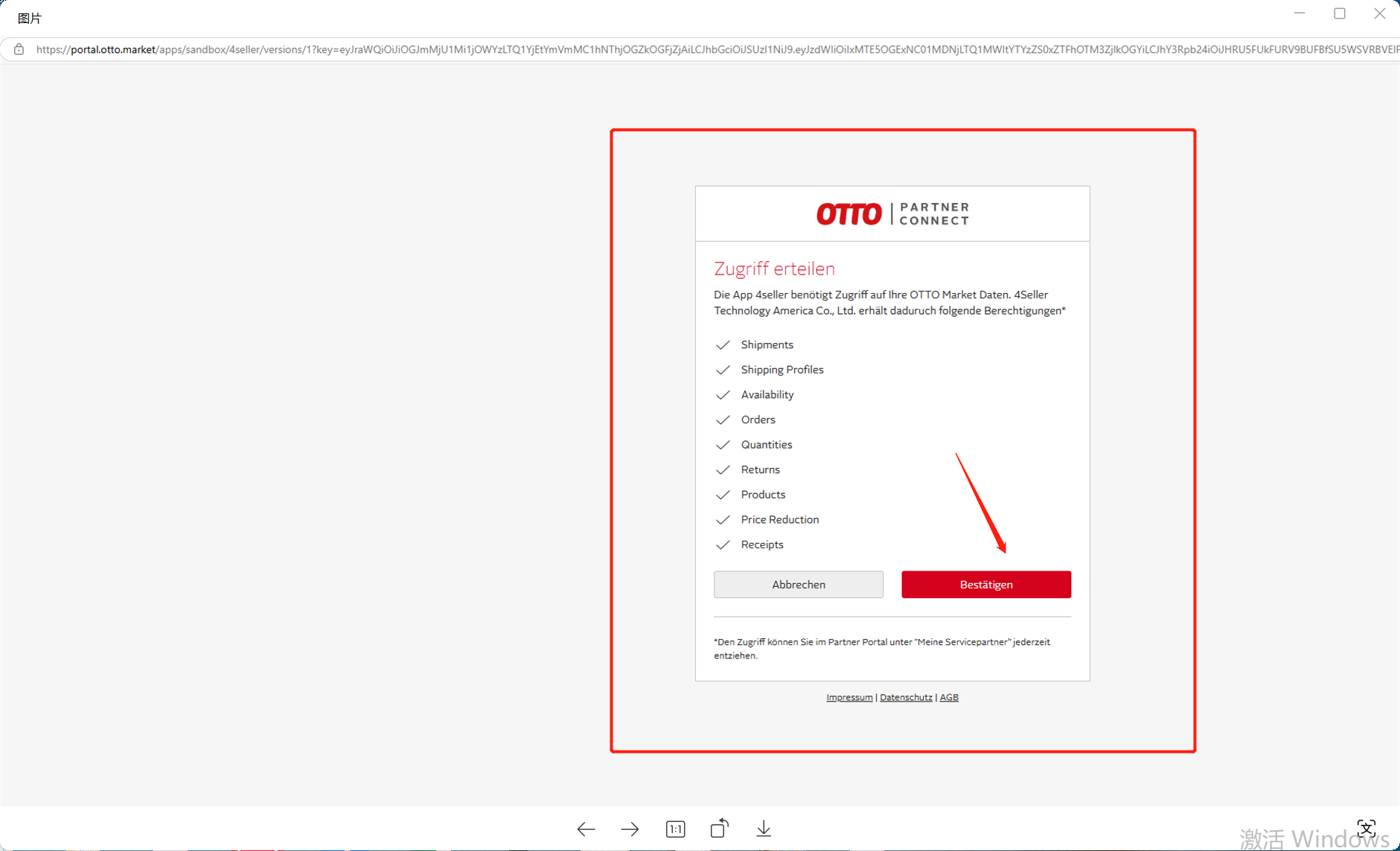
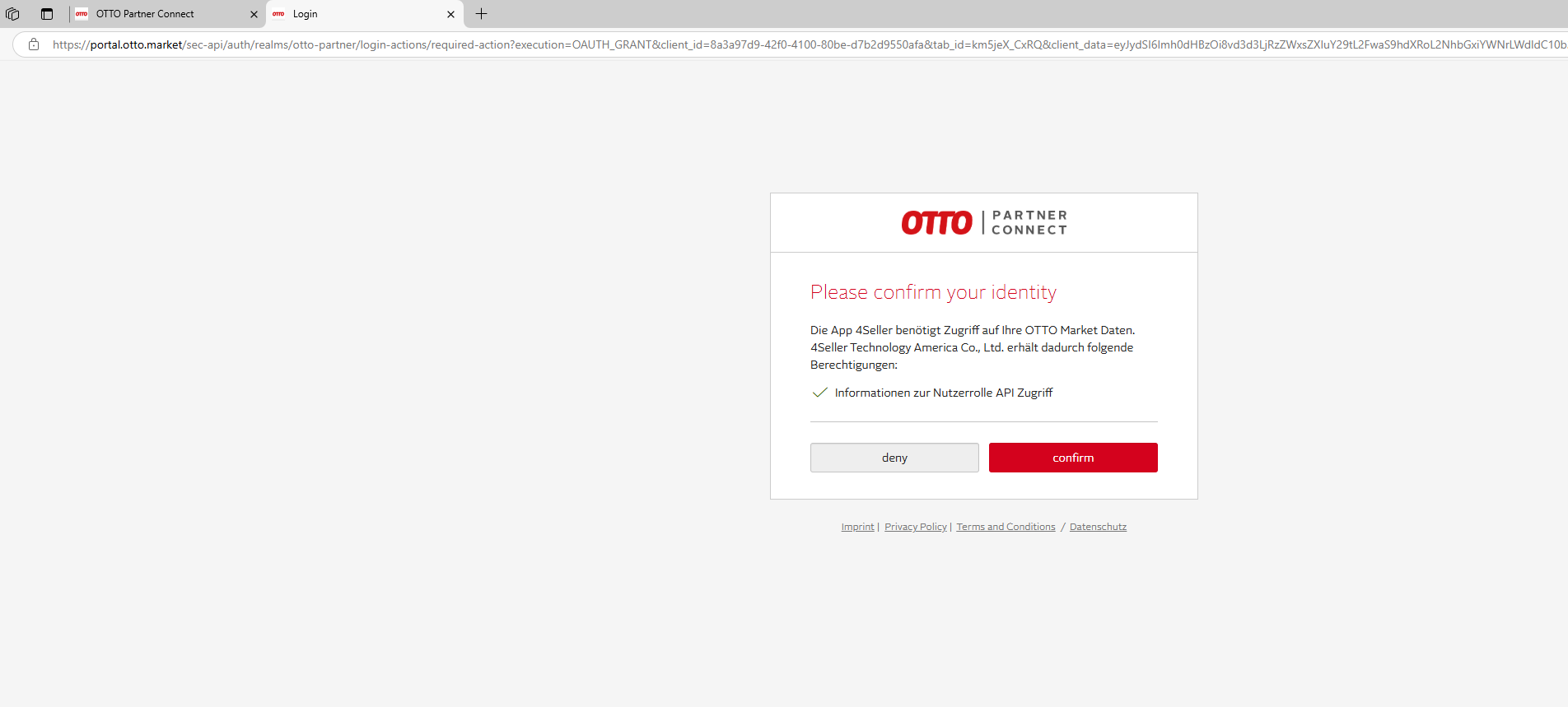
After log in pls follow the below steps to complete the authorization:
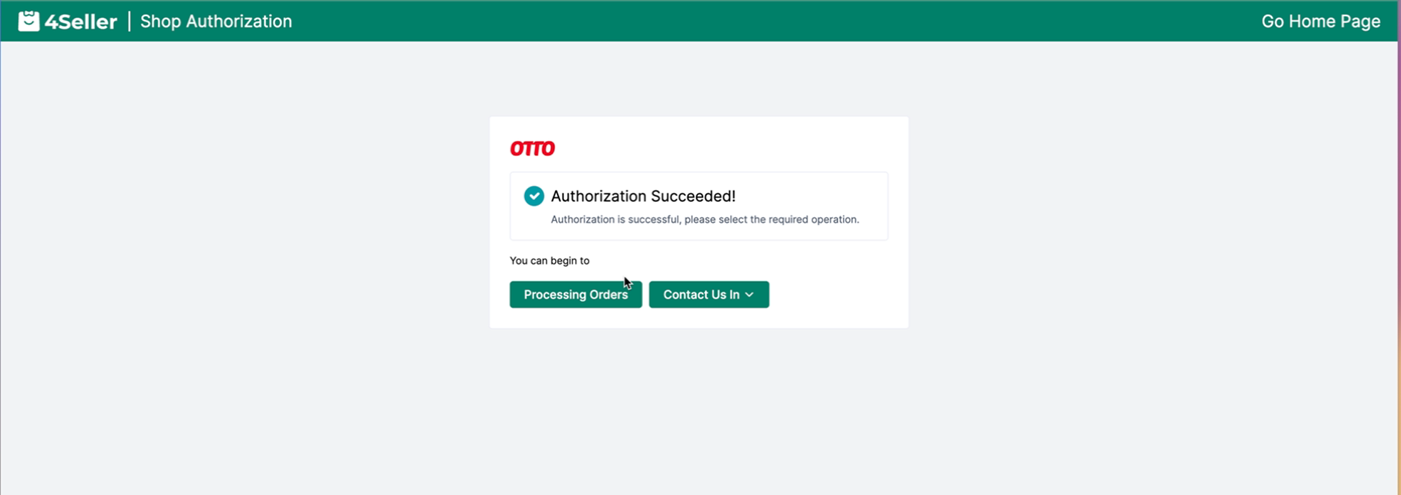
Once authorized successfully, will show the tips as below:
Step 3: After connect successfully, you can go to the setting page "Connect Shop" for checking status and edit.
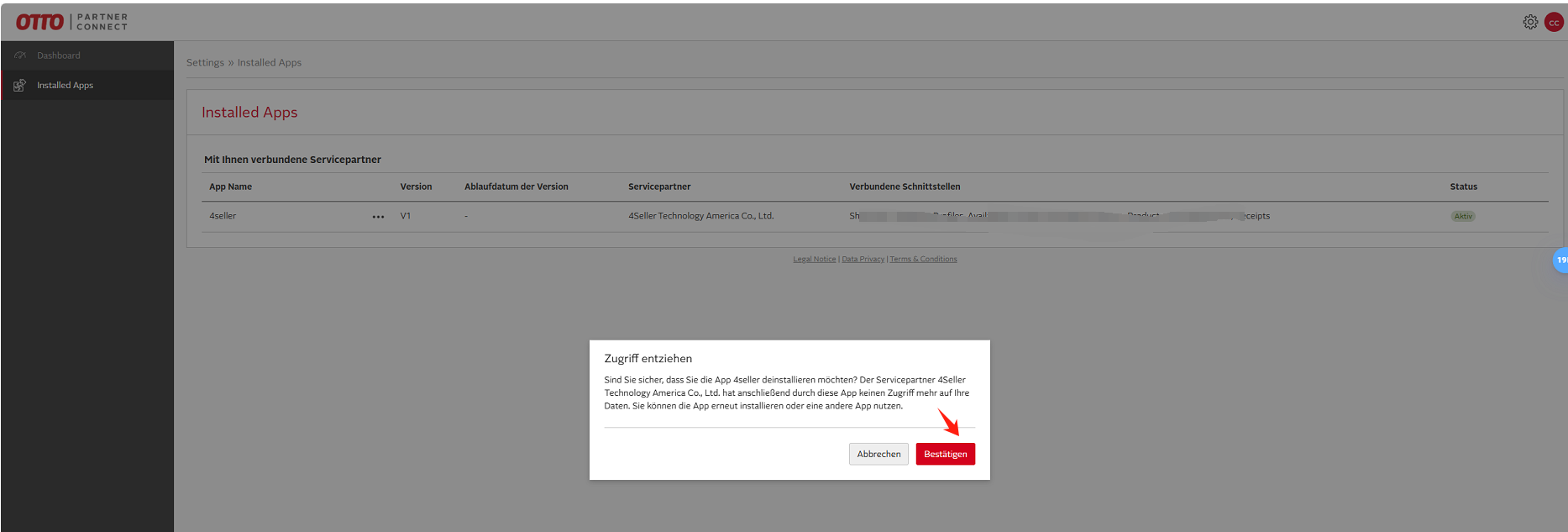
Note: If you have been delete the store in 4Seller before and want to authorize again, need to cancel the authorization in OTTO backend then back to 4Seller authorize again!
Any Problem pls feel free to contact 4Seller: support@4seller.com




Back to top