- Get Started
- Video Tutorials
- Knowledge Base
- FAQs & Troubleshooting
How to Fulfill Orders via Amazon MCF Automatically Within MCF Tools?
4Seller supports simplifying the process through the MCF tool, enabling orders to be automatically fulfilled via Amazon MCF.
Step 1: Integration
You should integrate your Amazon Store and another marketplace in MCF Tools.
Check the relevant help article here:https://www.4seller.com/help/en/module-2-knowledge-base/170-EASY-MCF
If u have different Amazon shops, it will show Missing Amazon shop mapping for sales channel on the top, click Resolve Now to connect.Step 2: Mapping
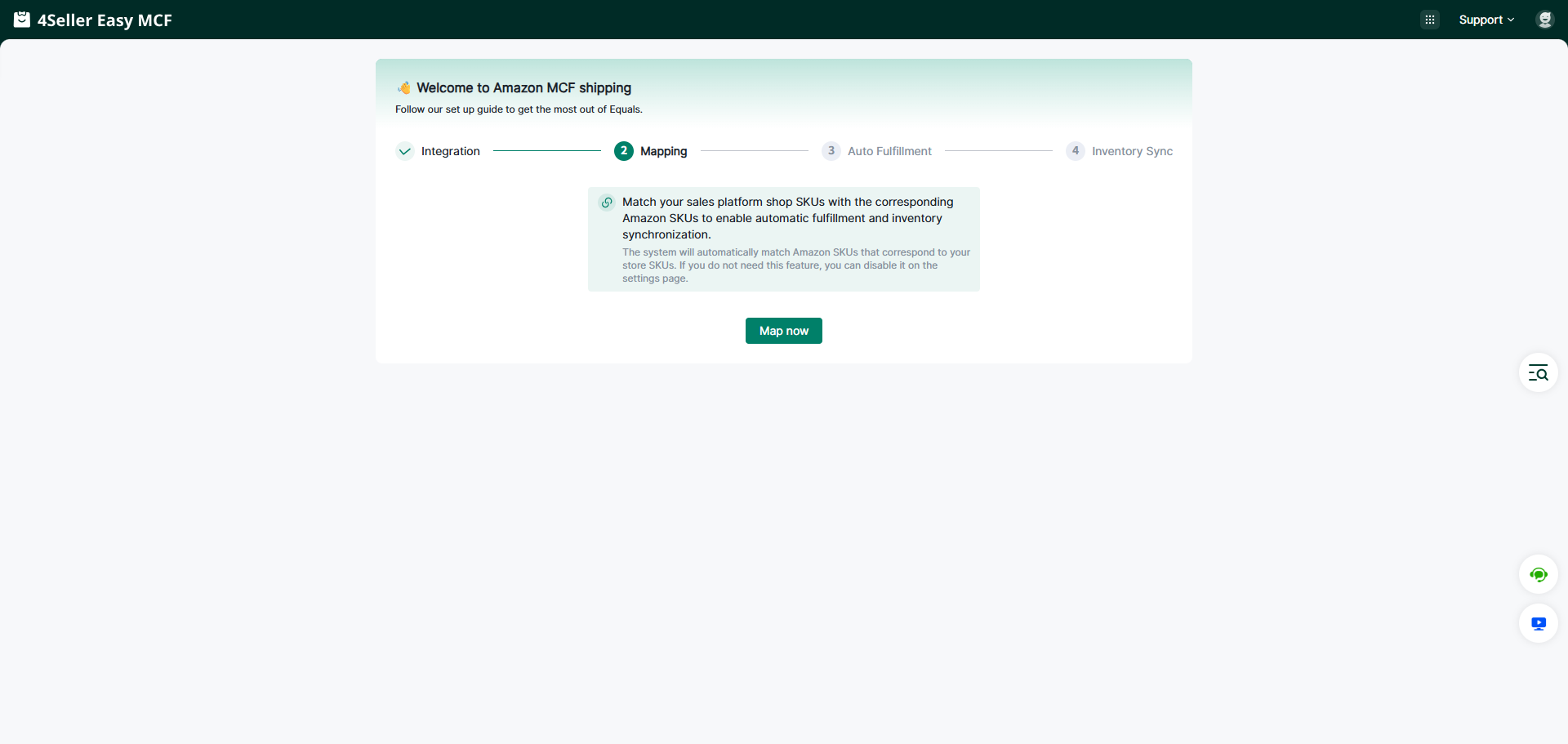
1. Match your sales platform store SKUs with the corresponding Amazon SKUs to enable automatic fulfillment and inventory synchronization.
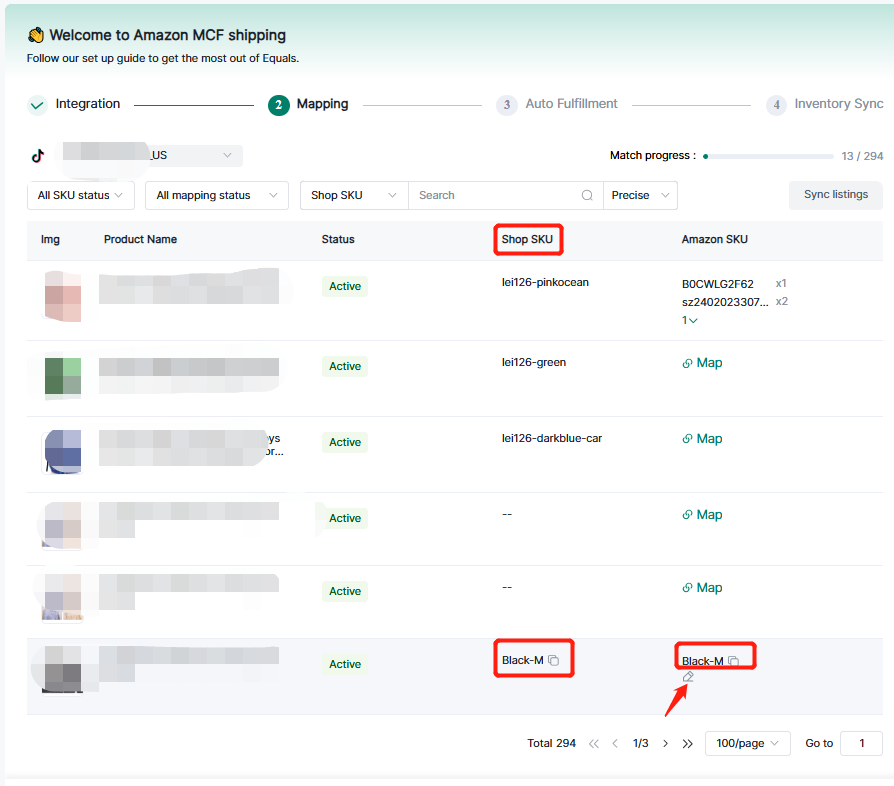
2. Enter the mapping page, If the Shop SKU same as the Amazon SKU will automatically map, you can change the mapping with click the edit button.
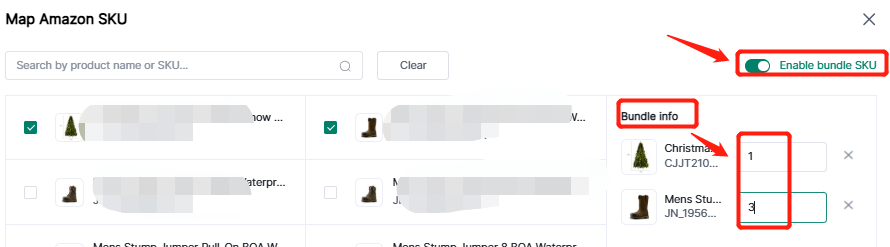
3. If you need to map the Amazon bundle SKUs, in the mapping page, you can open enable bundle SKU--select SKU--edit quantity in the bundle info-confirm.
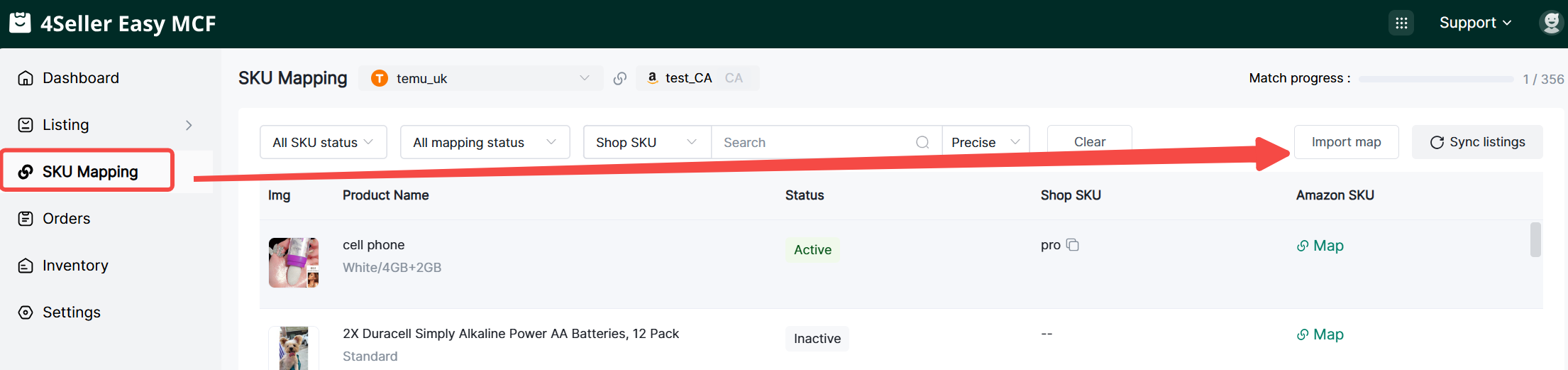
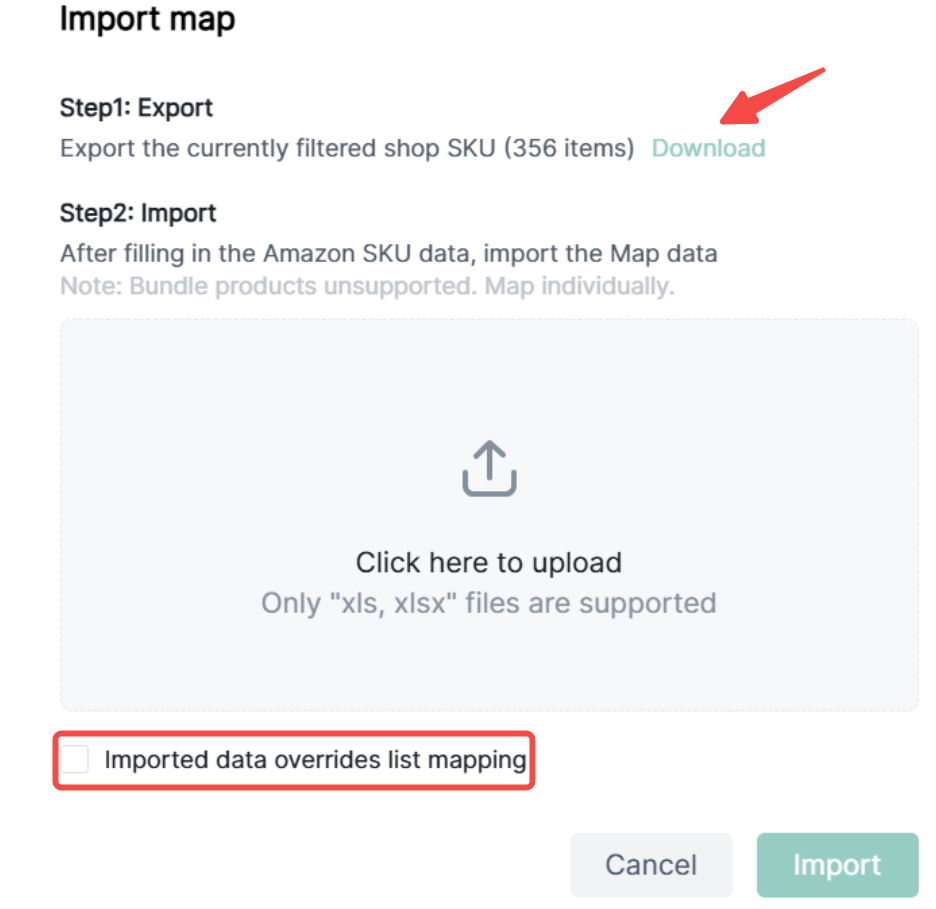
4、You can also use import mapping function to take efficient.(1)Click SKU Mapping-Import map
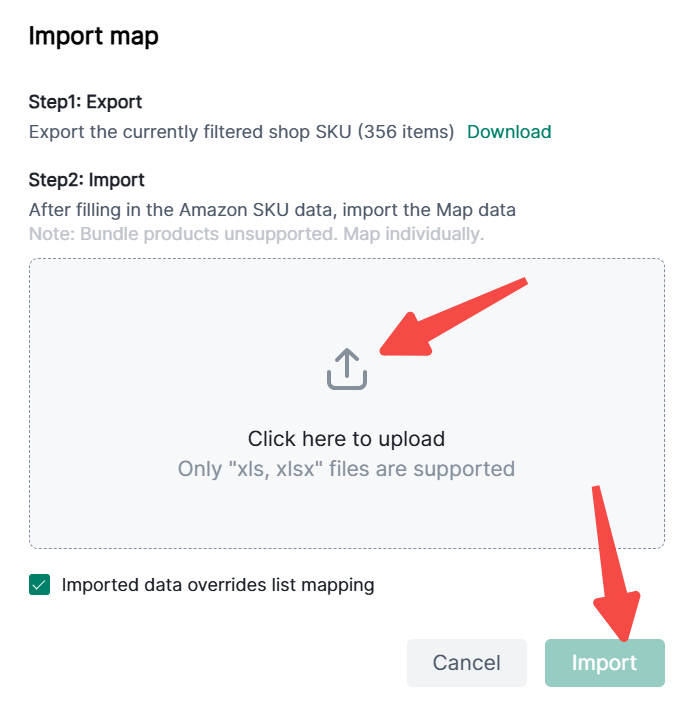
(2)Download the file and fill out the information, u can select overrides or not.
(3)After finishing the template, click to upload and import.
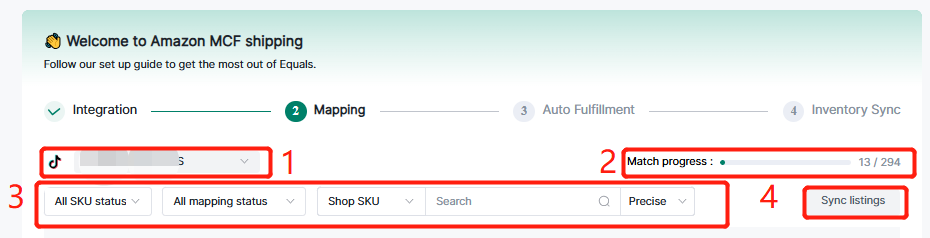
Note: The Meaning of 1-4 in the picture
(1) If you connect multi stores, you can select / filter here.
(2) You can check the Mapping progress to map the rest skus.
(3) You can filter SKU in the filter bar.
(4) If any listings didn't sync in 4Seller, you can click sync listings.
Step 3: Auto Fulfillment
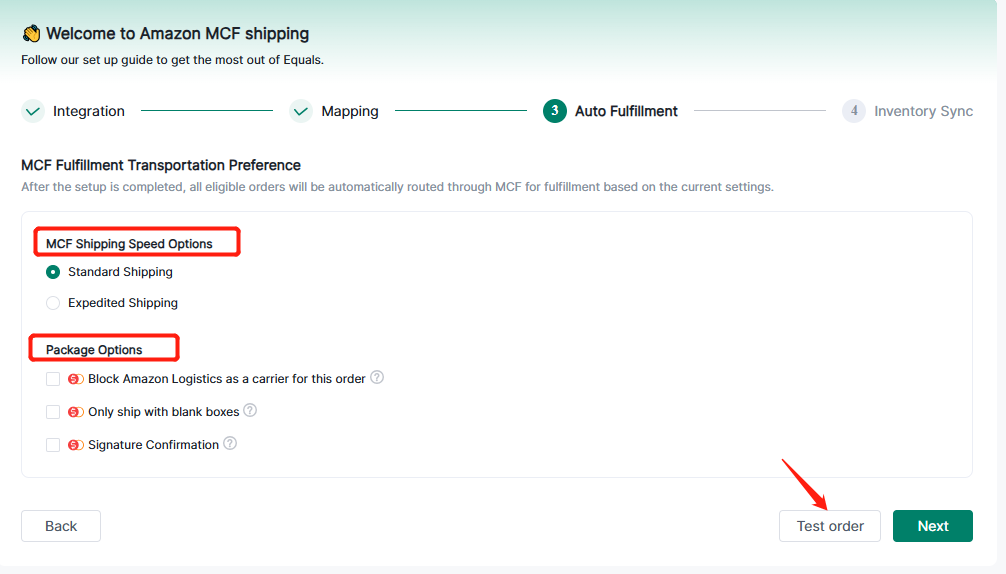
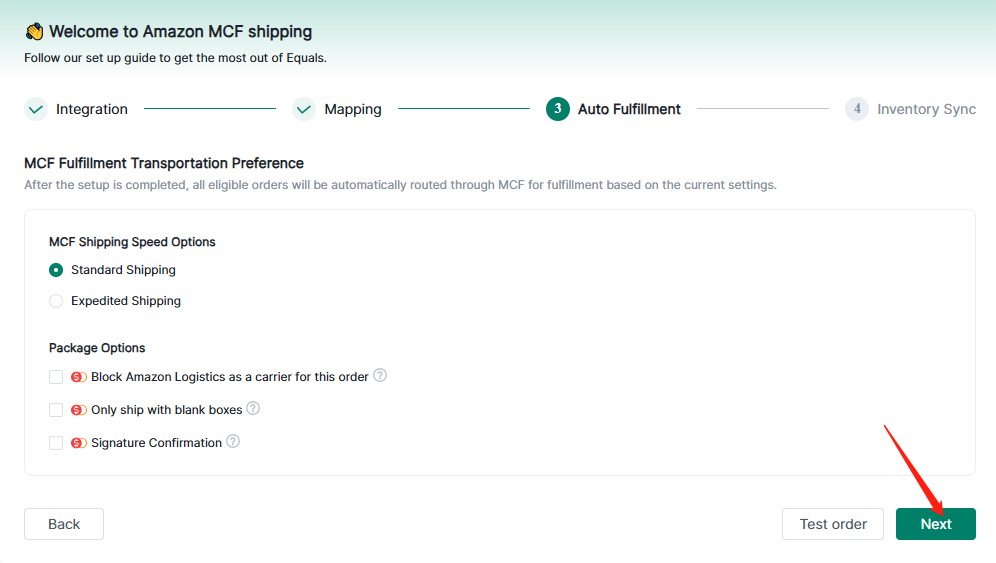
1. Select MCF Shipping Speed Options & Package Options--Next
Note: After the setup is completed, all eligible orders will be automatically routed through MCF for fulfillment based on the current settings.
2. You can click Test Order to test the process.(Not necessary step)
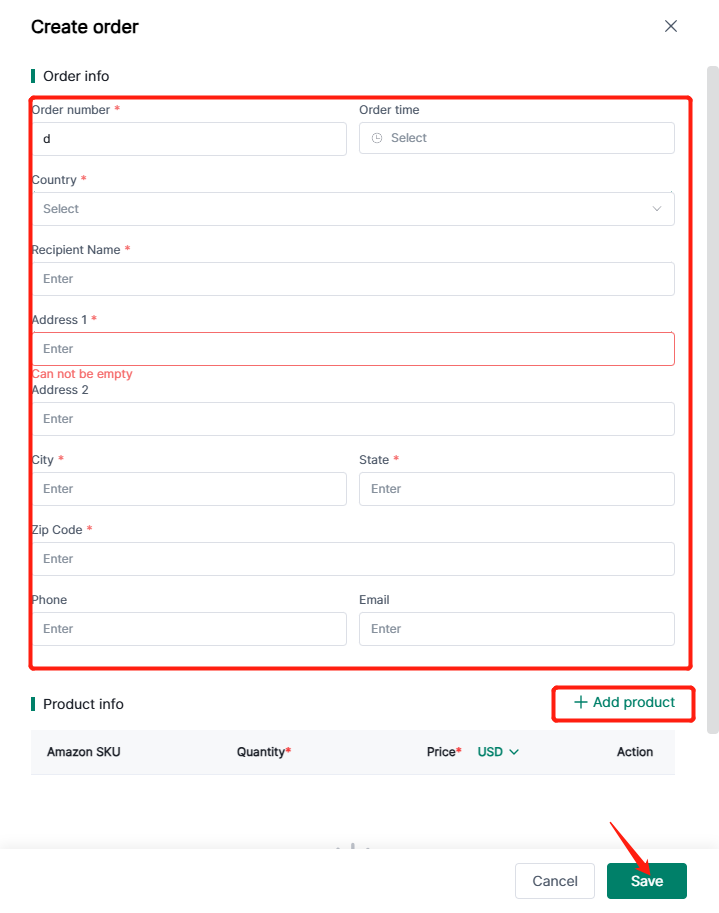
Enter the test page, click create order.
Fill the required information then click save.
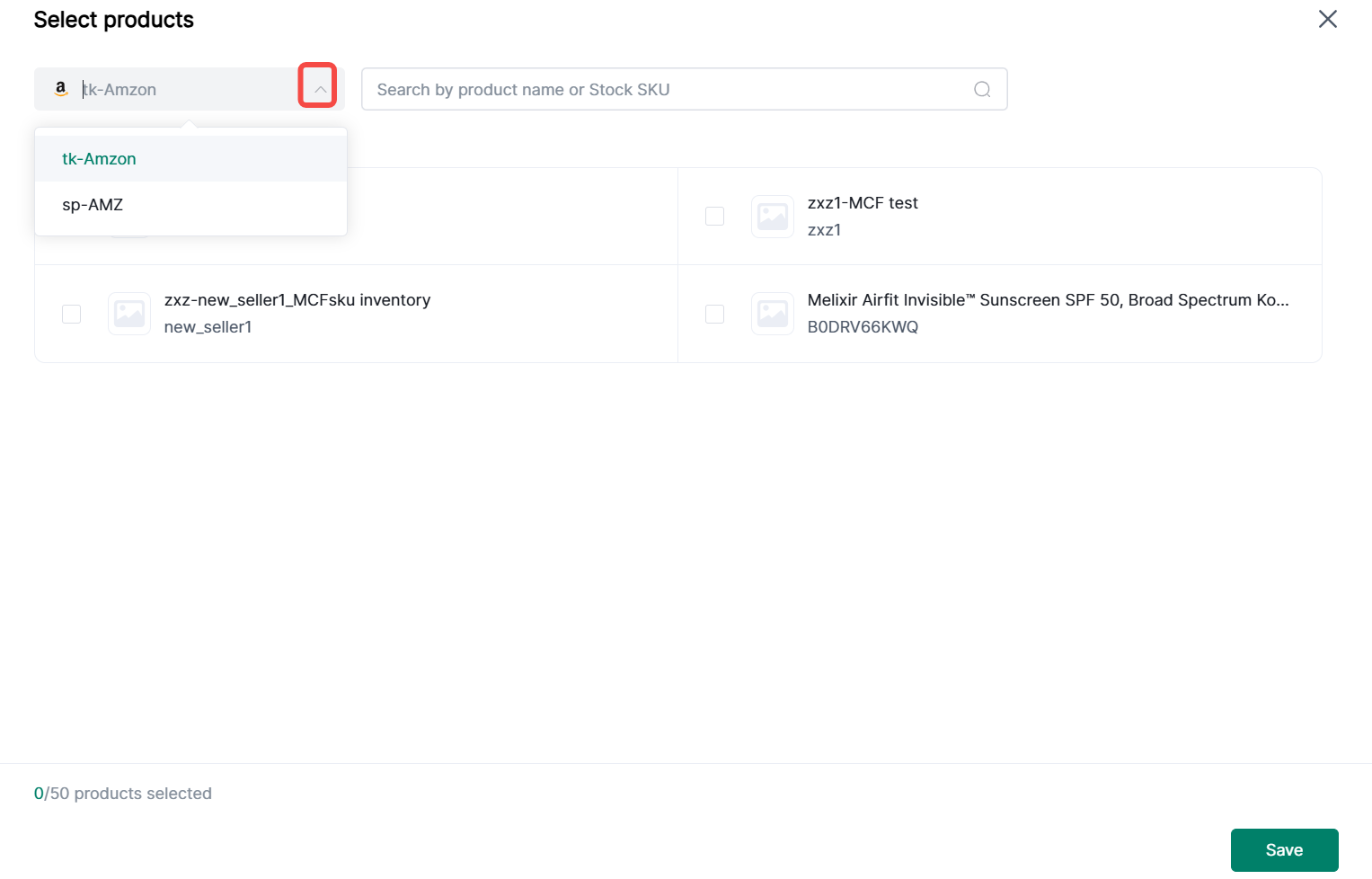
When add product, u can select the warehouse.
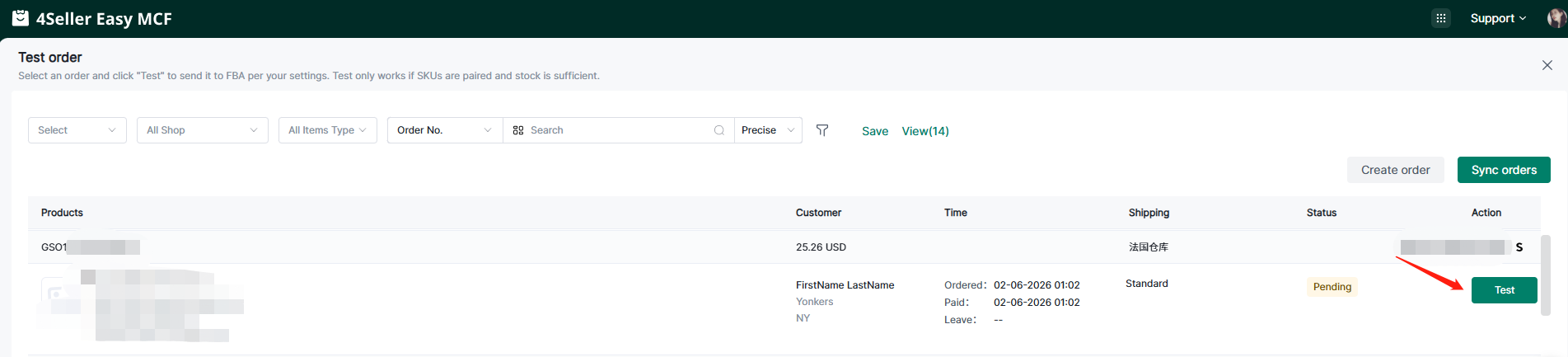
After that you can click "Test".
After Testing, you can close the page and back to setting.
If you do not need to test order, you can click "Next".
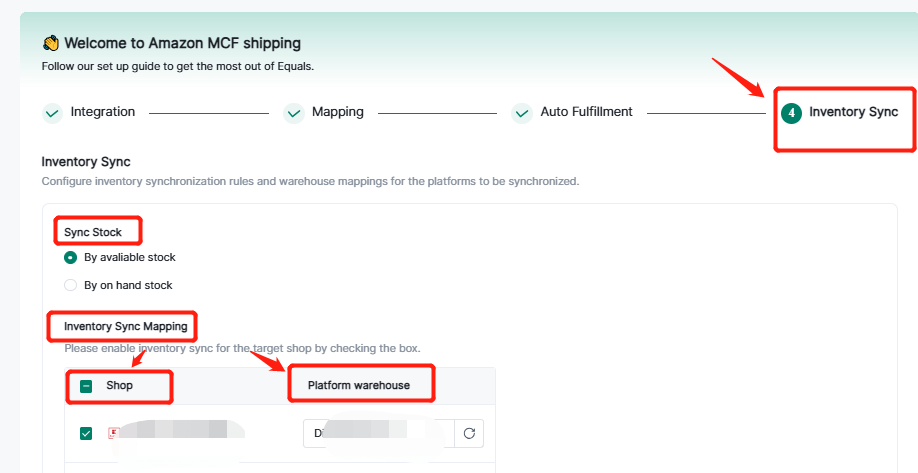
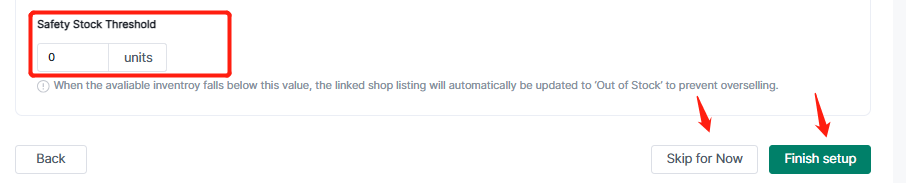
Step 4: Inventory Sync
If you need to sync inventory to platform stores, you can set up, or can skip this step.
Selct the inventory type to sync--Set up Inventory Sync Mapping--Set up Safety Stock Threshold-- Finish setup
Step 5: After all setting, you will enter dashboard.


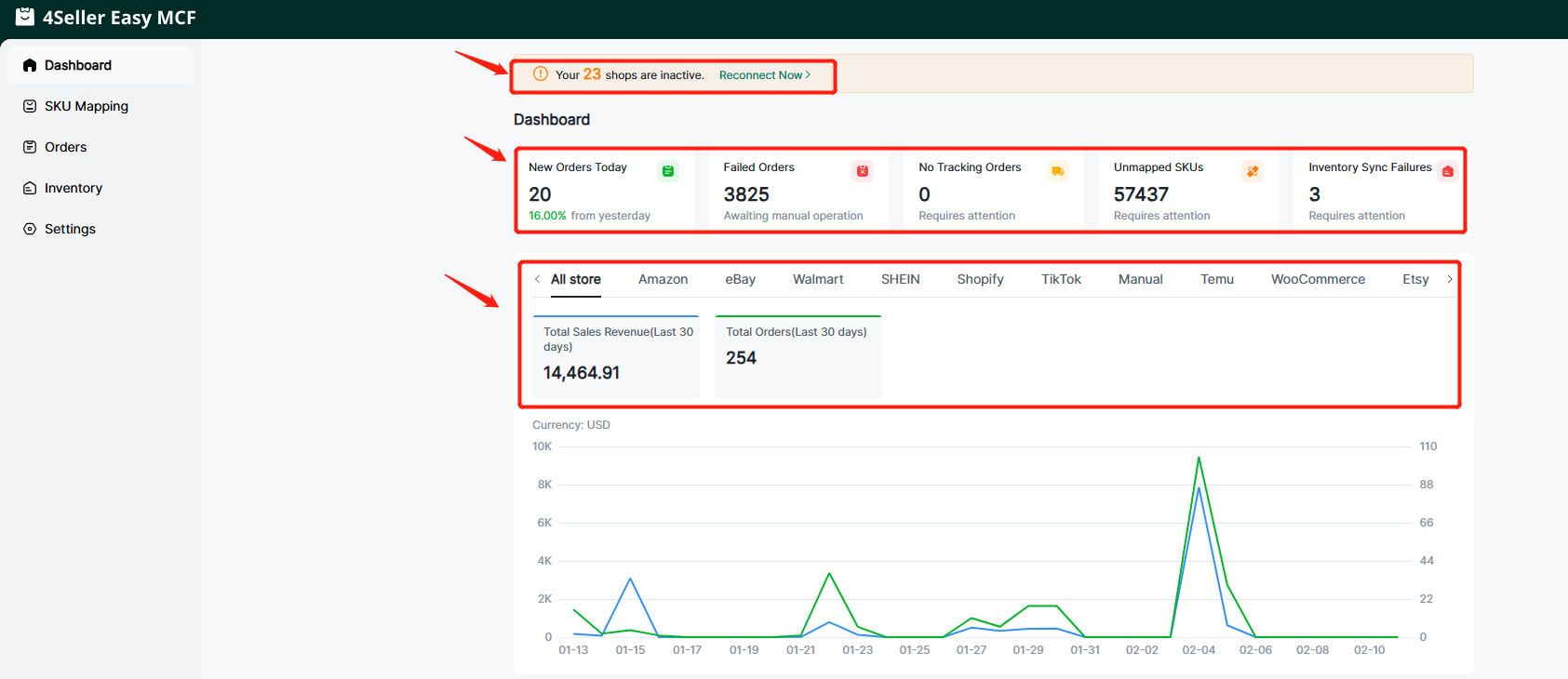
- In the dashboard, will warn you when you have shops inactive in the above.
-
You can check the Orders statuation: New orders, Failed Orders, No Tracking Orders, Unmapped SKUs, Inventory Sync Failures.
-
All the stores sales data will show in the dashboard.
Step 6: If you need to map sku, you can click SKU mapping to edit the mapping.

Step 7: Orders
You can check all orders here, including Failed, Pending, In process, Shipped, Cancelled, Skipped.
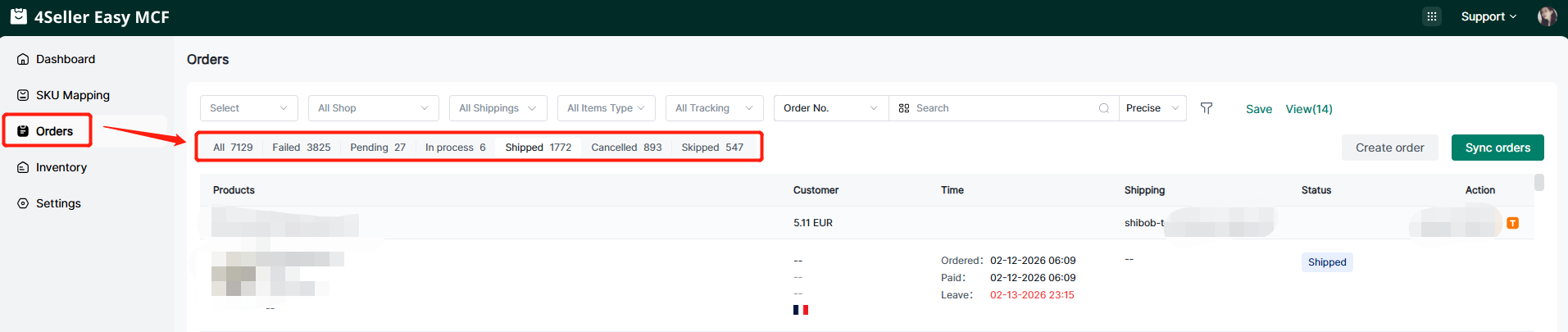
You can filter orders via the filter bar

Step 8: Inventory
You can check inventory situation in this page.

You can check the inventory sync log here ,if the status is failure, will show the reason.
Click "Sync" This operation will synchronize inventory according to the set rules and can be performed up to twice a day.

Step 9: Setting
1. Integration: You can connect new market place store via click"Connect".

2. SKU mapping
Open enable automatic SKU matching or Close if you do not want to map sku automatically.

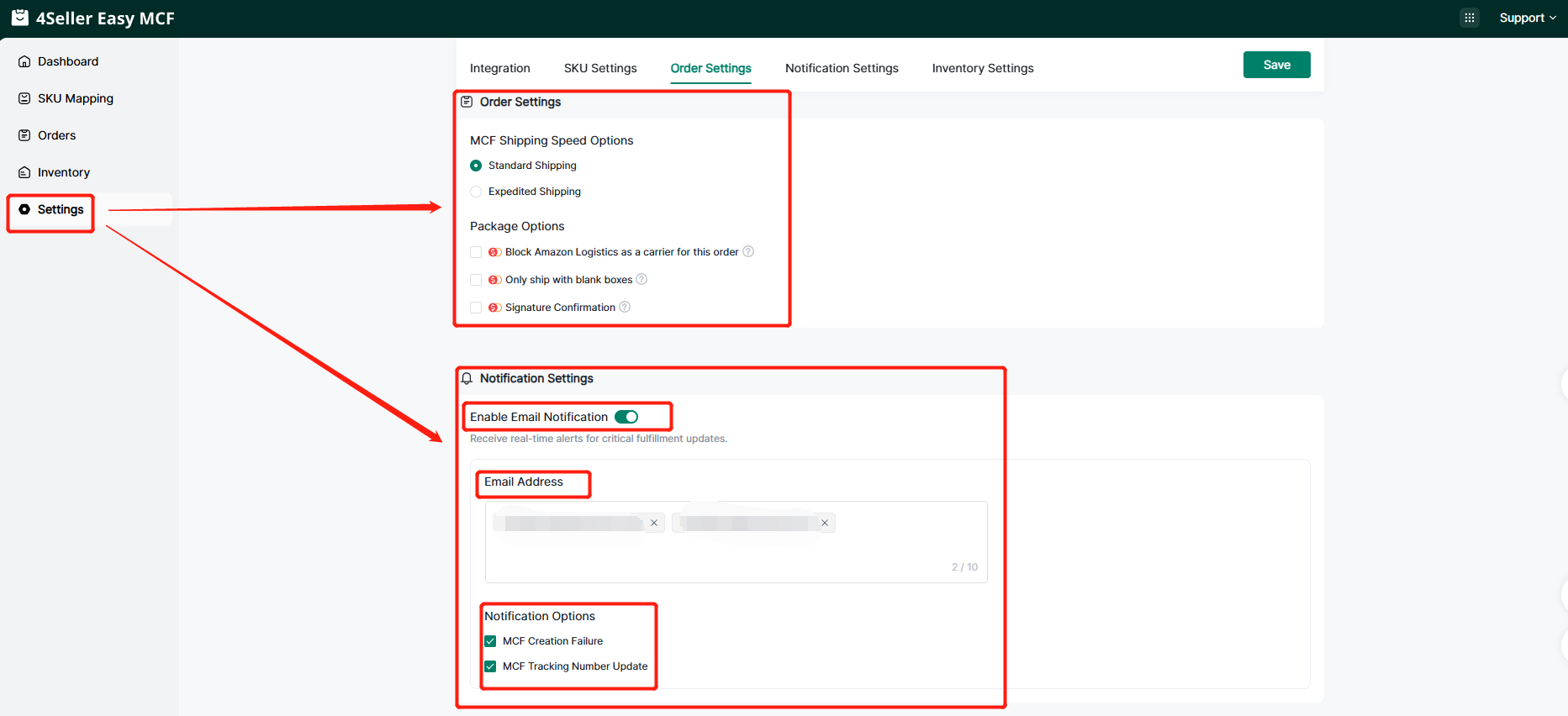
3. Order Setting
Here will sync your setting which you set in the guide page.
You can set up the Notification Setting:Email address, Notification Options.
4. Inventory Setting
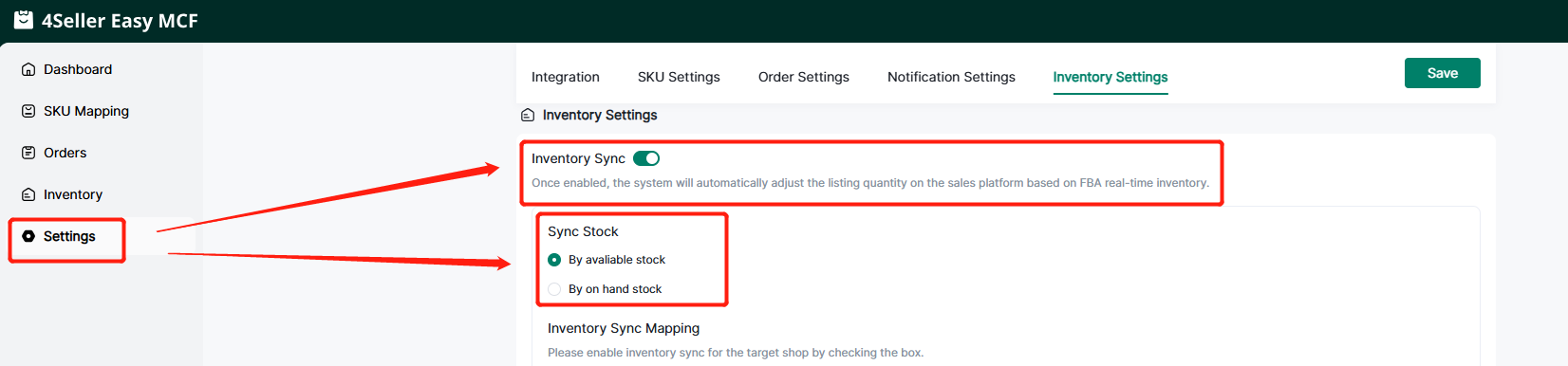
You can Open & Close inventory sync and set up the inventory sync rules then click save.
Any problem feel free to contact 4Seller Support Team: support@4seller.com