- Get Started
- Video Tutorials
- Knowledge Base
- FAQs & Troubleshooting
How to Connect Woocommerce Stores to 4Seller within MCF Tools?
Updated on 09 Feb,2026Copy Link
On MCF Tools , you can enter the authorized Woocommerce store page through two Entrances:
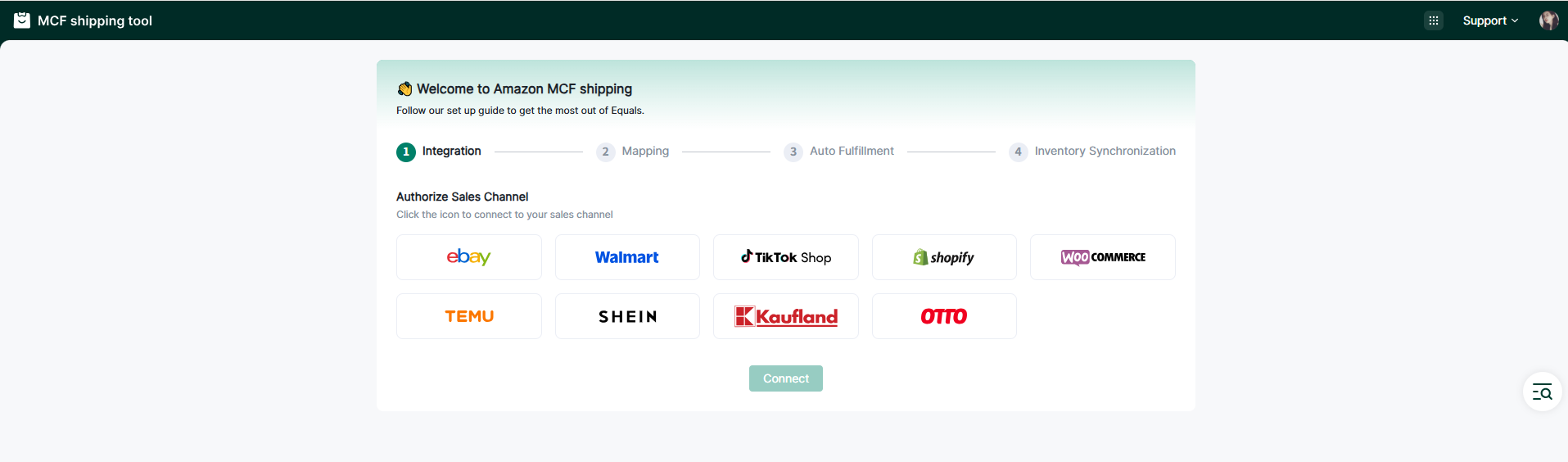
Entrance 1: On the guide page, if you are a new user, you can set up your Sales Channel in the MCF guide Wizard , and click the Woocommerce Store icon to enter the store authorization page.
Entrance 2: On the Setting page, no matter whether you have authorized the store before, you can authorize the store here. Click Shop Manage in Settings, and then click the Woocommerce icon to enter the store authorization page.
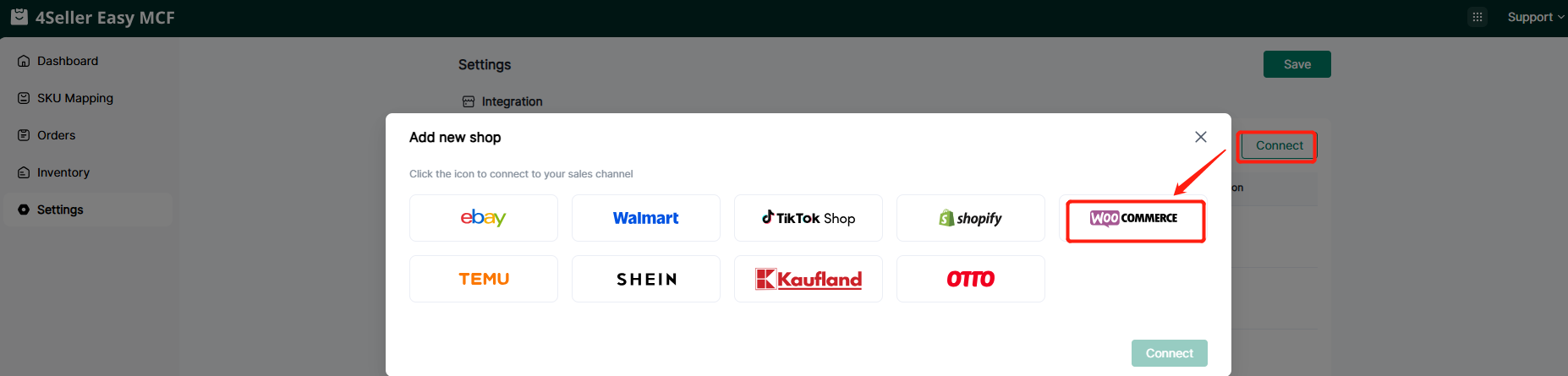
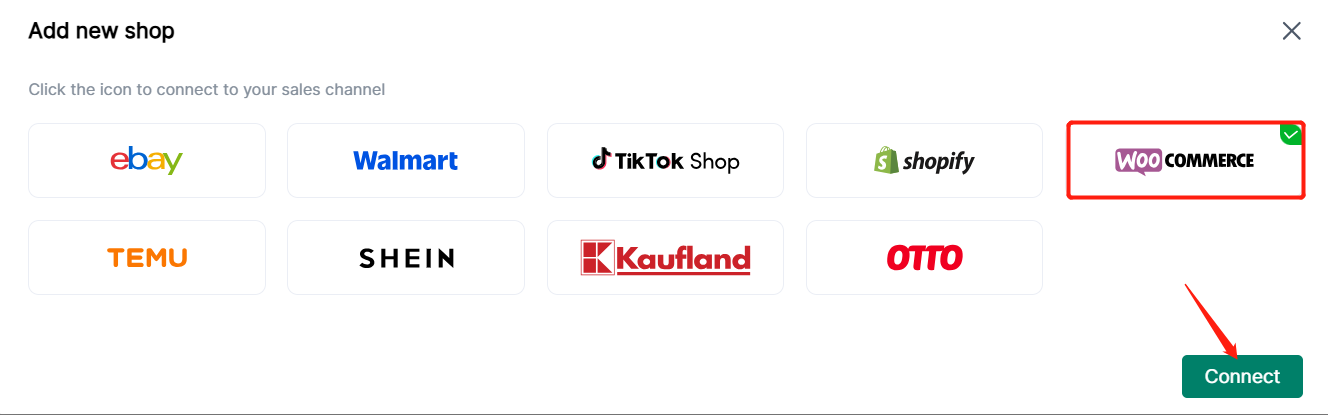
Step 1: Click the Woocommerce icon, and the page connecting the TikTok account will appear.
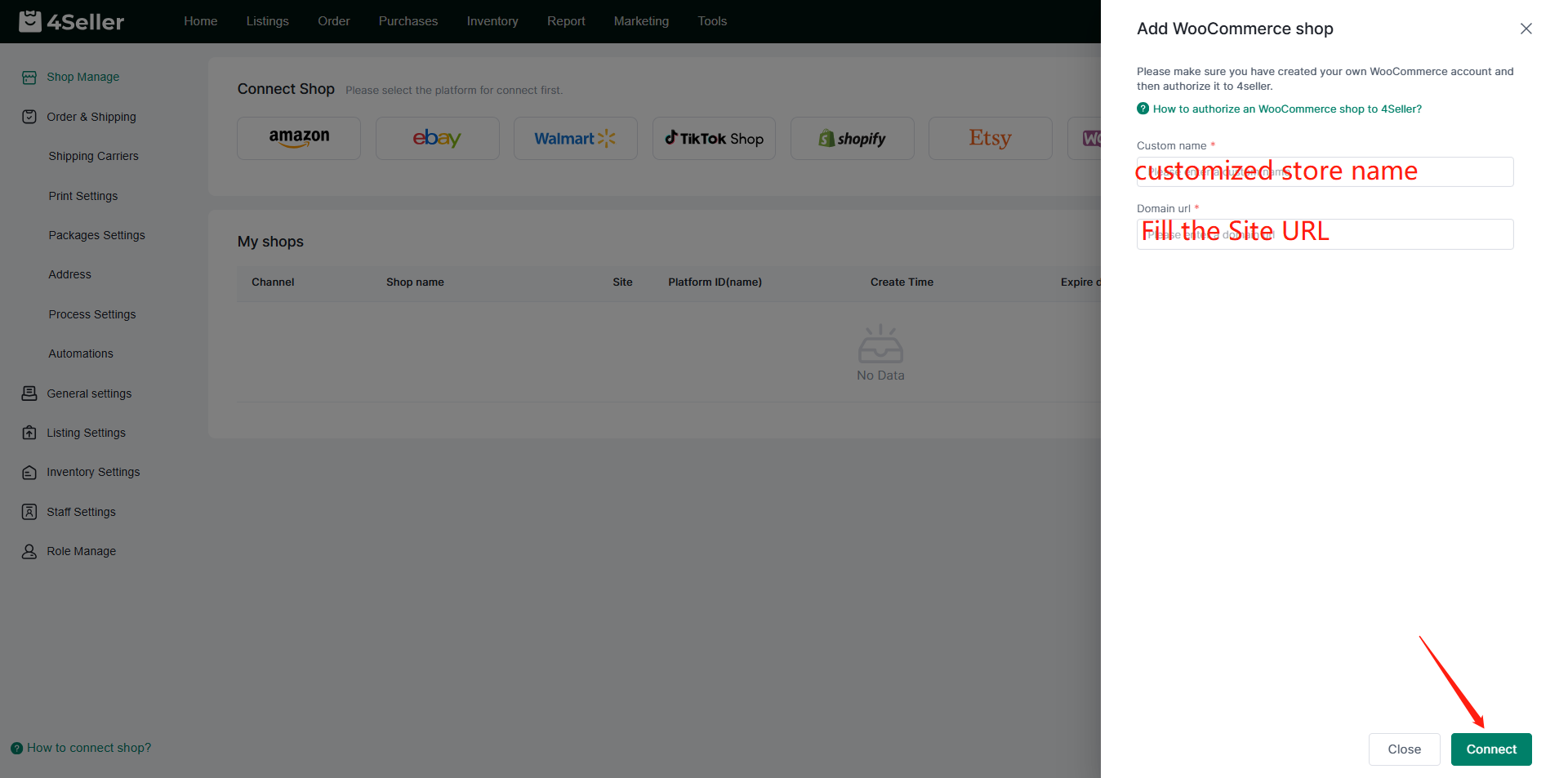
Step 2: There are two ways to authorized Woocommece Store to 4Seller
Method One: Authorized Woocommerce through Woocommerce OAuth 2.0 (If authorized failed, pls try the method two through REST API)
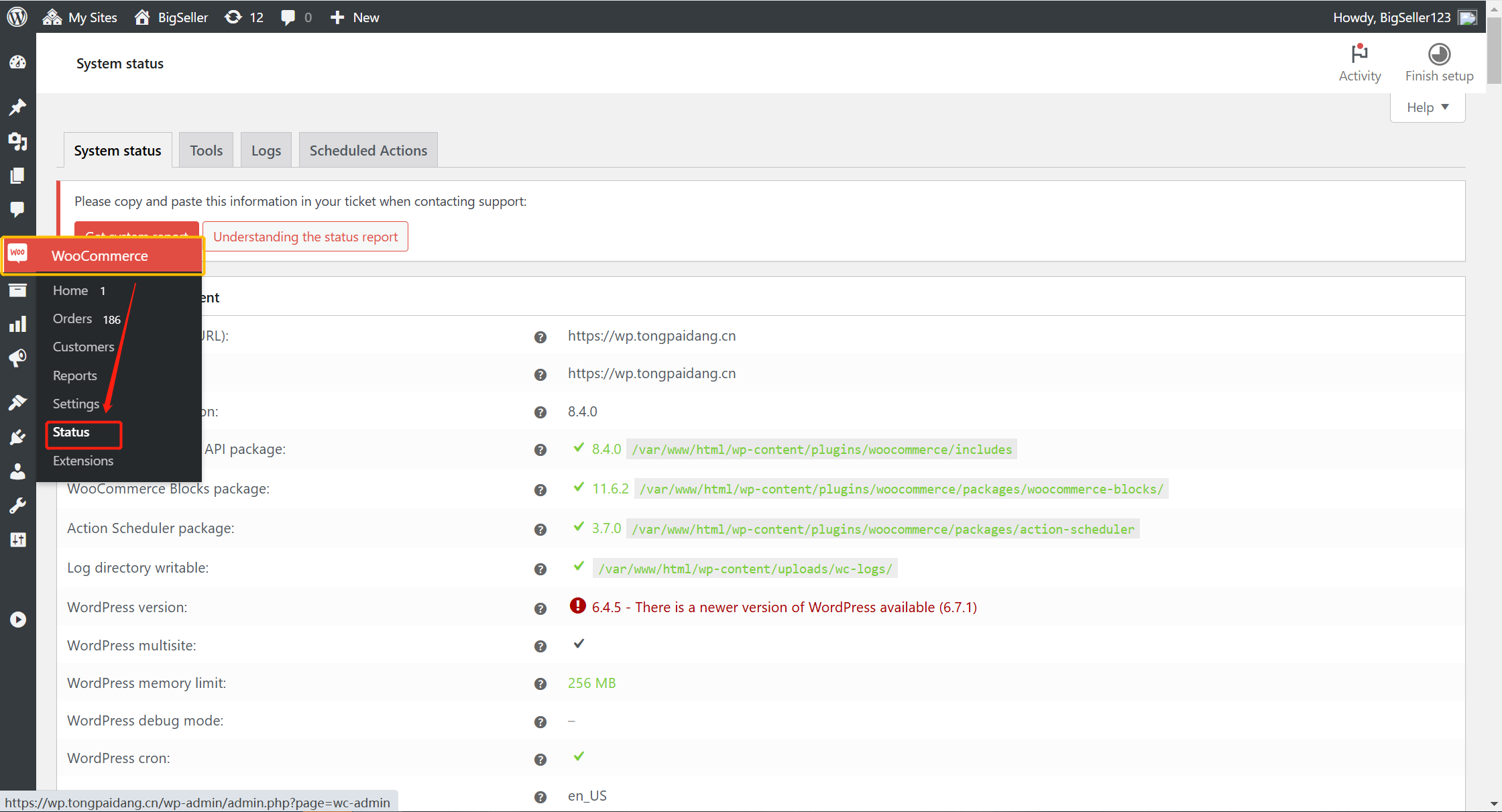
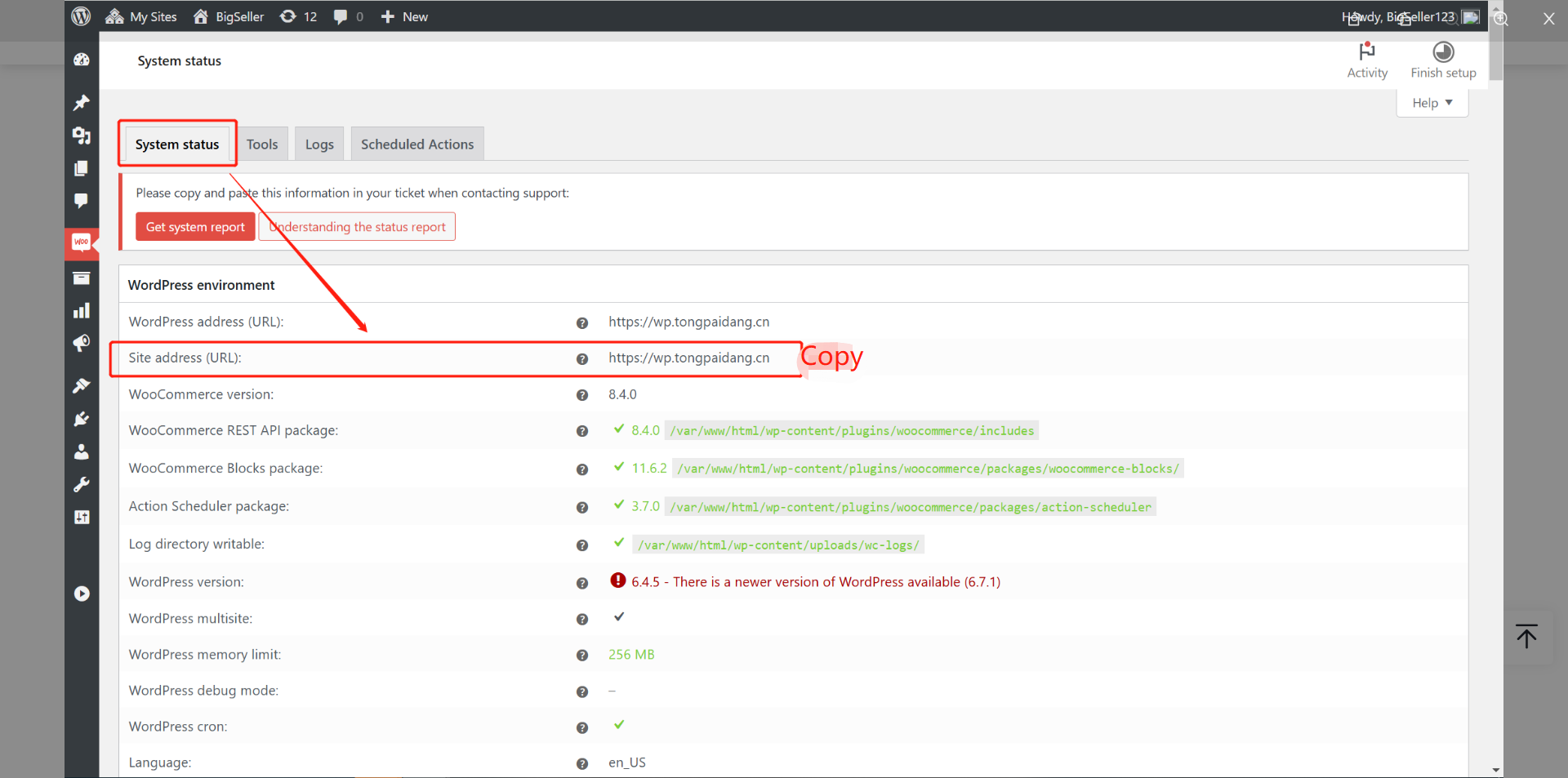
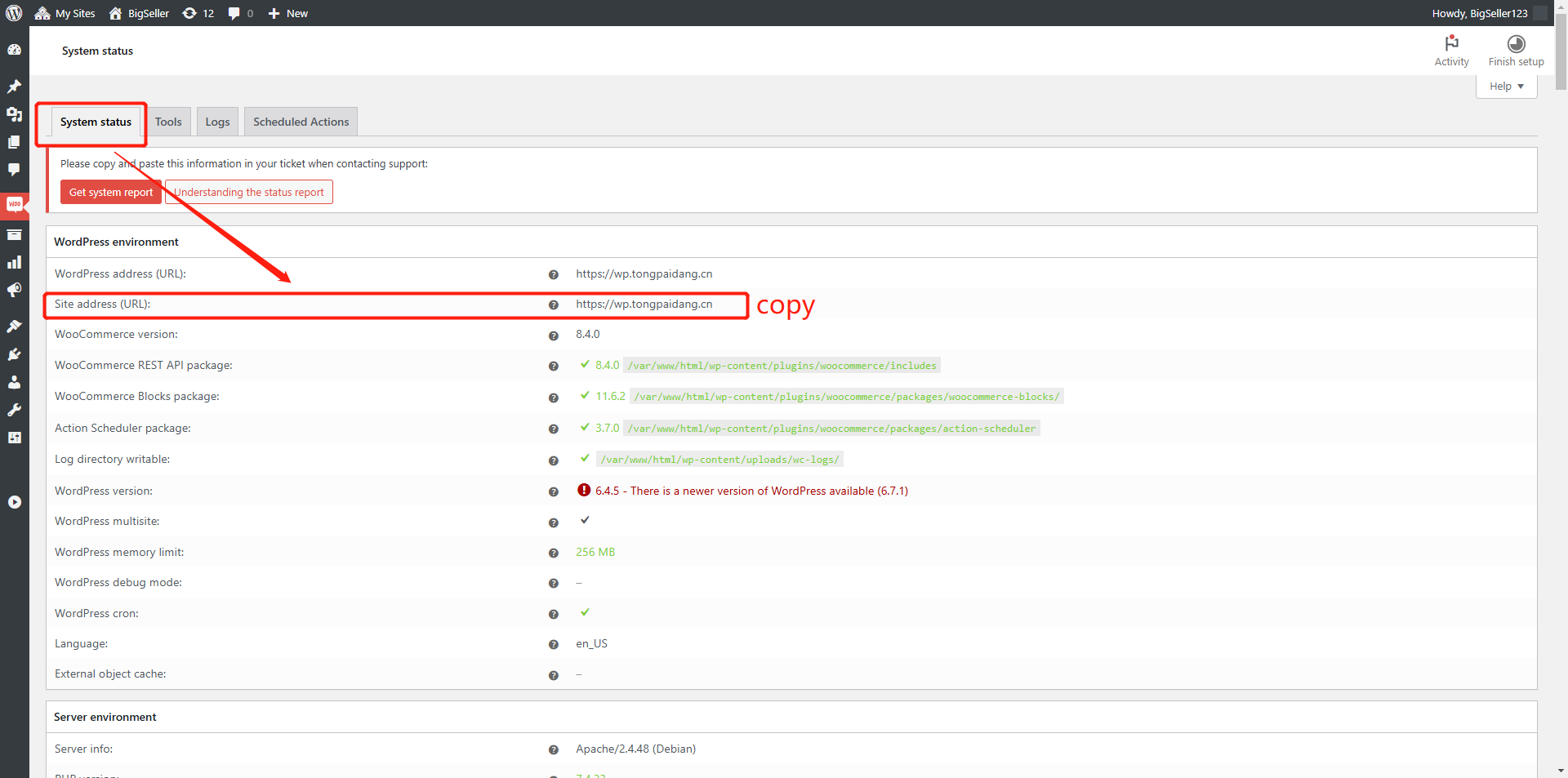
1. 【Log in Woocommerce—Status—System Status—Site Address URL】
2. Click Woocommerce icon, Select OAuth 2.0 to finish the authorization
Method Two: Authorized Woocommerce through Woocommerce REST API
1. 【Log in Woocommerce—Status—System Status—Site Address URL】
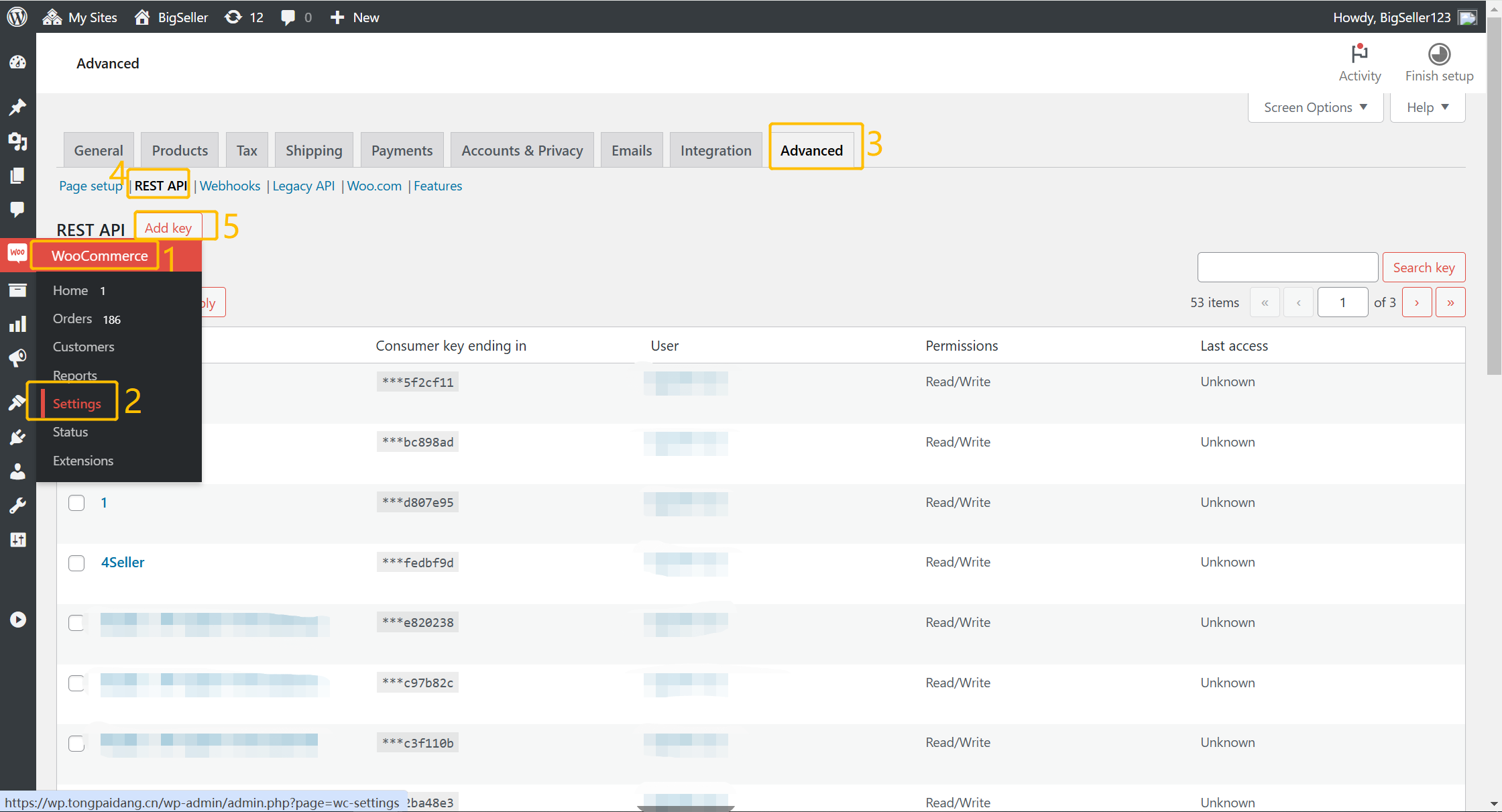
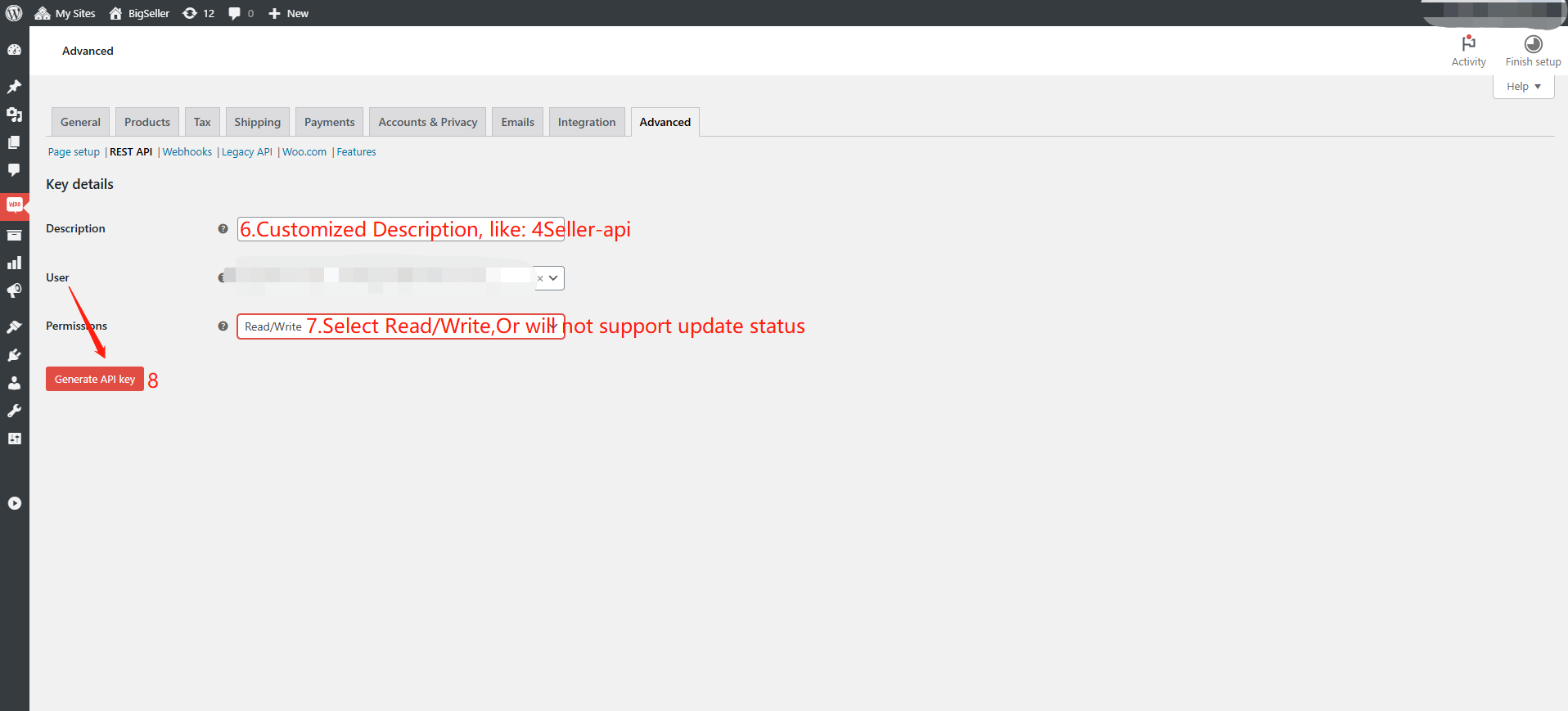
2.【Woocommerce Platform—Setting—Advanced—Add Key—Generate Consumer Key and Consumer Secret】
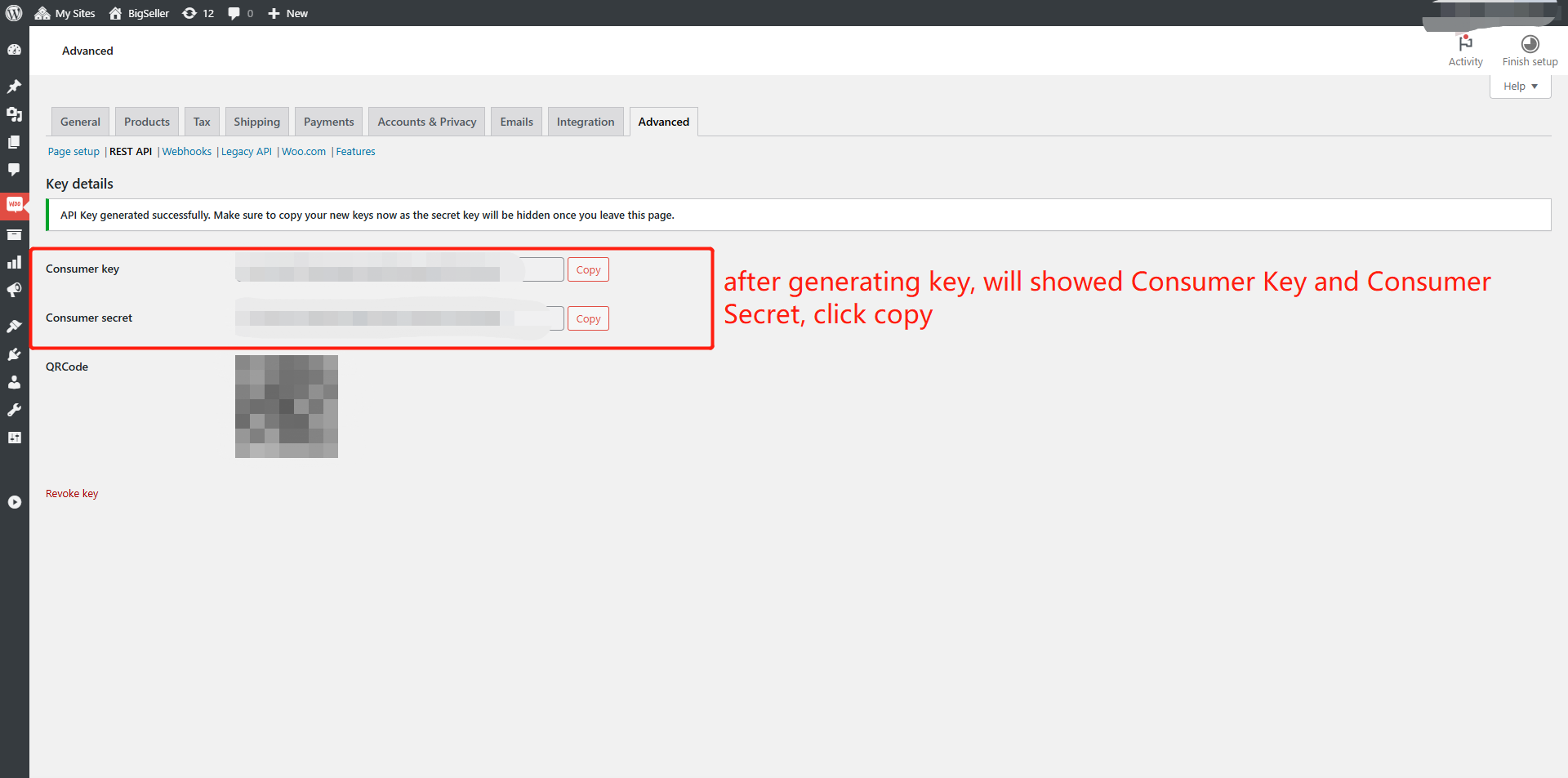
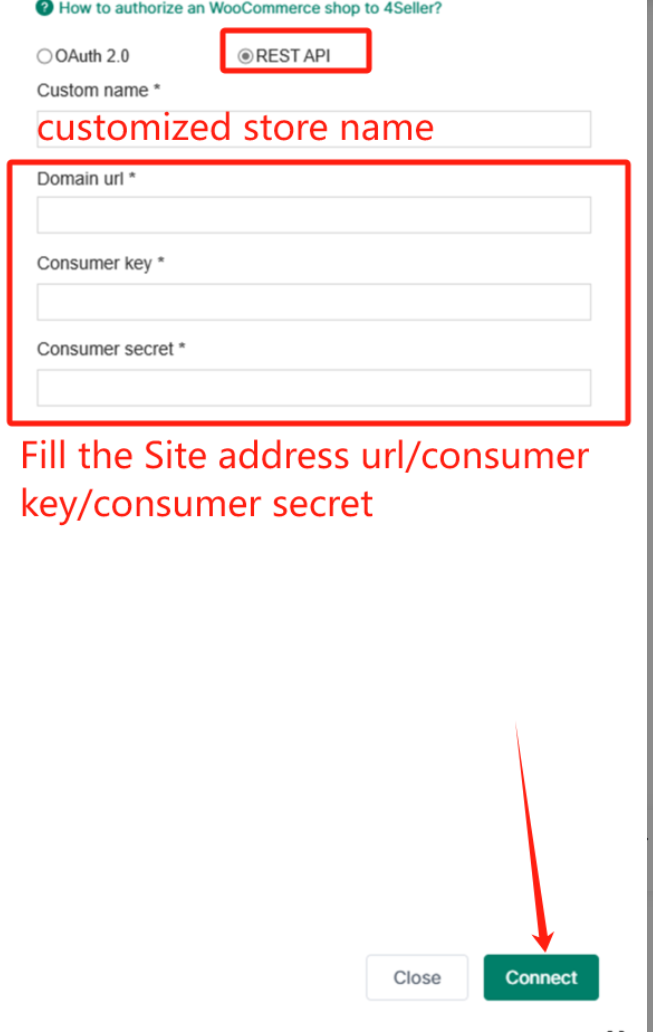
3. Click Woocommerce Store Icon in 4Seller, Select REST API to finish the authorization
After successful shop authorization, you can check the shop authorization status on Setting page-- "Connect Shop" indicates that the authorized shop is successful, and you can then use 4Seller to complete online product synchronization, order processing, inventory synchronization, and other operations!
Any problem pls contact 4Seller support team: support@4seller.com



Back to top