- Get Started
- Video Tutorials
- Knowledge Base
- Channels
- Listings
- Inventory
- Orders
- Settings
- FAQs & Troubleshooting
How to Set Up an Order Customer Blacklist?
4Seller has added a customer blacklist feature. It supports identifying historical risk customers by Buyer ID and email address, and displays a risk label on the order details page to help sellers quickly assess order risks before shipping.

Note: Blacklisted customers are only blocked within 4Seller and will not be affected on other platforms.

 1、Blacklist or Remove a Buyer from the Blacklist

1.1 Blacklist a Buyer

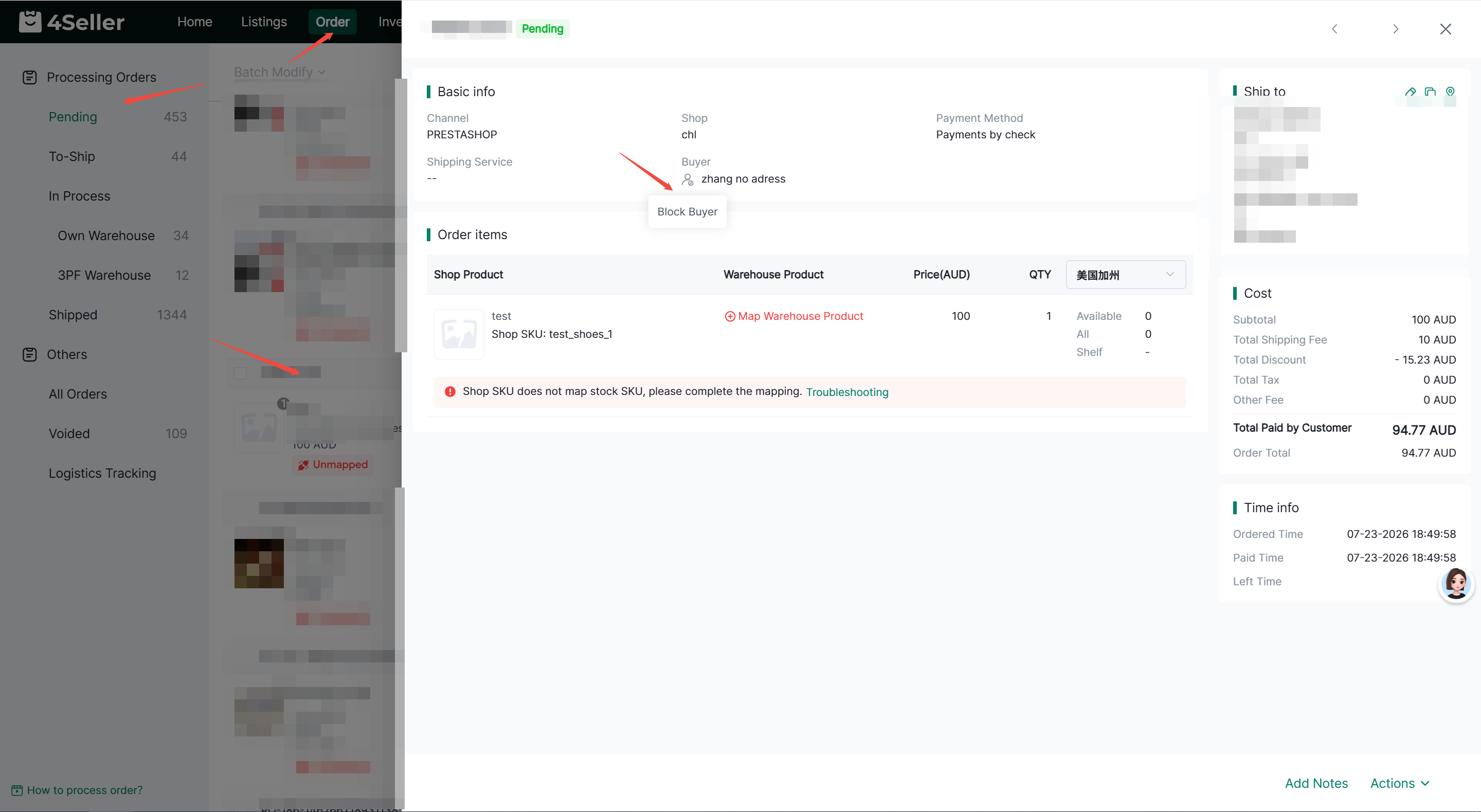
Go to Orders > Pending Review, click the order number to enter the order details page, then click Blacklist Buyer.


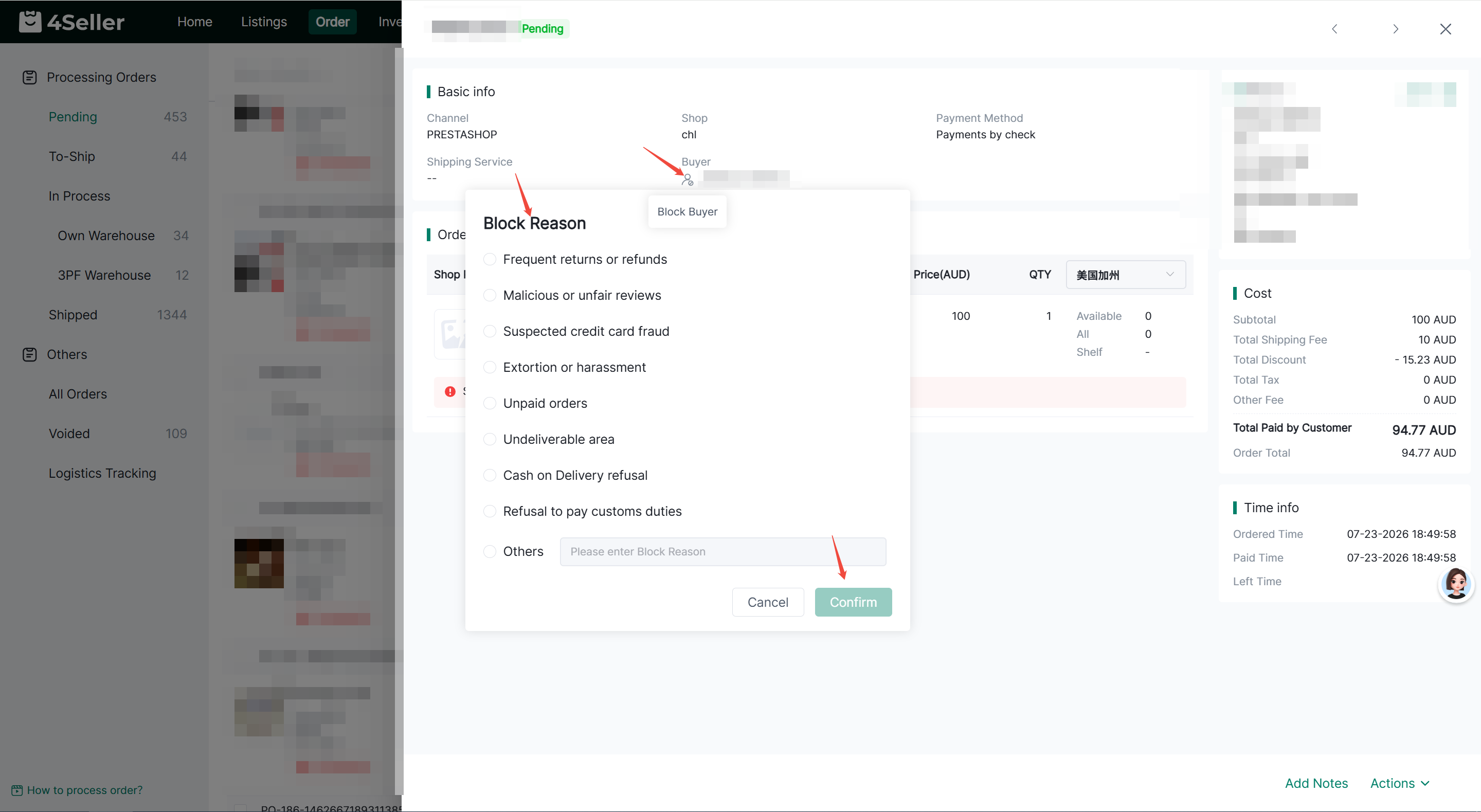
After clicking it, a confirmation window will pop up. Select the corresponding reason for marking the buyer, then confirm. The buyer will then be added to the blacklist.


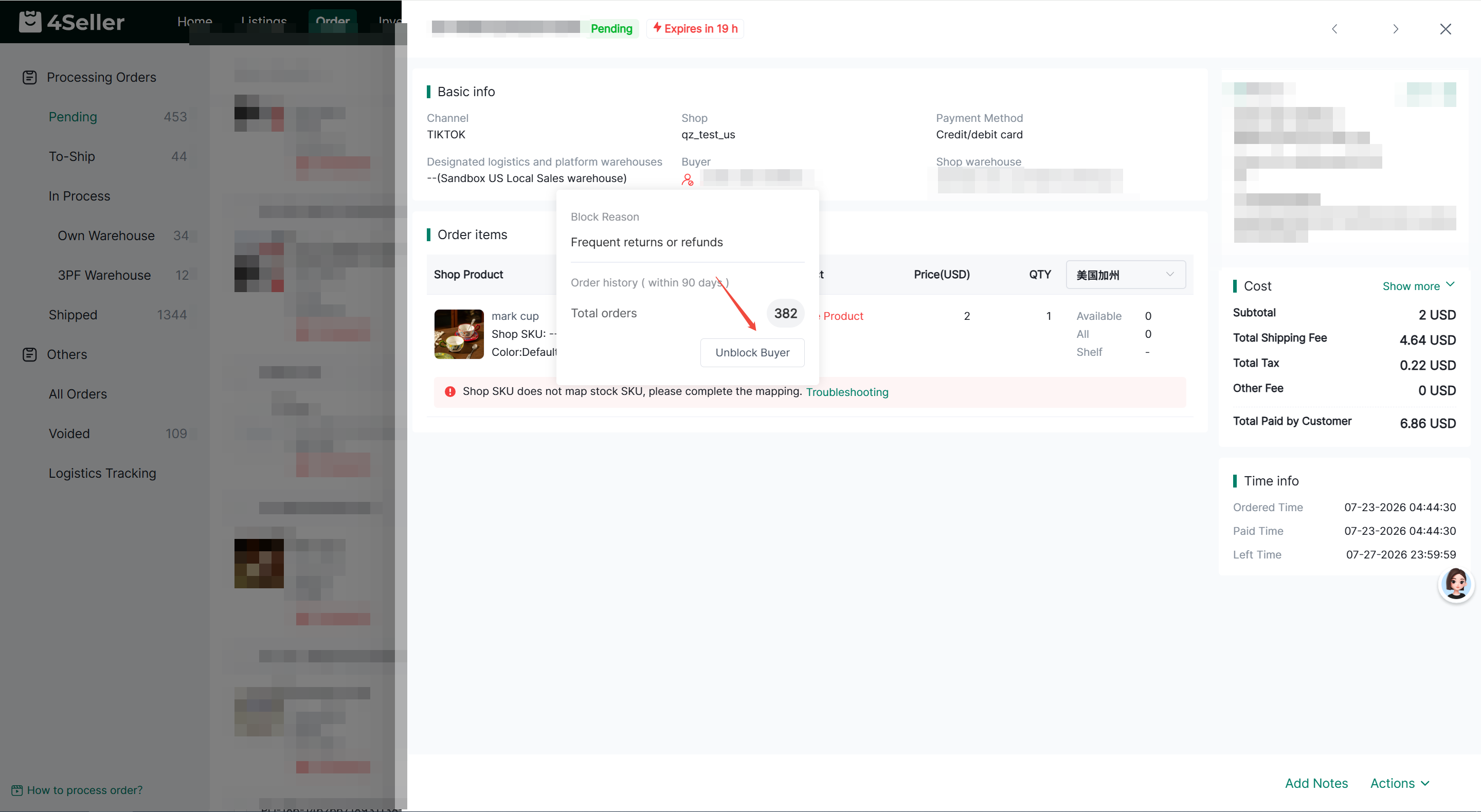
Once the buyer is blacklisted successfully, a red blacklist icon will be displayed in the order module. Hover over the icon to view the marking reason and the buyer’s historical orders within the past 90 days.


1.2 View and Remove Blacklisted Buyers

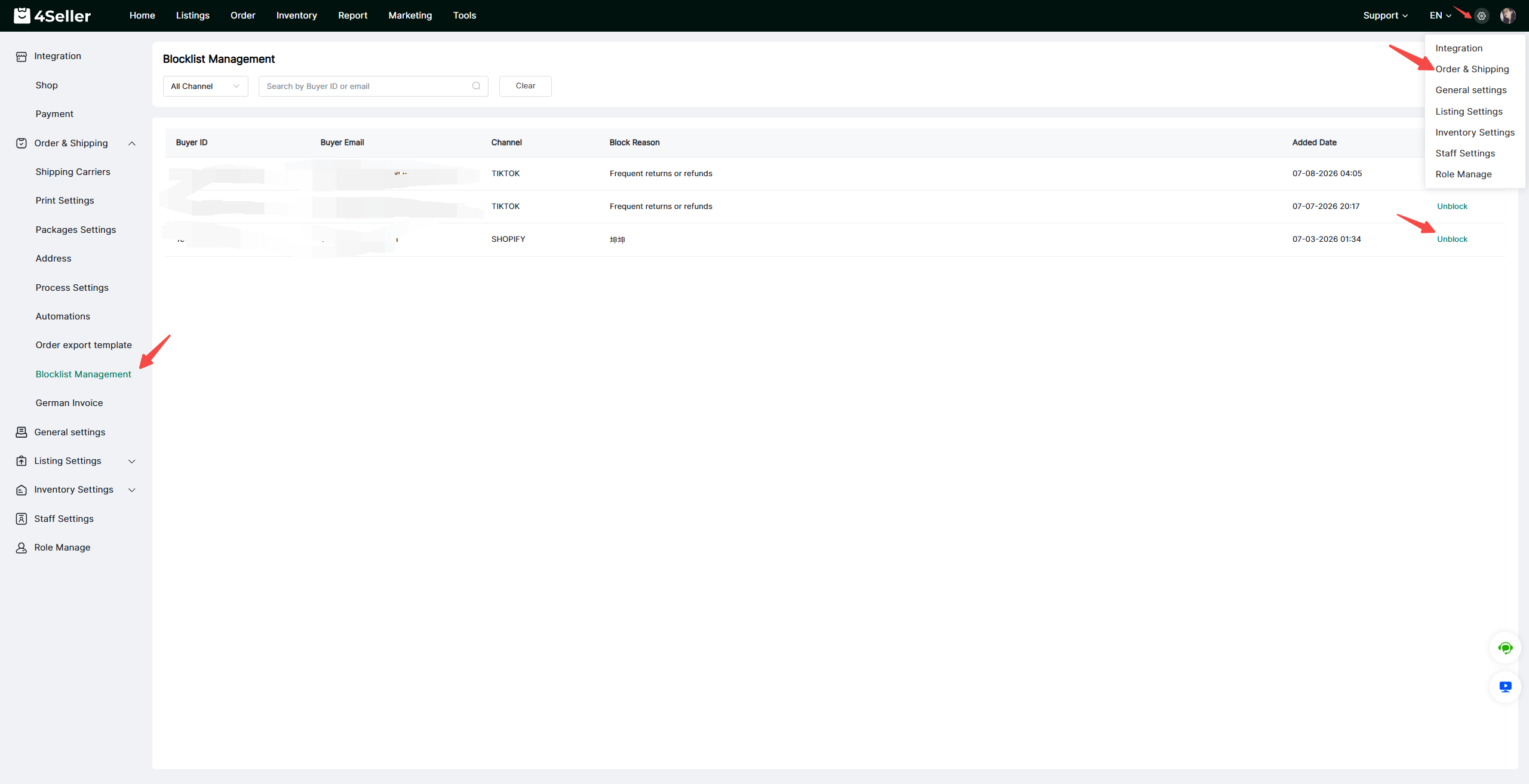
Go to Settings > Orders & Shipping > Blacklist Management to view blacklisted buyers and remove buyers from the blacklist.

The Blacklist Management page supports filtering and searching by: Buyer ID、Email、Platform


You can also click the order number in the order module to enter the order details page and remove the buyer from the blacklist.


2. Blacklist Blocking and Email Alerts in Shipping Rules

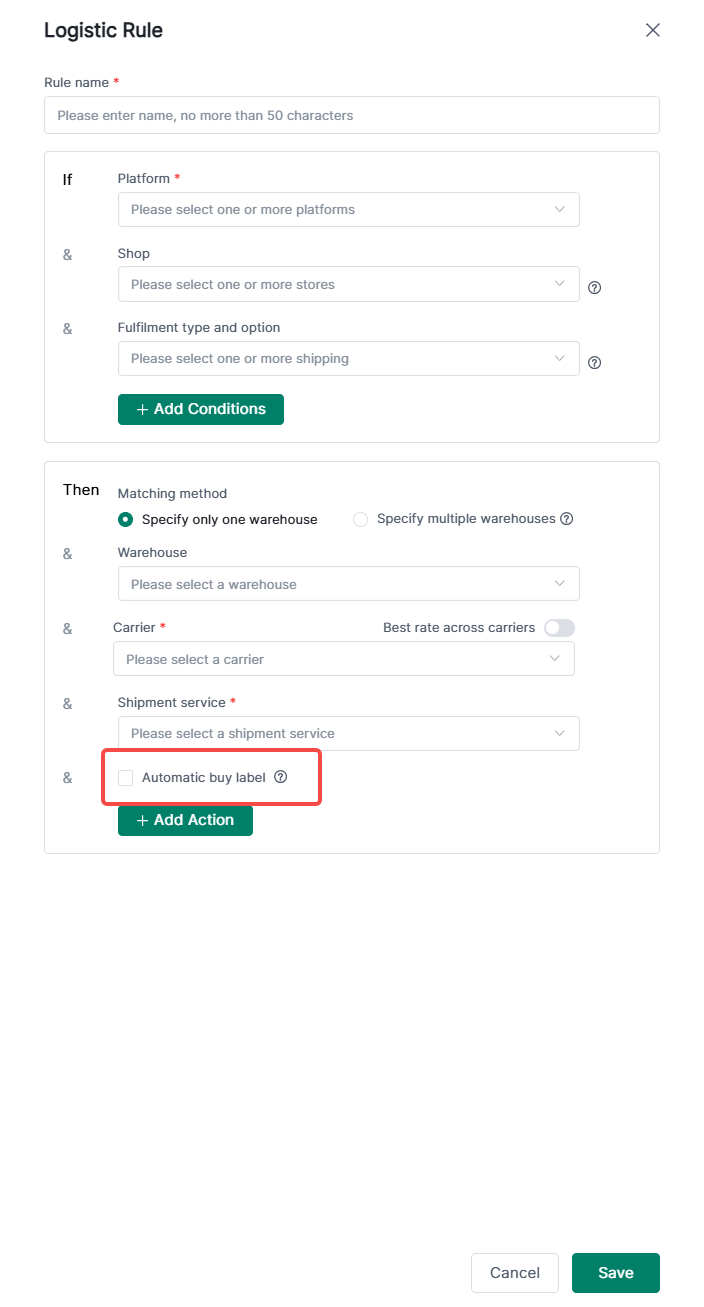
After enabling automatic label purchase in shipping rules, when an order is synced and triggers a shipping rule, the system will automatically check whether the recipient is on the blacklist.

If the recipient matches the blacklist, the system will block the order and trigger an email alert to remind the seller to handle the risky order promptly.


Note: If an order has already triggered blacklist blocking and the buyer is later removed from the blacklist, the shipping rule will not be triggered again automatically. To continue processing the order, the user needs to manually execute the shipping rule again.