- Get Started
- Video Tutorials
- Knowledge Base
- Channels
- Listings
- Inventory
- Orders
- Settings
- FAQs & Troubleshooting
How to Add Inventory of Stock SKU?
4Seller supports adding proprietary warehouse inventory

Note: When adding inventory, ensure the inventory SKU exists in the inventory product. Otherwise, add the inventory products first before adding product inventory.

I. Manually Adding Inventory

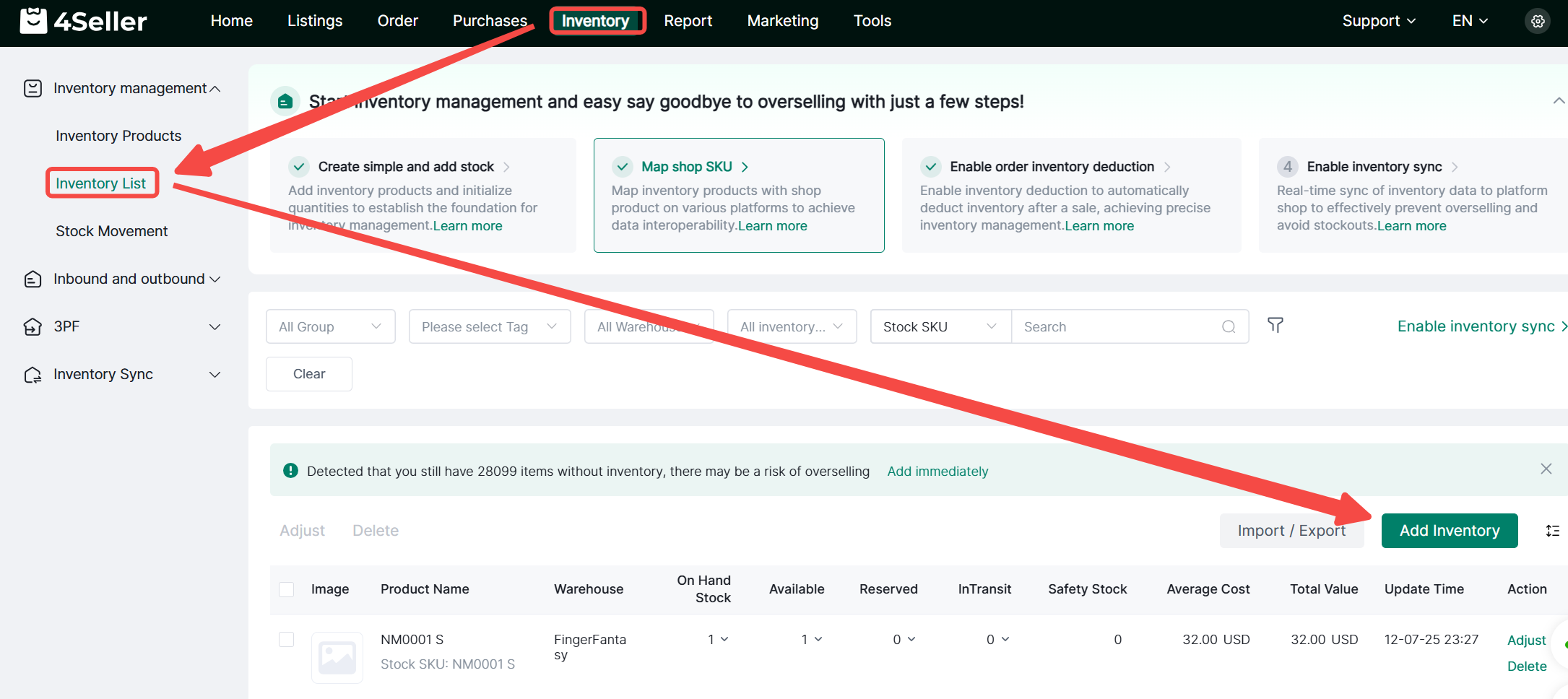
1. Click Inventory > Inventory List > Add Inventory to manually add inventory


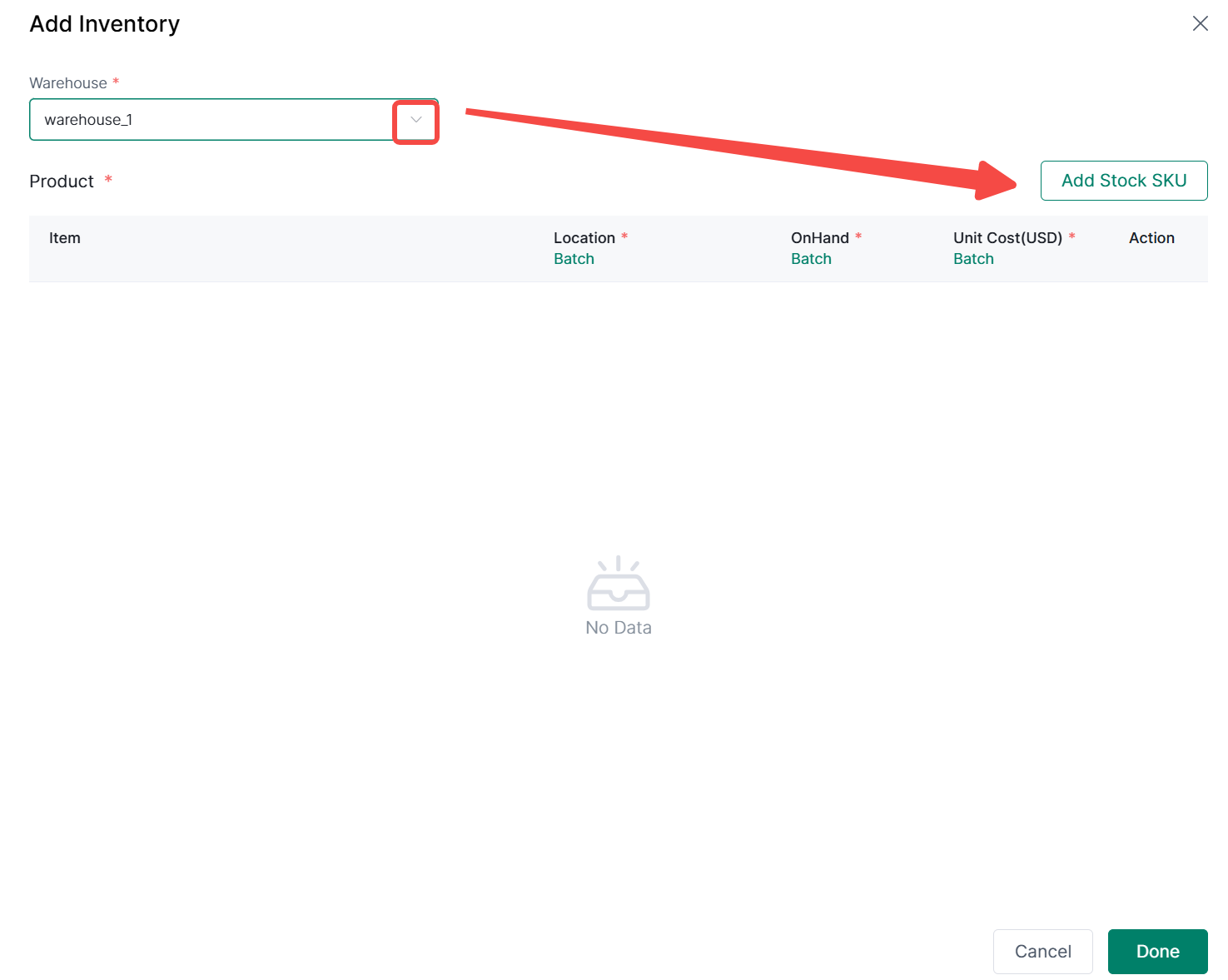
2. On the Add Inventory page, select the warehouse where the inventory SKU resides. Click Add SKU to add an inventory SKU


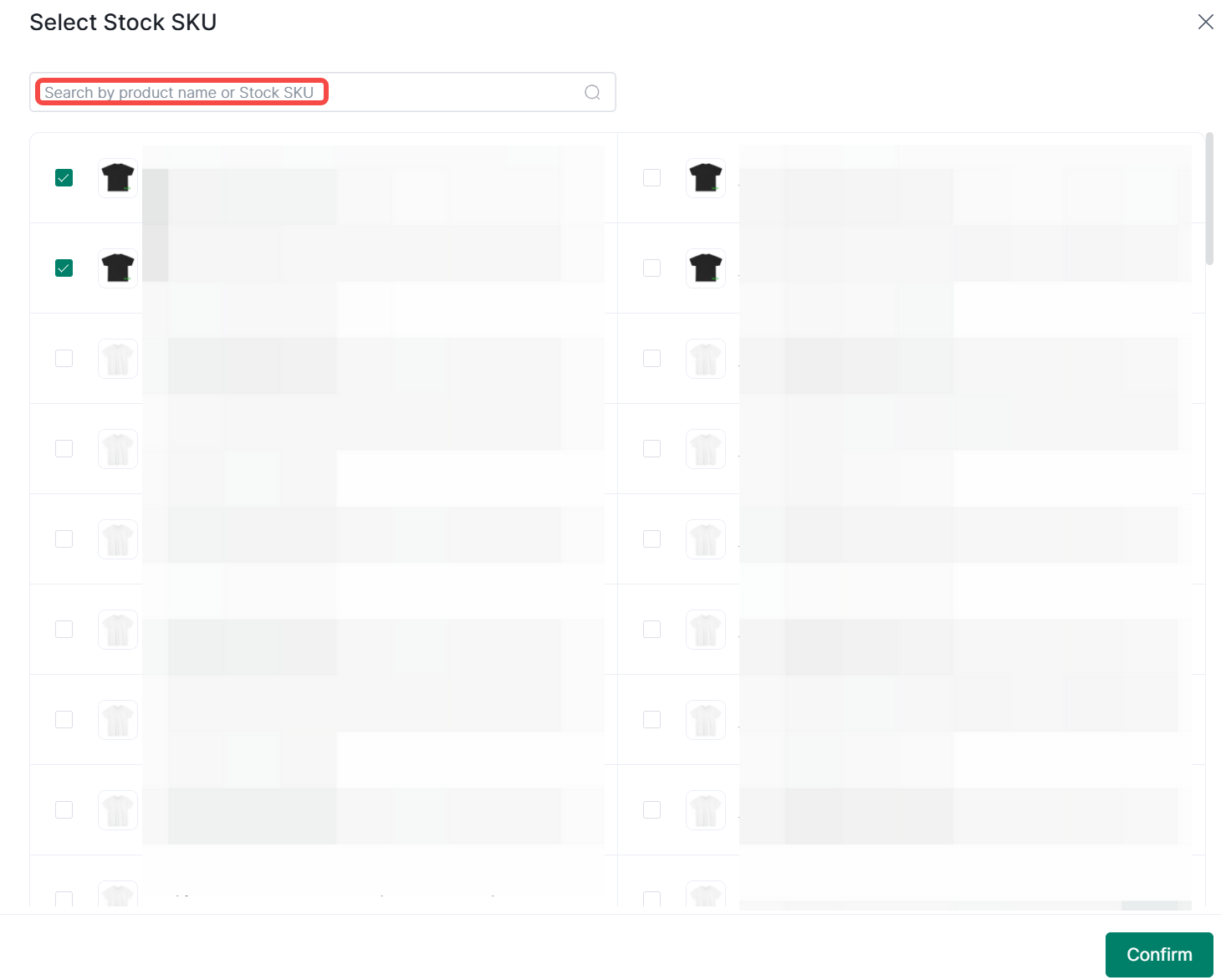
3. On the Select SKU page, search by product name or Stock SKU. Check the inventory SKUs to add, then click Confirm to add them


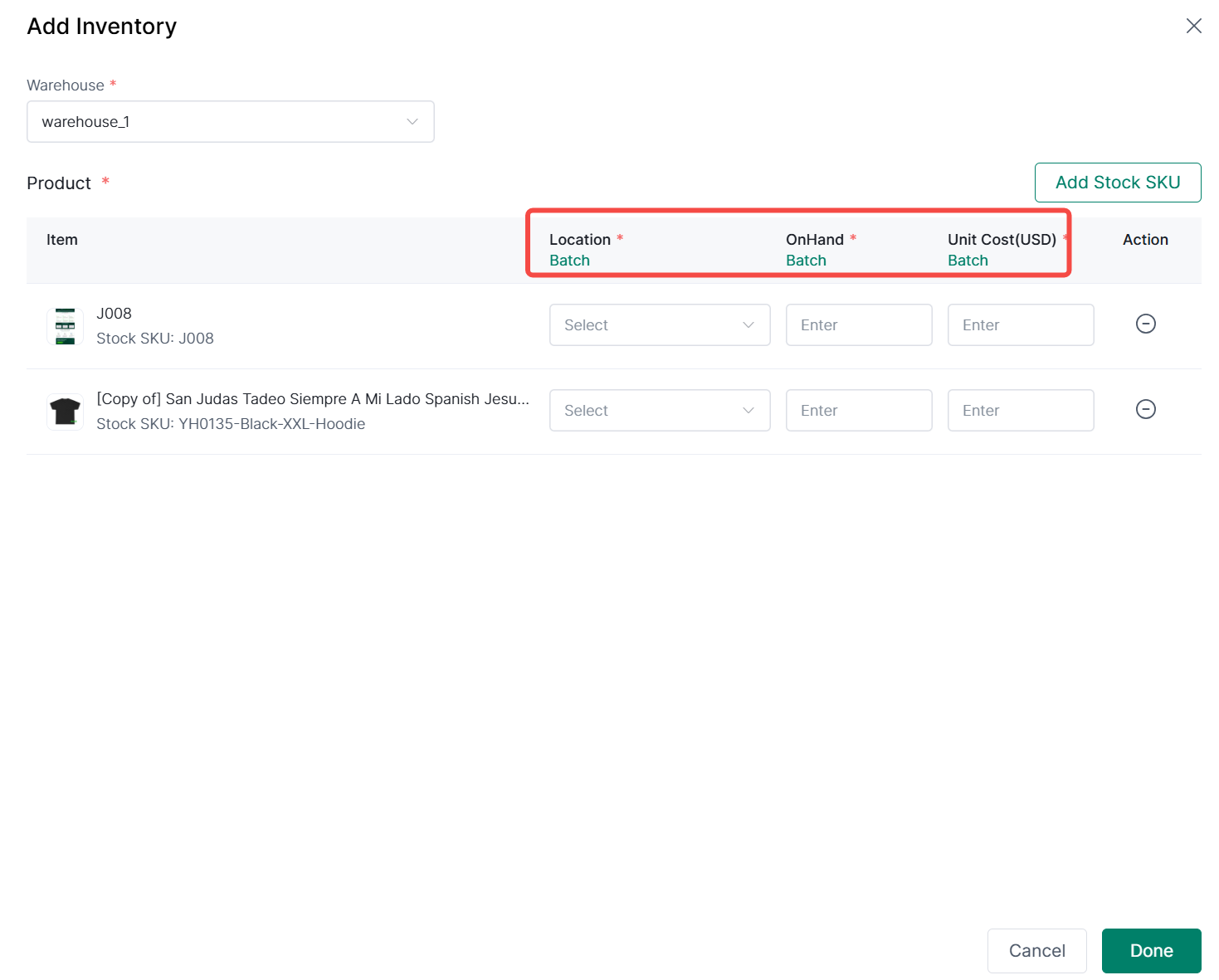
4. Added inventory SKUs will appear in the product information section. On this page, select the storage location, enter the onhand stock and unit cost for that SKU, then click Done to successfully add inventory.

II. Bulk Importing Inventory

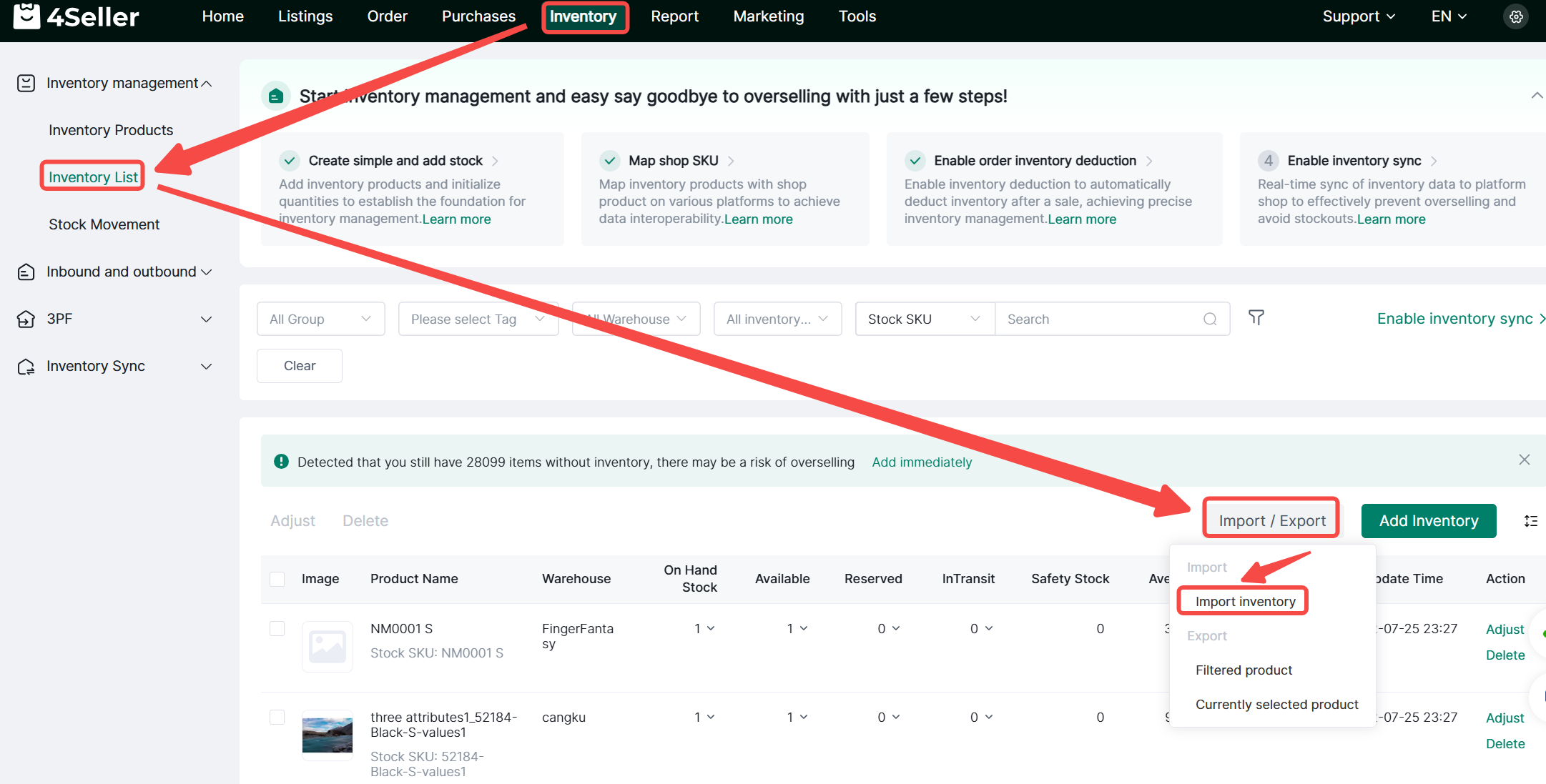
1. Click Inventory > Inventory List > Import/Export>Import inventory.


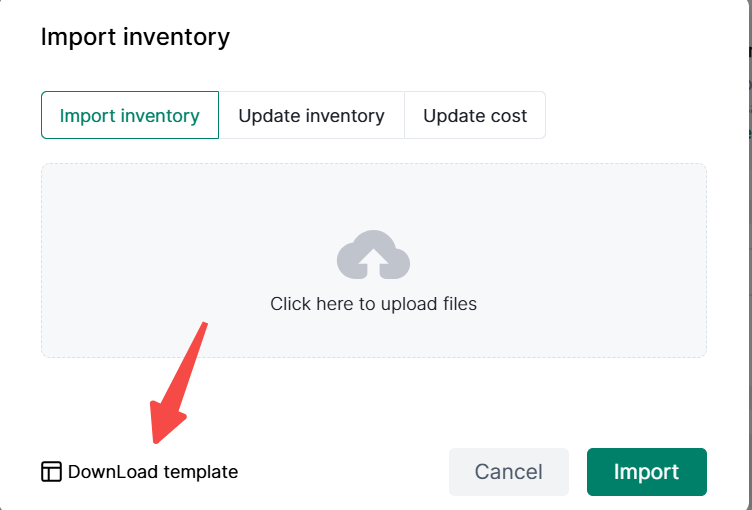
2. To import inventory, first download the template. After filling in the information, upload it and click Import to bulk import inventory.