- Get Started
- Video Tutorials
- Knowledge Base
- Channels
- Listings
- Inventory
- Orders
- Settings
- FAQs & Troubleshooting
eBay Store How to Set up Listing Rules to List Products Quickly in 4Seller?
4Seller Supports Setting listing rules when list products in eBay Store, this rule is mainly setting for scraping and migrating, which would improve list efficiency.
Note: 4Seller sub-accounts do not have the authority to create listing templates, only the main account has the authority to set this!
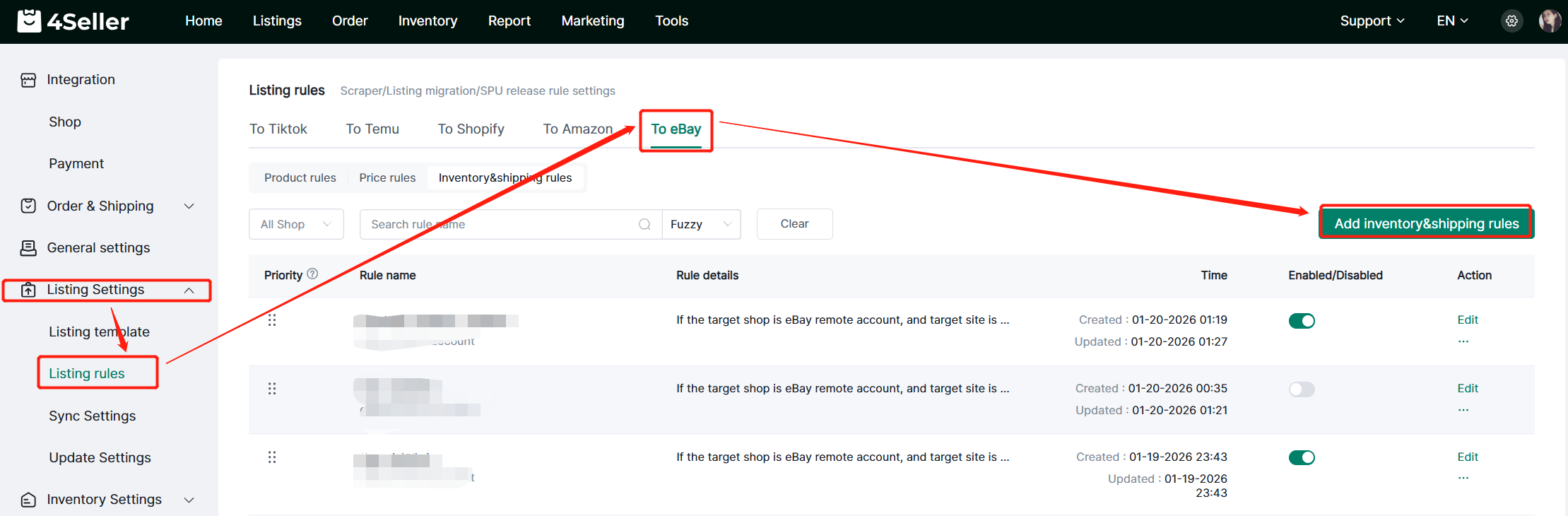
Entrance One: Setting--Listing Settings--Listing rules--To eBay
Among them, listing rules are divided into listing rules, price rules, inventory & Shipping rules.
Note: If you didn't authorize before, you should authorize your eBay store to 4Seller first then to create listing rules.
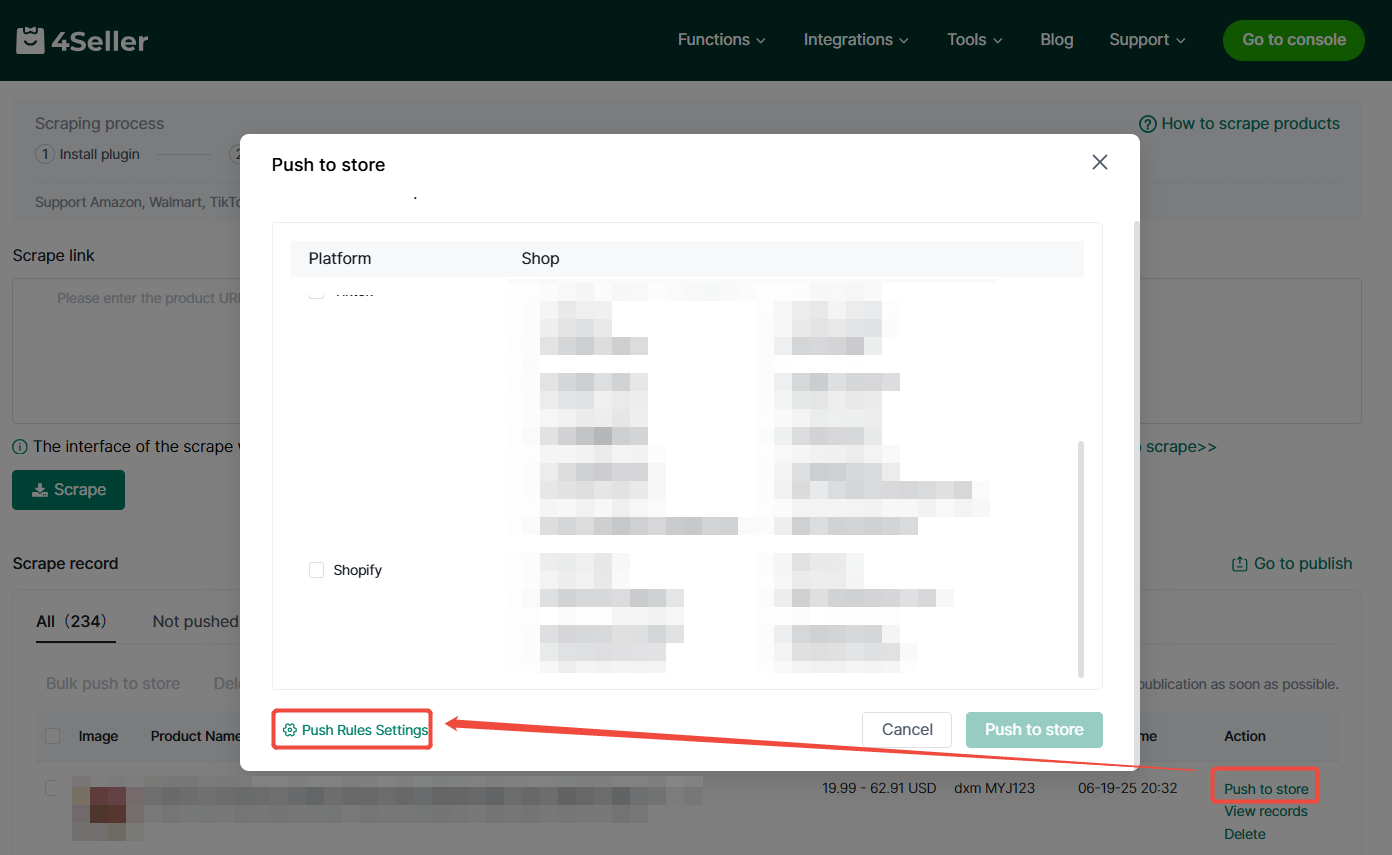
Entrance two: Product scraper--Push to stores--Push rules settings
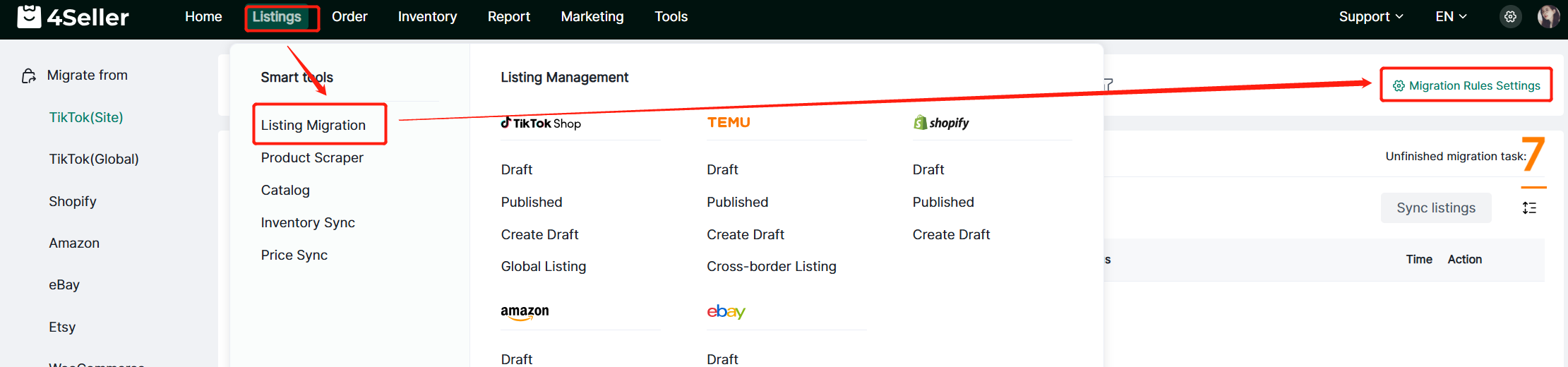
Entrance three: Listing--Listing Migration--Migration rules settings
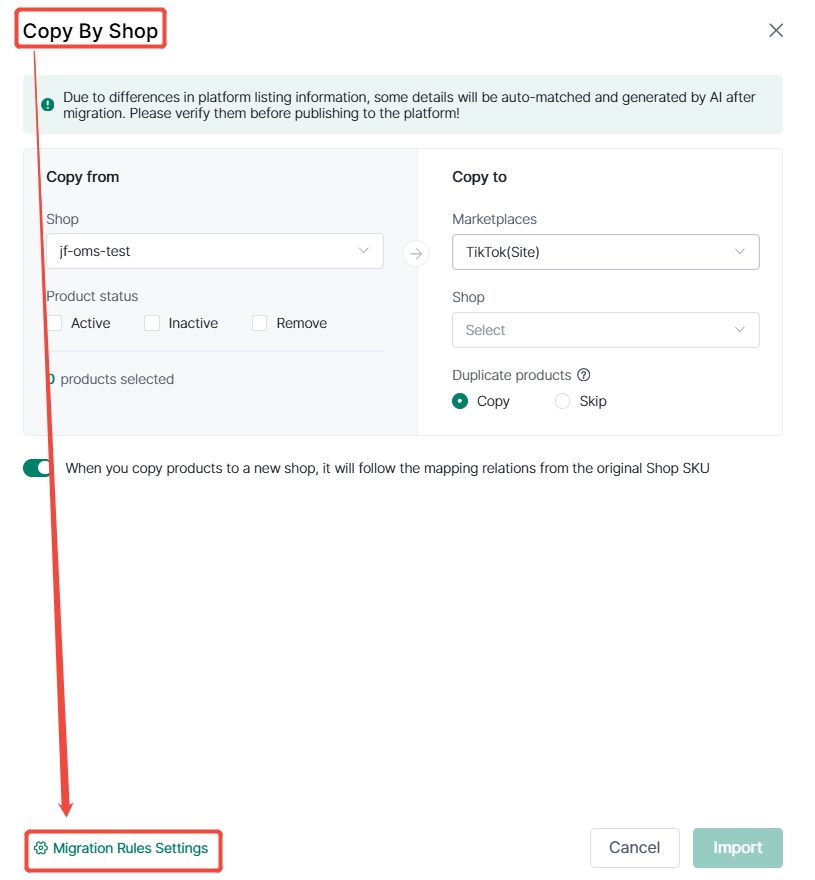
Entrance Four: Listing migration--Copy to Stores / Copy by Shop--Migration rules settings
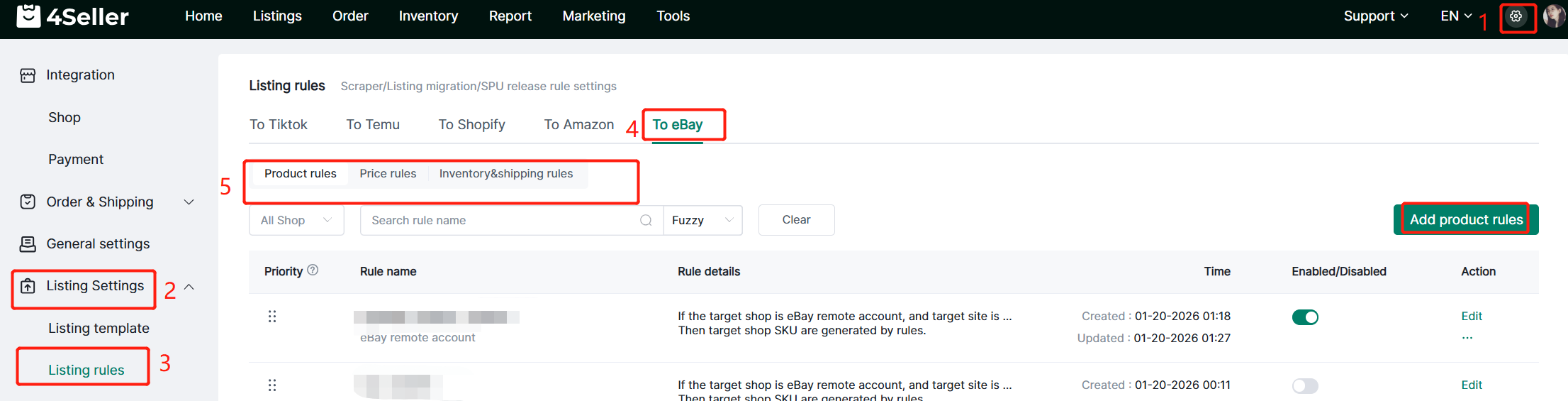
Step 1: Listing rules -To eBay-Product rules-Add product rules
Note: Different websites may display different categories.
Note:
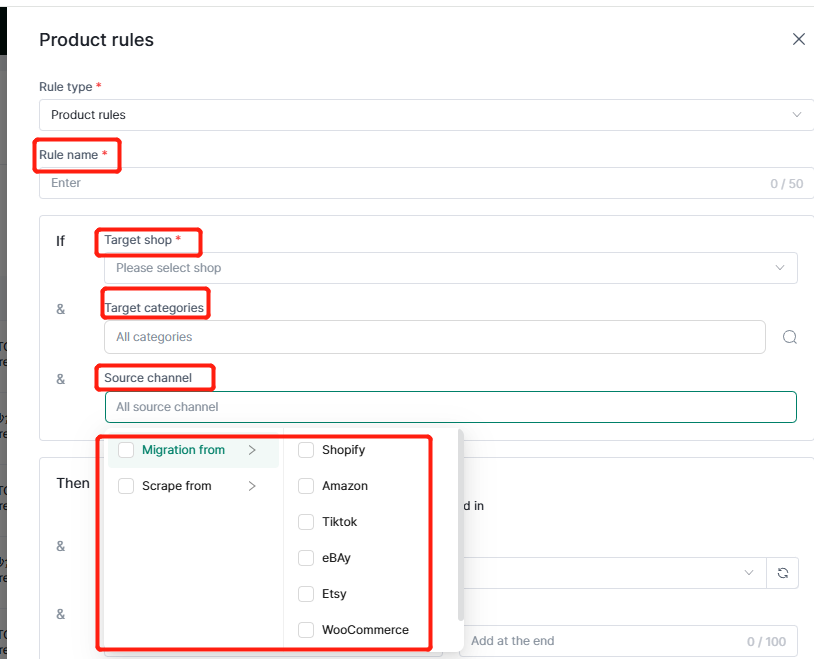
1. Target categories: Supports multiple selection of categories, supports selection of parent categories (for accurate rule matching, it is recommended to select child categories), and supports manual category filtering (all categories are selected by default when not configured, which means they are not used as filtering conditions for rules).
2. Source Channels: Supports select the platform of scraper or migration (If not configured, all source channels are used by default, which means they are not used as filtering conditions for rules).
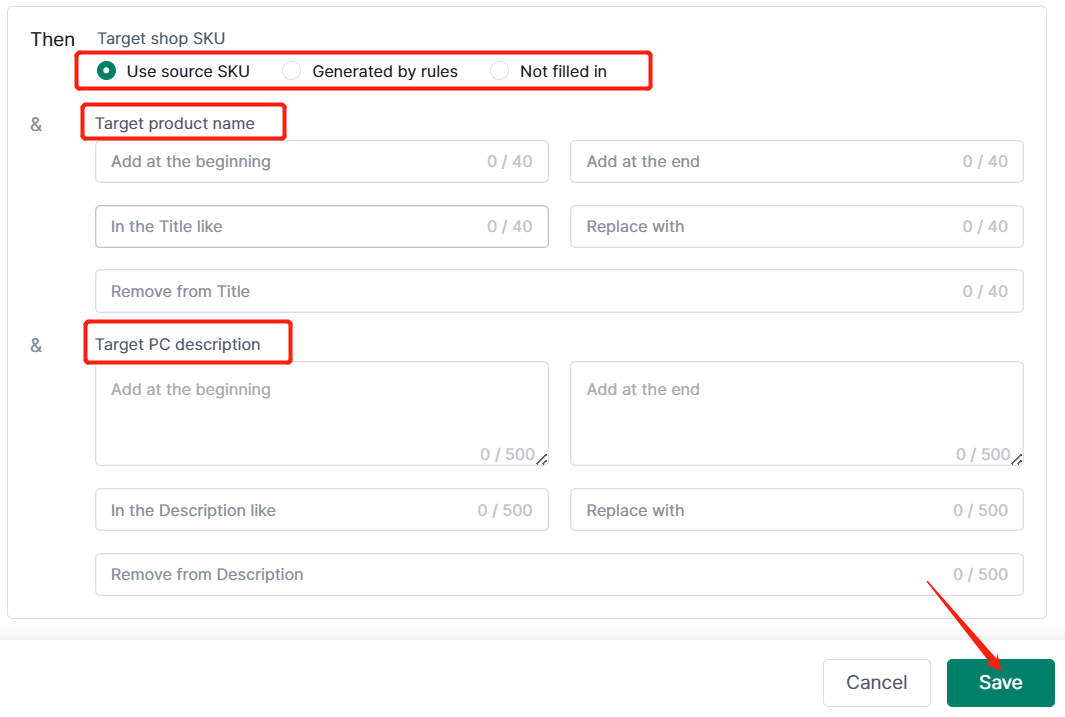
3. Target shop sku: Supports use source sku, generated by rules and not filled in.
4.Target Product name and target description.
After setting pls click " Save".
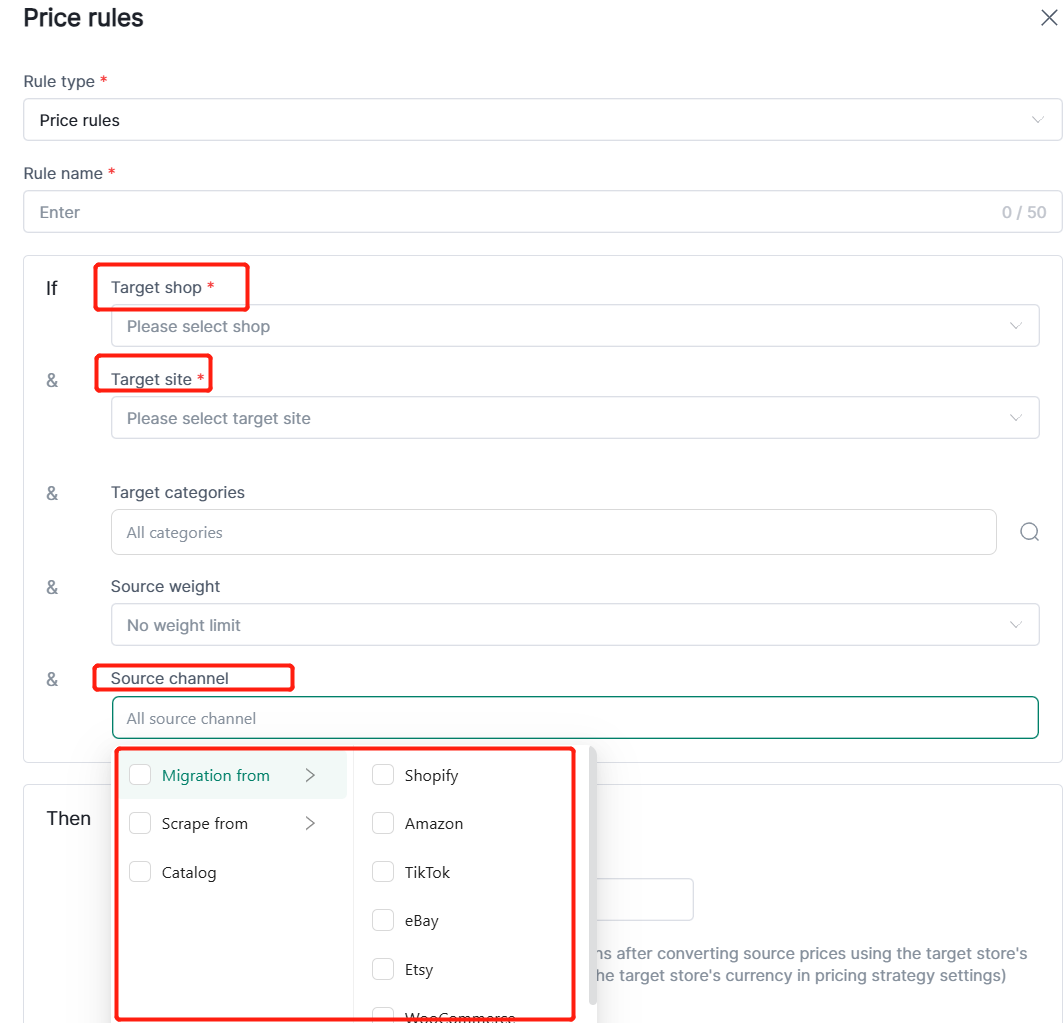
Step 2: Listing rules-To eBay-Price rules-Add price rules.
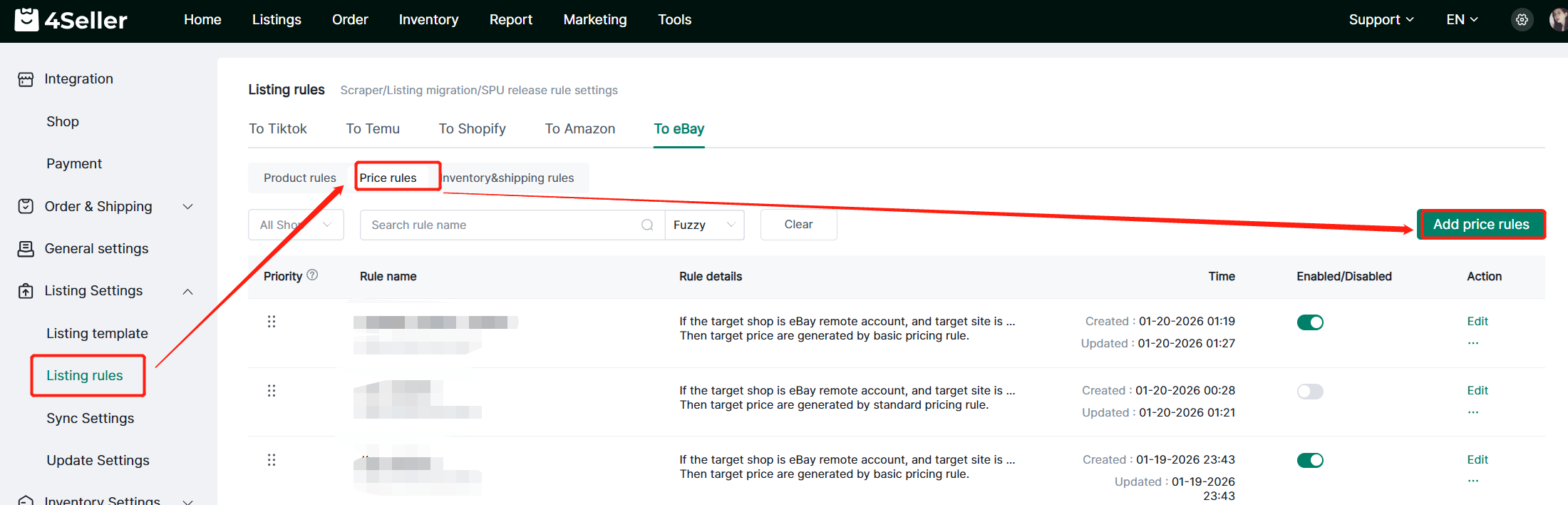
1. Target categories: Supports multiple selection of categories, supports selection of parent categories (for accurate rule matching, it is recommended to select child categories), and supports manual category filtering (all categories are selected by default when not configured, which means they are not used as filtering conditions for rules).
2. Source Channels: Supports select the platform of scraper or migration (If not configured, all source channels are used by default, which means they are not used as filtering conditions for rules).
3. Source Weight: Supports setting the product weight range as a condition for scaper/migration rules (If not configured, the default is unlimited weight, which means it is not used as a filter condition for the rule).
Note: Weight units should be indicated according to the category.
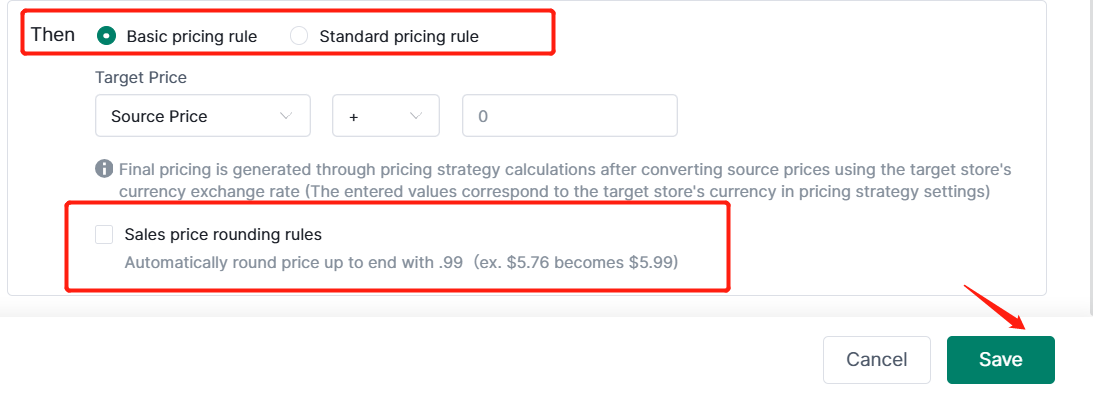
4. Pricing Rules: Basic pricing rule, Standard pricing rule
(1) Basic pricing rule
The source price values are as follows:
- TikTok/OTTO: Retail Price
- TEMU: Retail Price
- Amazon: Promote Price
- Shopify/ETSY/Walmart/Woocommerce/Shein: Price
Final pricing is generated through pricing strategy calculations after converting source prices using the target store's currency exchange rate: Which means when the source price of the collection or transfer is $A, and the currency unit of the target store is GBP, then $A will be converted into £B by the exchange rate and then the price strategy setting will be executed to generate the price.
Price decimal adjustment: Checking this box will adjust the last digit of the selling price to .99 (e.g., $5.76 becomes $5.99).
(2) Standard pricing rule
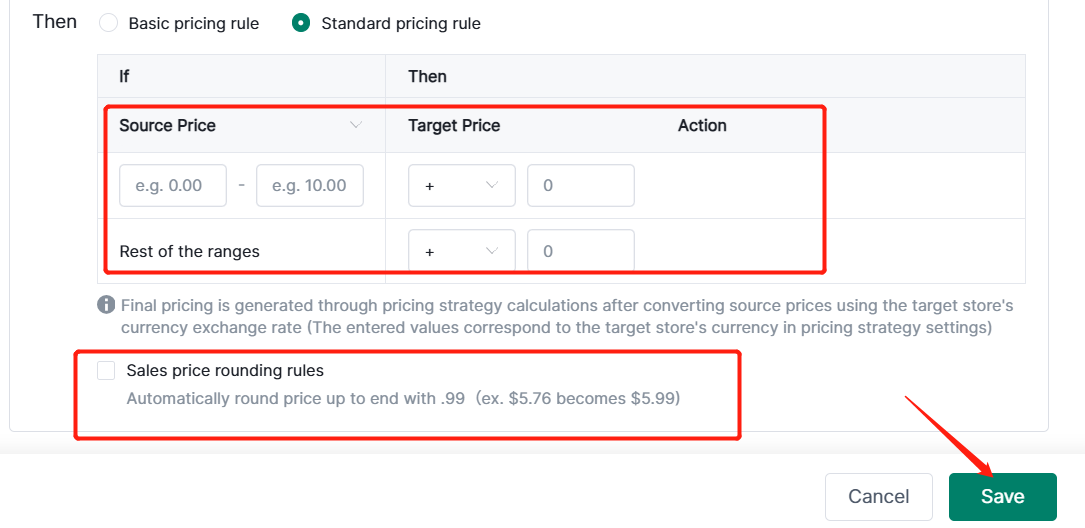
- The source price supports custom setting ranges;
- the currency unit for addition, subtraction, multiplication, and deduction values should be consistent with the currency unit of the store's website;
- click save after completing the settings.
Step 3: Listing rules-To eBay-Inventory & shipping rules.
Note:
1. Target categories: Supports multiple selection of categories, supports selection of parent categories (for accurate rule matching, it is recommended to select child categories), and supports manual category filtering (all categories are selected by default when not configured, which means they are not used as filtering conditions for rules).
2. Source Channels: Supports select the platform of scraper or migration(If not configured, all source channels are used by default, which means they are not used as filtering conditions for rules).
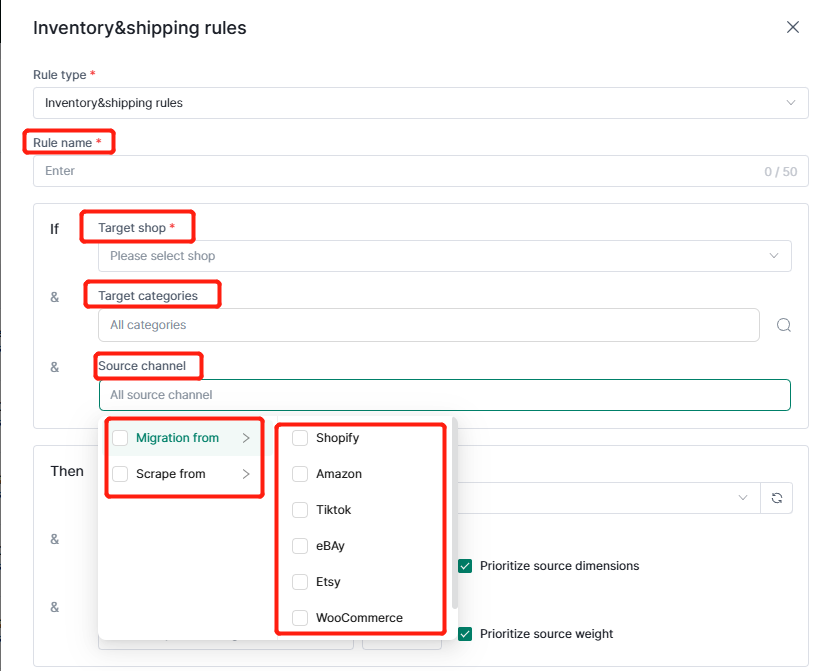
3. Target shipping policy and return policy: Synchronized with store backend settings.
4. Target item location: Depends on store and site.
5. Target product dimension and target package weight: Target product size and package weight can be set, or the source product size and weight can be prioritized (when checked, the size and weight configured in the rules will only be used if the source product size or weight is empty).
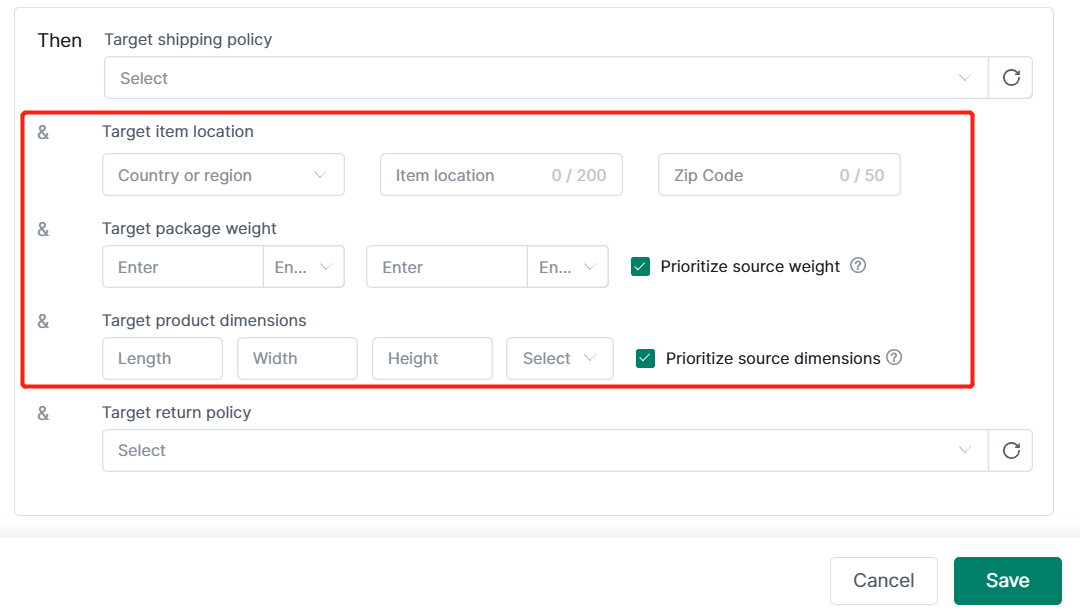
After completing the settings, click Save.
Step 4: Check the listing rules
After completing the rule settings, you can view the rules in the listing rules interface. You can search and sort by rule type, shop name, and rule name. It also supports editing and updating the rules again, or copying and deleting the rules.
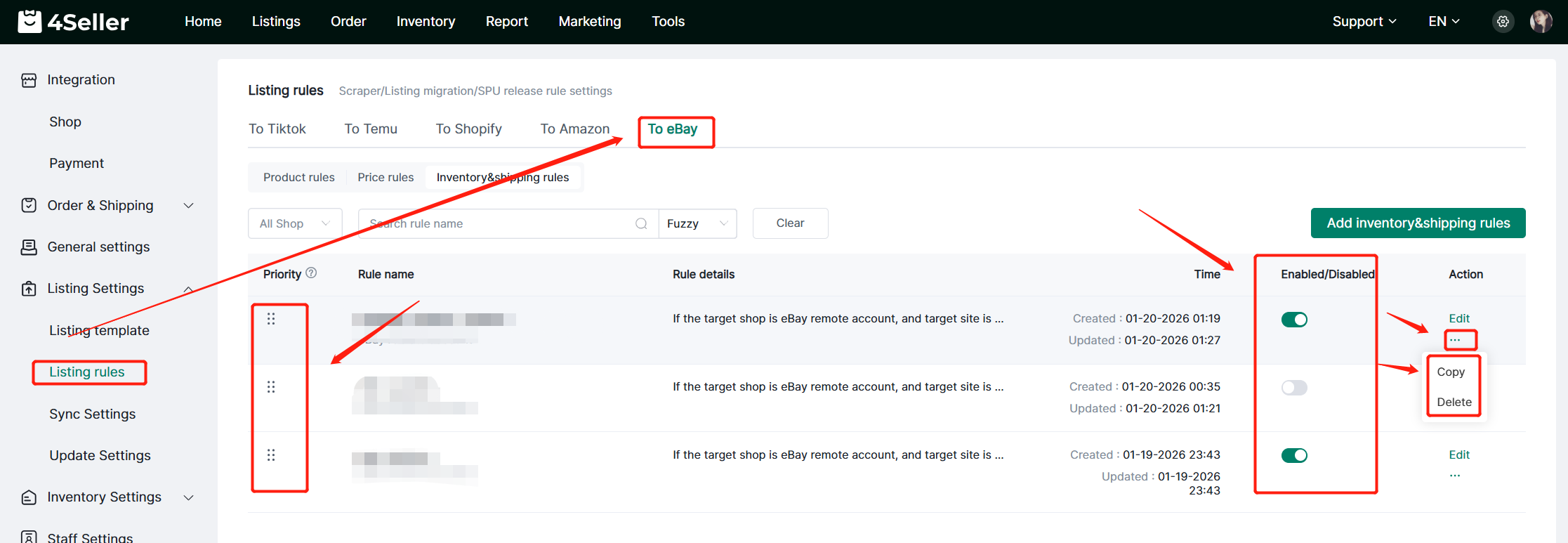
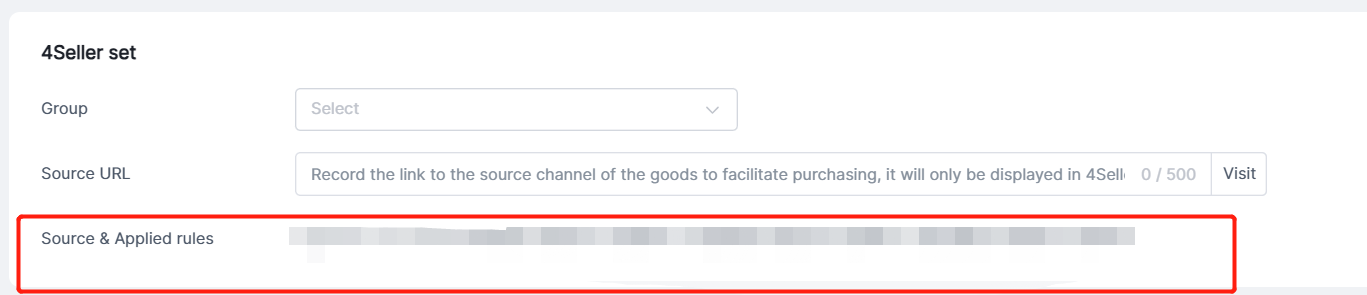
Note: In the eBay edit draft page, you can check the listings sourc: Source URL, Source & Applied rules.