- Get Started
- Video Tutorials
- Knowledge Base
- Channels
- Listings
- Inventory
- Orders
- Settings
- FAQs & Troubleshooting
Shein Store How to Set up Listing Templates to List Products Quickly in 4Seller?
4Seller supports referencing listing templates when listing in SHEIN Store which improve listing efficiency.

Note: 4Seller sub-accounts should get the authority from main account!

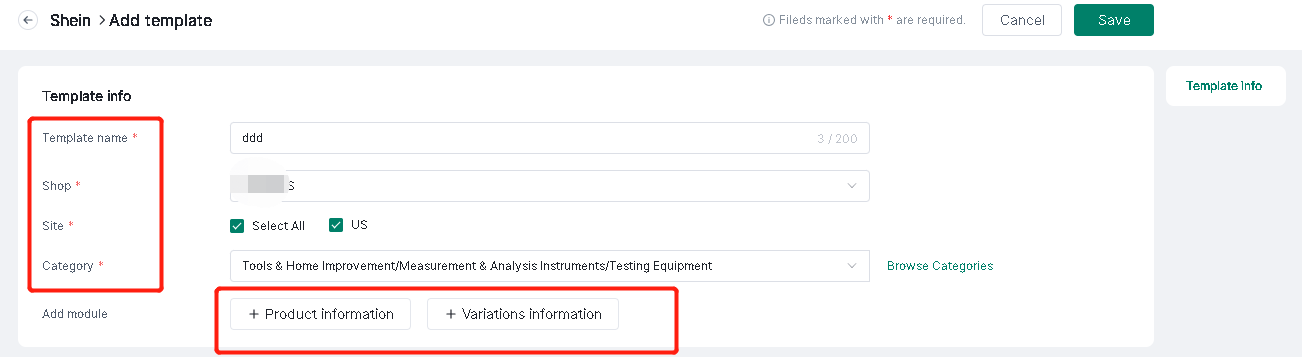
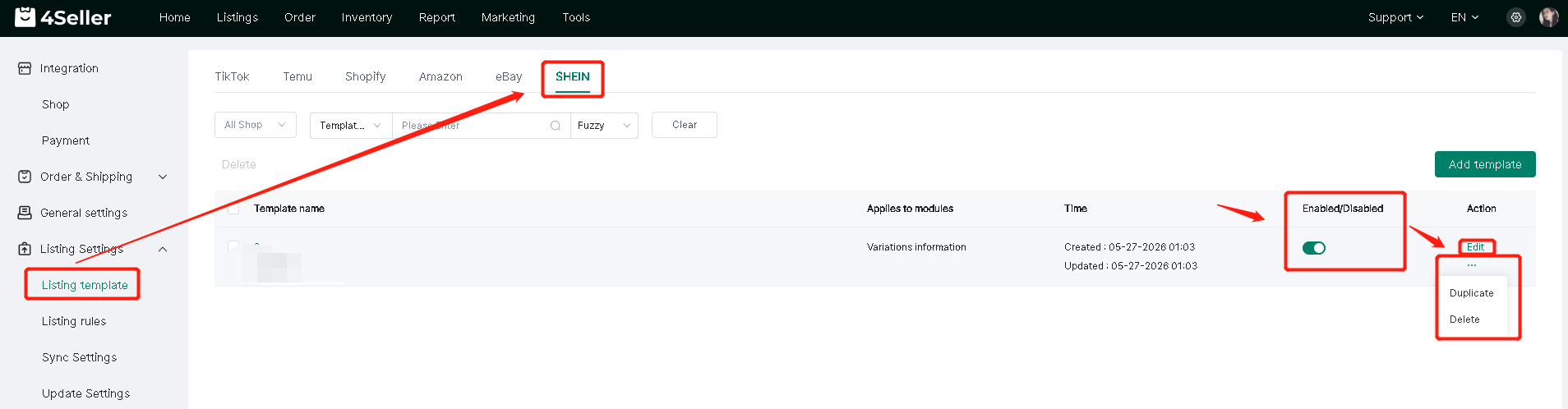
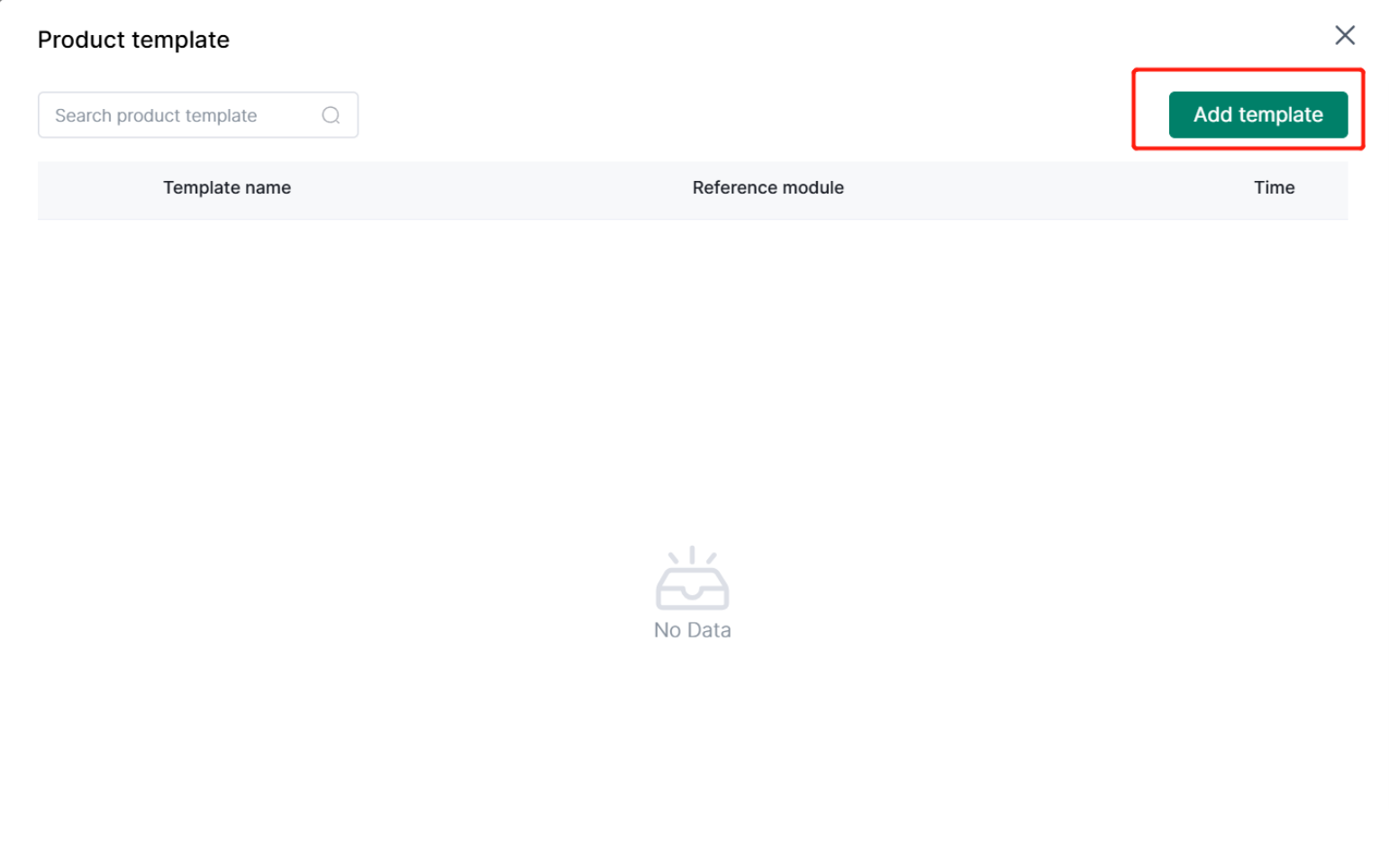
Step 1: Setting--Listing Settings--Listing template--Add template

Note: If you didn't authorize before, you should authorize your SHEIN store to 4Seller first then to create listing template.


Fill the Template Info: Template name, Shop, Category, Site,  Add module.


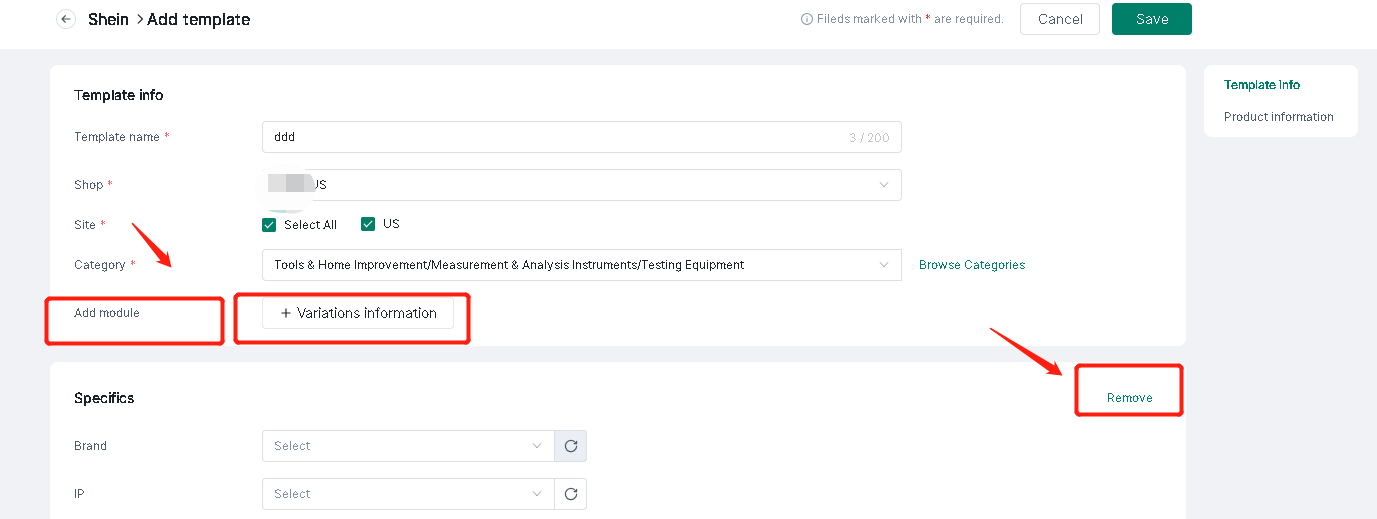
Note:  The module can select to add or remove.


After finish the template setting, you can find the template in the setting page according to Shop, Template name. Also you can edit to update the template agian or set up the the status be Enableed/ Disabled. And Duplicate or Delete the template!


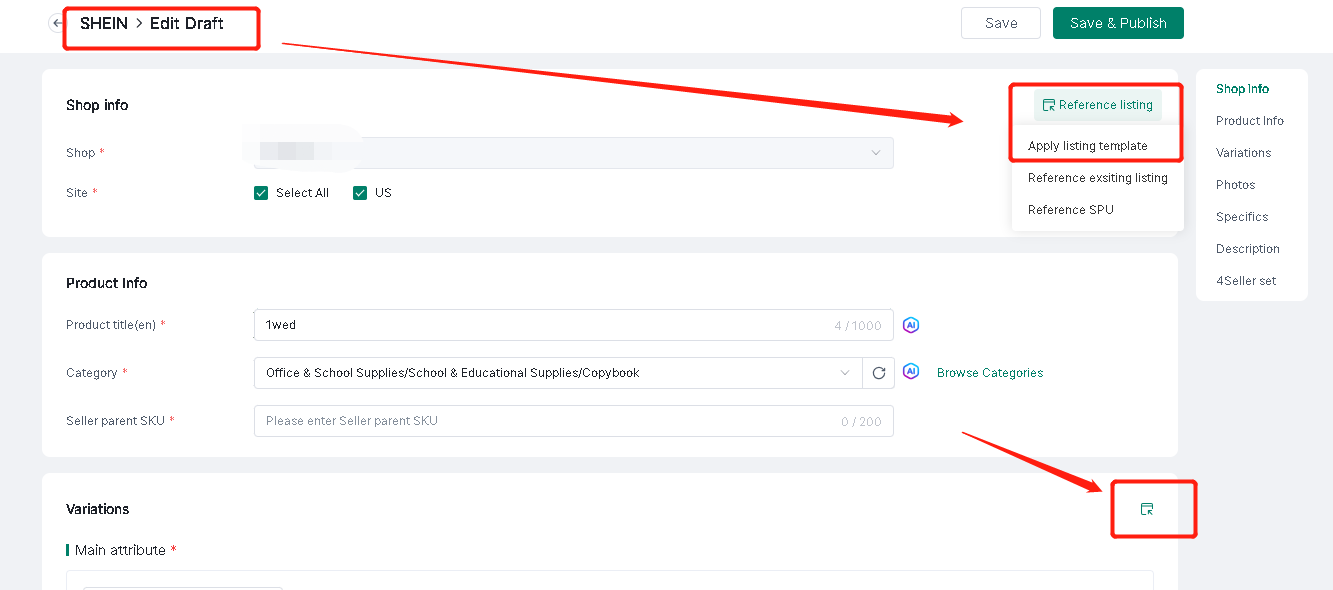
Step 2: Listings--SHEIN Draft--Create/ Edit products--Apply listing template

Note: 4Seller Supports full or partial citation of listing templates.


If the Shop do not have template, you can directly add template.


Any problem just feel free to contact 4Seller support team: support@4seller.com