- Get Started
- Video Tutorials
- Knowledge Base
- FAQs & Troubleshooting
How to Connect TikTok Shop in 4Seller within MCF Tools?
Note: Only the primary TikTok account holds the authorization to connect with 4Seller. if using a sub-account, you need to get the right from primary account.
On MCF Tools , you can enter the authorized TikTok store page through two Entrances:
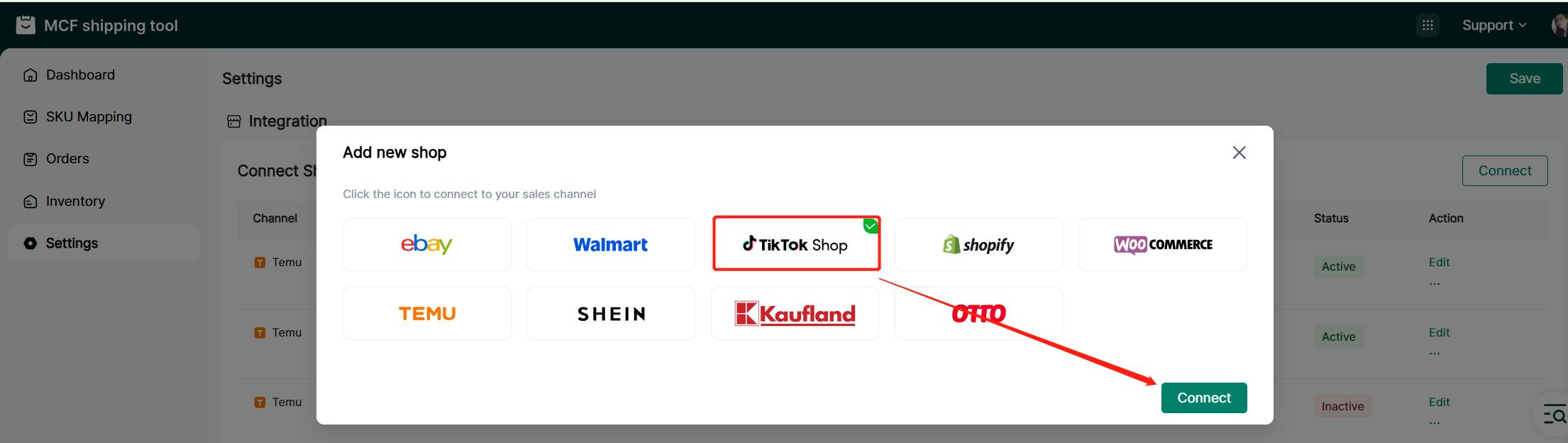
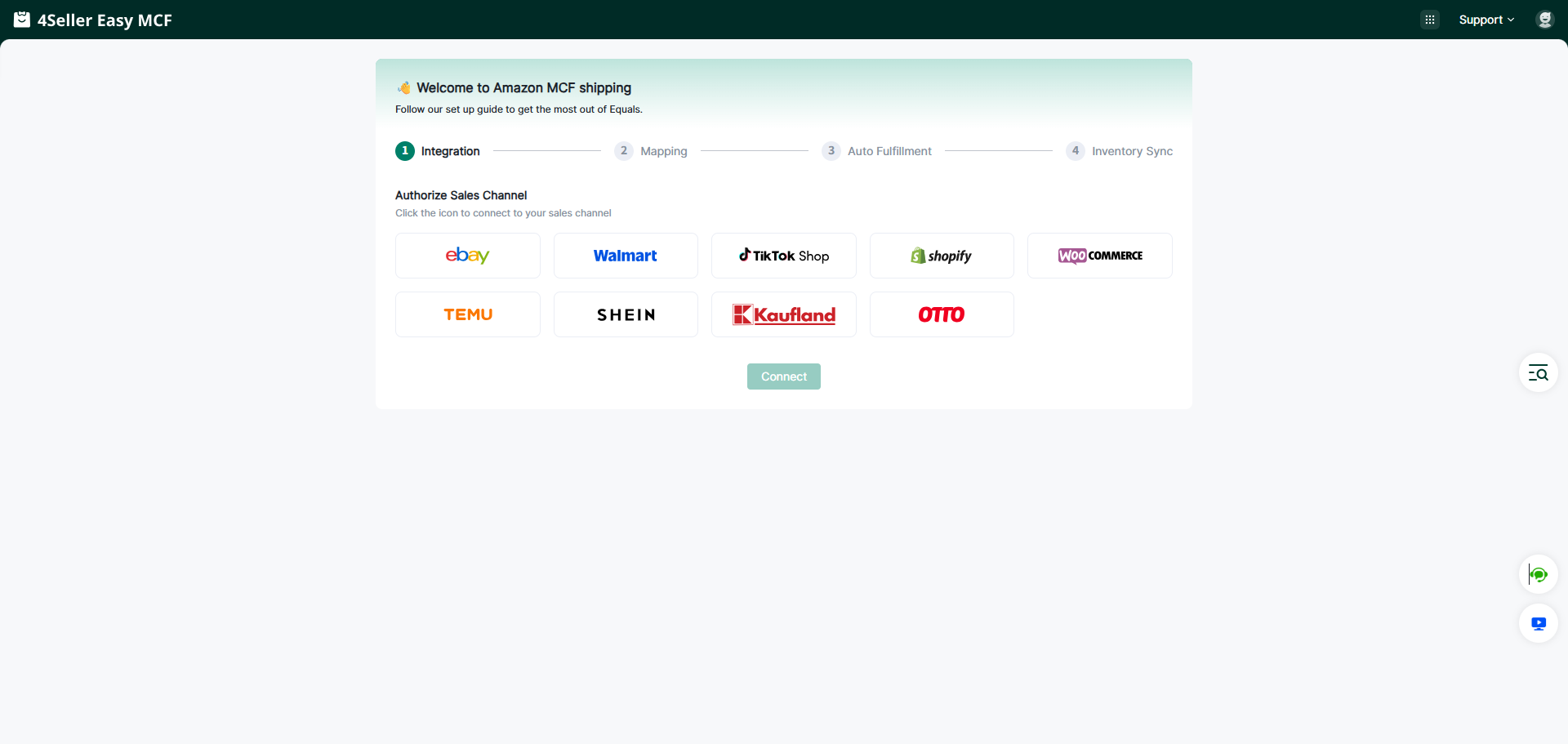
Entrance 1: On the guide page, if you are a new user, you can set up your Sales Channel in the MCF guide Wizard , and click the TikTok Shop icon to enter the store authorization page.
Entrance 2: On the Setting page, no matter whether you have authorized the store before, you can authorize the store here. Click Shop Manage in Settings, and then click the TikTok Shop icon to enter the store authorization page.
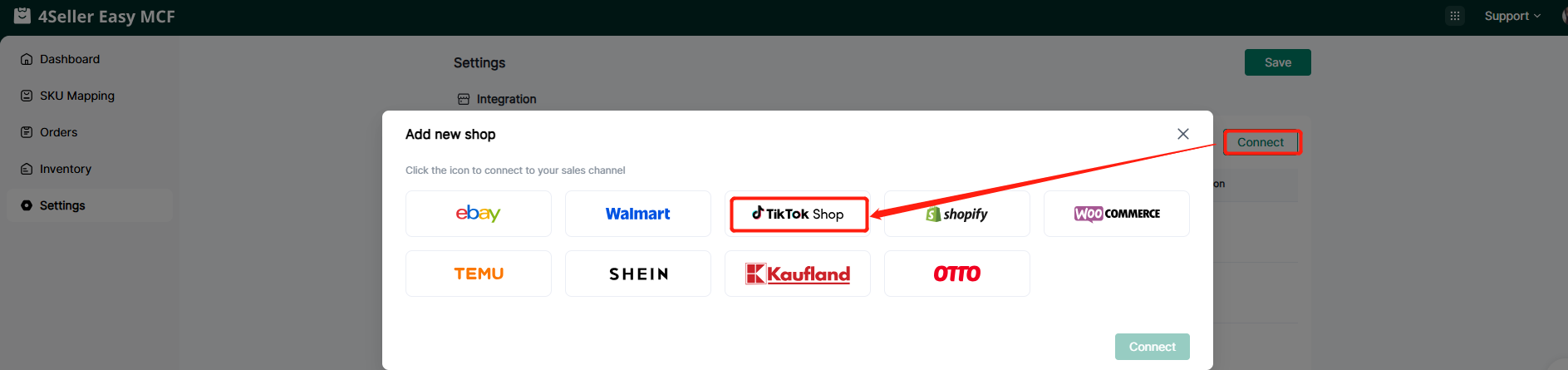
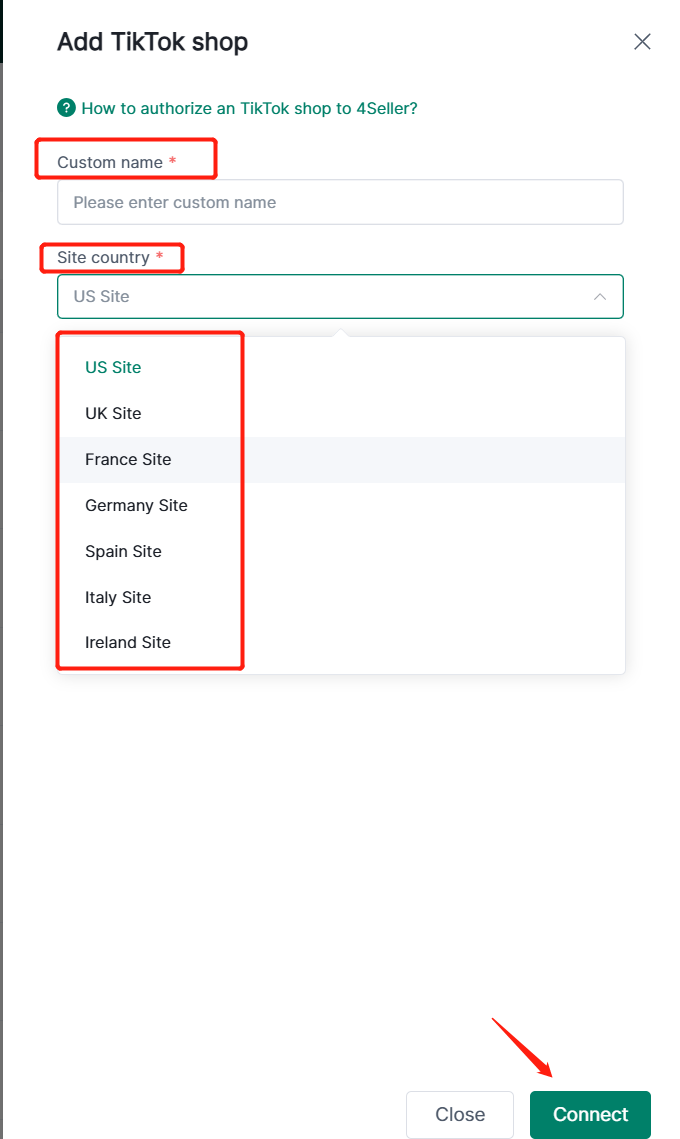
Step 1: Click the TikTok Shop icon, and the page connecting the TikTok account will appear.
Step 2: After entering the page connecting the TikTok Shop account, you can enter the customized store name. After clicking Confirm, it will automatically jump to the authorization page of the TikTok Seller Center.
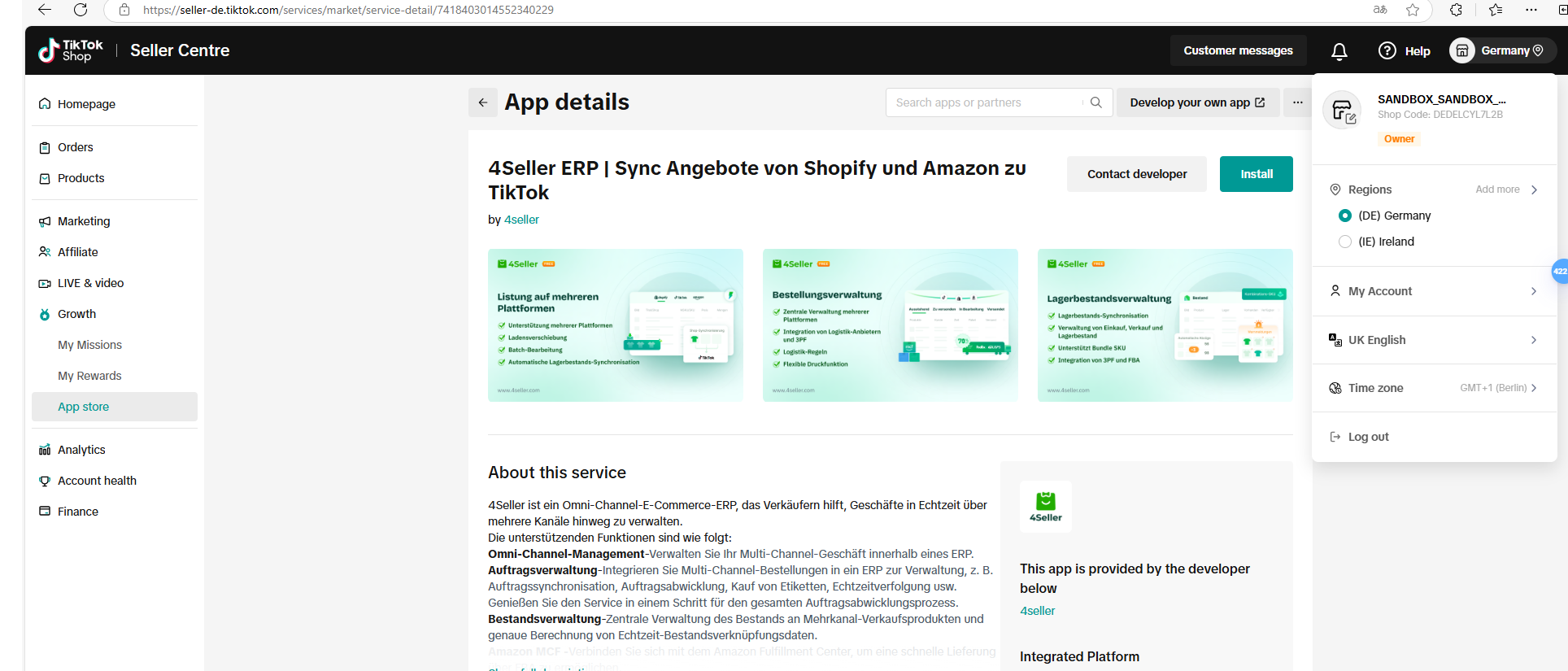
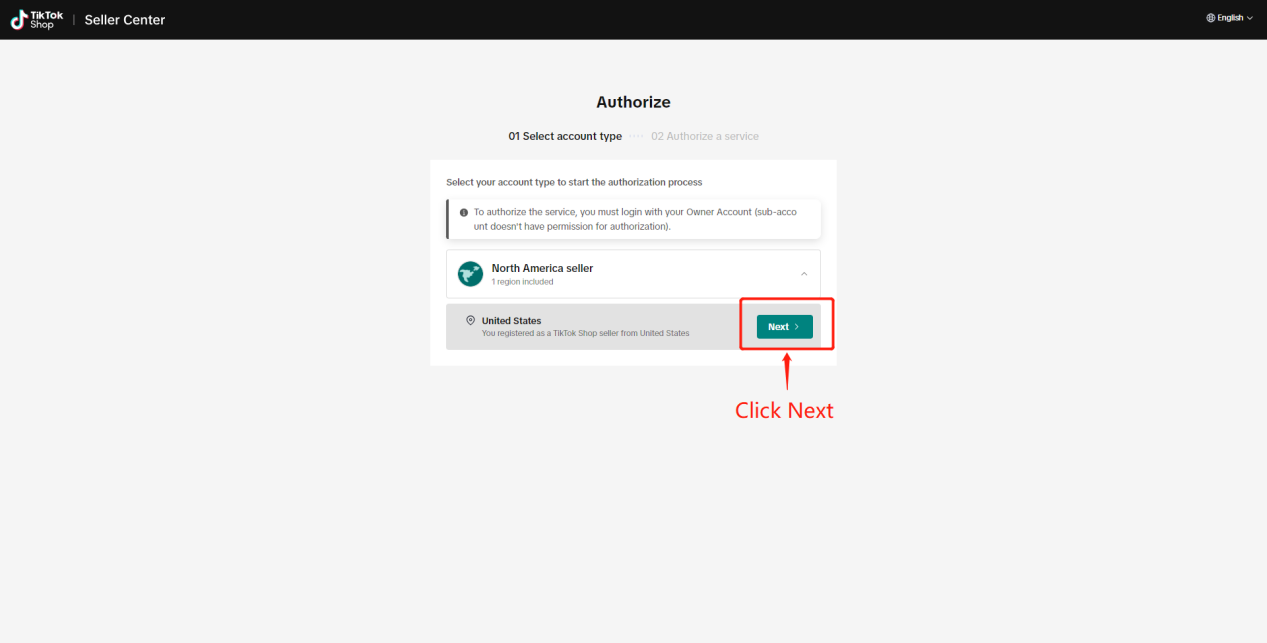
Step 3: After entering the authorization page of the TikTok Seller Center, you can select a region, and then click Next to enter the authorization page in the App&Service Store.
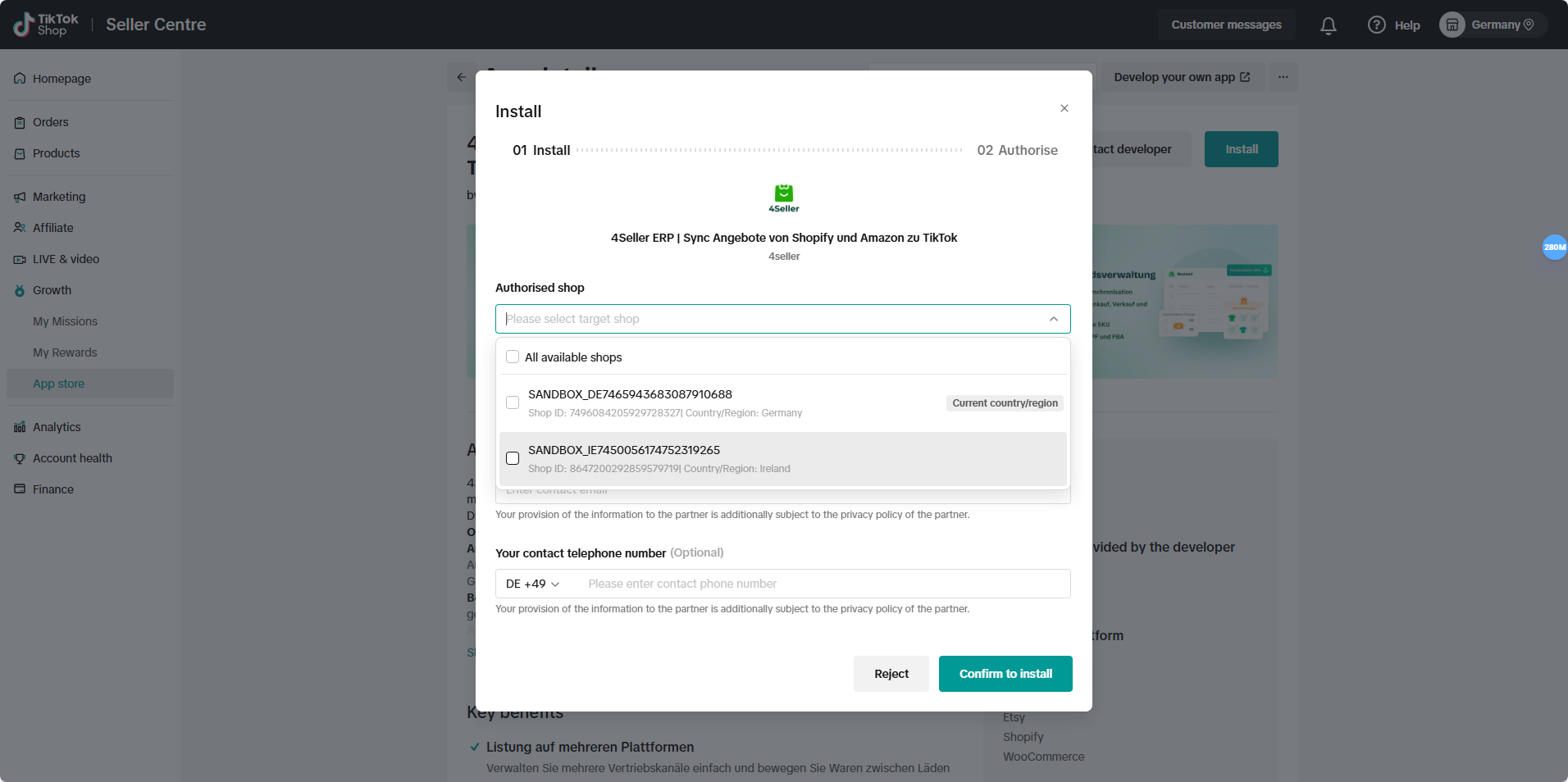
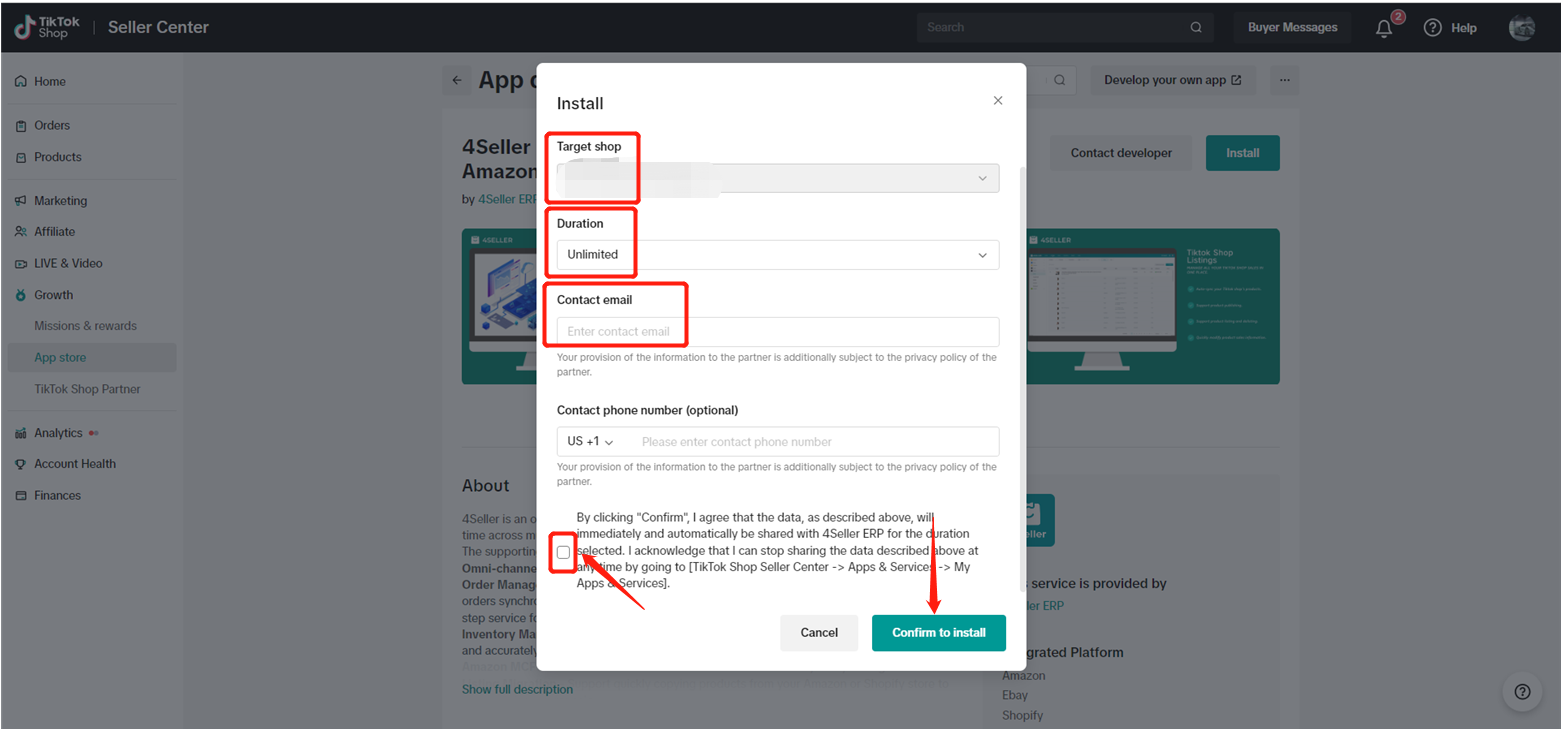
Step 4: On the authorization page, you need to complete the following steps:
(1) Check whether the authorized Target Shop is correct;
Note: When authorizing an EU site store, if there is a site switch button, it means that the store has an associated site store.
You can choose to authorize together.
(2) Select the authorization time option.
(3) Enter your contact email.
(4) Check the boxes of the precautions.
(5) Finally click Confirm to install.
After clicking Confirm to install, you will enter the second step of the authorization page.
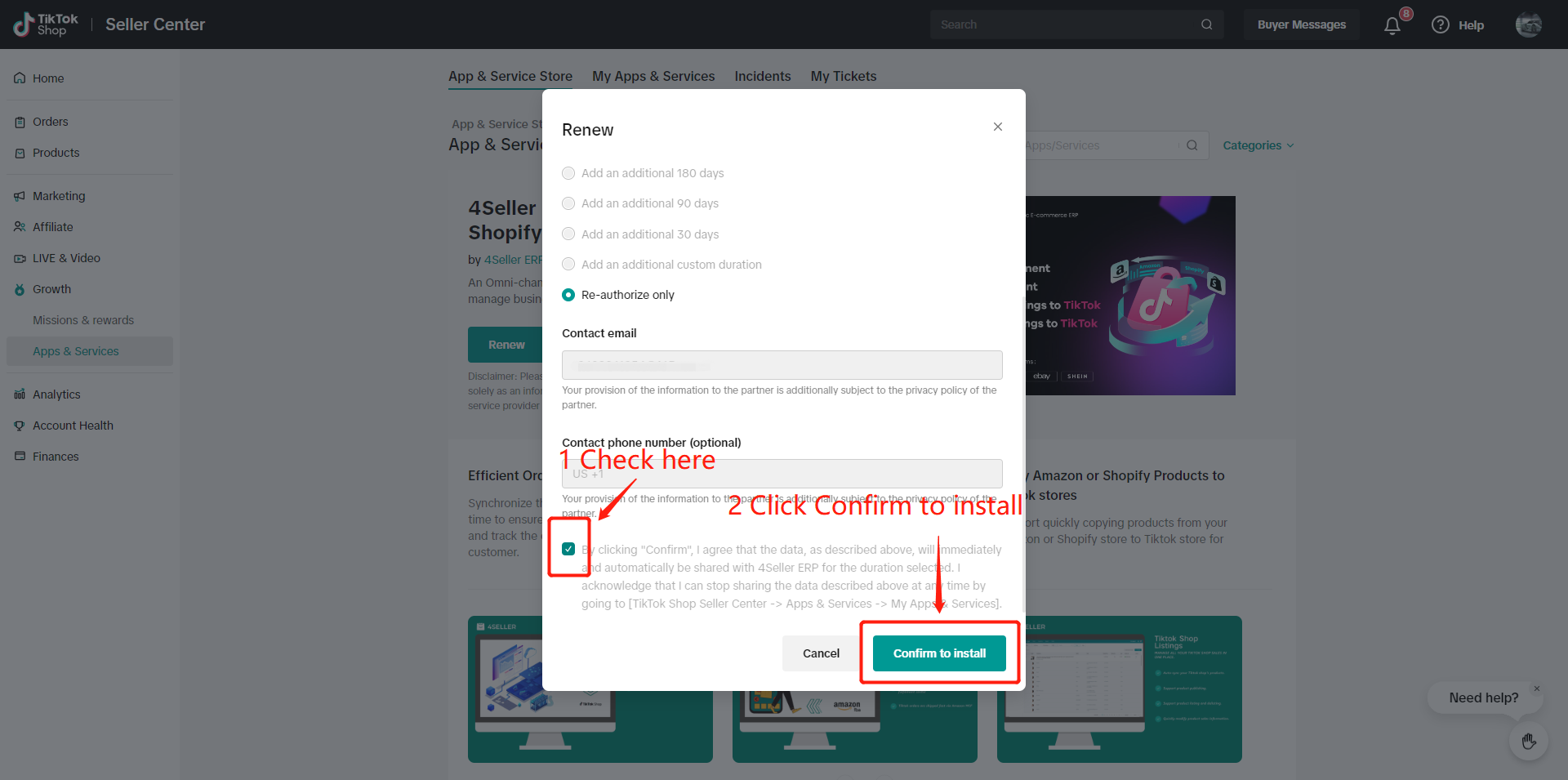
Note: This interface will appear when you authorize the store again. You need to check the boxes of the precautions first, and then click Confirm to Install to proceed to the next step.
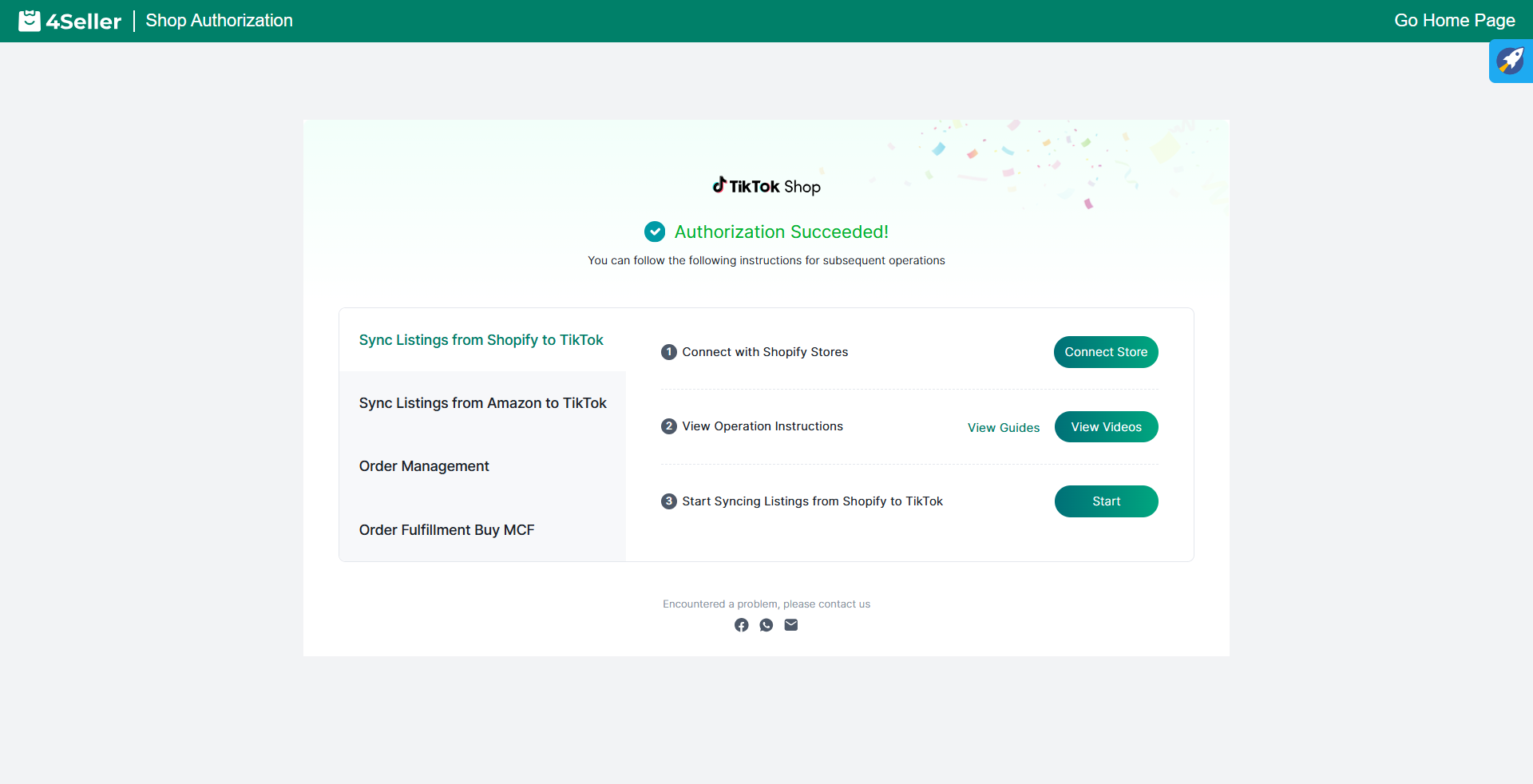
Step 5: Enter the authorization page and wait for 3 seconds. The Authorize button will become clickable. Click the Authorize button to successfully authorize the store. After the authorization is successful, the page will jump to the authorization successful page, and then you can log in to 4seller to manage authorized store.
Note:
If you need to authorize two or more TikTok stores, please log out of the authorized store account in the TikTok Seller Center after successful authorization, and then log in to the new TikTok store for authorization.
After authorizing, you could manage store products, process orders, push the inventory, check data analysis and more.If you need any help, please contact: support @4seller.com.