- Get Started
- Video Tutorials
- Knowledge Base
- Channels
- Listings
- Inventory
- Orders
- Settings
- FAQs & Troubleshooting
How to Fulfill Shopify Orders Via Amazon MCF Automatically?
At 4Seller, fulfilling orders through Amazon FBA (MCF) mainly includes three steps: authorizing Amazon warehouses, synchronizing inventory, and order processing.Step 1:Authorie Amazon FBA warehouse
1. Connect your Amazon and Shopofy stores in 4Seller
Refer below two help article: How to Autohrize Amazon store in 4Seller?
How to Authorize Shopify Store in 4Seller?
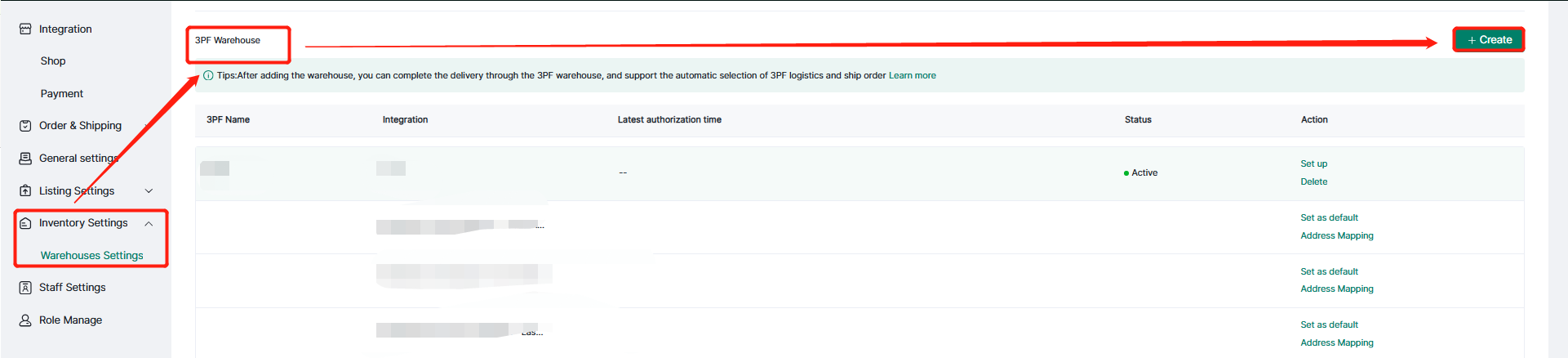
2. Setting--Inventory Settings--Warehouse Setting--3PF--Create
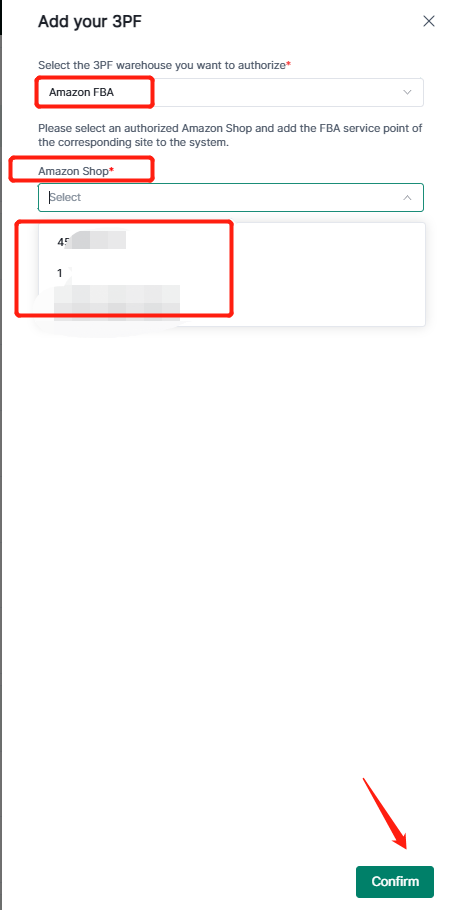
Select Amazon FBA --Click"Confirm"
Step 2: Synchorize Inventory
This Step Should create Stock SKU(4Seller Sku) to map stock sku with Amazon SKU & Shopify Shop sku, so that these two platforms can connect well.
1. Take reference from this help article: How to Create Stock SKU in 4Seller?
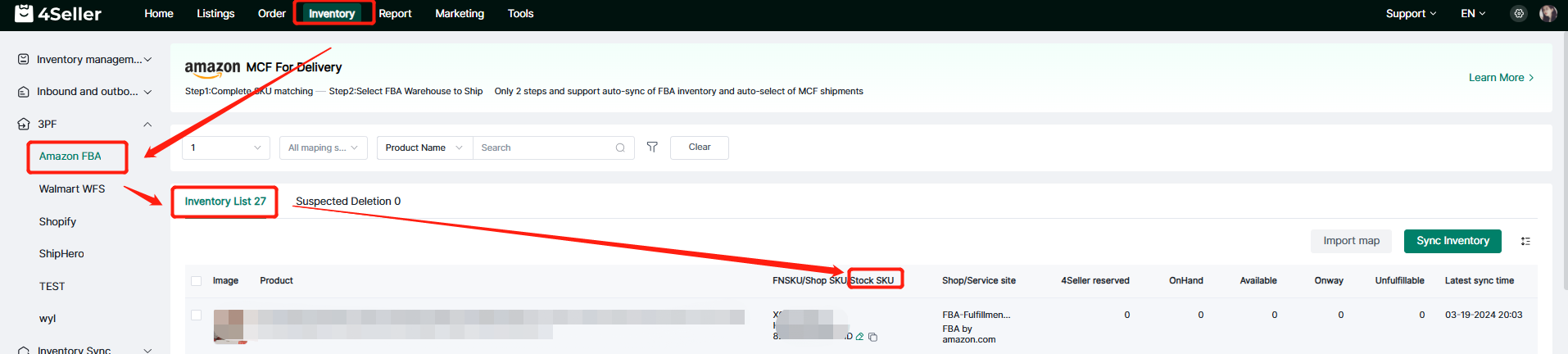
2.Ater creating, On the FBA inventory page, if the Stock SKU is not matched, you need to click Map to match it. Click Map to enter the Map Product page to match the Stock SKU.
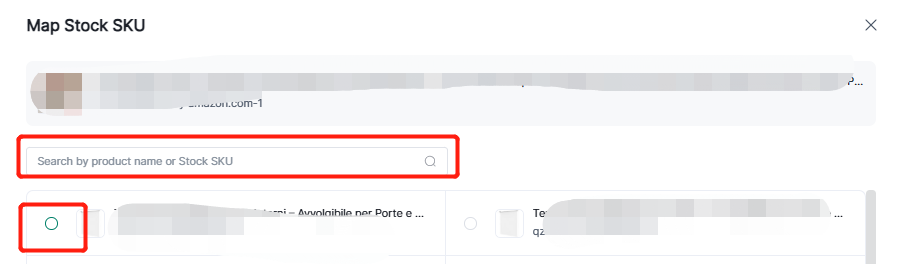
On the Map Product page, you can search by product name and SKU, then select the corresponding product and click Select to match the SKU of the inventory.
Same in the Shopify page: listing--Shopify--Published--Map Same Stock as which map in the Amazon FBA
Step 3 : Order Processing
Step 3.1 Turn on Shipping minus inventory option
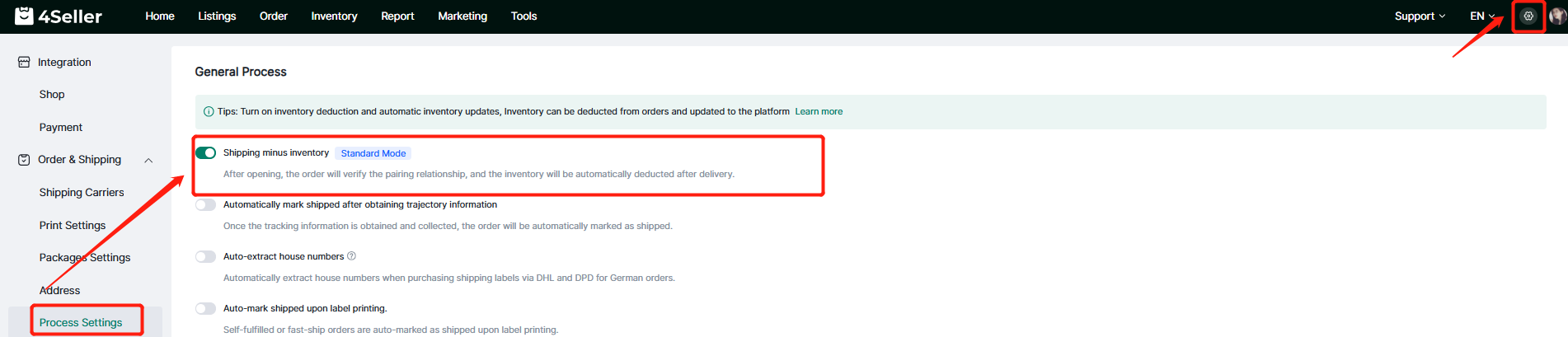
To use Amazon MCF to fulfill orders, you need to first enable the Shipping minus inventory option, click the Settings button to enter the Order & Shipping settings page, then click Process Settings, enable the Shipping minus inventory option to use inventory for shipping.
Step 3.2 Order processing-Pending
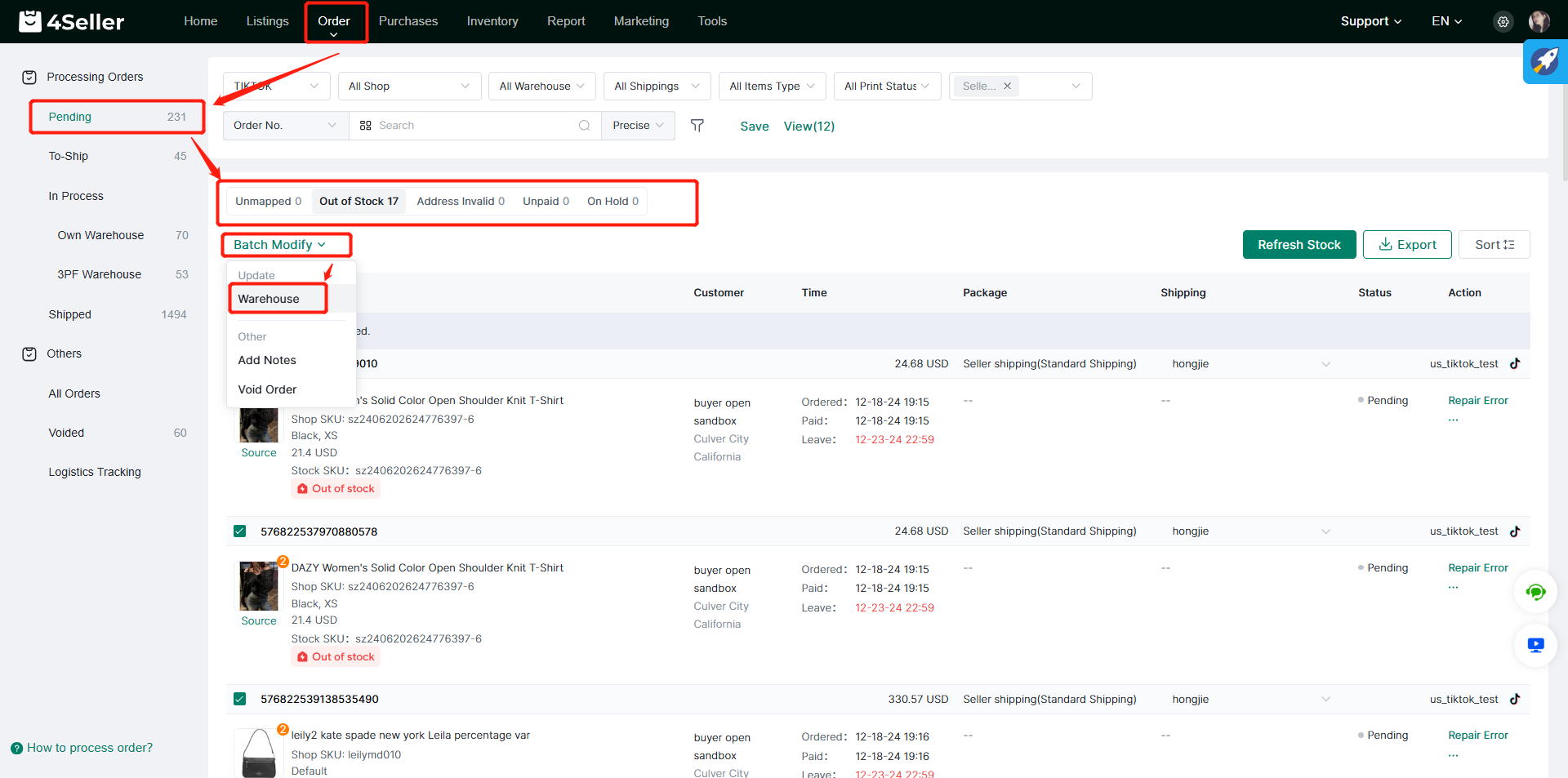
Orders in the Pending status are mainly due to four reasons: no mapping of SKU, out of stock, invalid address, unpaid and on hold.
You can first update the order's shipping warehouse in batches. After checking the order, click Warehouse in Batch Modify to enter the Edit Warehouse page.
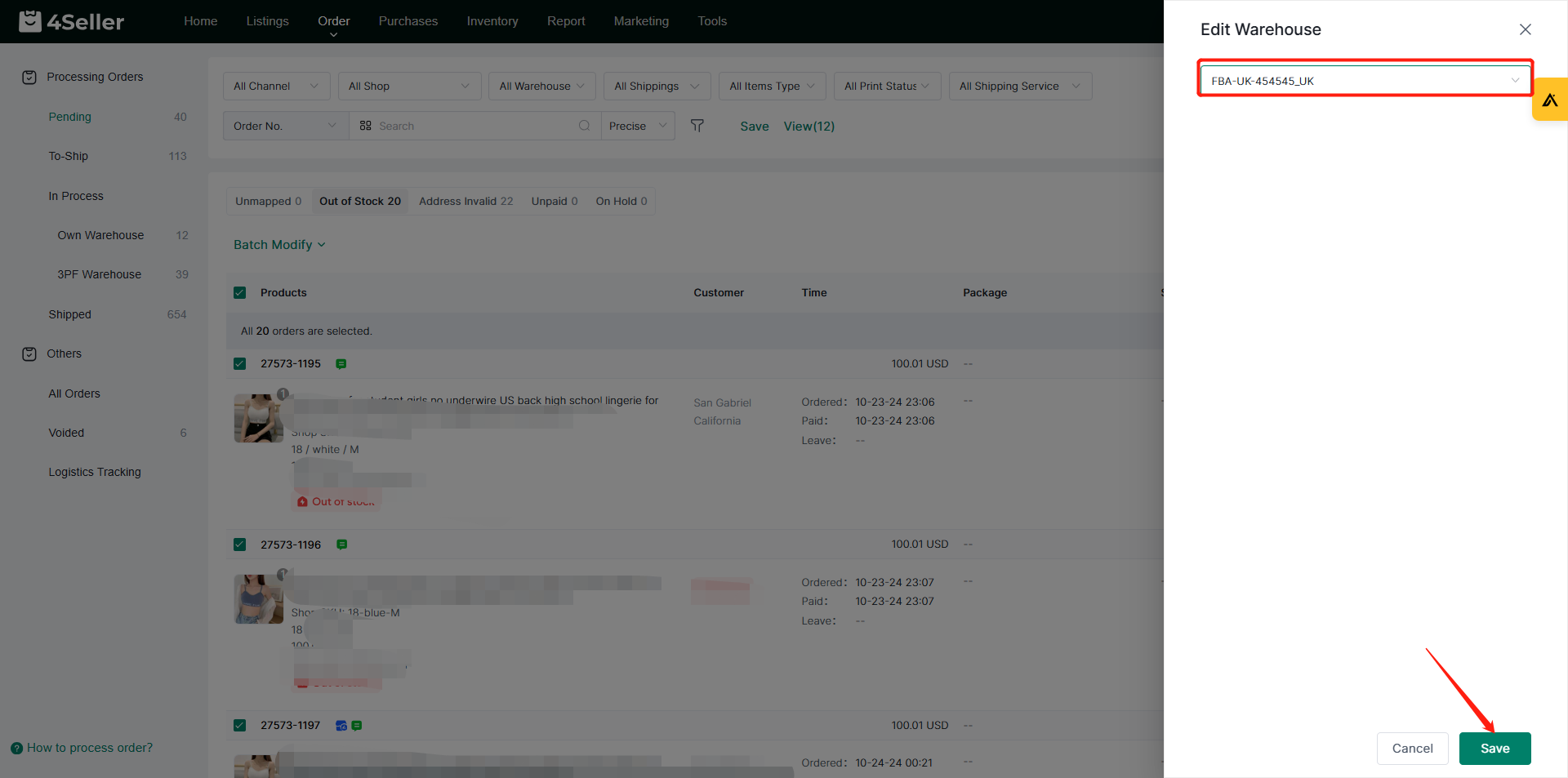
On the Edit Warehouse page, you can select the corresponding FBA warehouse, and then click Save to update the order's shipping warehouse in batches.
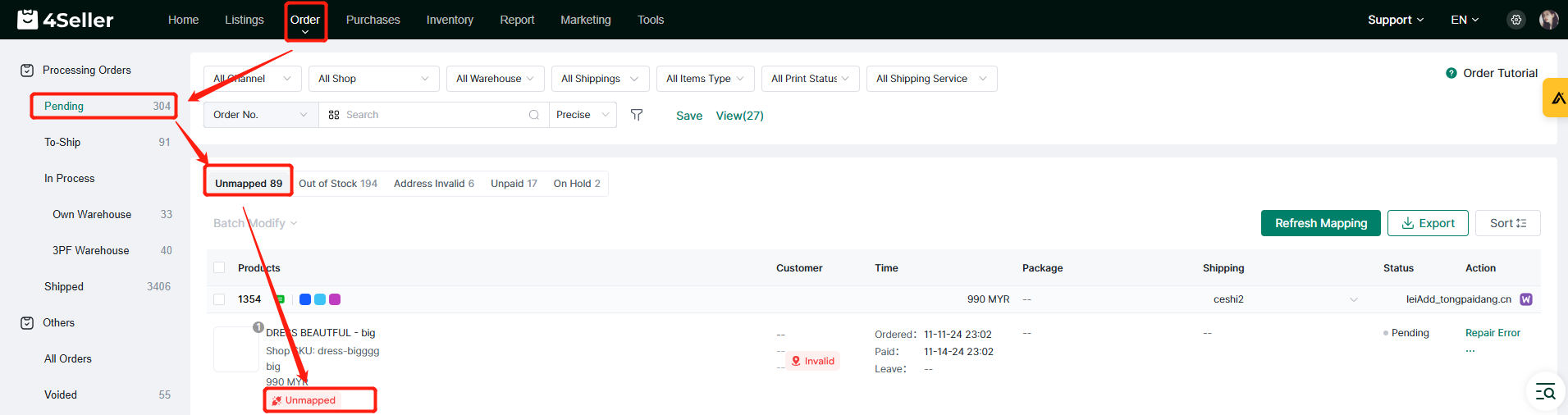
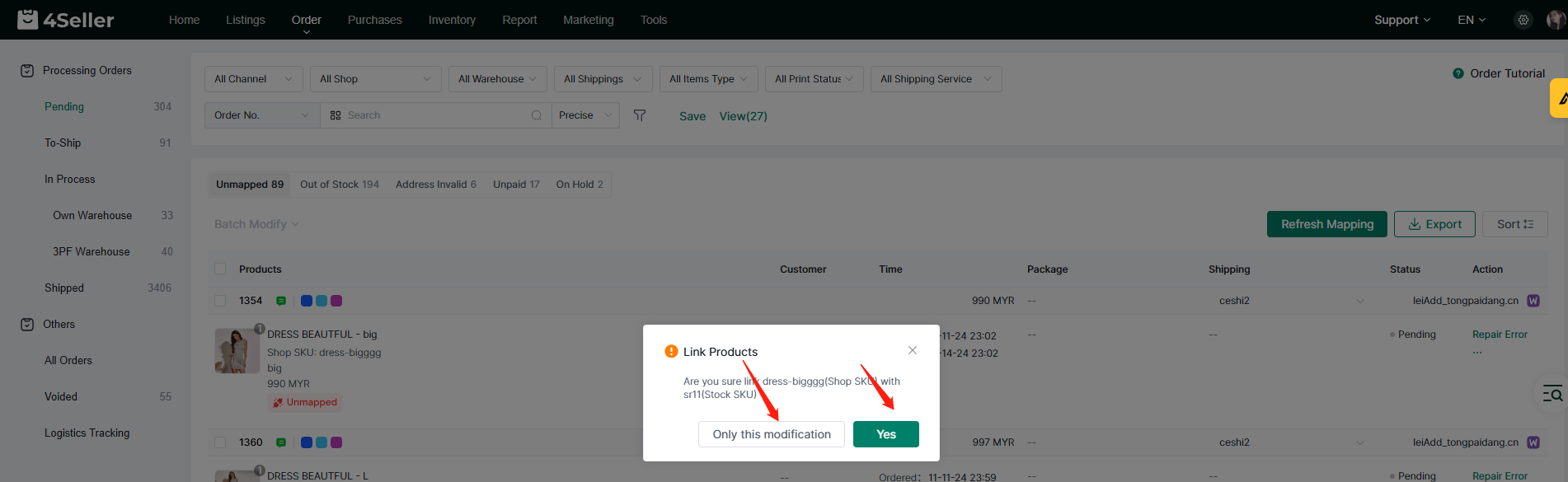
(1) When the order appears in Unmapped, you can click the Unmapped icon and select the corresponding SKU for matching.
After selecting the corresponding SKU, a Link Products prompt will pop up:
Click Only this modification will only take effect on the current order.
Clicking Yes will take effect on unmatched orders and all subsequent orders.
Step 3.3 Order processing-To ship
(1) Single operation
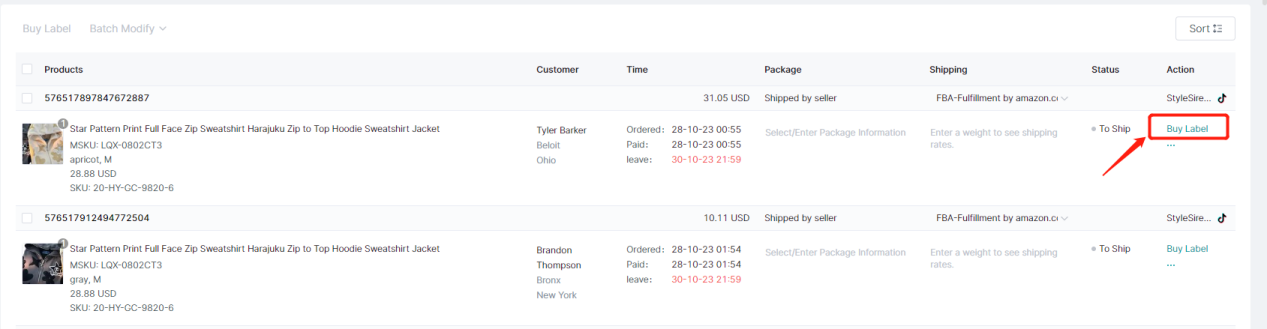
Simply click on the Buy Label of the order to enter the corresponding Buy Label page of the order.
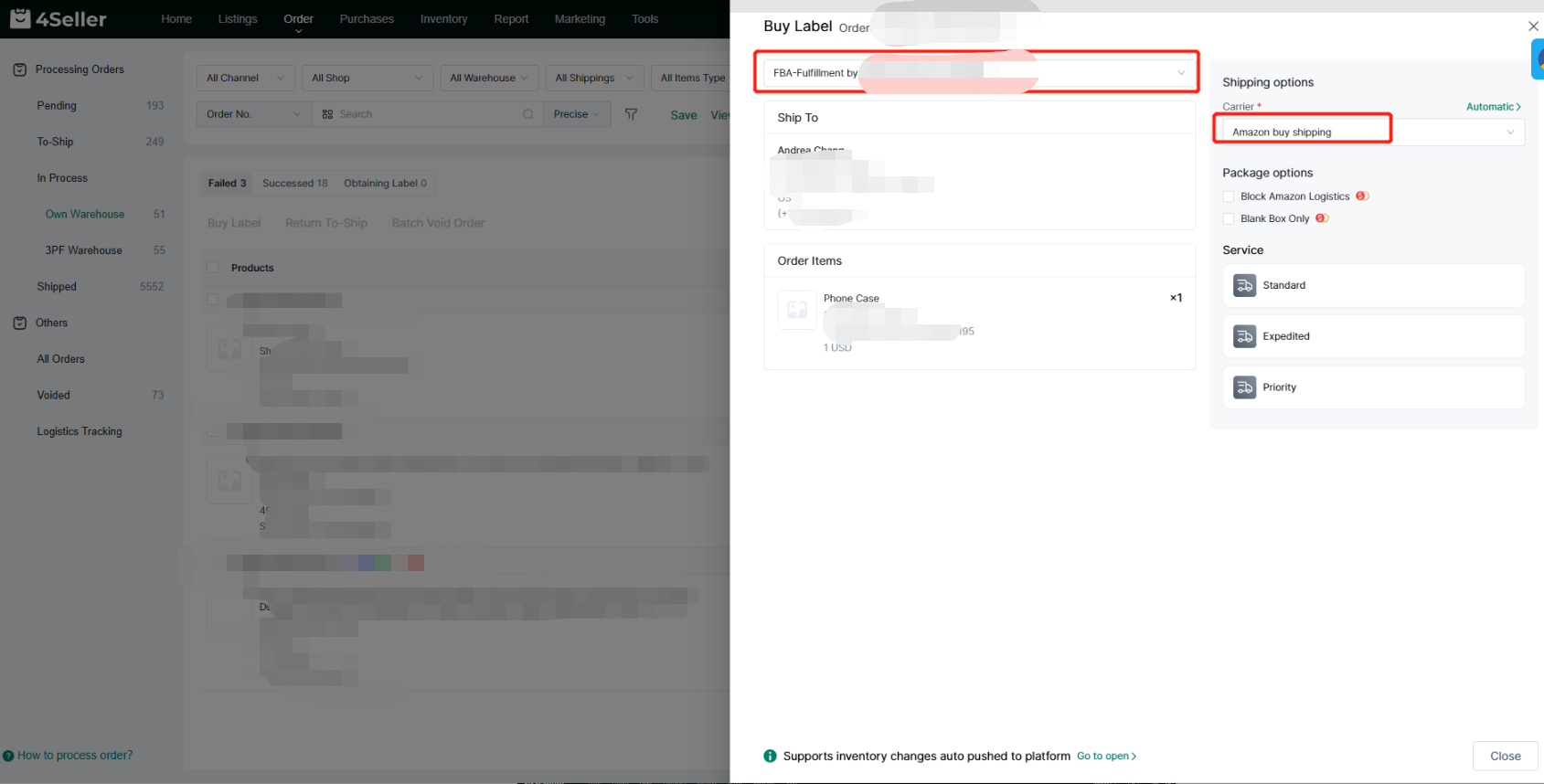
On the Buy Label page of the order, please confirm the following information:
1. Confirm that the corresponding FBA warehouse is selected.
2. Select the corresponding Shipping Carrier.
3. Select the corresponding Service.
Finally, click Buy Label, and the order will enter the In Process status.
(2) Batch operation
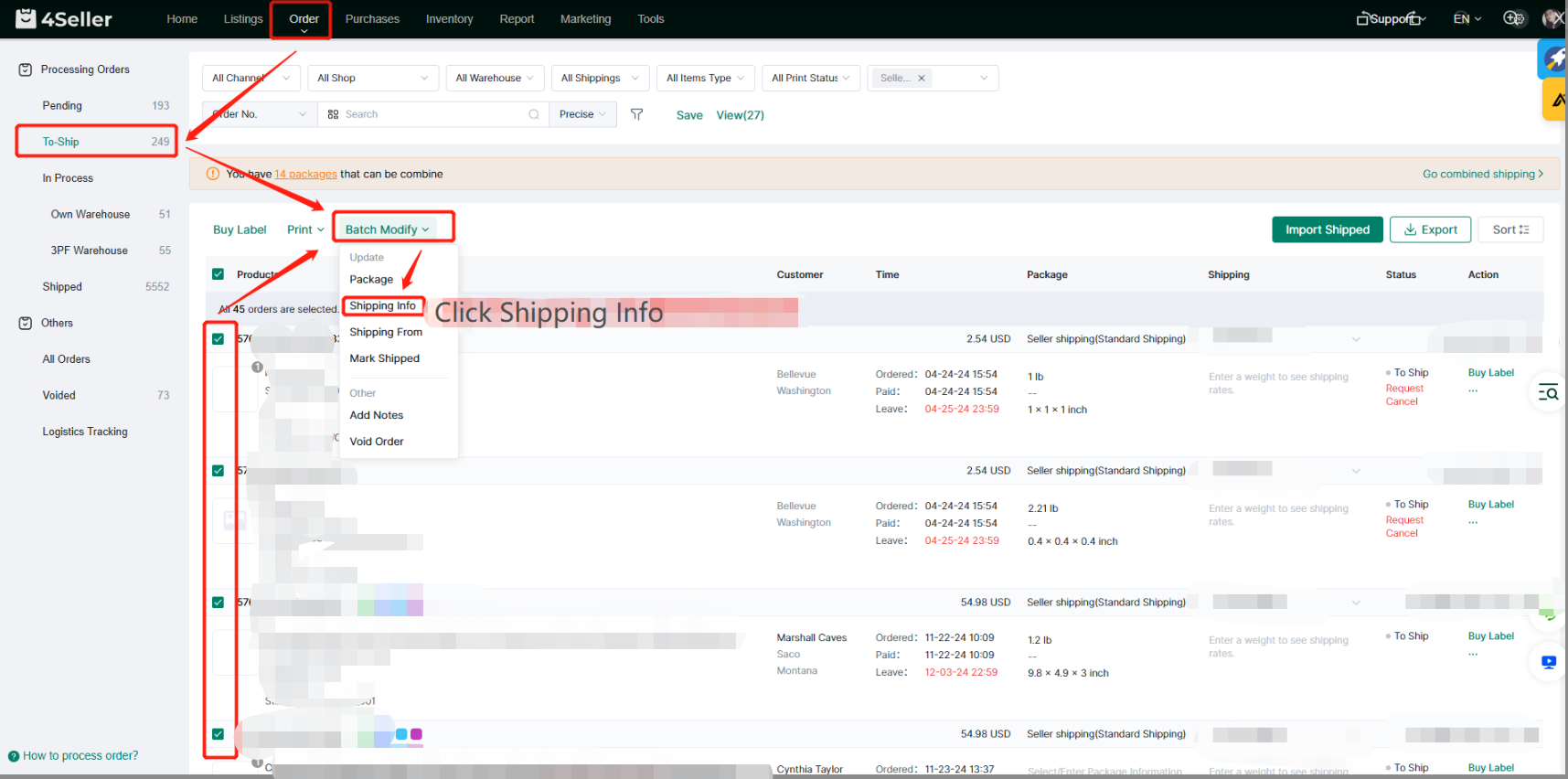
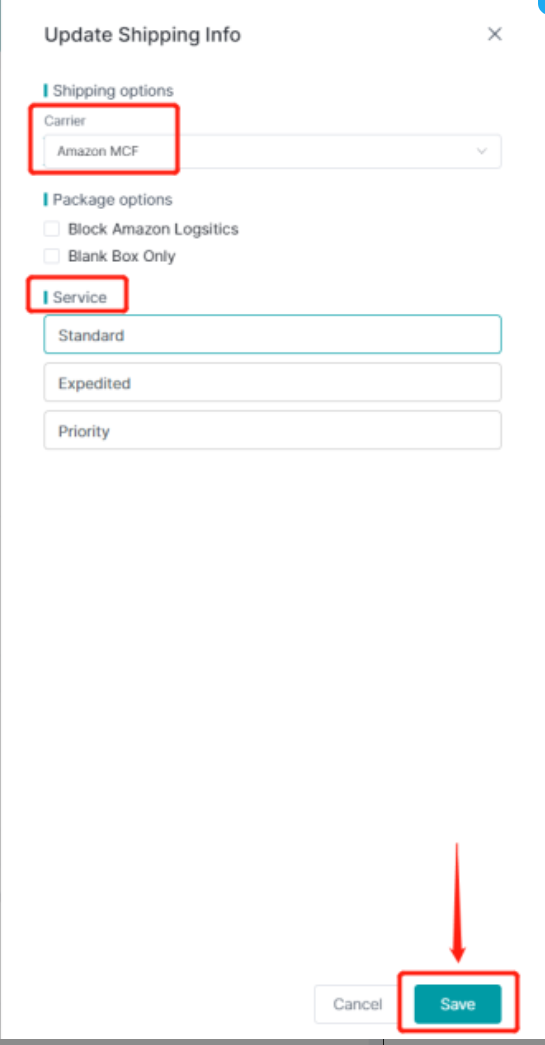
Click Shipping info in Batch Modify to batch update the logistics information of the selected orders.
On the Update Shipping info page, please confirm the following information:
1. Carrier is displayed as Amazon MCF;
2. Select the corresponding Service.
Finally, click Save to update the logistics information of the orders in batches.
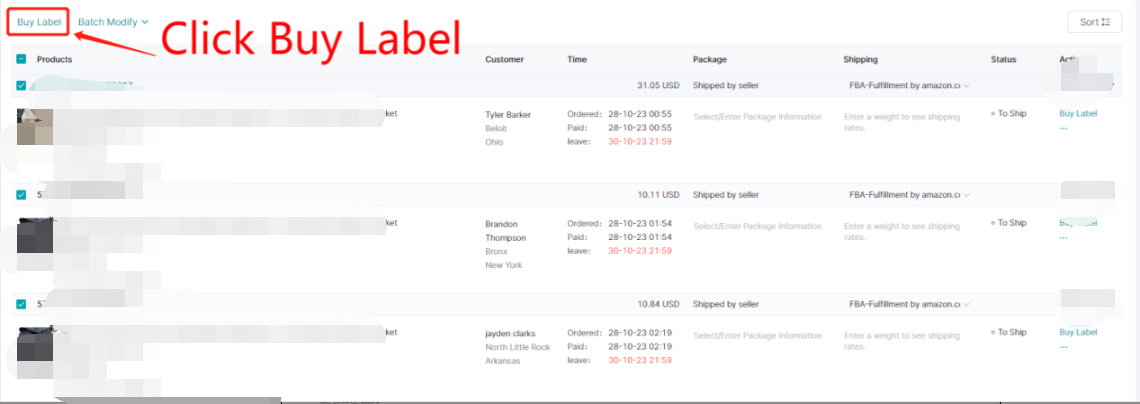
Then click Buy Label to purchase Label in bulk, and the orders will enter the In Process status.
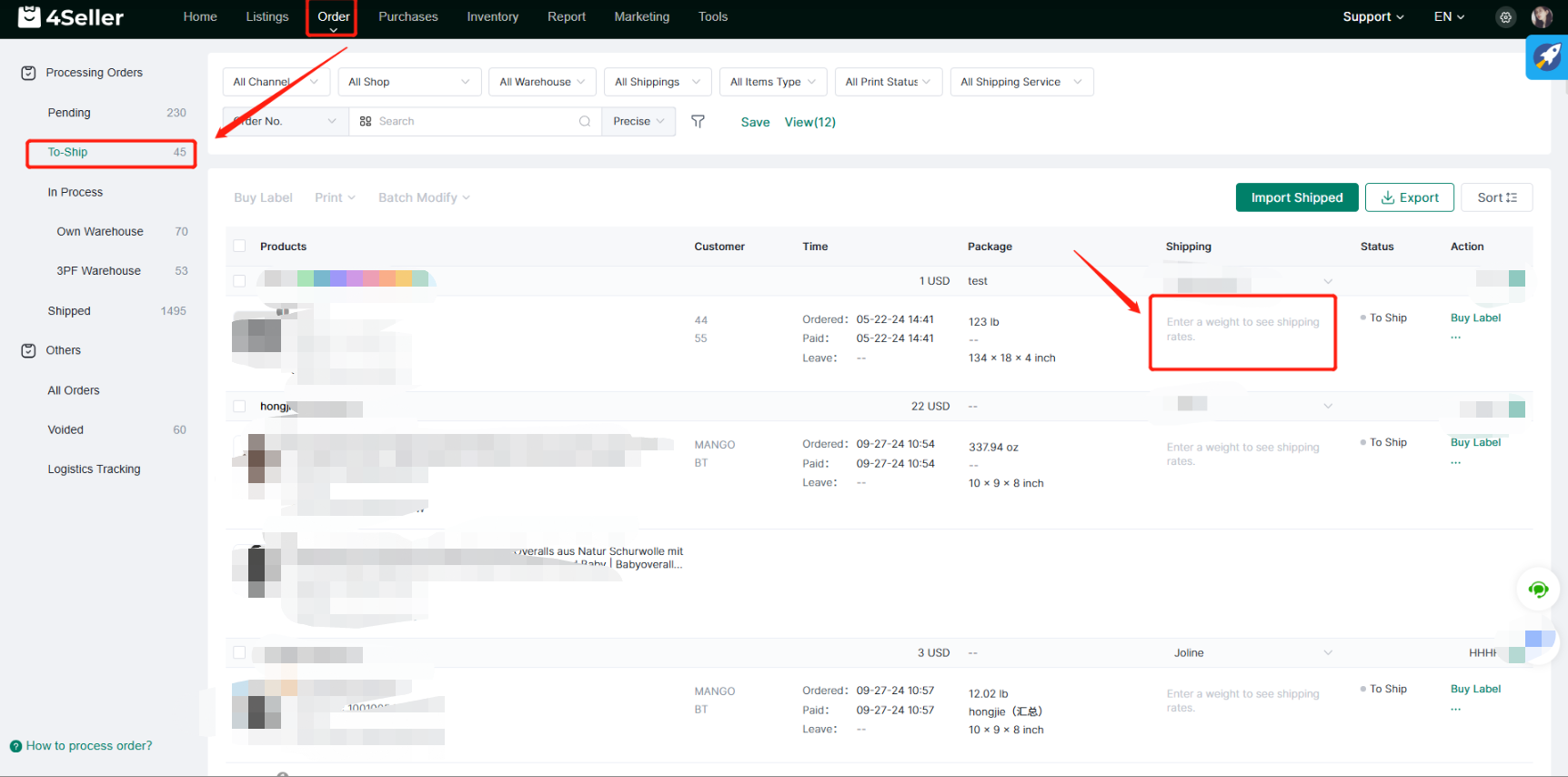
(3) Quick operation
Click the box under Shipping to quickly select logistics services.
(4) If you want to fulfill orders with automatically, you can set up logistics rules.
Take reference from this help article: How to set up logistics rules?
Step 3.4 Order Processing-In Process
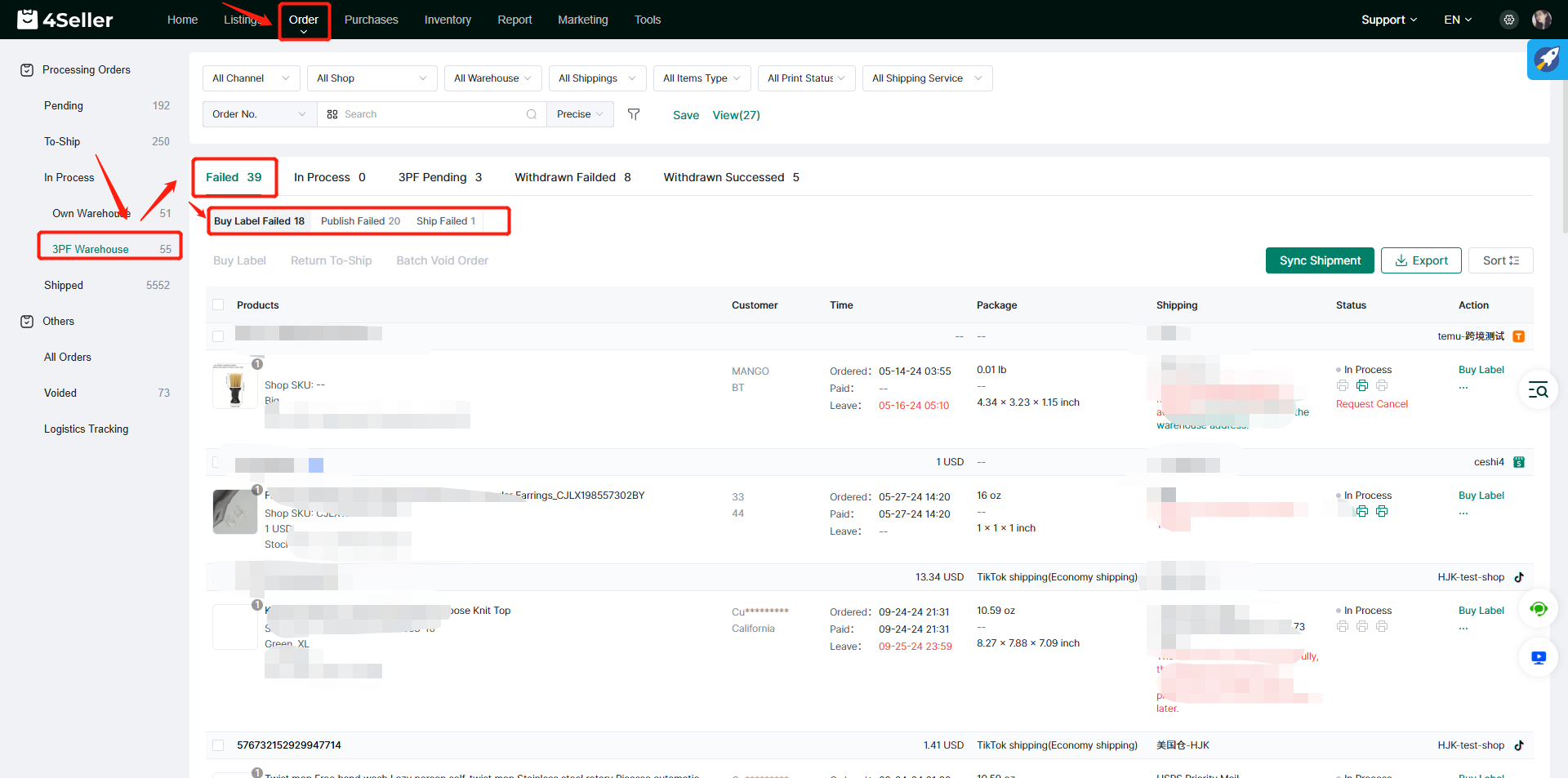
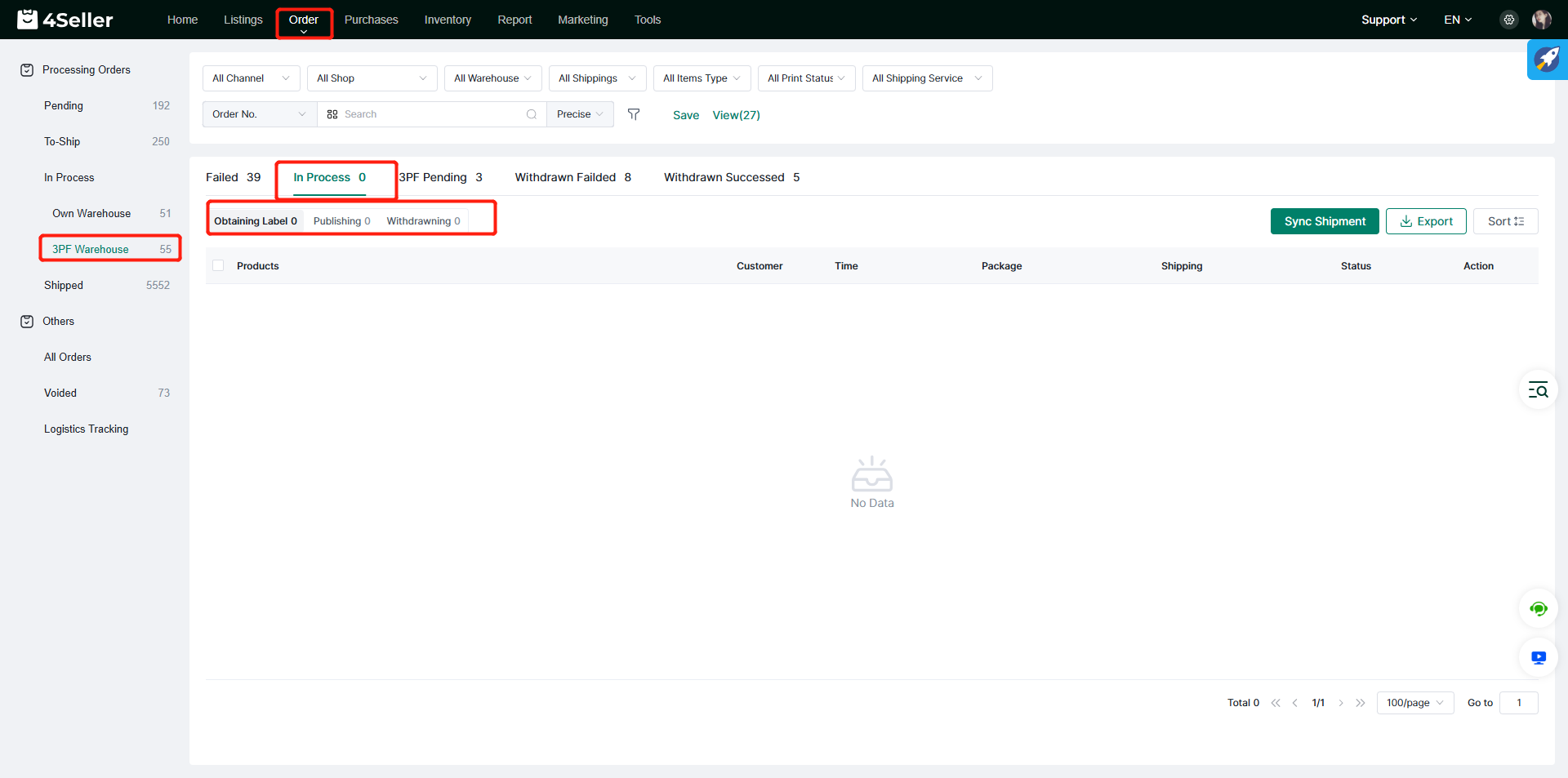
In the In Process process of the 3PF Warehouse, the order has three statuses:
1. Failed:
Buy Label Failed: Failed to buy label for the order.
Publish Failed: The order failed to be pushed to Amazon MCF.
Ship Failed: Failed to push shipping info to the platform where the order is from.
Note: Orders in the Failed process can apply for re-operation.
2. In Process:
Obtaining Label: The Label is being bought for the order.
Publishing: The order is being pushed to the Amazon MCF.
Withdrawing: Withdraw the label
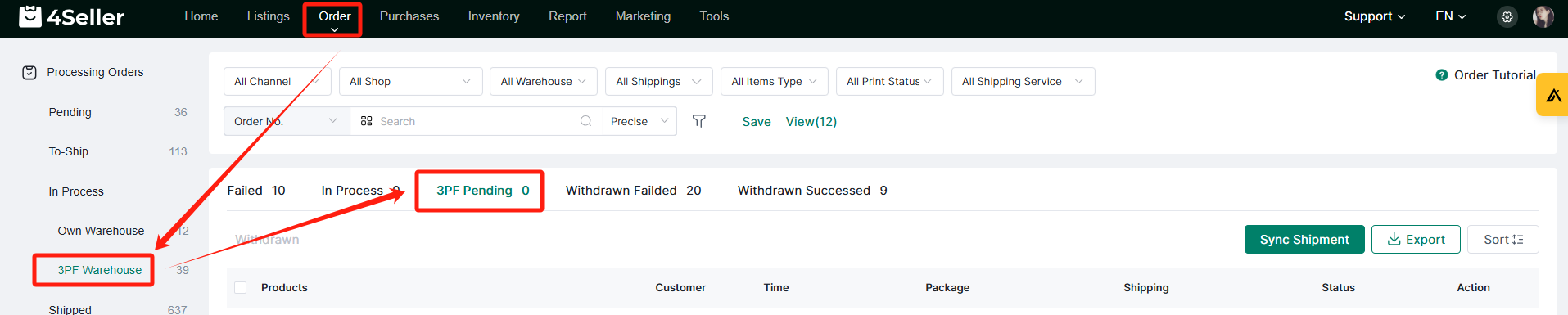
3. 3PF Pending: Buy Label was successful, but the Tracking Number was not returned(generally Amazon MCF generates the tracking number within 24 hours).
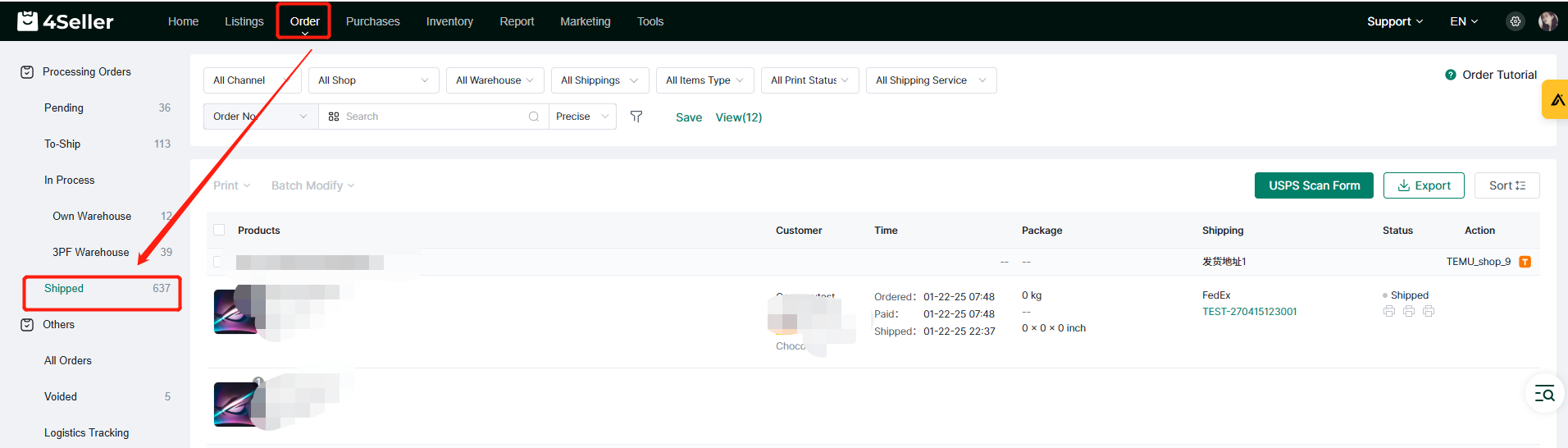
When the order is applied for with a tracking number, and the tracking number is submitted to the platform where the order is from successfully, the order will automatically enter the Shipped status.
Any problem feel free to contact 4Seller Support Team: support@4seller.com