- Get Started
- Video Tutorials
- Knowledge Base
- Channels
- Listings
- Inventory
- Orders
- Settings
- FAQs & Troubleshooting
How to Create Products and Publish to SHEIN within 4Seller?
4Seller supports publishing products to the SHEIN store through manual creation, Scraption, migration, referencing SPUs, and referencing existing products to imporve listing efficiency.

Method one: Manual creation

Scenario 1: Single publication

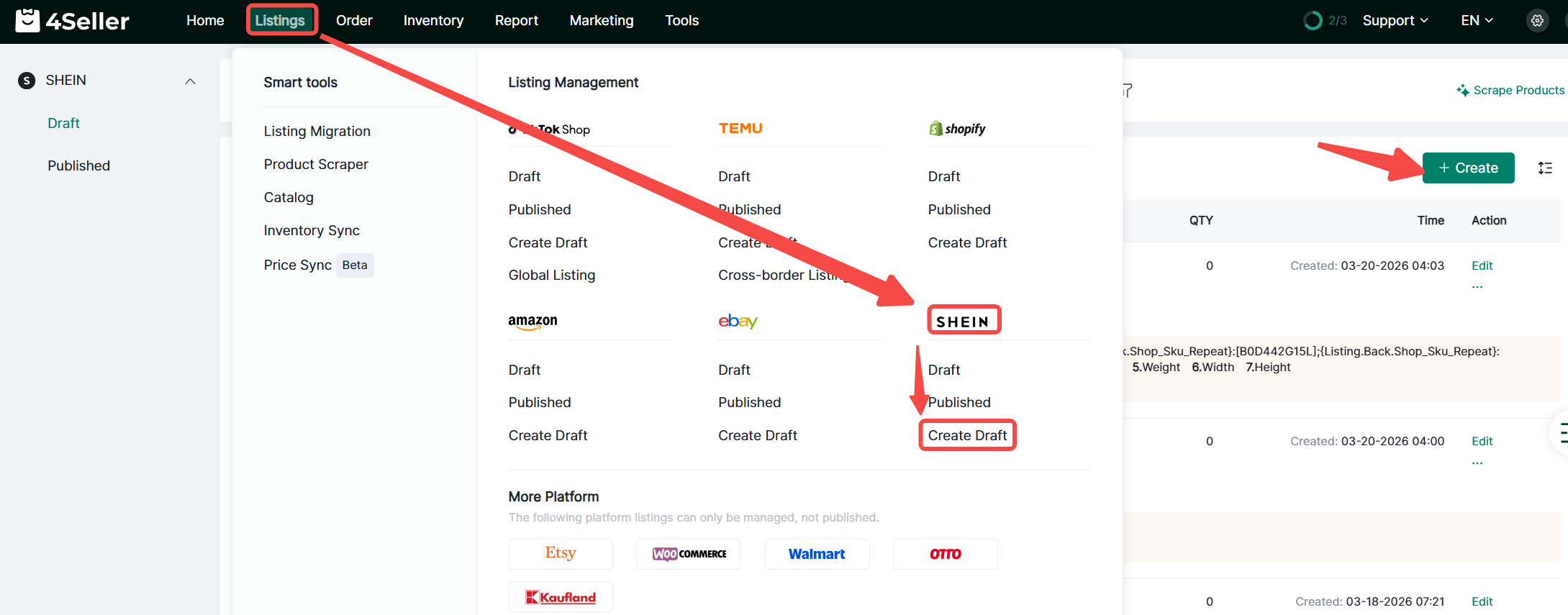
1. Click Products > SHEIN > Drafts > Create Draft, or click Create after entering the product page.


2. Go to the Create Draft page

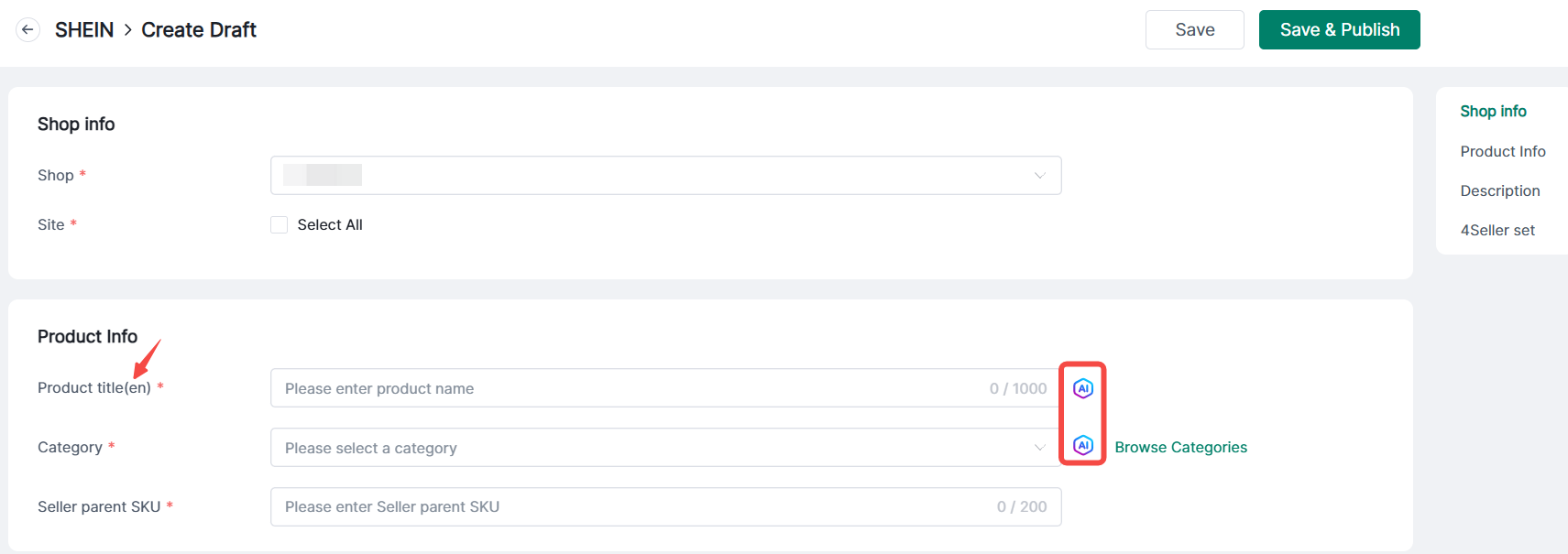
(1) Store Information: Use the dropdown menu to select the store you want to list products for. After selection, the sites under that store will be displayed; check the corresponding sites.

[Currently supports the United States (US), United Kingdom (UK), France (FR), Germany (DE), Spain (ES), Italy (IT), Netherlands (NL), Canada (CA), and Australia (AU)]

(2) Product Information: Product Title (must include the language displayed in parentheses), Category, SKU

[Product titles and categories can also be generated with AI assistance]


(3) Variants:

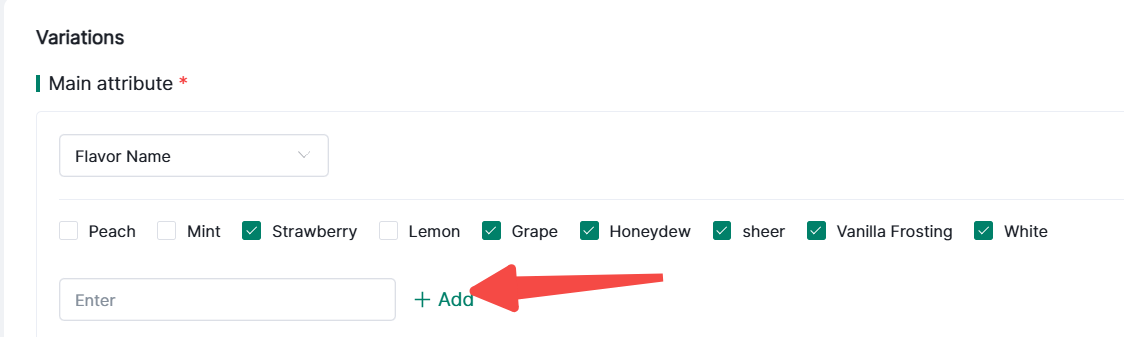
① Main Specifications: Required field. Items marked in red are mandatory attributes. Click “Add Custom” to add additional attributes.


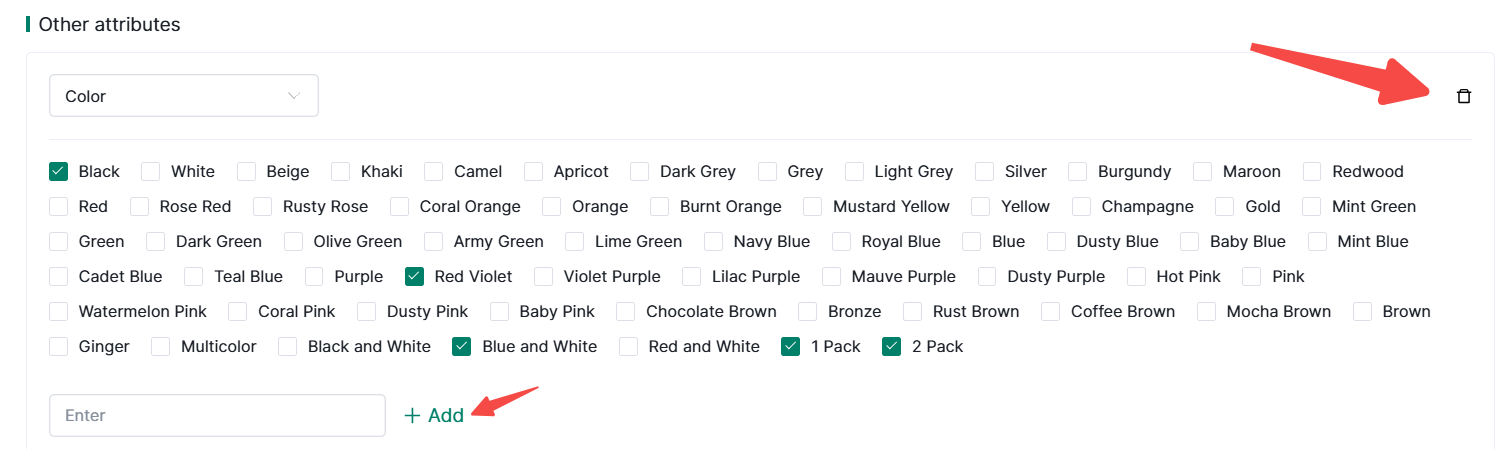
② Other Specifications: Items marked in red are mandatory attributes. You can add custom attributes or delete them as needed.


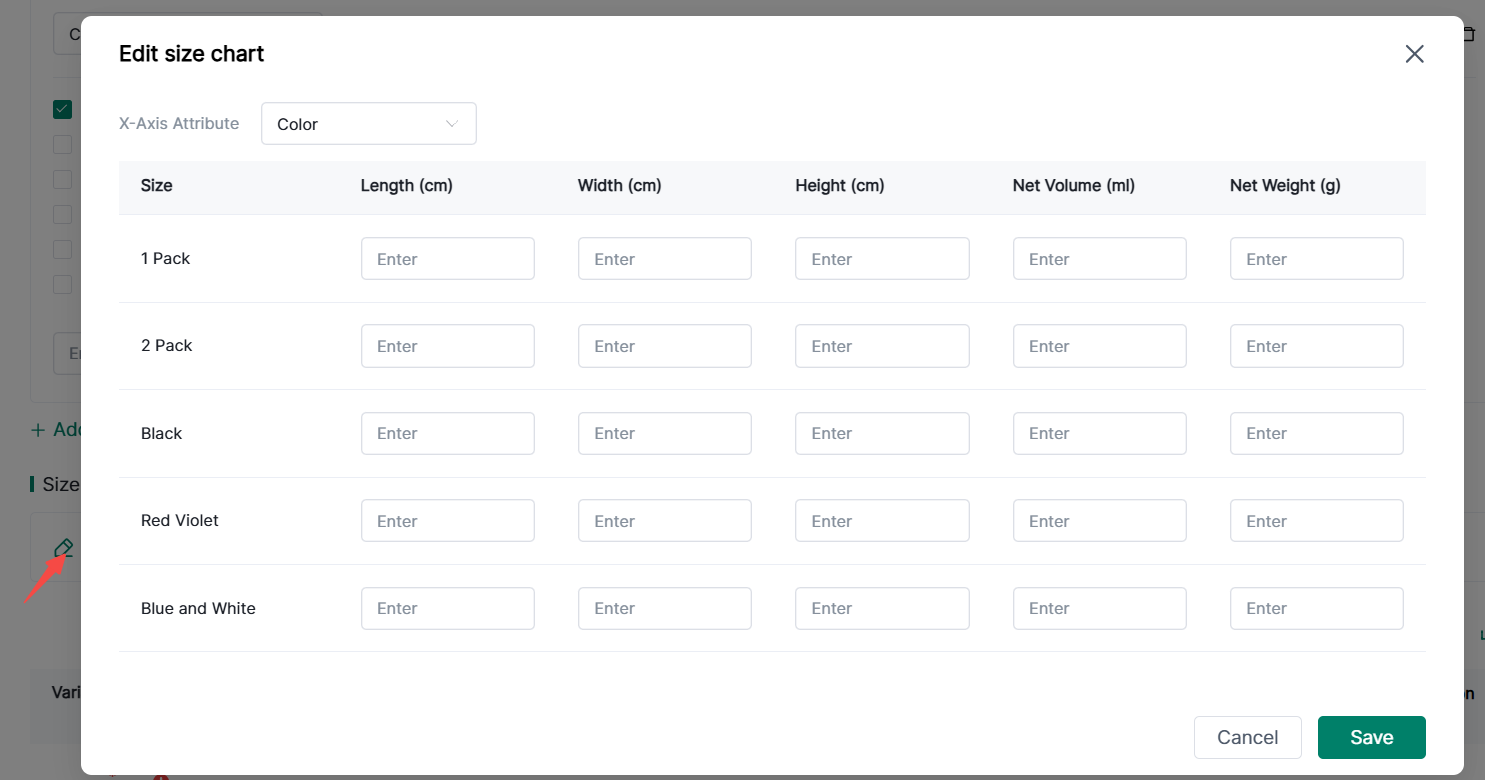
③ Size Chart: Click the “Edit” button to enter size information.


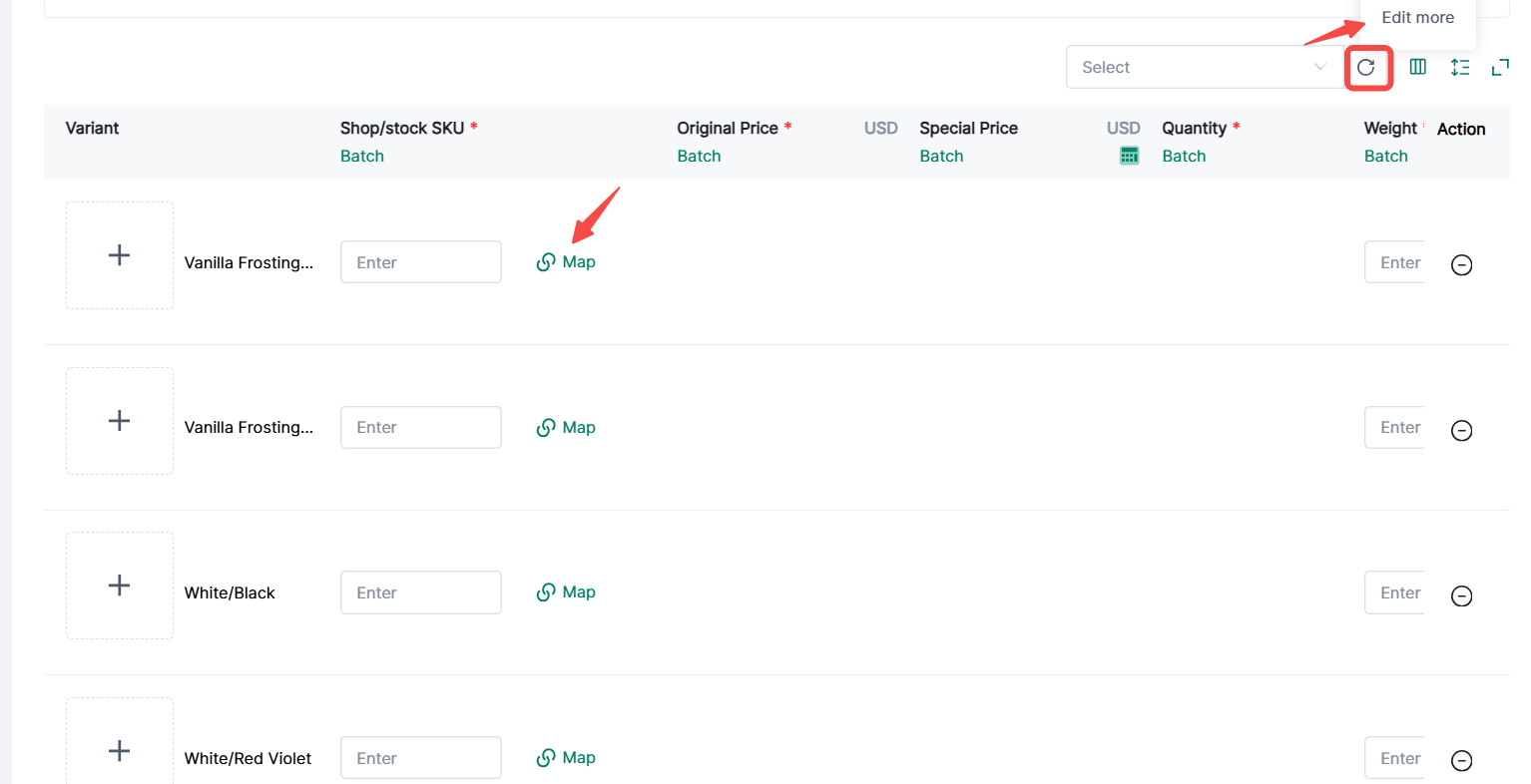
④ Variants: Generate variants based on the selected variant attributes. Click “Refresh Warehouse” to fill in relevant information; you can also click “Full-Screen Edit” or use batch processing. Click “Match Inventory SKU”


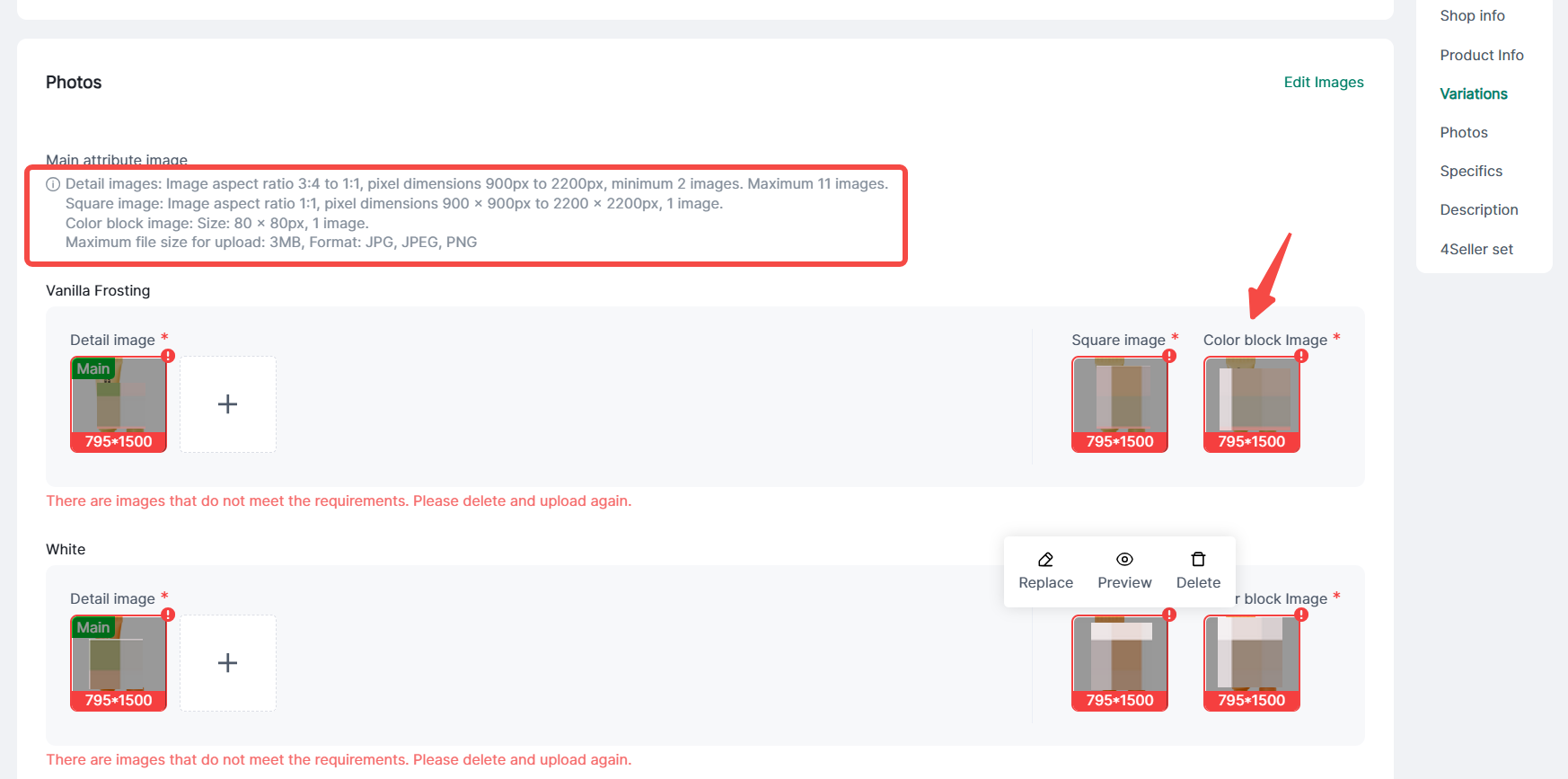
⑤ Images: Items marked in red are required images. If the number of attributes for the main specification is ≥2, a color swatch image must be provided. Different images must be filled in according to relevant requirements. Click “Edit Images” to batch adjust image dimensions.


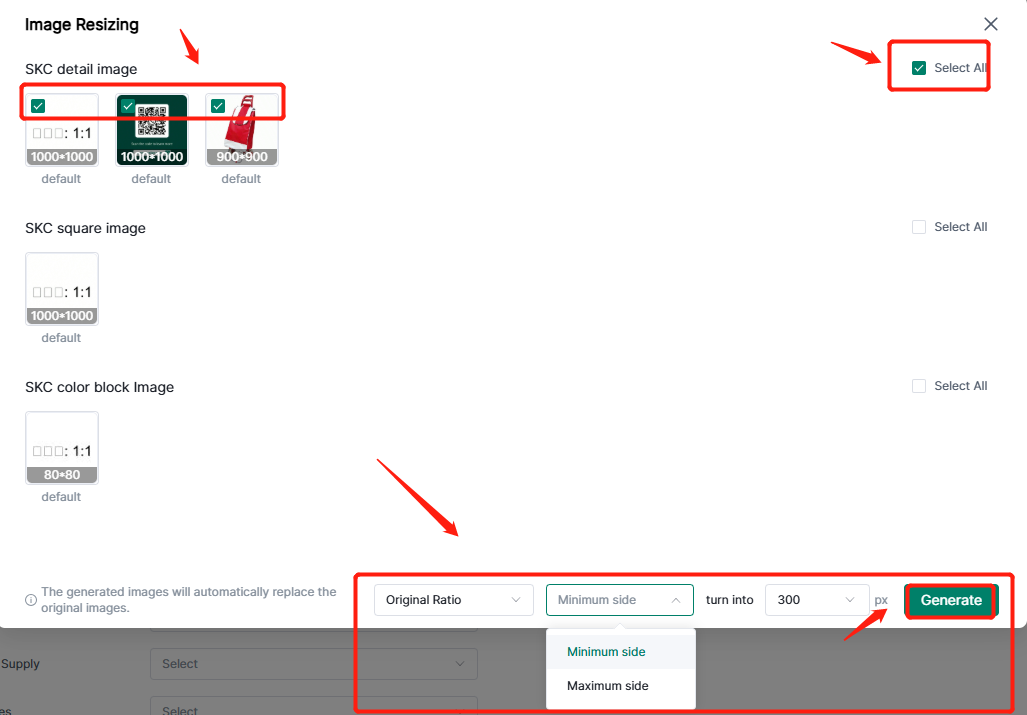
Click batch resize images & Smart Fit Images


Select pics & Select All--Select Original Ratio & Custom Ratio--Fill the px--Finally click "generate".


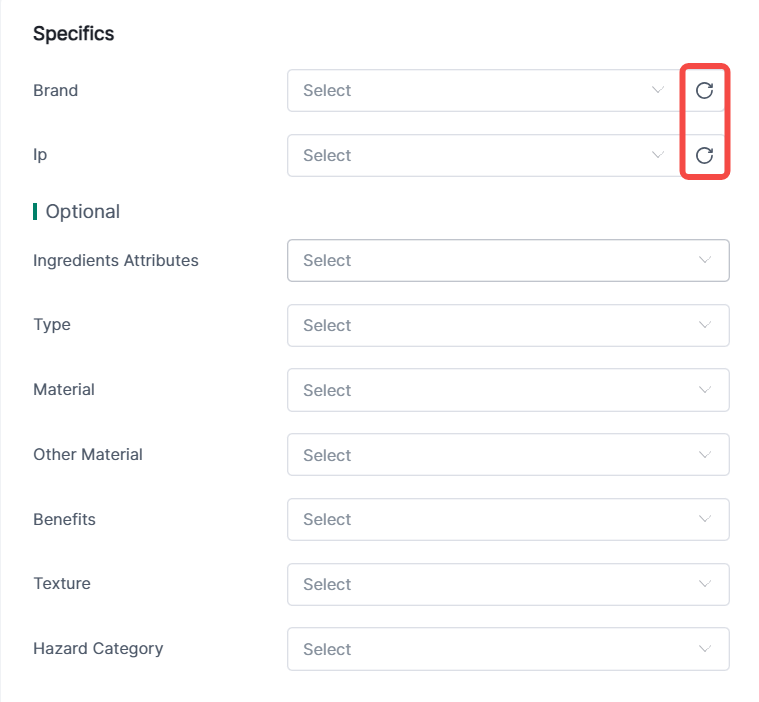
(4) Product Attributes: Selectable after refreshing and syncing


(5) Description: Click to generate a description using AI; fill in the corresponding language in parentheses.


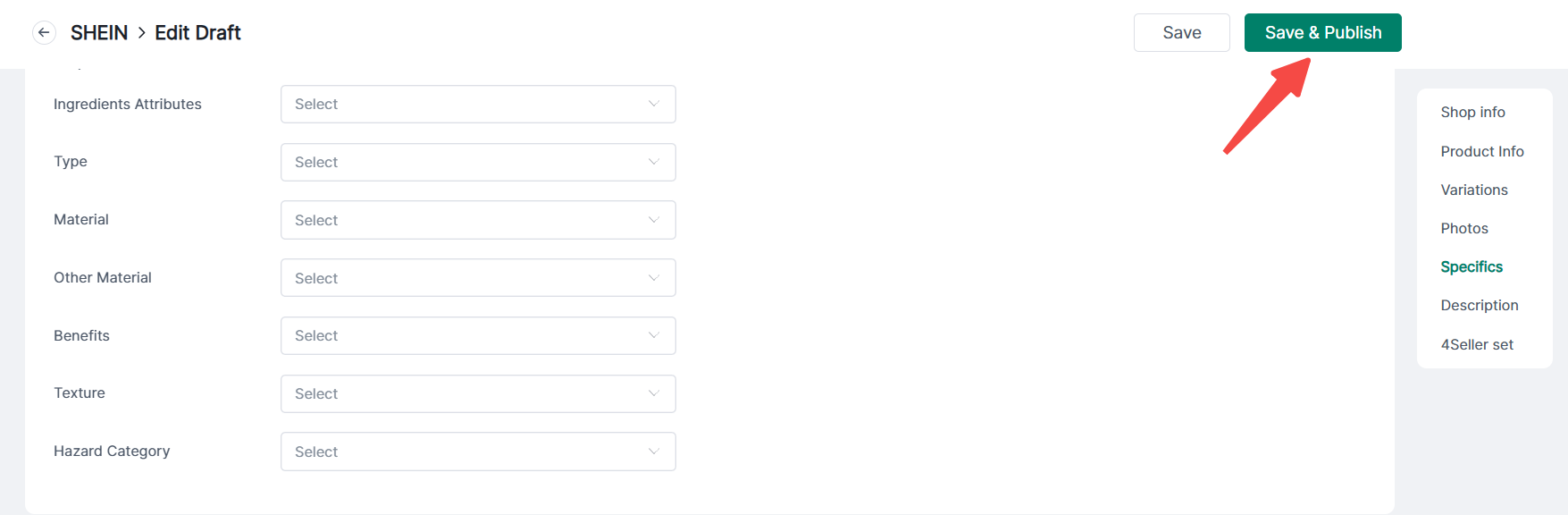
3. Once completed, click Save and Publish.


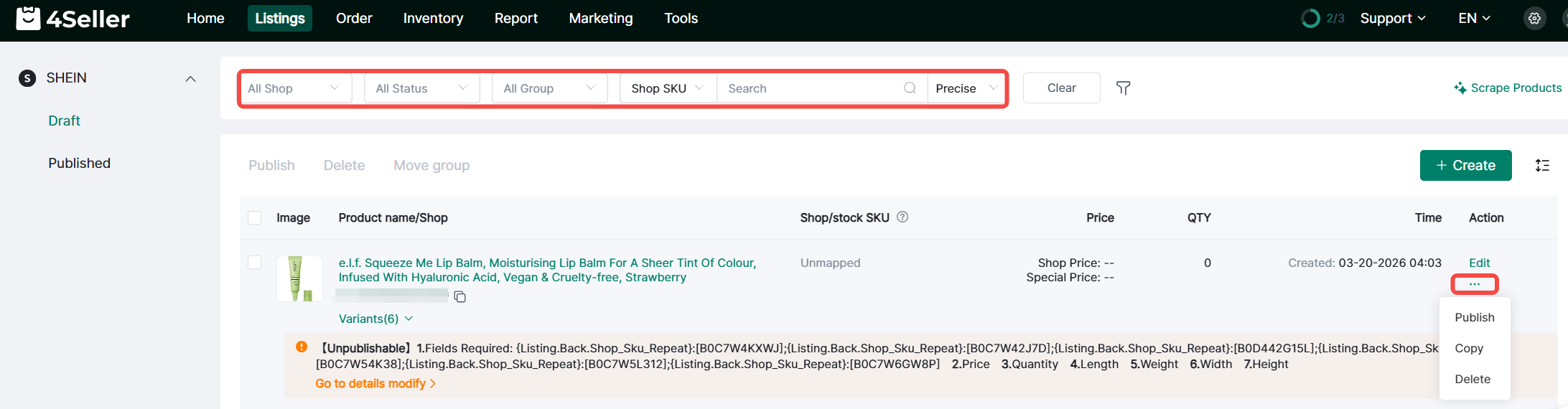
(1) If publication fails, make changes based on the error message and republish, or perform operations such as copying or deleting. Search and filter options are available at the top.


(2) After successful publication, the product will appear in the Published list. Click “Variants” to expand and view the publication status of each variant. Click ‘Copy’ to copy product information to the Drafts section, or click “Sync” to update the platform information on the list page.

\

Scenario 2: Batch editing and publishing

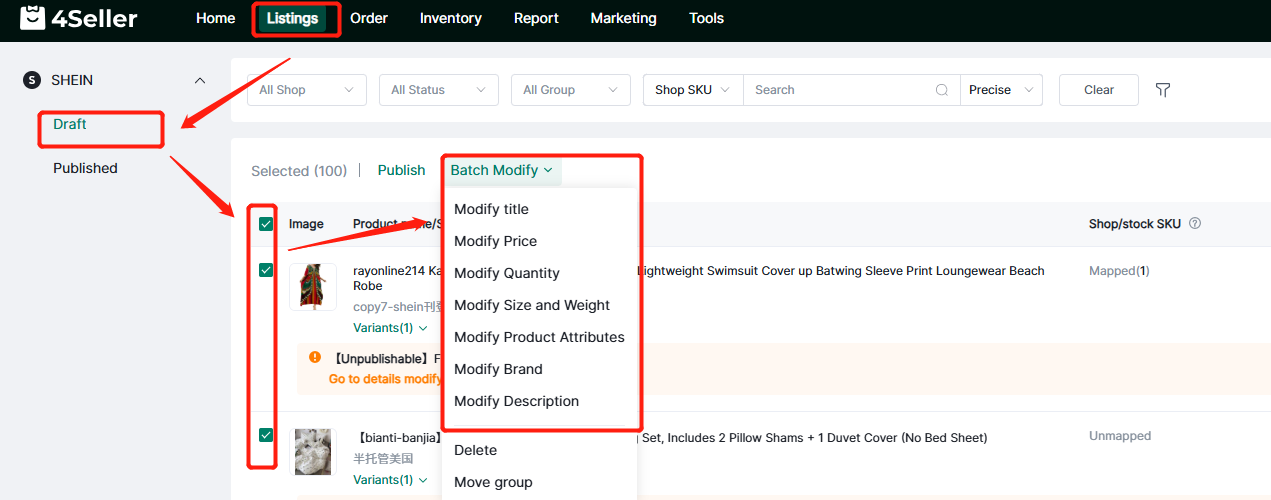
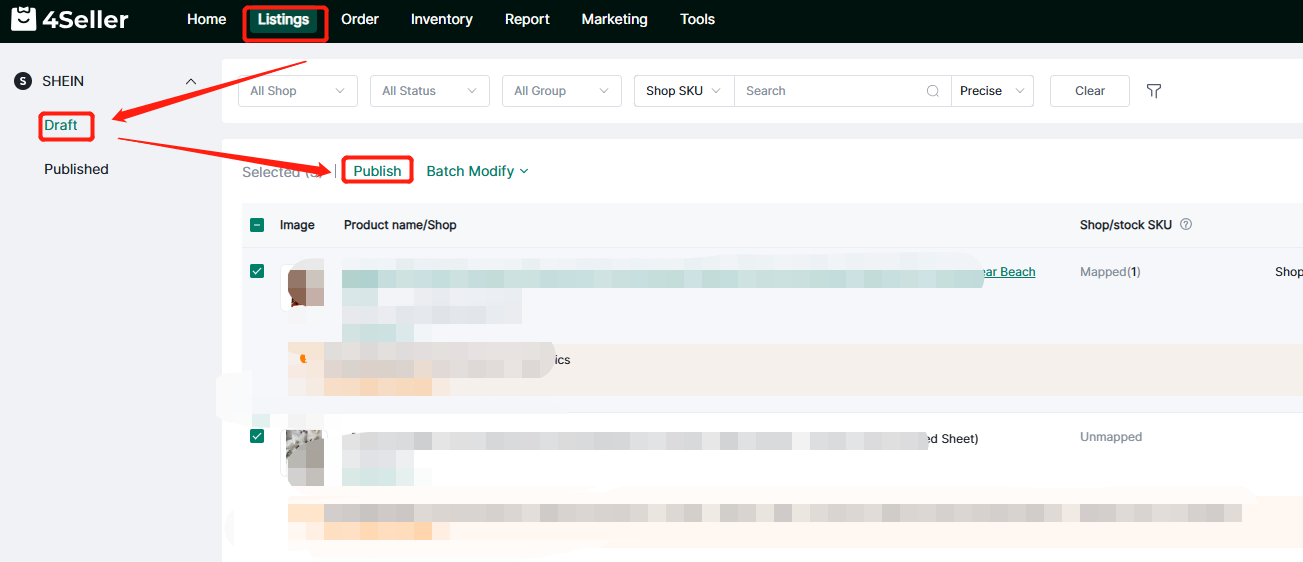
  1. Listing --Shein draft--Select listings--Click Batch modify--select the info to batch edit


Note:


-
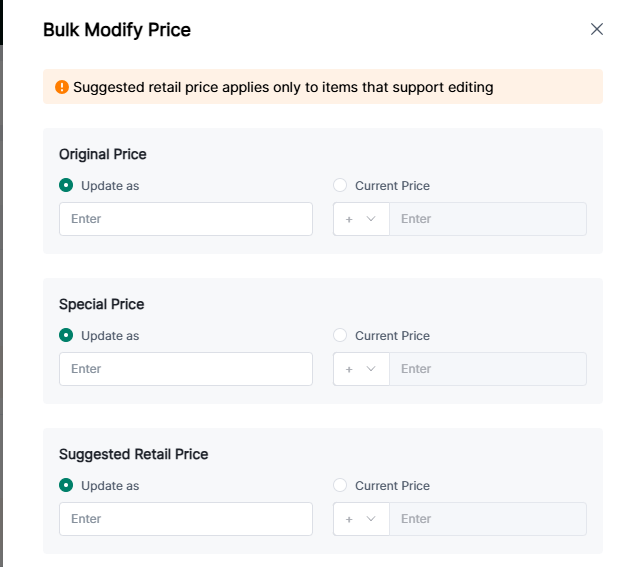
Different stores cannot modify prices simultaneously. Self-operated stores can modify the original price, special price, and suggested retail price; semi-managed stores can modify the supply price and suggested retail price. (The suggested retail price only applies to products that can be edited.)
-
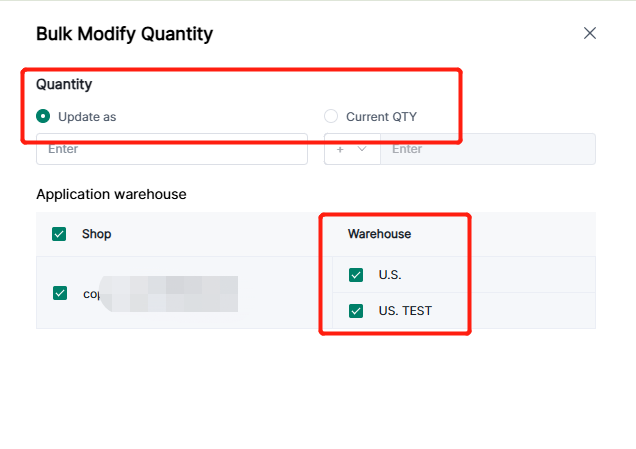
Modifying the quantity supports selecting multiple warehouses.
-
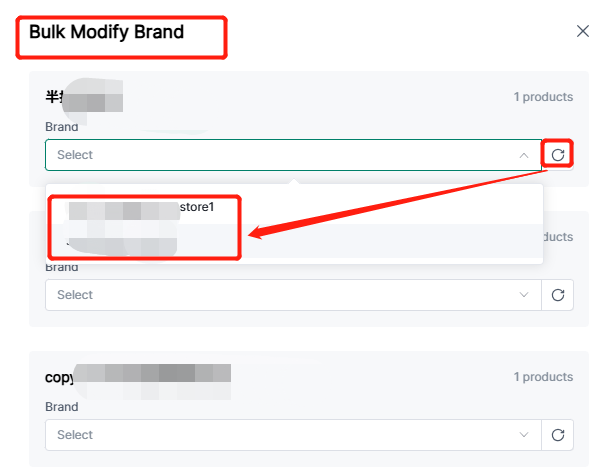
When changing a brand, click the refresh button on the right to synchronize the brands set in the store's backend.
2. select the listings -- Click Batch Modify

3. Enter the batch modify page--after editing--click Save or Save & Publish

4. After completing the batch modifications, you can click "Publish".
Method two: Scraption
Refer help article: How to Scrape TikTok, Temu, Amazon, eBay, SHEIN, CJdropshipping, AliExpress, Alibaba and Walmart Product Listing to Shein Stores?
Method three: Migration
Refer help article: How to Sync Listings from Shopify 、Amazon、TikTok、eBay、Etsy、WooCommerce、Shein store to Shein Store?
Method four: Referencing SPUs
1. Create Spu
Refer help article: How to Create SPU in 4Seller?
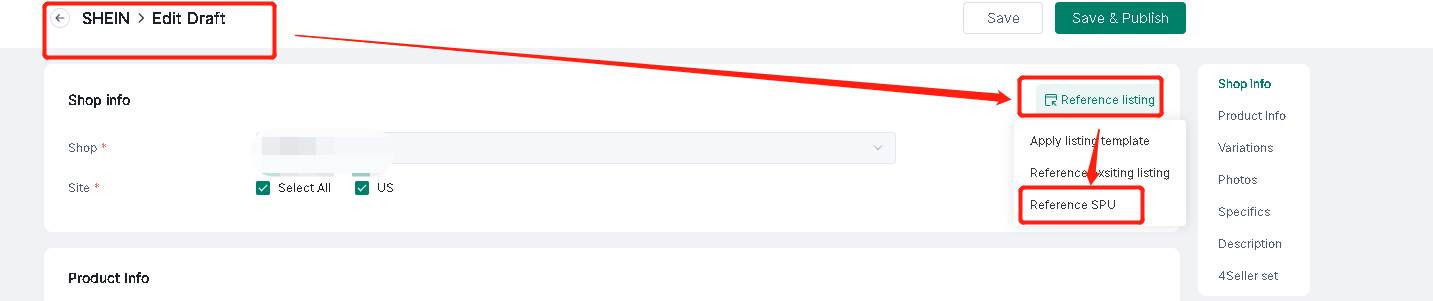
2. Referencing SPU
Method five: Referencing existing listing
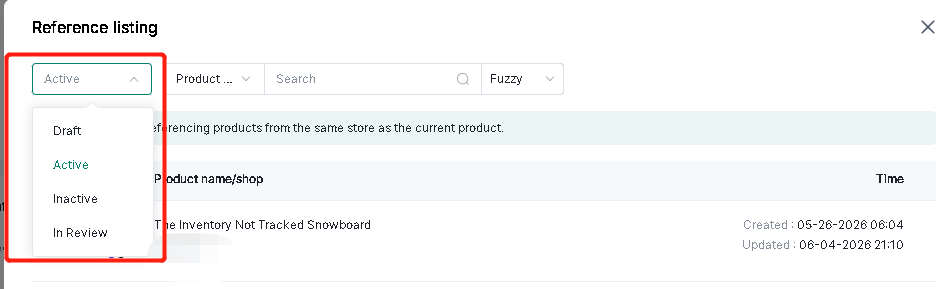
SHEIN's draft page supports referencing existing product information for quick listing.

Note: Only products from the same store are supported.
Any problem pls feel free to contact 4Seller support team: support@4seller.com