- Get Started
- Video Tutorials
- Knowledge Base
- FAQs & Troubleshooting
How to unbind or change the binding for two-factor authentication login?
After enabling two-factor authentication, you can view the binding details in your Profile, where you may unbind or replace the binding
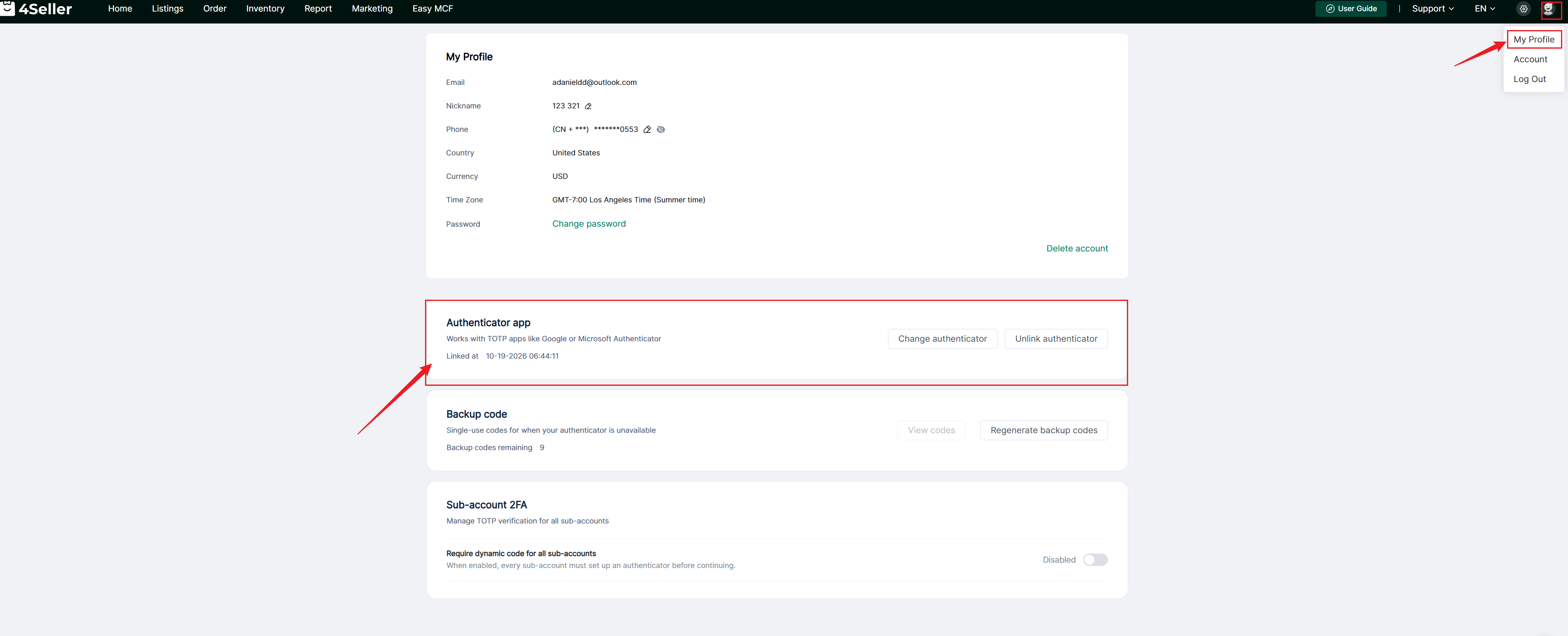
1. Unlink Authenticator
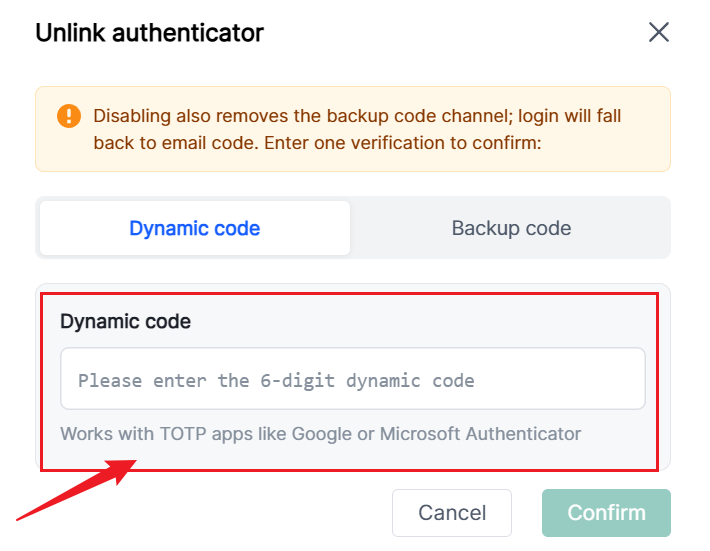
After clicking Unlink Authenticator, a pop-up window titled "Unlink Authenticator" will appear.
1)Unlink via authenticator
Open your authenticator app (Google Authenticator, Microsoft Authenticator, etc.), then enter the 6-digit dynamic verification code shown on the app to complete unbinding.
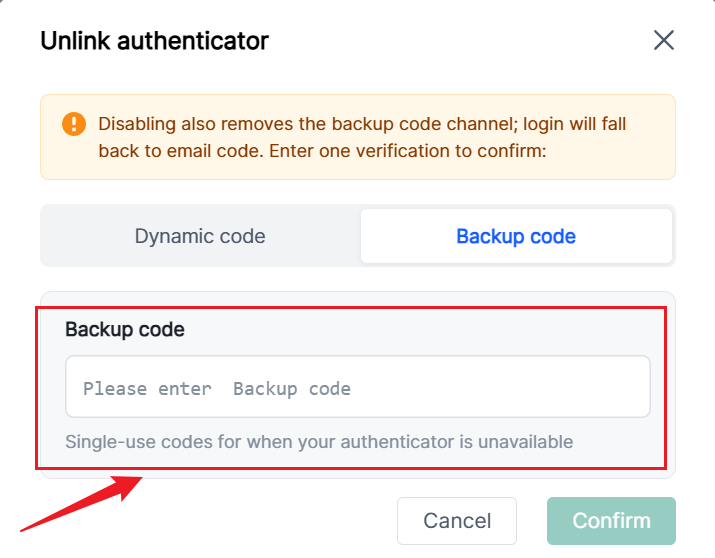
2) Unlink via backup codes.
If you do not want to use the authenticator, you may unbind using backup codes. You can use previously saved backup codes or newly generated ones. If you choose to regenerate them, the old 10-digit backup codes will become invalid, enter the code to finish unbinding.
2. Change Authenticator
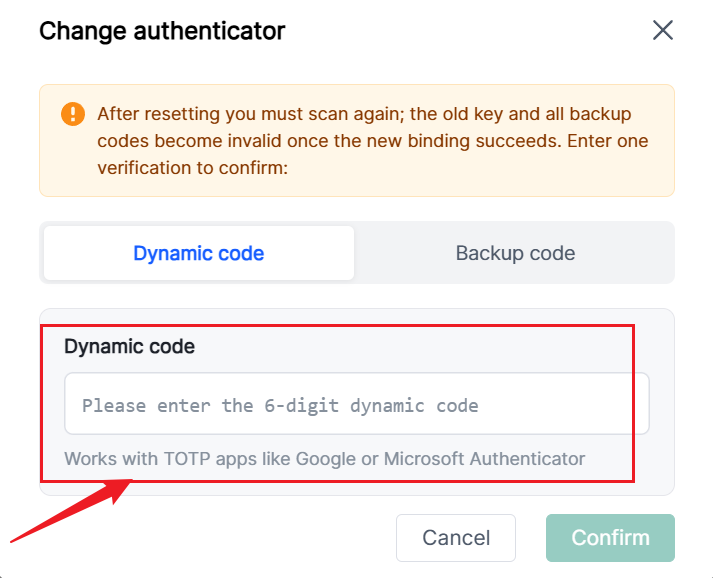
After clicking "Change Authenticator", a pop-up window titled "Change Authenticator" will appear.
1) Change binding via authenticator
Open your authenticator app (Google Authenticator, Microsoft Authenticator, etc.) and enter the 6-digit dynamic verification code displayed on the app.
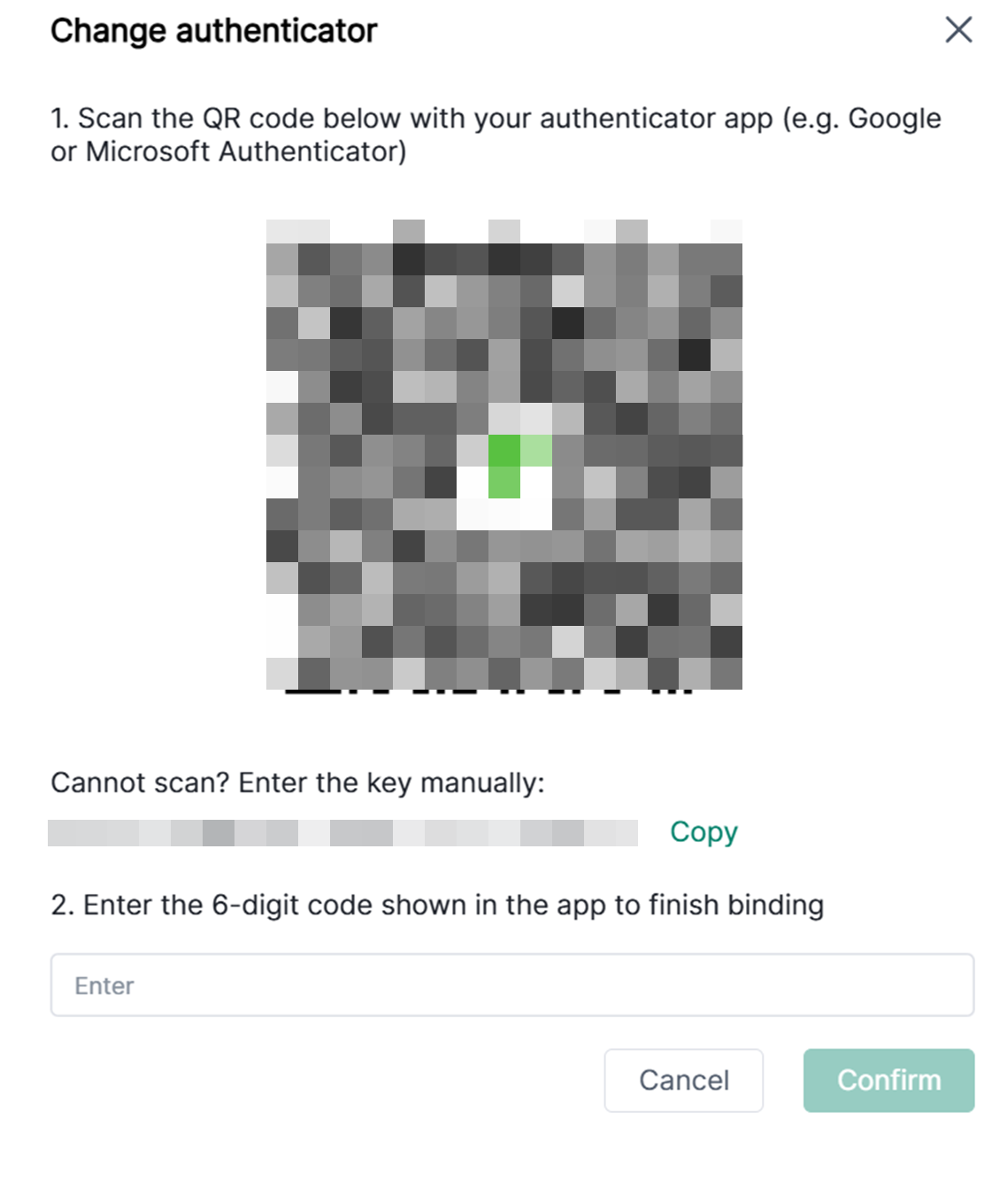
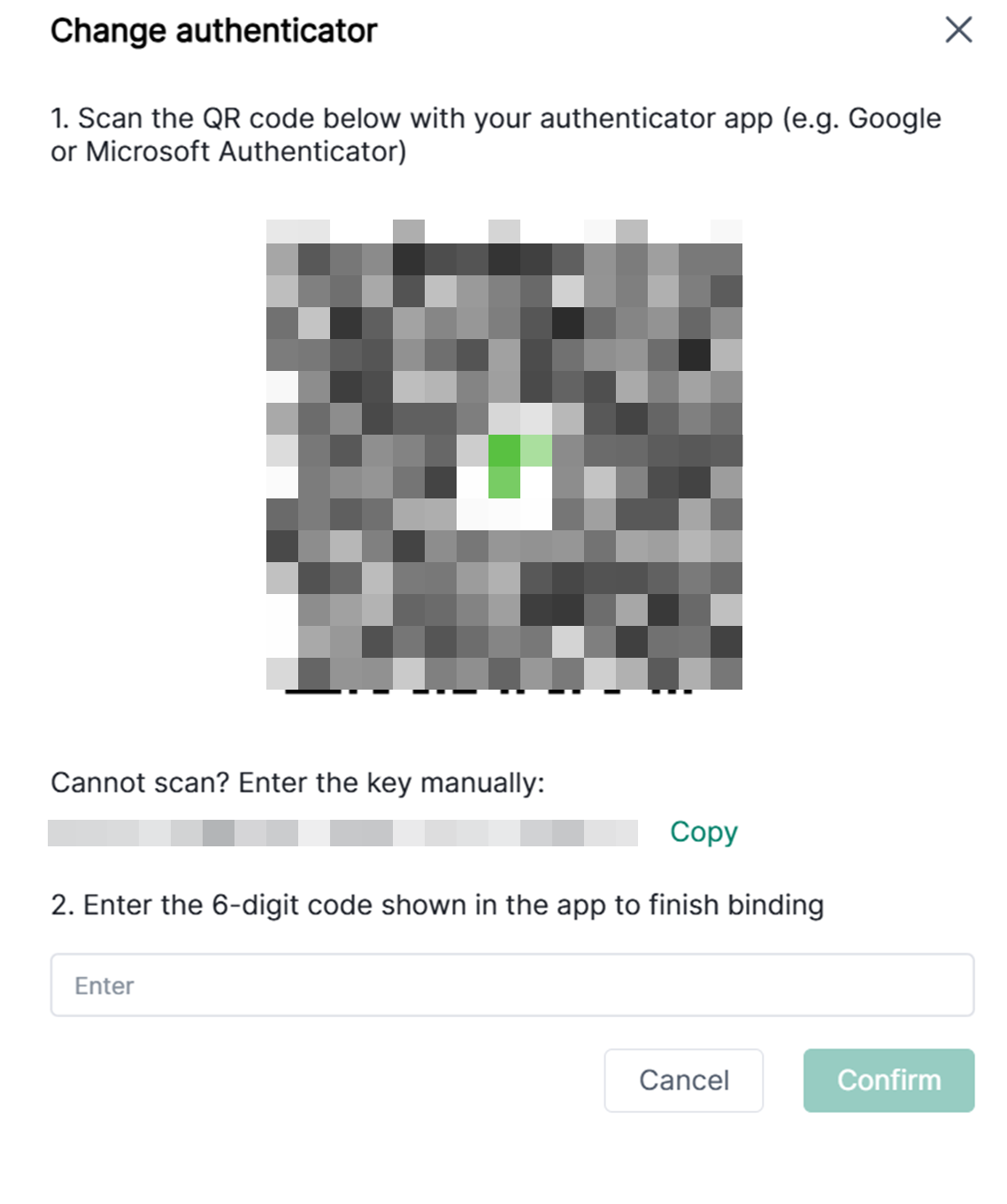
After entering the code, you will be directed to the page for changing the authenticator binding. Please refer to the document "How to Perform 2FA ?" for subsequent steps.
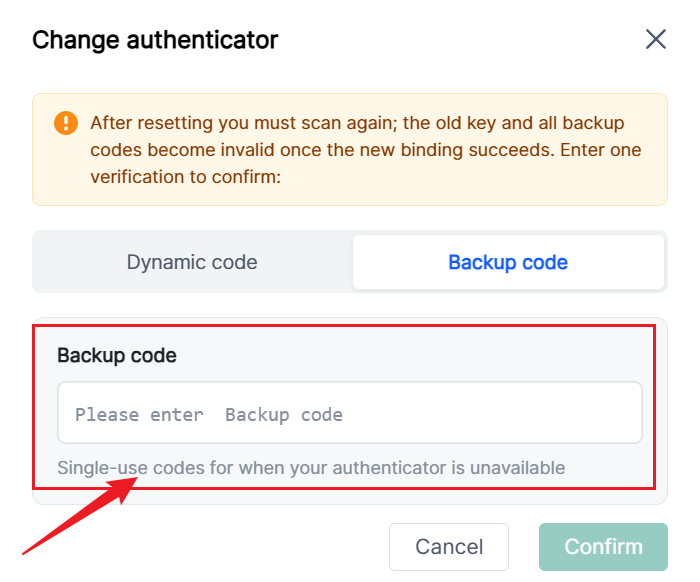
2) Change binding via backup codes
If you do not want to use the authenticator, you may use backup codes to change the binding. You can use previously saved backup codes or newly generated ones. If you choose to regenerate them, the old 10-digit backup codes will become invalid.
After entering the code, you will be directed to the page for changing the authenticator binding. Please refer to the document "How to Perform 2FA ?" for subsequent steps.
Any problem just feel free to contact 4Seller support team: support@4seller.com