- Get Started
- Video Tutorials
- Knowledge Base
- Channels
- Listings
- Inventory
- Orders
- Settings
- FAQs & Troubleshooting
How to Use Automatic Rules?
4Seller supports managing order splitting, warehouse allocation, and shipping service selection through Automatic Rules. You can configure rules based on conditions such as platform, store, SKU, and product quantity to automatically split orders, assign shipping warehouses, select shipping services, and purchase shipping labels, improving order fulfillment efficiency.

1. Access the Automatic Rules Settings Page

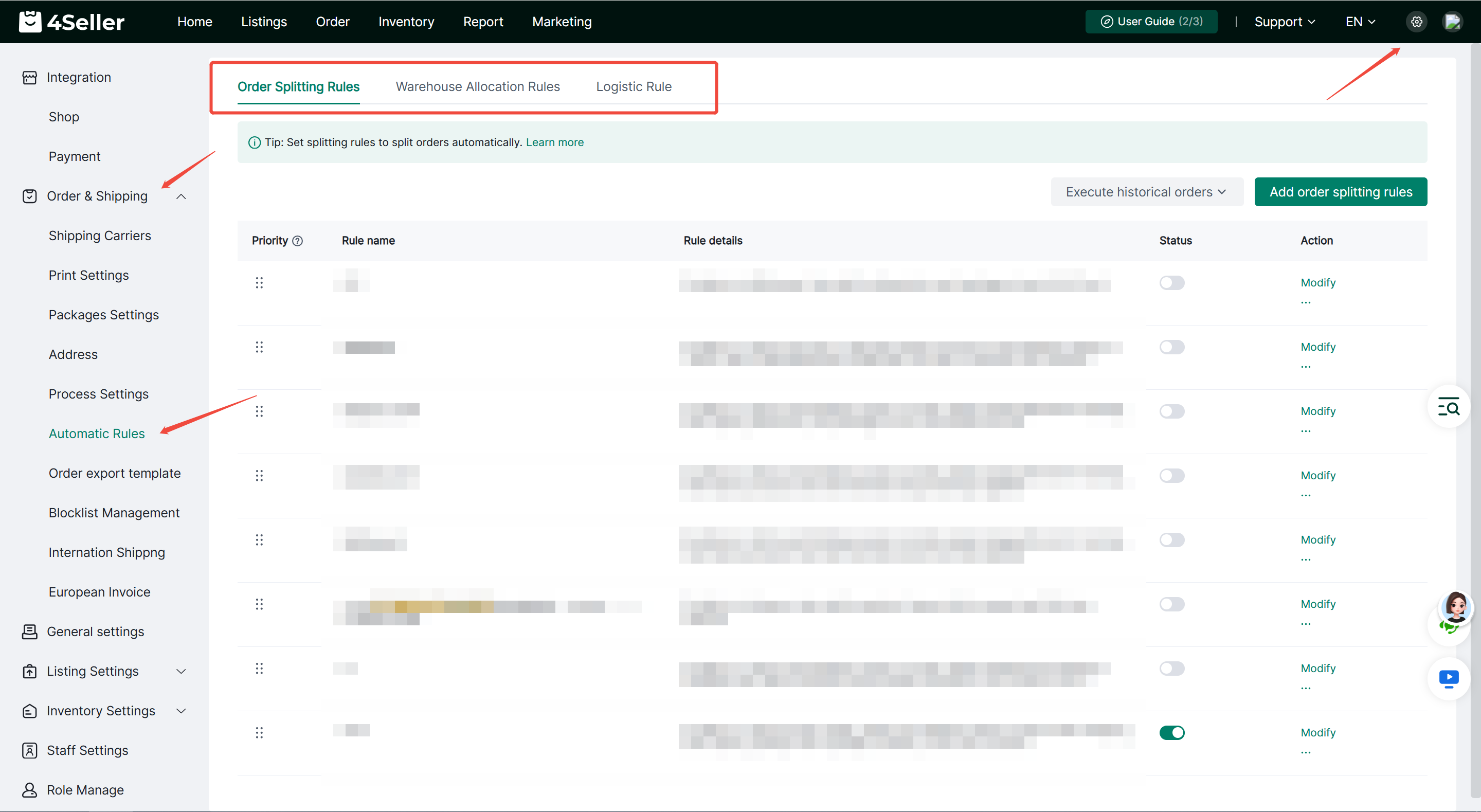
Log in to 4Seller and navigate to Settings > Order and Shipping  to access the Automatic Rules page.

Automatic Rules consists of the following three modules:

Order Splitting Rules: Automatically split orders based on specified conditions.

Warehouse Allocation Rules: Automatically assign shipping warehouses based on order conditions.

Shipping Rules: Select shipping carriers and services, and configure automatic shipping label purchases based on order conditions.


2. How to Configure Order Splitting Rules

Order Splitting Rules allow you to automatically split orders that meet specified conditions using the splitting method best suited to your fulfillment requirements.

Step 1: Open the Order Splitting Rules Page

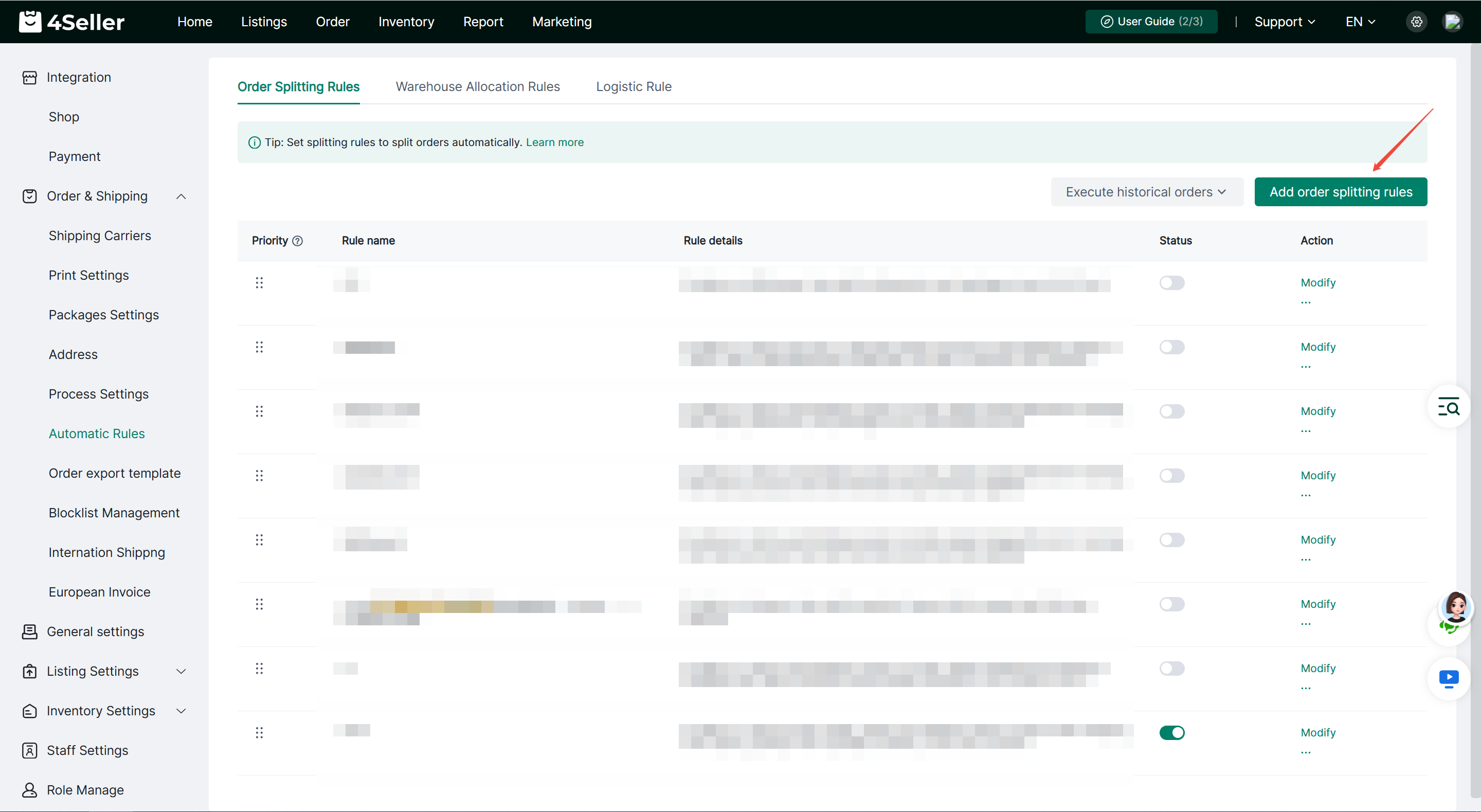
On the Automatic Rules page, select Order Splitting Rules and click Add Order Splitting Rule.


Step 2: Configure an Order Splitting Rule

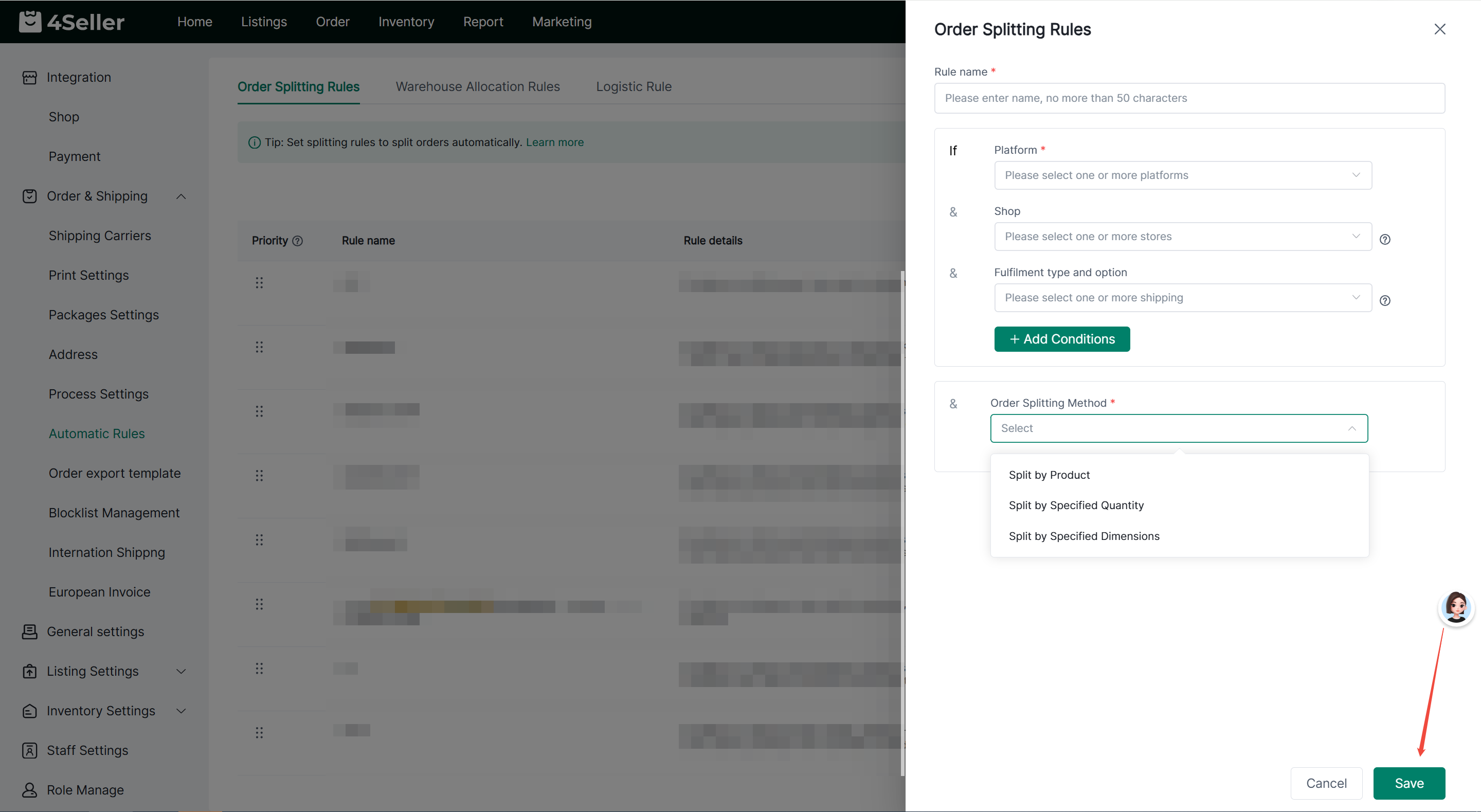
Complete the following settings on the rule configuration page:

1.Rule Name: Enter a custom rule name of up to 50 characters.

2.Conditions: Select the order's platform and, as needed, configure conditions such as store, order shipping type, Inventory SKU, Store SKU, product dimensions, product weight, product quantity, and recipient ZIP code. The platform is required; all other conditions are optional.

3.Splitting Method: Select one of the following methods based on your fulfillment requirements.


1. Split by Product

Split orders based on matching Store SKUs or Inventory SKUs, prioritizing placing products with the same SKU in the same package.

2. Split by Specified Quantity

Automatically split an order into multiple sub-orders when the original order's item quantity exceeds a specified threshold, while limiting the number of items in each sub-order.

For example, configure the rule to trigger when an order contains more than 3 items, with a maximum of 2 items per sub-order. The system will prioritize placing identical products in the same package before splitting the order according to the specified quantity.

3. Split by Specified Dimensions

Automatically split orders based on the configured package length, width, and height limits so that the resulting packages meet the specified dimensional requirements.

If the original package dimensions are within the limits, the order will not be split. If the dimensions exceed the limits, the system will split the order while minimizing the number of packages whenever possible.

After completing the configuration, click Save.

Important Notes for Order Splitting Rules

The following orders are not eligible for automatic splitting:
-
Amazon 4Seller Easy Ship orders.
-
Manual orders, AliExpress orders, and Etsy orders.
-
Orders with the following statuses: Unpaid, On Hold, In Process, Shipped, Delivered, Completed, Canceled, Return, or Other.
-
Orders with fewer than 2 items awaiting shipment.
-
Orders that have already been split and contain any sub-order whose status is neither Pending nor To Ship.
Additionally, the system recalculates package dimensions after splitting and evaluates the applicable rule conditions based on the final dimensions.
3. How to Configure Warehouse Allocation Rules
Warehouse Allocation Rules allow you to automatically assign shipping warehouses based on order conditions, helping manage inventory fulfillment flexibly.
Step 1: Open the Warehouse Allocation Rules Page
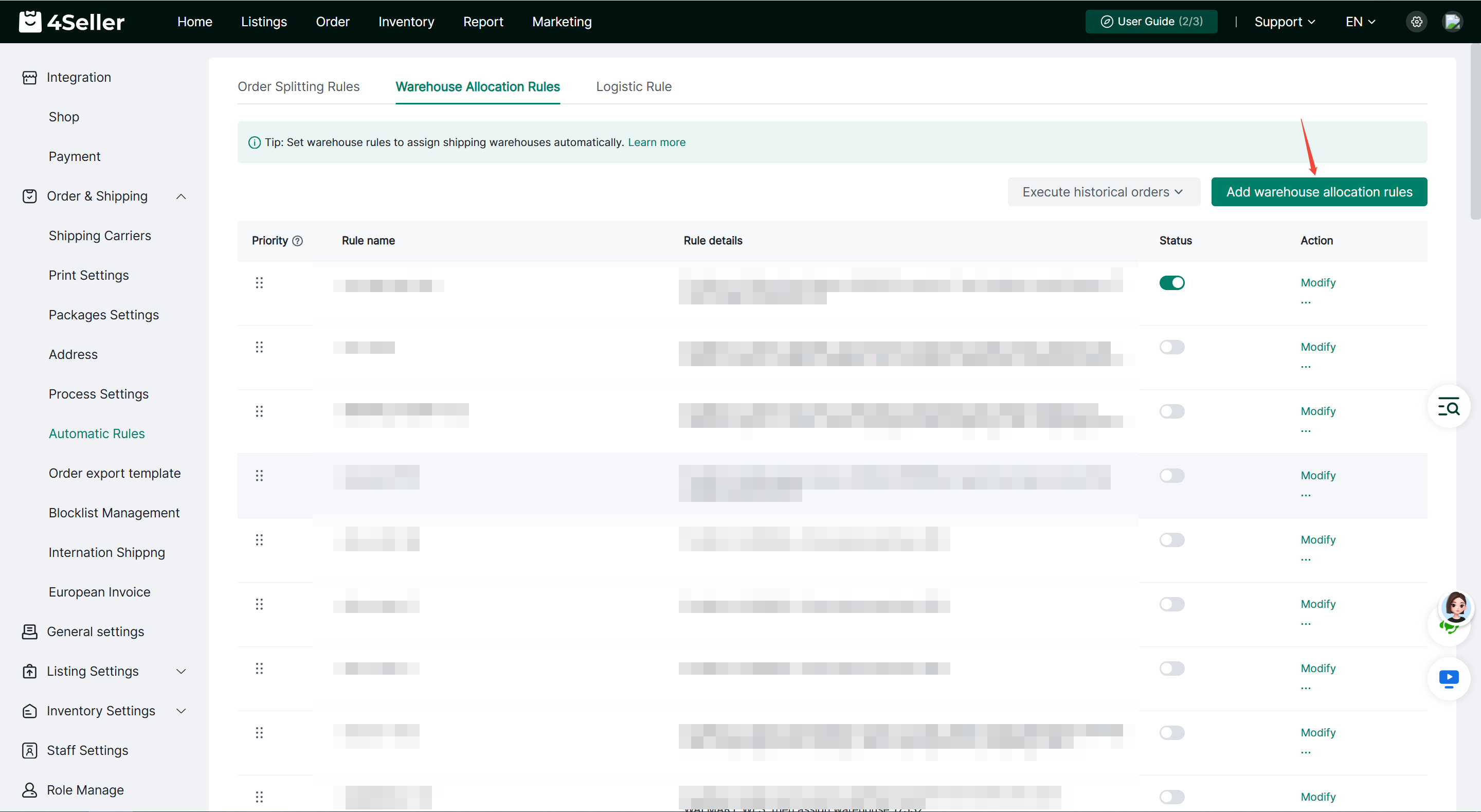
On the Automatic Rules page, select Warehouse Allocation Rules and click Add Warehouse Allocation Rule.
Step 2: Configure a Warehouse Allocation Rule
1.Rule Name: Enter a custom rule name of up to 50 characters.
2.Conditions: Select the order's platform and configure other conditions as needed, including store, order shipping type, Inventory SKU, Inventory SKU Group, Store SKU, store warehouse, shipping address, order amount, product dimensions, product weight, product quantity, package type, platform identifier, and recipient ZIP code. The platform is required; all other conditions are optional.
3.Warehouse Allocation Method: Select one of the following methods based on your requirements.
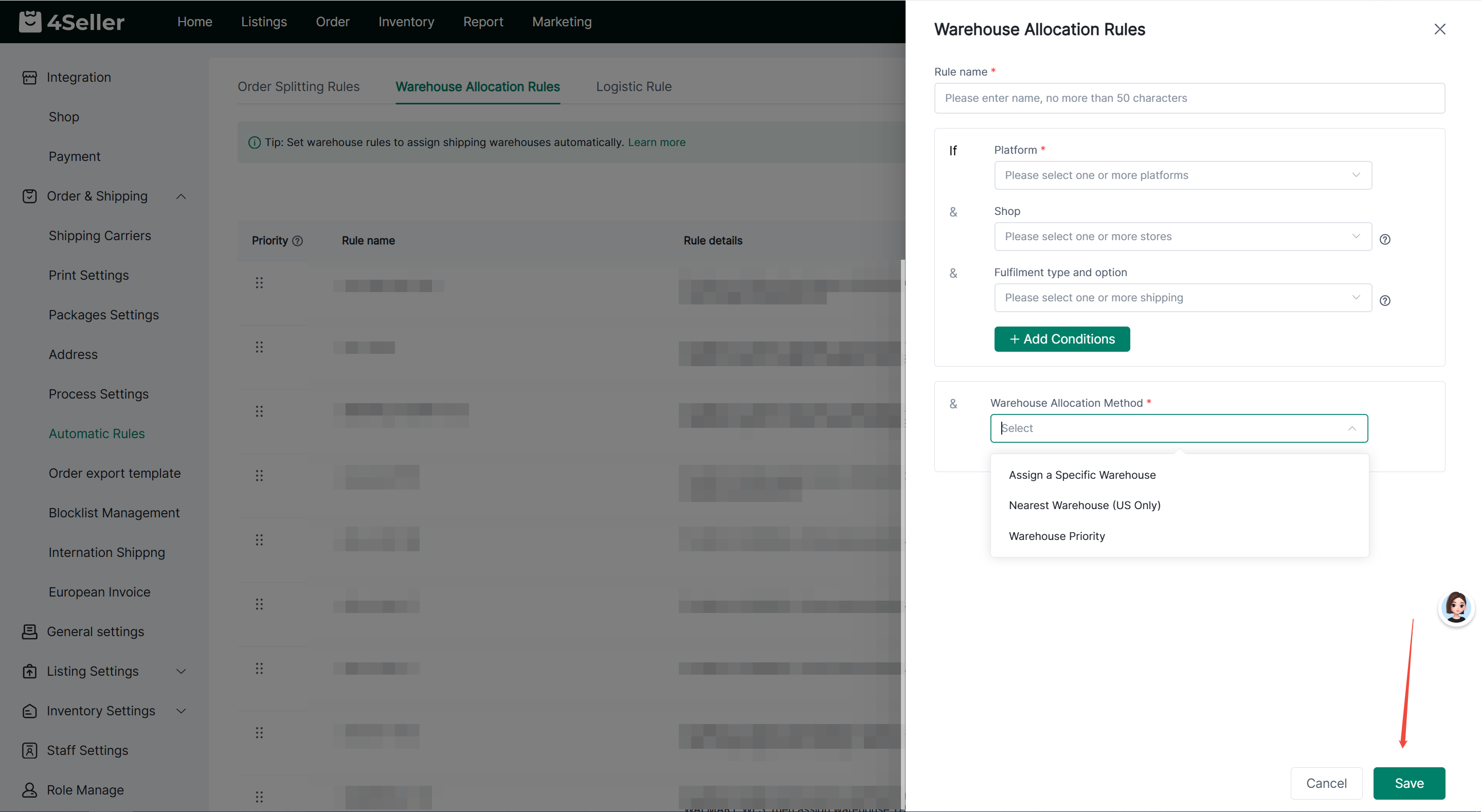
1. Assign a Specific Warehouse
Select one specific warehouse. Orders that meet the rule conditions will be assigned to that warehouse.
2. Nearest Warehouse (US Only)
Select multiple warehouses and enter their corresponding ZIP codes. The system determines warehouse proximity based on the recipient's address and prioritizes the nearest warehouse.
If the nearest warehouse does not have sufficient inventory, the system checks the next-nearest warehouse to determine whether it can fulfill the order. If none of the warehouses has sufficient inventory, the order will still be assigned to the nearest warehouse.
3. Warehouse Priority
Select multiple warehouses and drag to adjust their priority.
The system first checks whether the highest-priority warehouse has sufficient inventory to fulfill the order. If inventory is insufficient, it checks the next warehouse in the priority list. If none of the warehouses has sufficient inventory, the order will still be assigned to the highest-priority warehouse.
After completing the configuration, click Save.
Important Notes for Warehouse Allocation Rules
Nearest Warehouse is available only for US orders.
Both Nearest Warehouse and Warehouse Priority evaluate inventory availability for the entire order. They do not automatically split an order when a warehouse has insufficient inventory. If automatic order splitting is required, configure the corresponding Order Splitting Rules as well.
4. How to Configure Logistics Rules
Shipping Rules allow you to select shipping carriers and services for eligible orders and configure whether shipping labels should be purchased automatically.
Step 1: Open the Logistics Rules Page
On the Automatic Rules page, select Logistics Rules and click Add Logistics Rule.
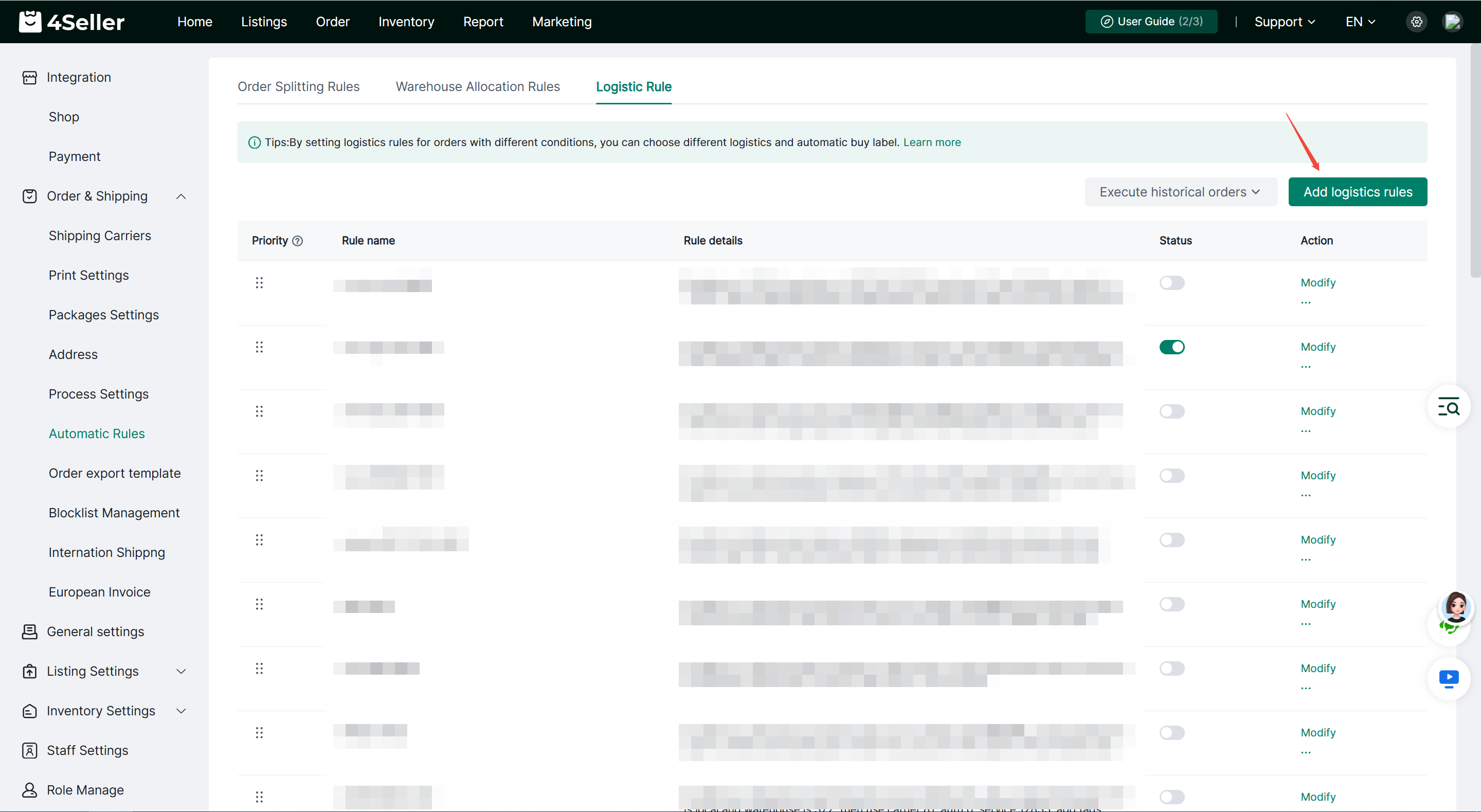
Step 2: Configure a Logistics Rule
1.Rule Name: Enter a custom rule name.
2.Conditions: Configure conditions such as platform, store, order shipping type, Inventory SKU, Inventory SKU Group, Store SKU, store warehouse, shipping address, order amount, product dimensions, product weight, product quantity, package type, platform identifier, selected warehouse, and recipient ZIP code.
3.Select a Warehouse: Select the warehouse for orders that meet the rule conditions. This field is required and supports selecting only one warehouse.
4.Select a Shipping Carrier and Service: Configure the available shipping carrier and service based on the selected warehouse.
5.Configure Actions: As needed, enable automatic shipping label purchases, select a package template, add tags, or add system notes.
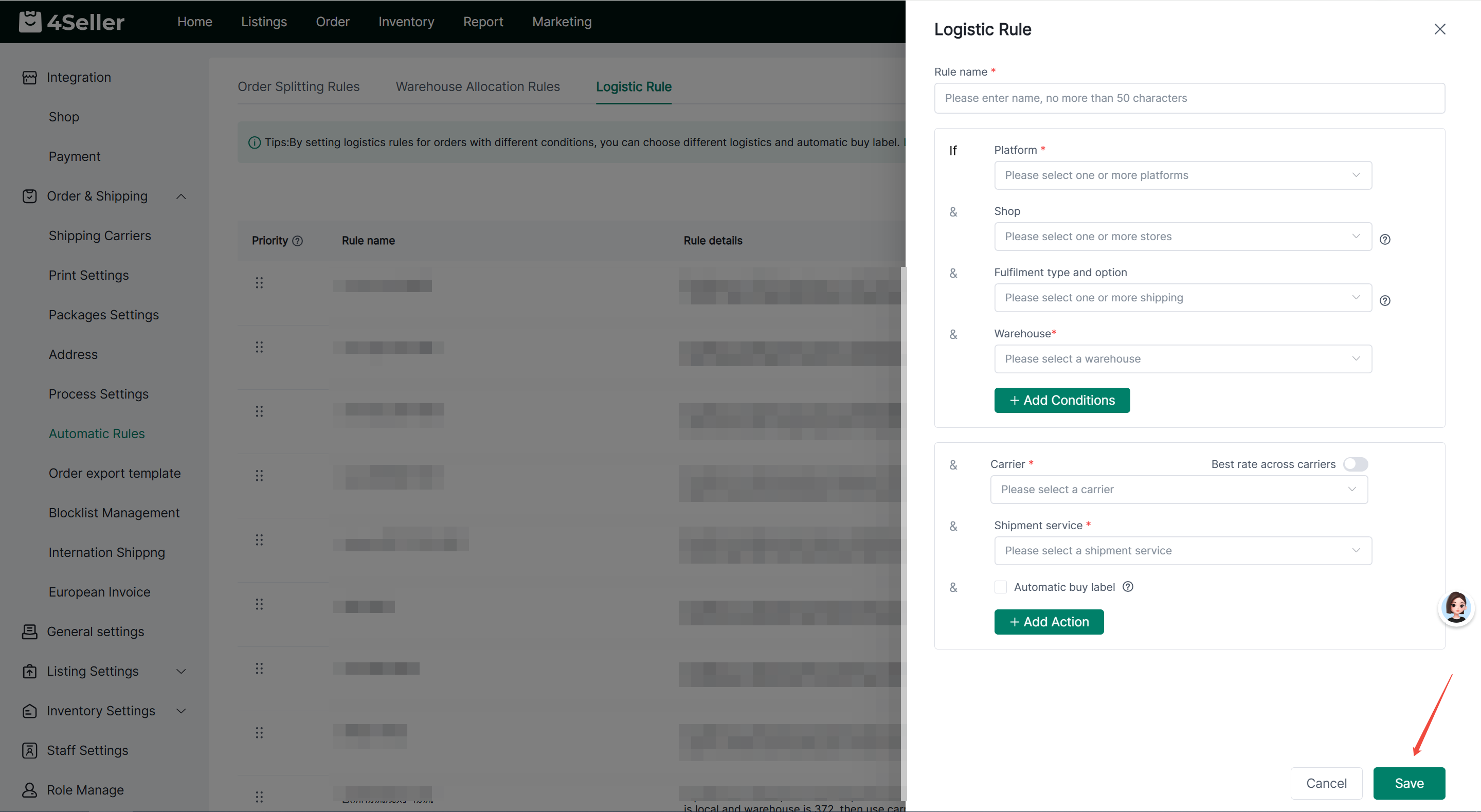
After completing the configuration, click Save.
Important Notes for Logistics Rules
A warehouse must be selected in the Logistics Rule conditions before the corresponding shipping options can be configured.
If you want to purchase shipping labels automatically, make sure the rule conditions and shipping service settings are correct. Configure email notifications as needed.
5. How to Adjust Rule Priority
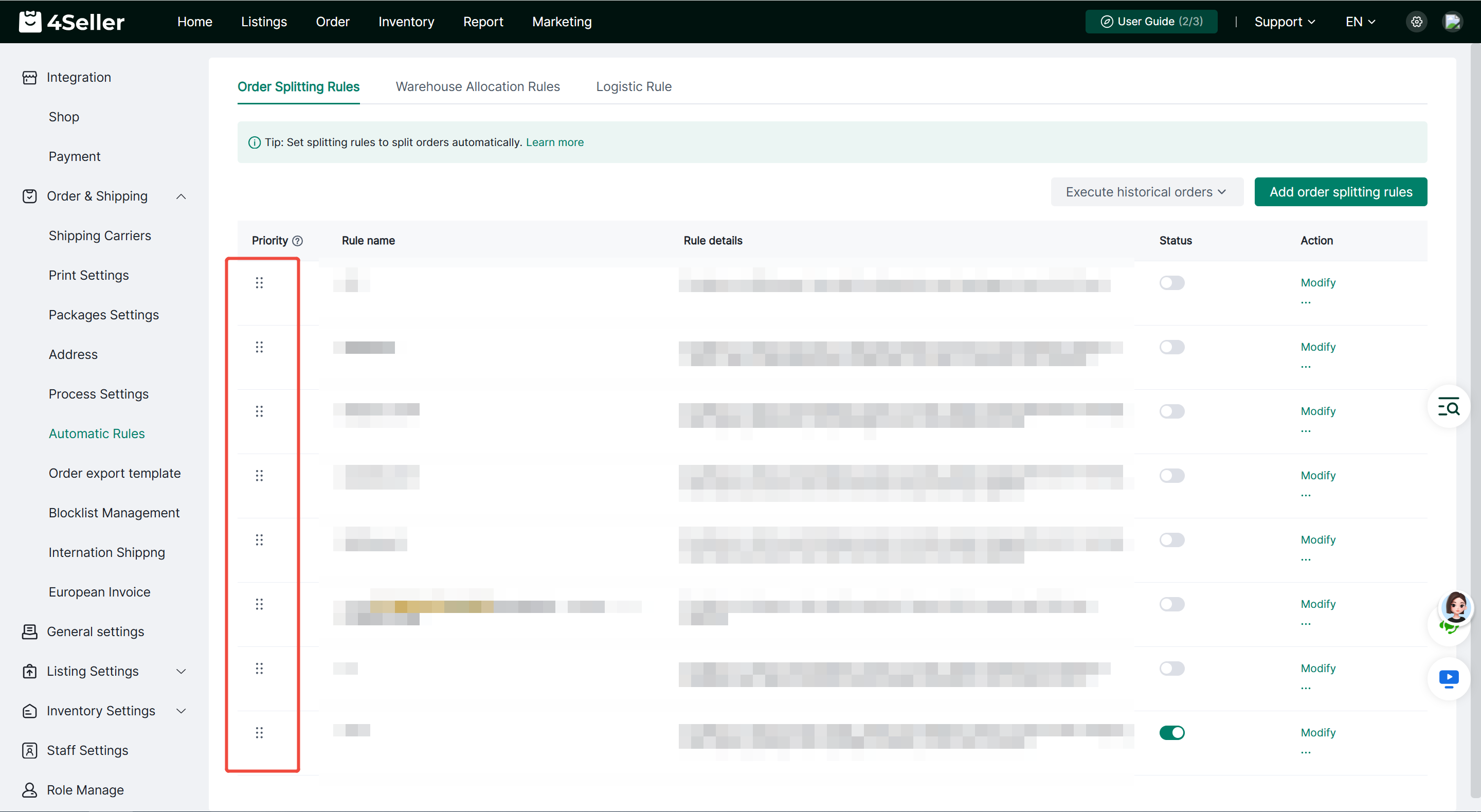
Both Order Splitting Rules and Warehouse Allocation Rules support priority adjustments.
On the corresponding rule list page, drag a rule to change its position. The higher a rule appears in the list, the higher its priority.
When multiple enabled rules match the same order, the system evaluates the applicable rules according to their priority, from highest to lowest.
6. How to Apply Rules to Historical Orders
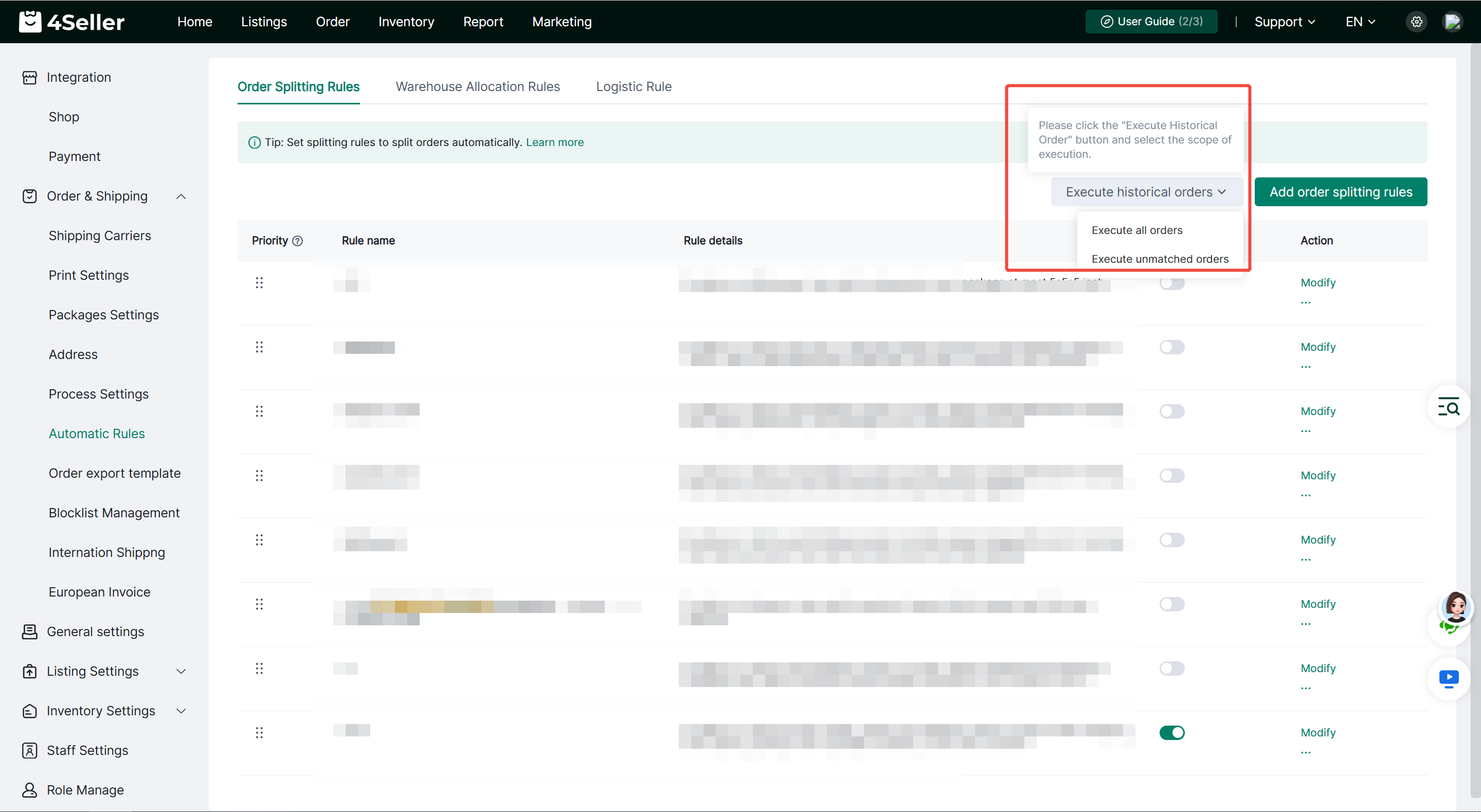
If you want to apply newly created or updated rules to previously synced orders, click Execute Historical Orders on the corresponding rule page.
The following options are available:
-
Execute All Orders: Apply the rules to all eligible orders.
-
Execute Unmatched Orders: Apply the rules only to previously synced orders that have not yet been matched by the corresponding rules.
Before execution, make sure the rule conditions and execution method are configured correctly.
7. How to Switch to the New Automatic Rules Mode
If you are using the previous version of Shipping Rules, you can find the Configure Automatic Order Splitting option on the original Shipping Rules page and follow the on-screen instructions to confirm the switch.
After switching, the original Shipping Rules will be separated into Warehouse Allocation Rules and Shipping Rules under the new mode, allowing you to manage warehouse assignment and shipping selection separately.
Important: This operation cannot be reversed. Please review the changes carefully before confirming.
Any problem just feel free to contact 4Seller support team: support@4seller.com