- Get Started
- Video Tutorials
- Knowledge Base
- Channels
- Listings
- Inventory
- Orders
- Settings
- FAQs & Troubleshooting
How to migrate products from Amazon, TikTok, eBay, Etsy, Shopify, WooCommerce, Shein, or Walmart stores to a Miravia store?
In 4Seller, products already published on Shopify, Amazon, TikTok, eBay, Etsy, Walmart, WooCommerce, or Shein stores can be migrated to a Miravia store using two methods: bulk product migration or full-store migration.

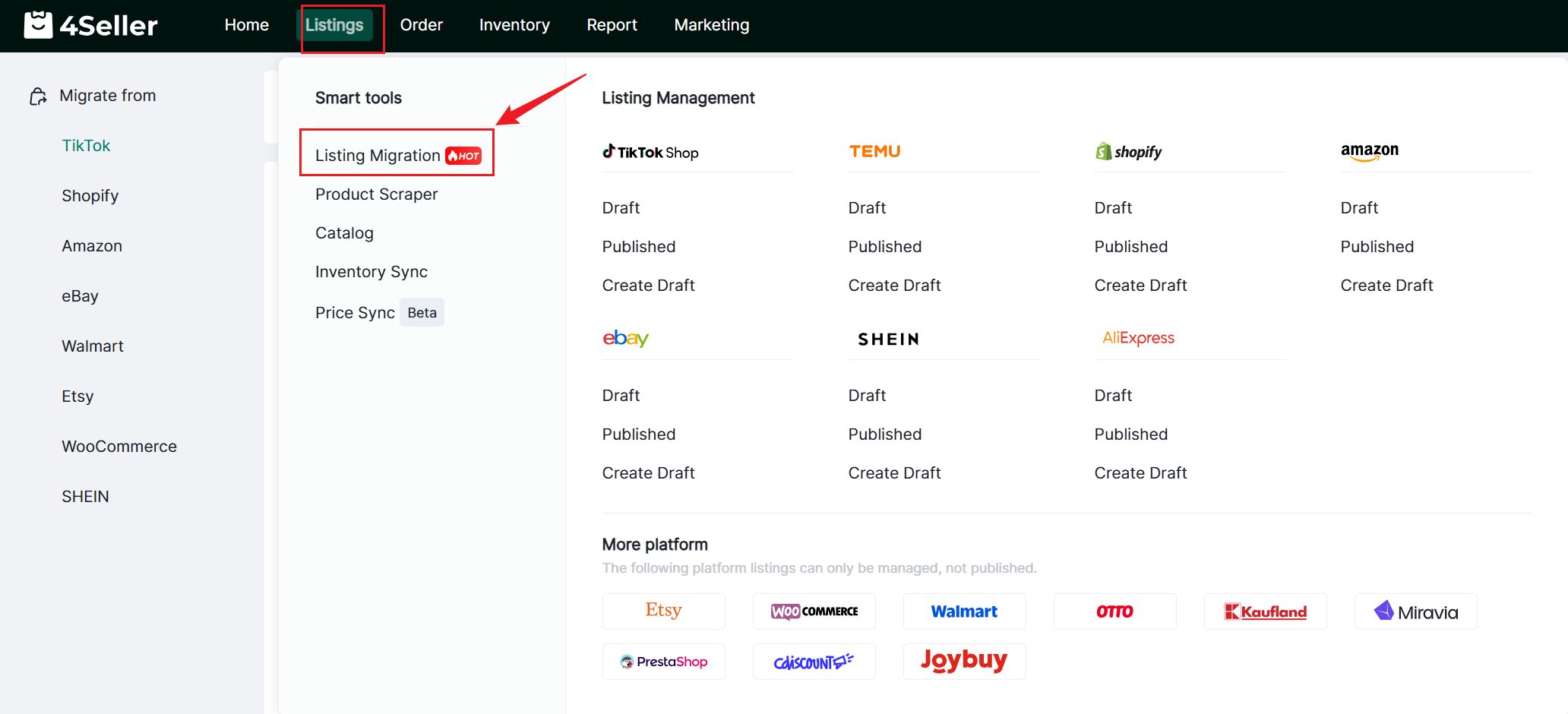
Step 1: Accessing the Migration Feature

1. Products — Product Migration


Note:
- All: The total number of items across all statuses
- To migrate: Items that have not yet been migrated
- Migrated: Items that have already been migrated to the platform
2. List of items published on the platform
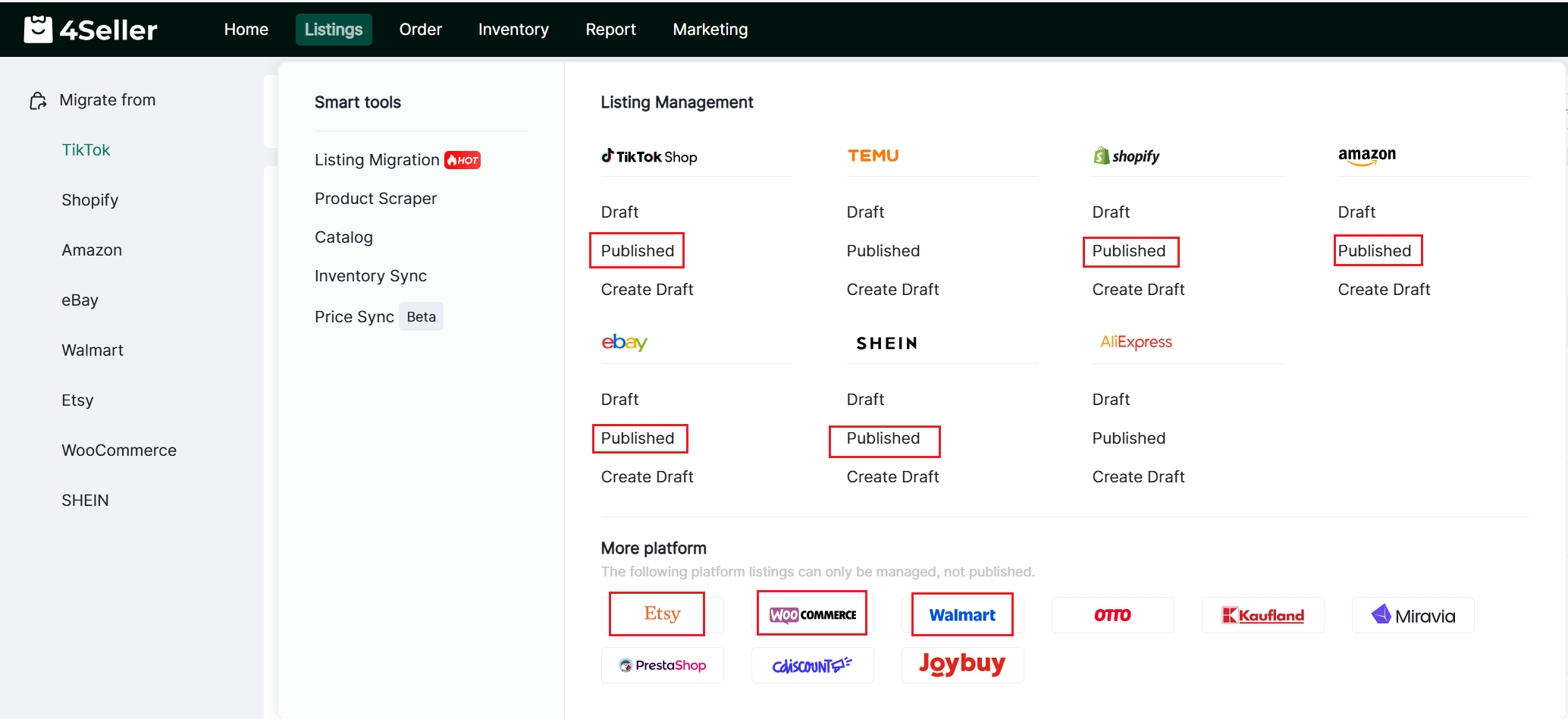
Step 2: Migrating Listings
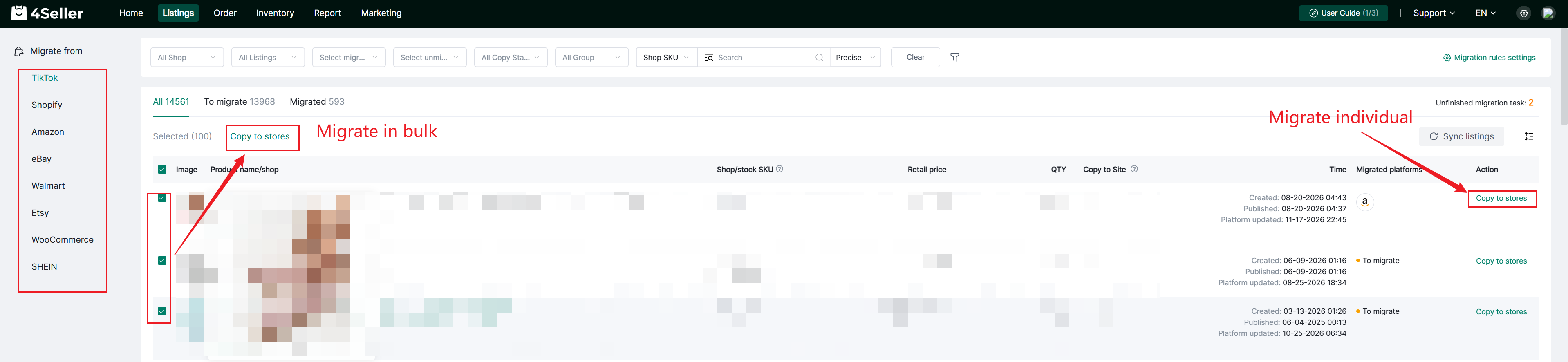
Option 1: Migrating Individual/Migrating in bulk
1. Select the items you wish to migrate, then click "Migrate to Store."
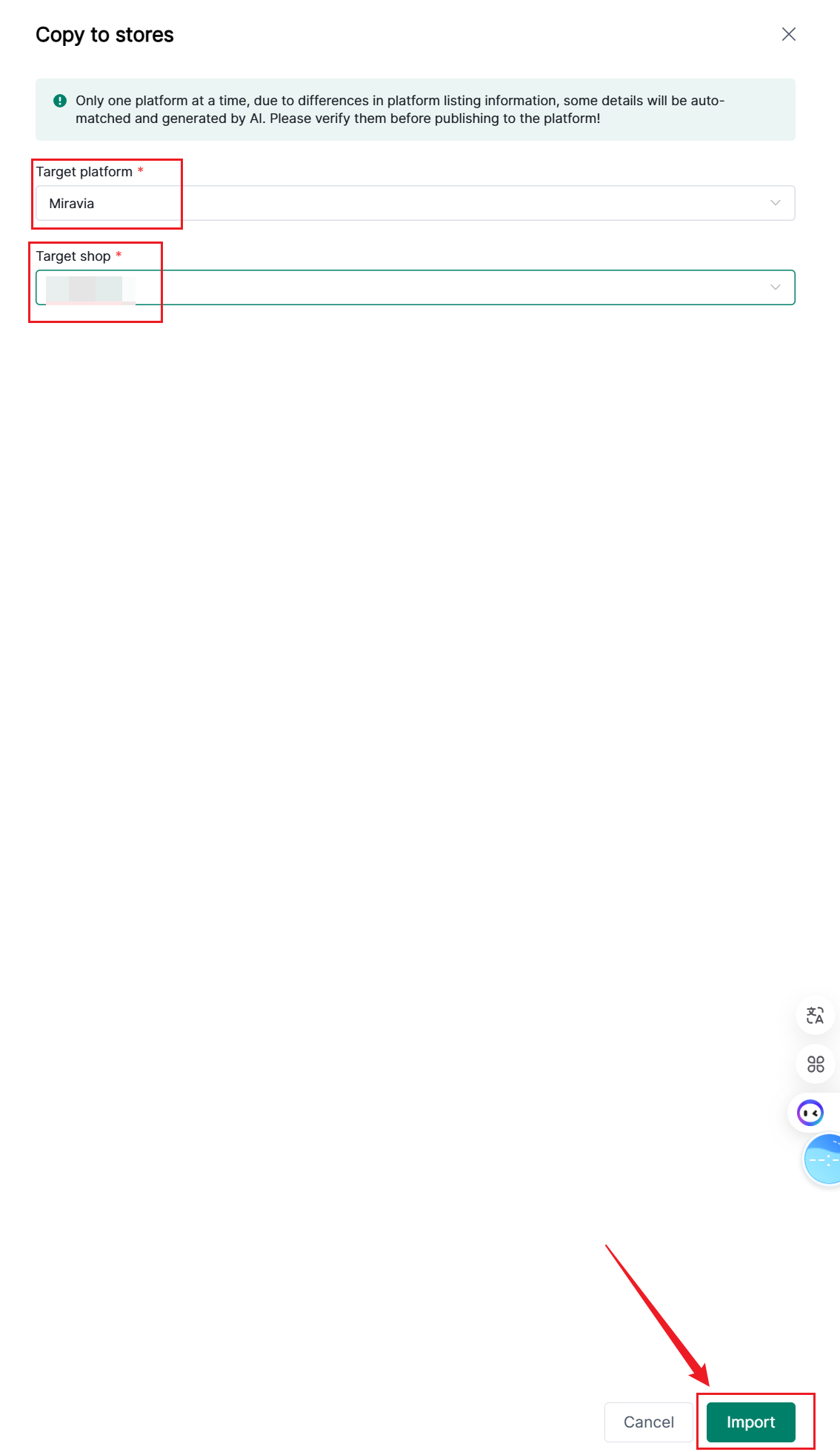
2. Select the target platform "Miravia" and the target store, then click "Import."
3. Begin the migration process
Fill in the required basic information: brand, manufacturer, and Responsible person. If this data is not available, please add the relevant details in the Miravia platform backend, then click the "Sync" button on this page. Once completed, click "Next."
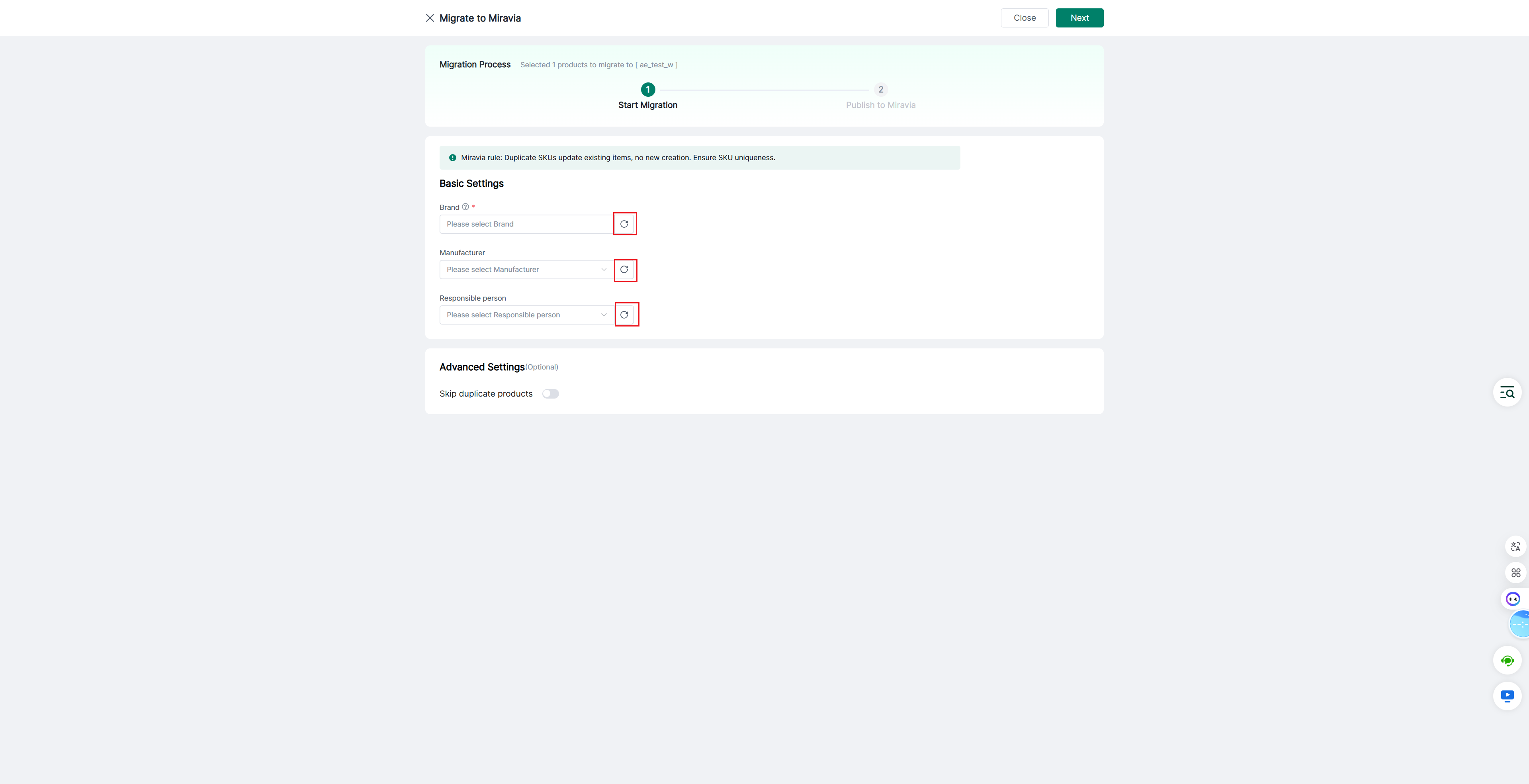
Note:
- According to Miravia platform policy, if you import a product with an existing Shop SKU, the original product will be updated rather than a new one being created. Please ensure that all SKUs are unique before initiating the migration.
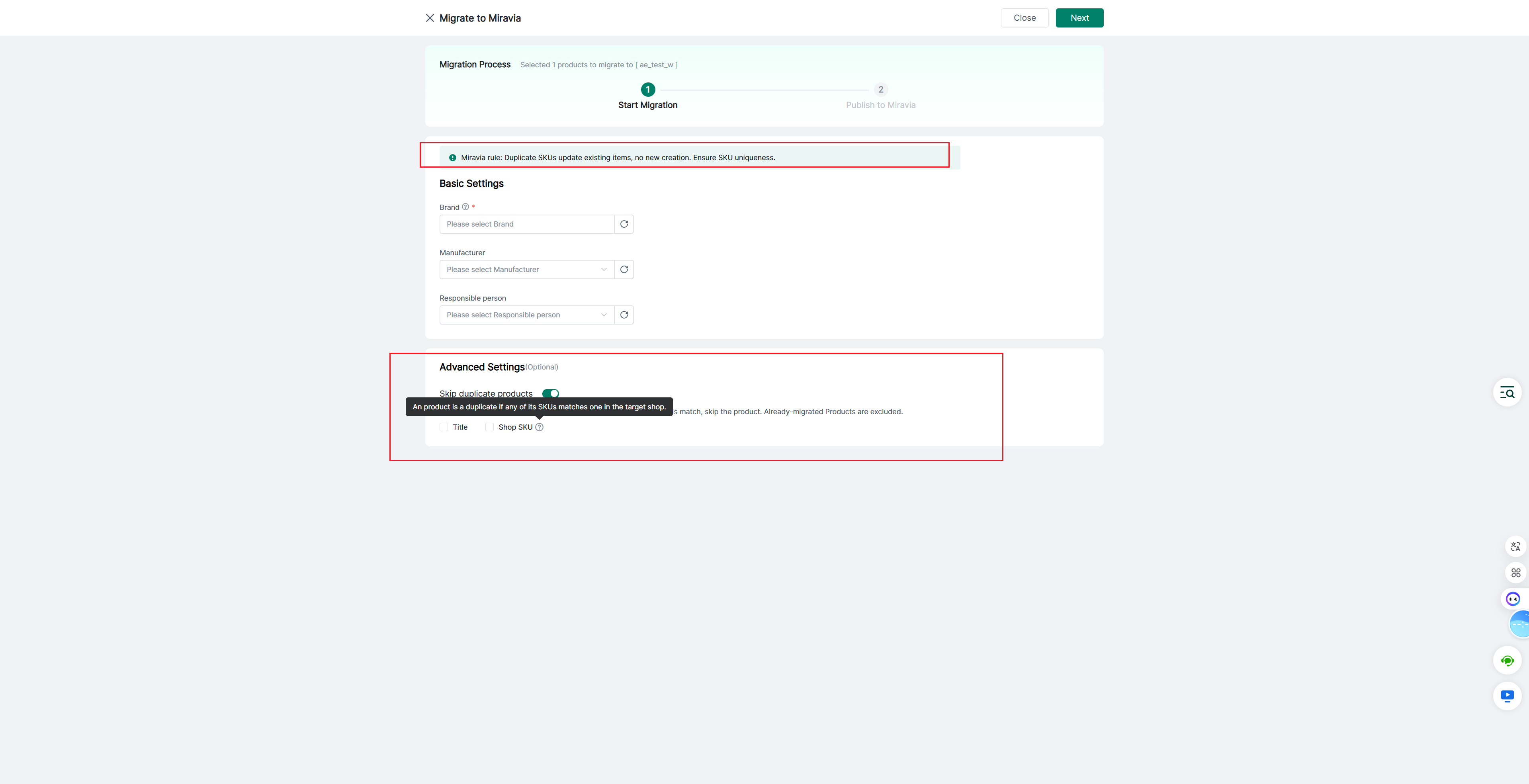
- When the "Skip duplicate products" option is enabled in 4Seller, the system will prevent a product from being imported to Miravia if it detects a matching title or store SKU. Furthermore, if a Shop SKU matches an existing one, the product will not be imported, which also means the information for the existing SKU will not be updated.
- You may select both "Title" and "Shop SKU" as criteria for skipping duplicates.
- When migrating a product with multiple variants, if the Skip Duplicate Shop SKUs option is disabled and the Shop SKU of any variant duplicates an existing product on Miravia, that variant product migration will fail. If the Shop SKUs of all variants match those of the same existing product on Miravia, the variant product information will be automatically updated in your Miravia store.
4. Publishing Products
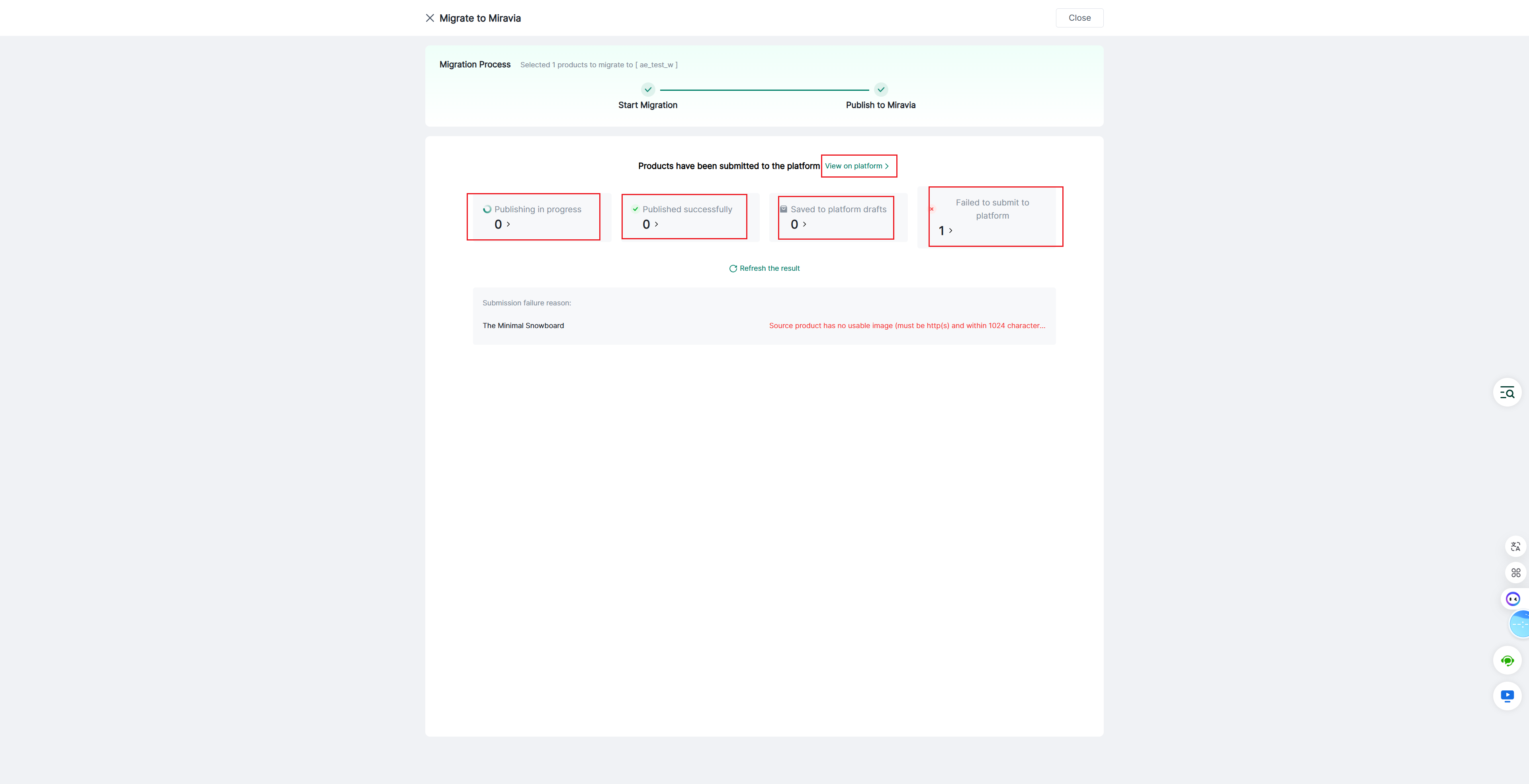
After clicking "Next," the product will be published to Miravia. Options such as "View on Platform," "Publishing in progress," "Published Successfully," "Saved to platform drafts," and "Failed to submit to platform" all provide a direct link to the Miravia platform.
If a submission fails, the reason for the failure will be displayed. Please update the original product information based on this reason and re-initiate the product migration process.
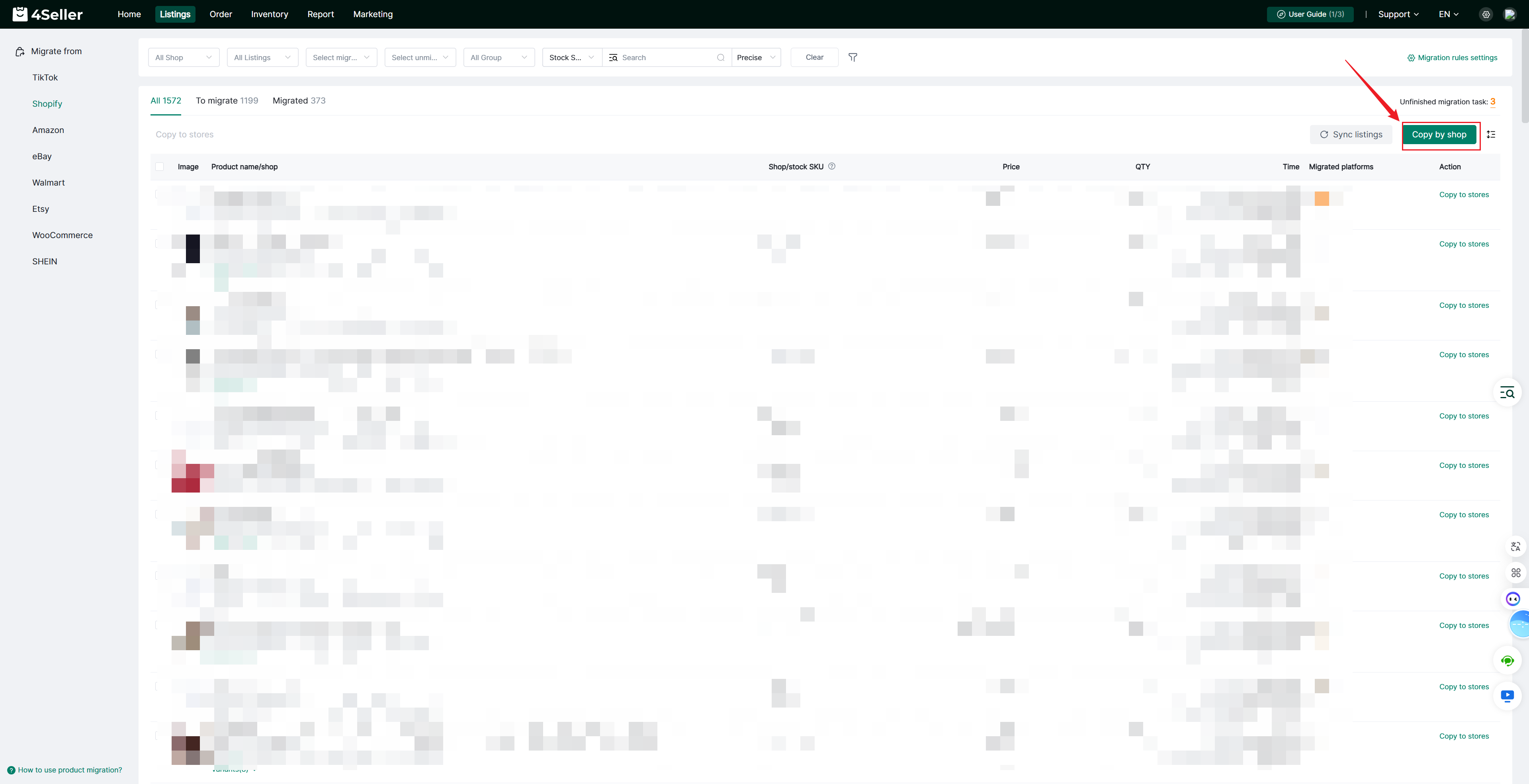
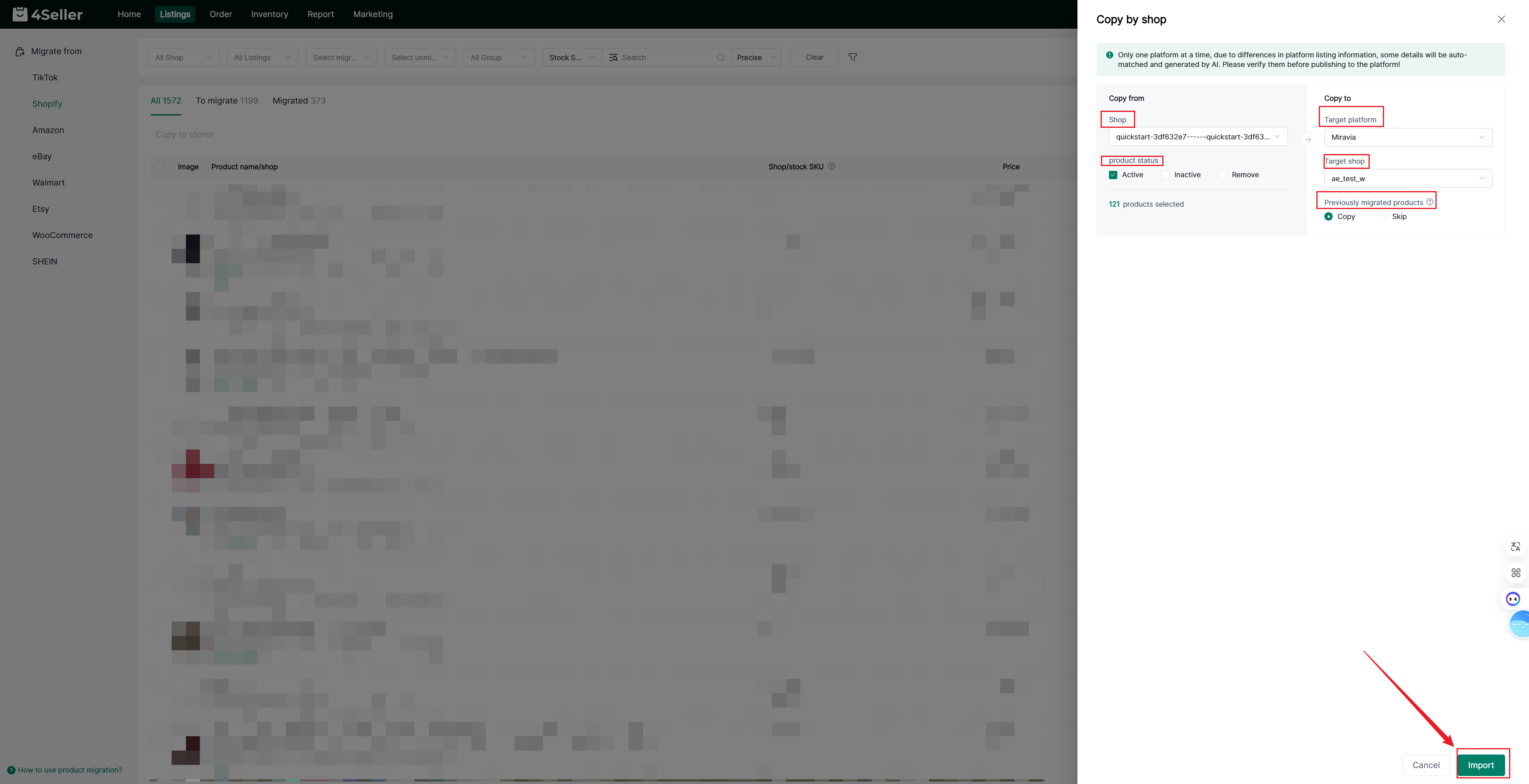
Option 2: Copy by shop
This involves transferring all products from one store to another. This option is displayed when the total number of products is less than 2,000.
Select the product status, target platform, and target store, and choose whether to skip previously migrated products—then click Import.
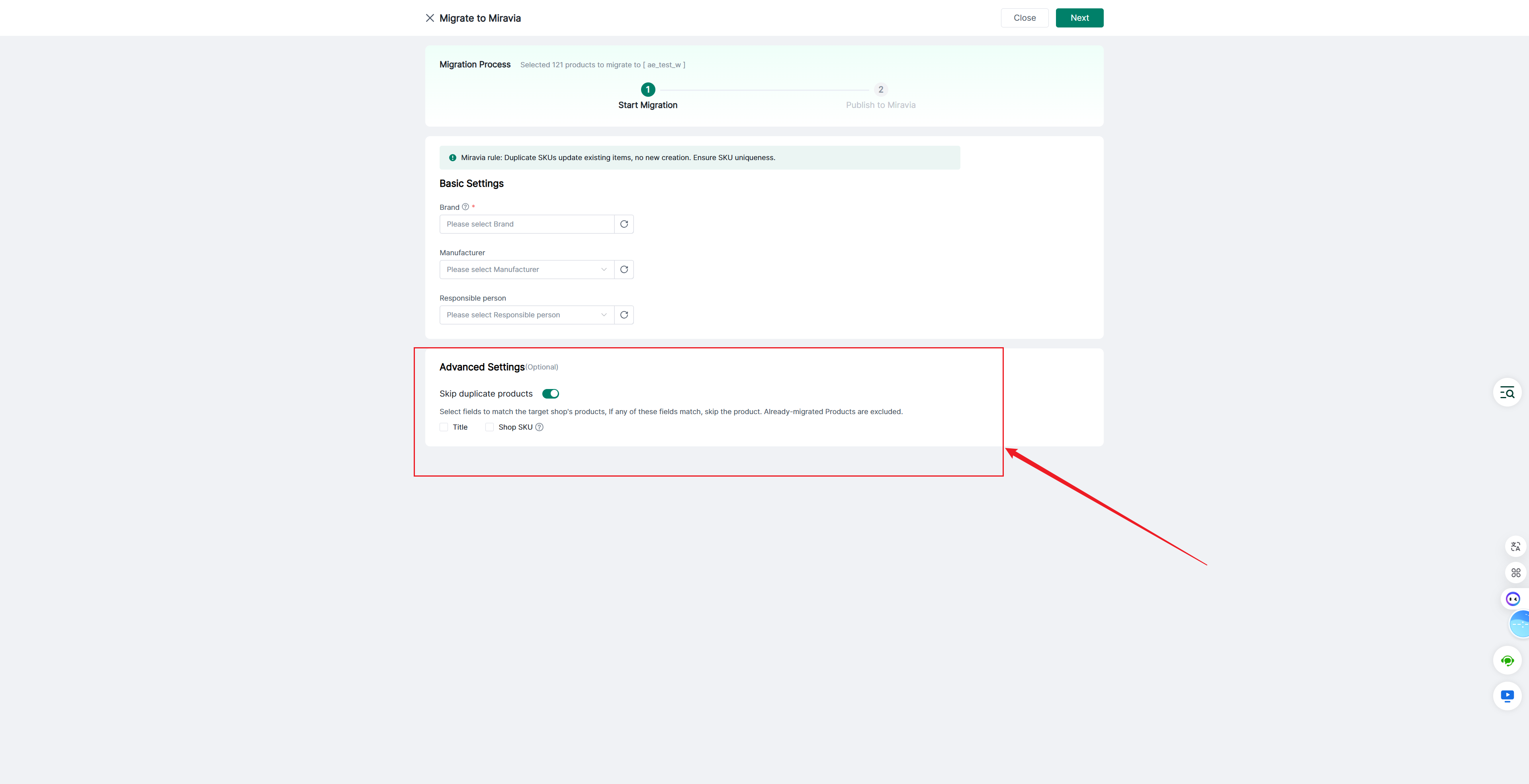
When copy by shop, you can choose whether to skip duplicate products. Once enabled, you can specify the criteria for identifying duplicates in the "Advanced Settings" by selecting the relevant product matching fields:
Once enabled, you can specify the criteria for identifying duplicates in the "Advanced Settings" by selecting the relevant product matching fields:
- Title
- Shop SKU
If a match is found for any of the selected fields, the item is considered a duplicate and will be skipped. Products that have already been migrated are excluded from duplicate detection.
If some duplicates are detected, the system will display the number of items to be skipped versus the number of items to be migrated. If the titles of all products are duplicates, you need to disable the "Skip duplicate products" option to proceed with the migration. If there are duplicate Shop SKUs among any of the products, the entire migration process will fail.
The remaining steps are the same as those for the bulk migration process.
Product migration records are updated automatically based on the current status of the products:
- Once a product has been migrated to a target store, the corresponding platform and store are recorded.
- Products migrated to Miravia cannot be deleted from within 4Seller; however, if the target Miravia store is deleted, the associated migration records will be removed automatically.
- If all stores to which a product was migrated are deleted, the product's status will revert to "To migrate."
You can use the "Select migrated shops" and "Select unmigrated shop" filters to quickly check whether a product has been migrated to a specific store, making it easier to perform follow-up or re-migration tasks.
Any problem pls feel free to contact 4Seller support team: support@4seller.com