- Get Started
- Video Tutorials
- Knowledge Base
- Channels
- Listings
- Inventory
- Orders
- Settings
- FAQs & Troubleshooting
How to Fulfill Orders via Proprietary Warehouse?
At 4Seller, fulfilling orders through Proprietary Warehouse mainly includes three steps: setting up warehouse, setting up logistics and order processing.Step 1 Set up inventory
Step 1.1 Set up Warehouse
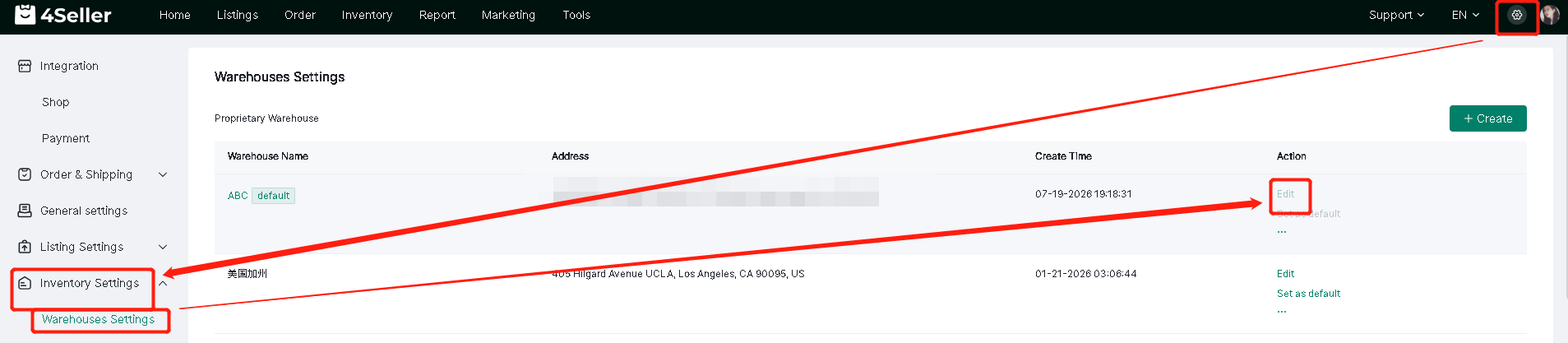
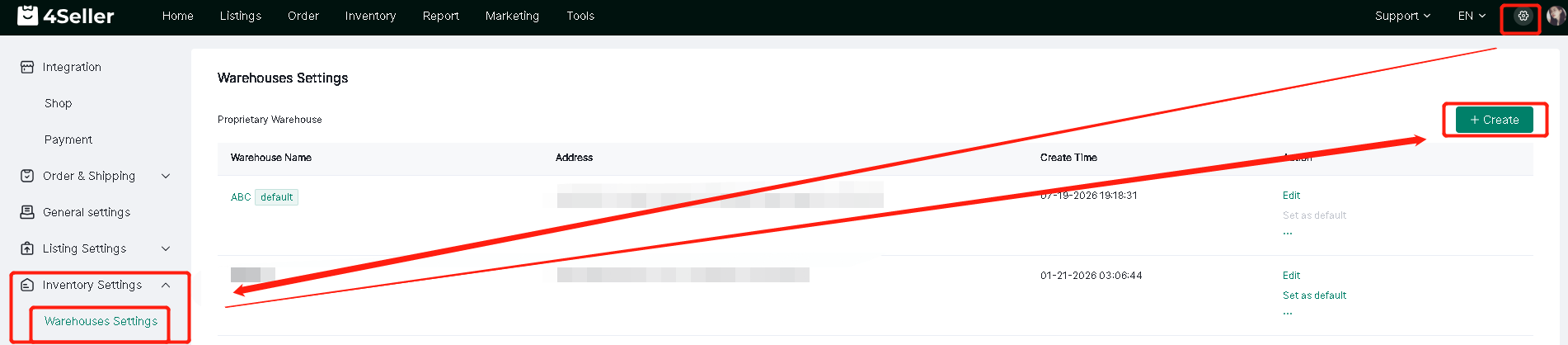
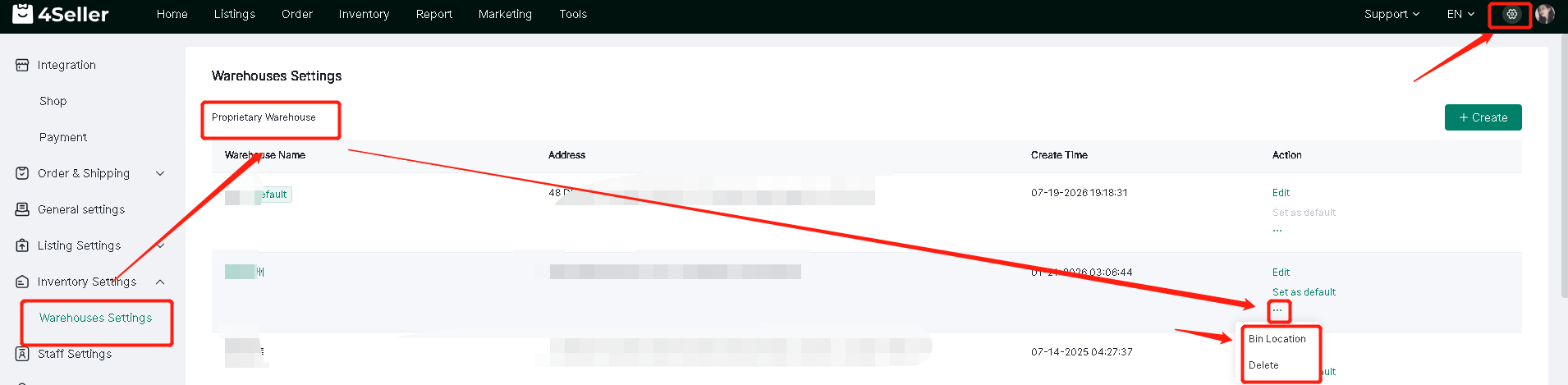
Click the Settings button to enter the Inventory Settings page.
(1) If you only have one warehouse, you can choose to use the default warehouse provided by 4Seller. Click "Edit" to edit the warehouse information.
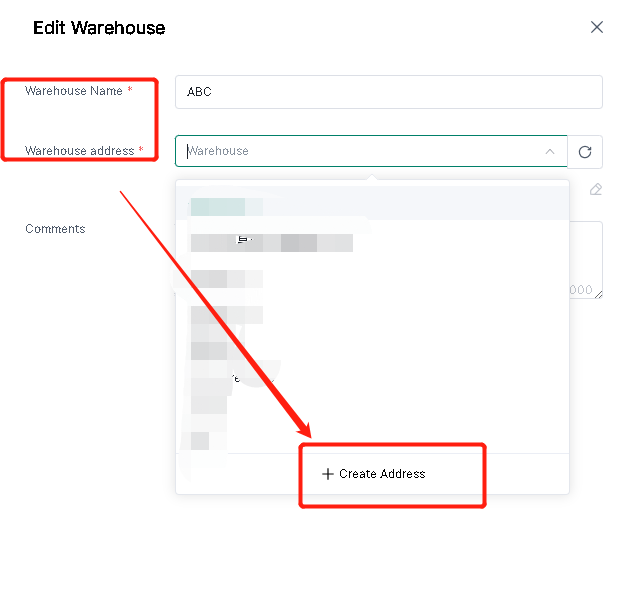
On the Edit Warehouse page, you can modify the Warehouse Name, and then click +Create Address in Address Details to enter the create address page. After creating the address, you can select an address and click Save to save it.
(2) If you need to add multiple warehouses, you can click +Create to create a new warehouse.
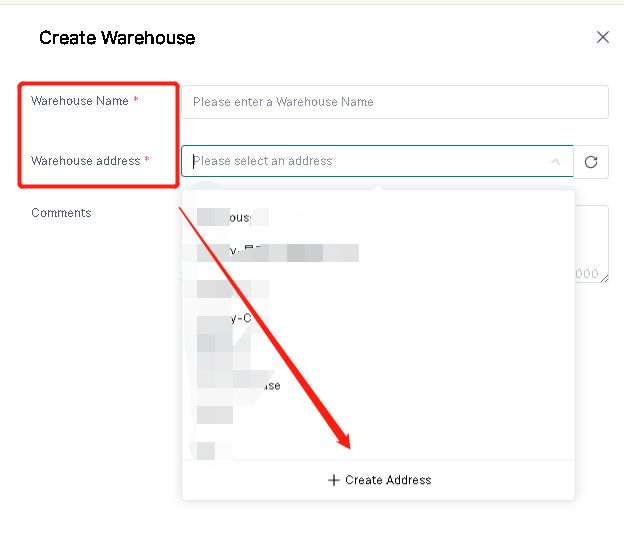
On the Create Warehouse page, you need to fill in the Warehouse Name and warehouse address, and then click +Create Address in Address Details to enter the create address page.
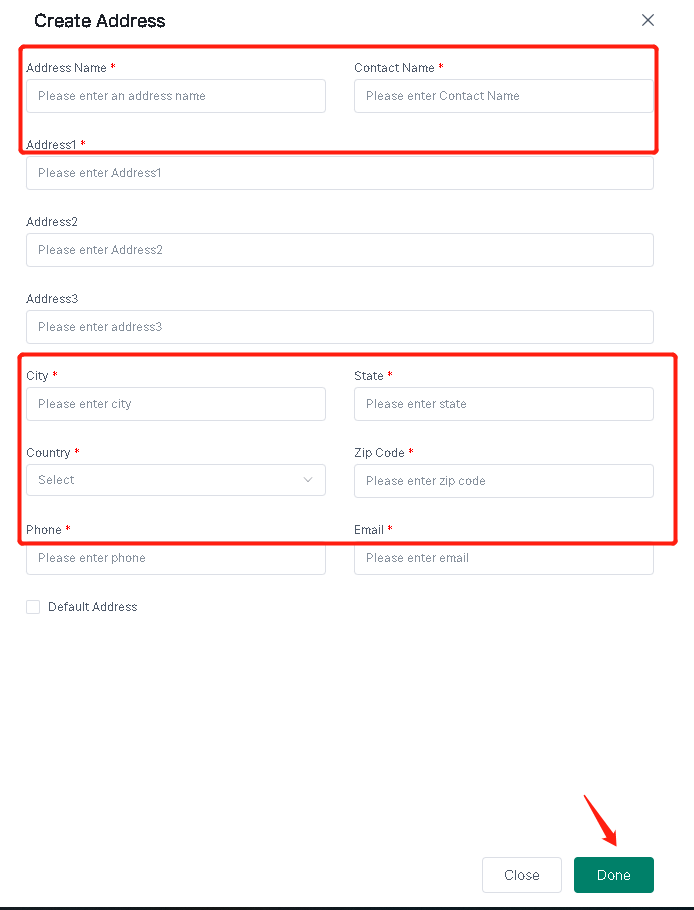
On the Create Address page, you need to fill in the information marked with *. After filling in, click Done to save the address information.
The warehouse supports deleting and batch importing of bin location information.
Note: If standard shipping mode is enabled, step 1.2 is required.
For a comparison of the differences between standard shipping and express shipping, please click to refer to the help article.
Step 1.2 Create SKU & Mapping SKU
Refer to the help guide for creating inventory SKUs: How to create SKU?
Refer to the help guide for SKU pairing: How to map SKUs with products?
Refer to the help guide for adding inventory: How to add inventory?
Step 2 : Set Up Logistics
Note: This step only applies to orders that are not shipped using the platform's logistics. If you are shipping using the platform's logistics, please ignore this step.
Step 2.1 Autohirze Shipping Carriers
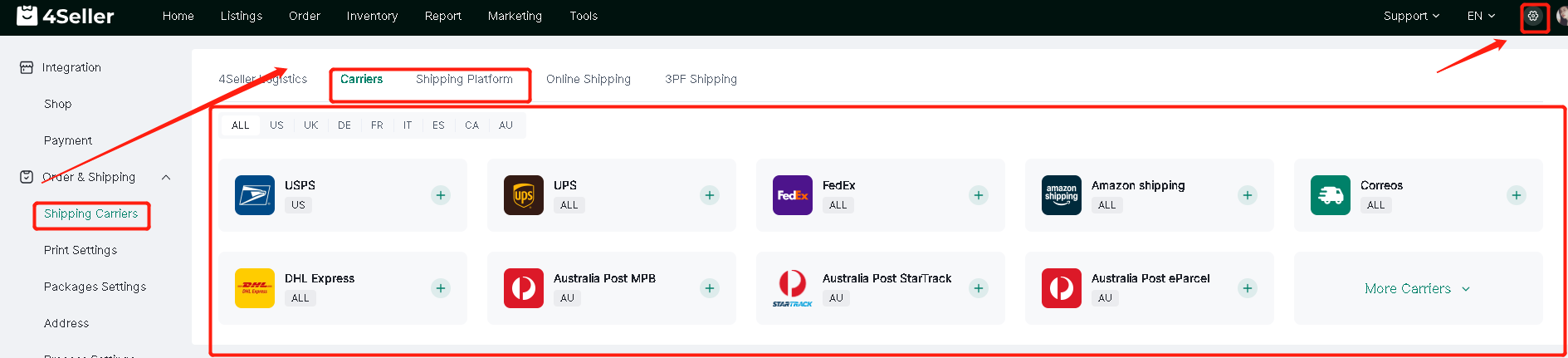
Setting--Order & Shipping--Carriers/Shpping platform--Select the Shipping carriers to connect
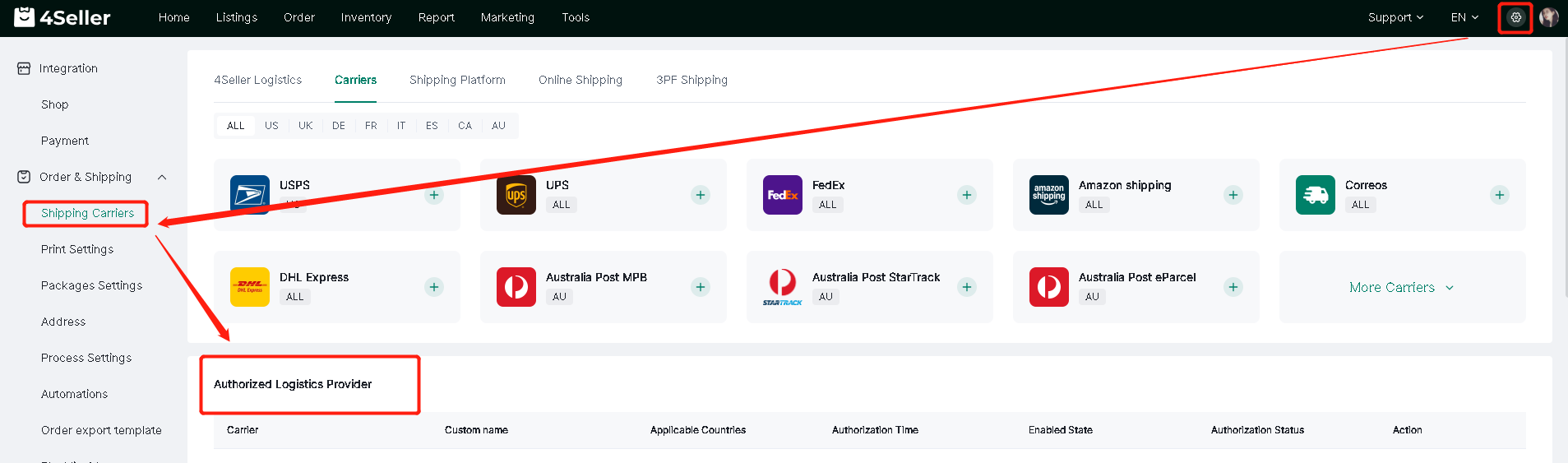
Step 2.2 Check the connected shipping carriers
Step 3 Order Processing (Standard Mode)
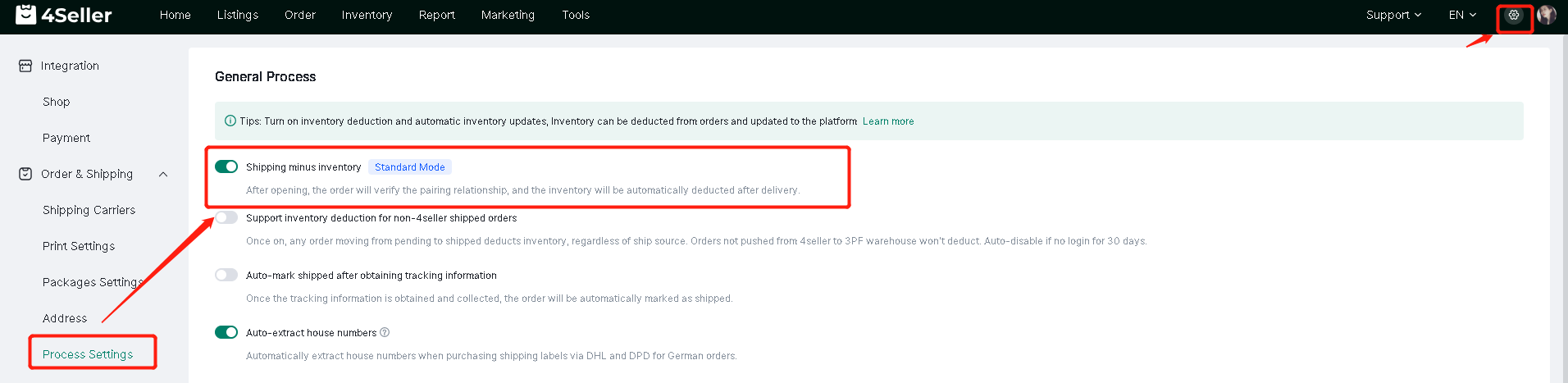
Step 3.1 Turn on the Shipping minus inventory option
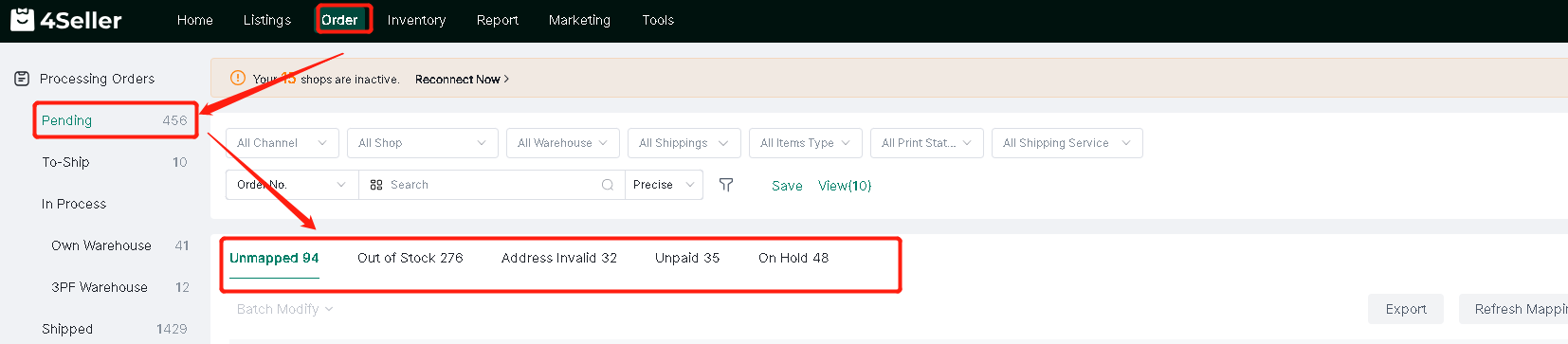
Step 3.2 Order processing-Pending
Orders in the pending status are mainly due to four reasons: Umapped with stock SKU, out of stock, invalid address, unpaid and on hold.
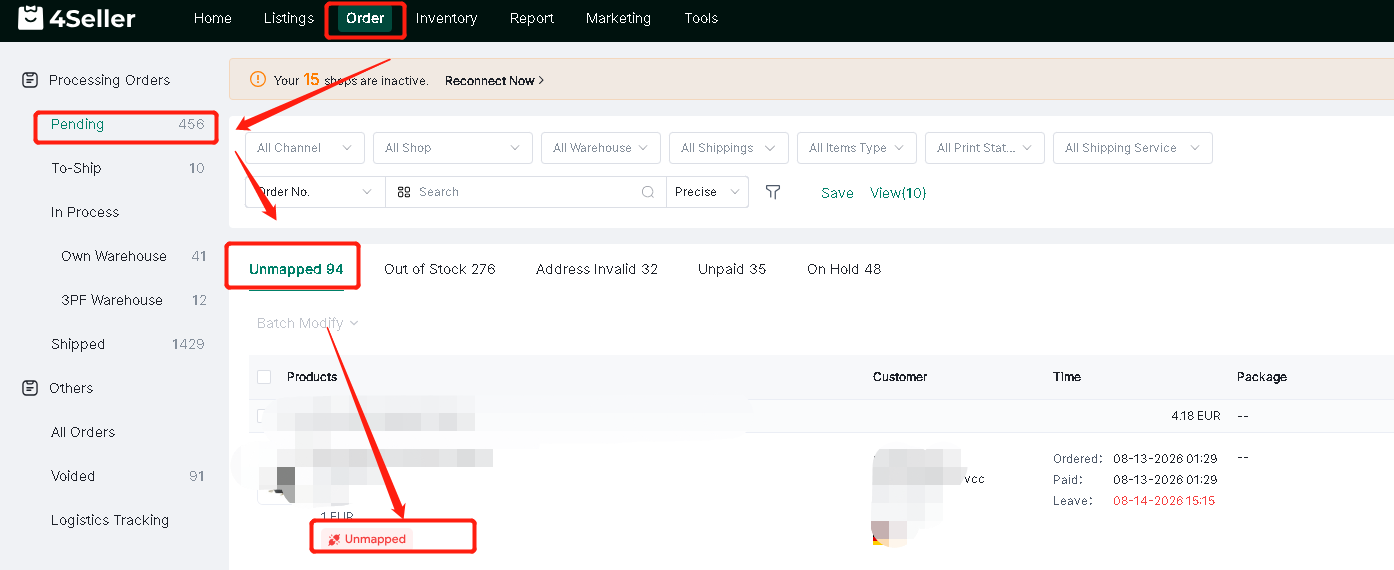
(1) When an order appears in the unmapped list, you can click the Unmapped icon and select the corresponding SKU to match it.
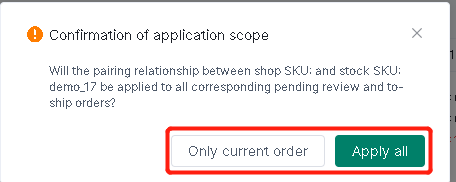
After selecting the corresponding SKU, a Link Products prompt will appear:
-
Clicking "Only current order " will only apply to the current order.
-
Clicking "Apply to all" will apply to unpaired orders and all subsequent orders.
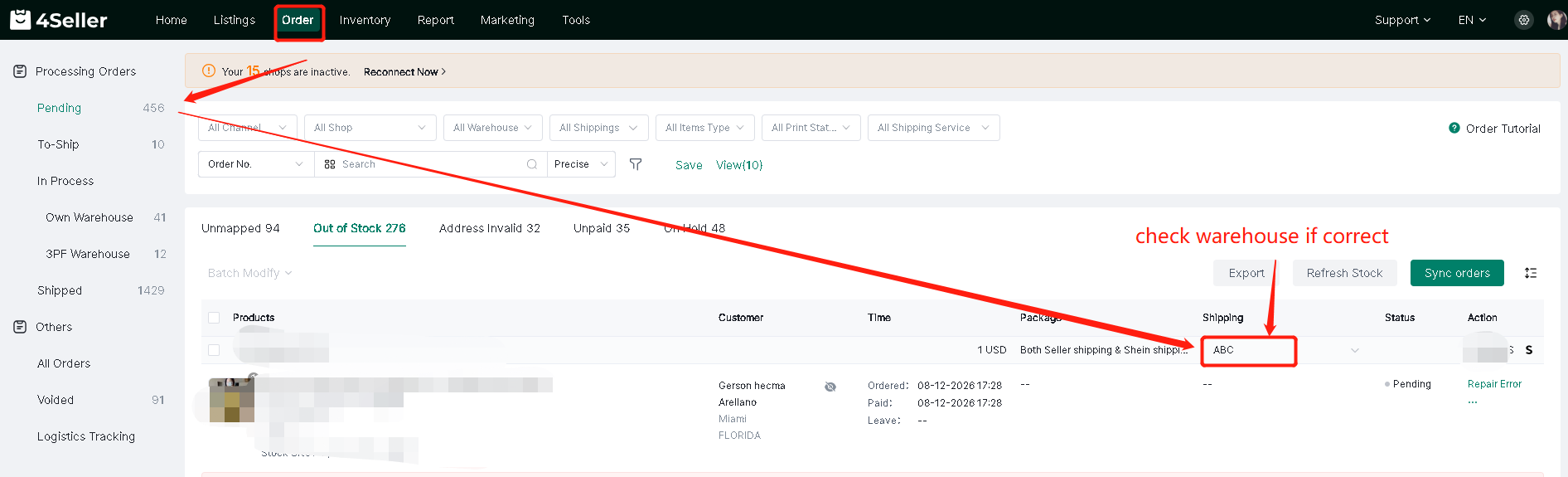
(2) When an order appears in Out of Stock, please check if the warehouse is selected correctly. If the inventory is insufficient, please replenish the inventory and then click the Refresh Stock button to match the inventory.
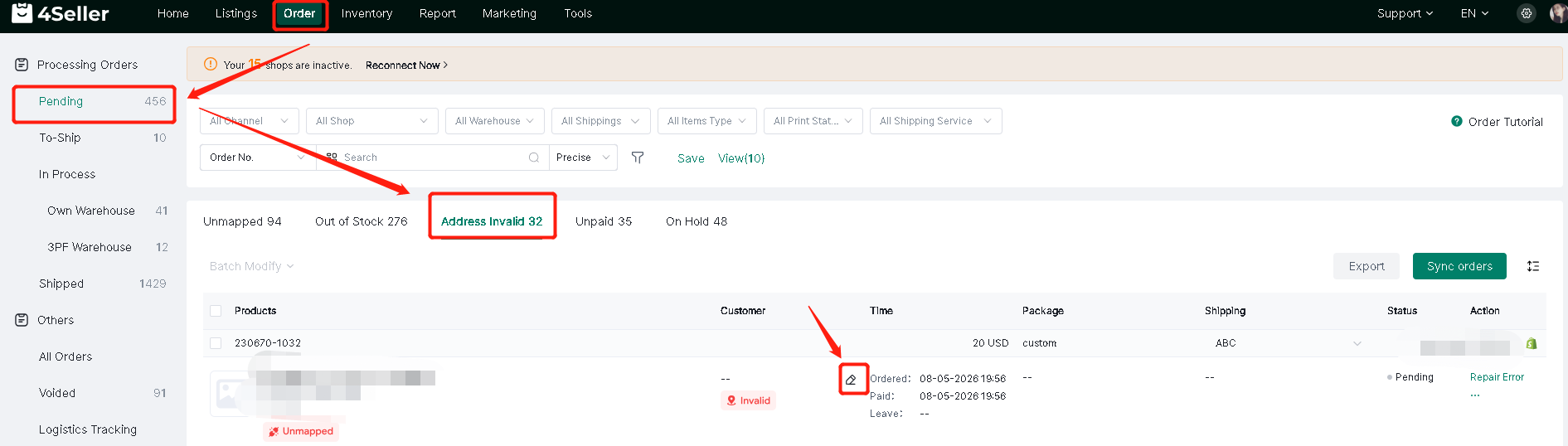
(3) When an order is determined to have an invalid address, you can click to edit the address information.
(4) If the Unpaid or the on hold is in progress, you need to wait for the order to be automatically transferred to "to ship".
Step 3.3 Order Processing--To ship
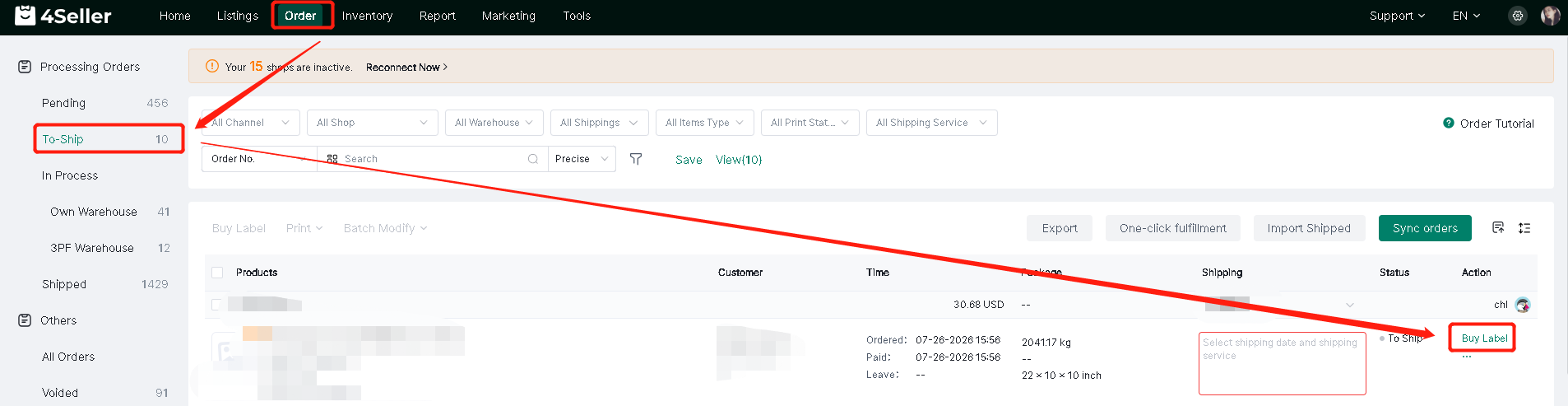
In the "To Ship" status, you can mainly add package dimension and weight information and select logistics.
(1) Single Action
Clicking on the buy label of a single order will take you to the corresponding page for that order.
On the purchase page, please confirm the following information:
1. Confirm warehouse
2. Enter weight and dimensions, select or enter package dimensions
Note: 4Seller supports automatic weight entry after weighing via electronic scale, please ensure the unit matches the electronic scale.
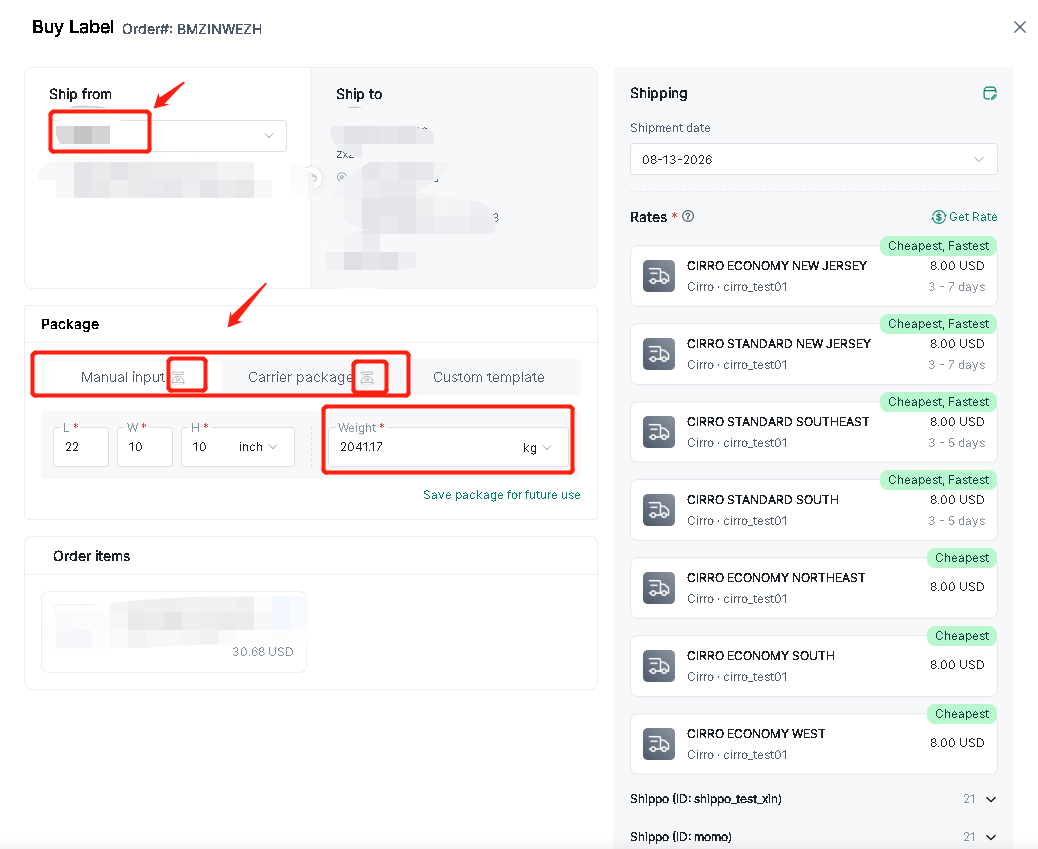
3. Selecting shipping carriers & services
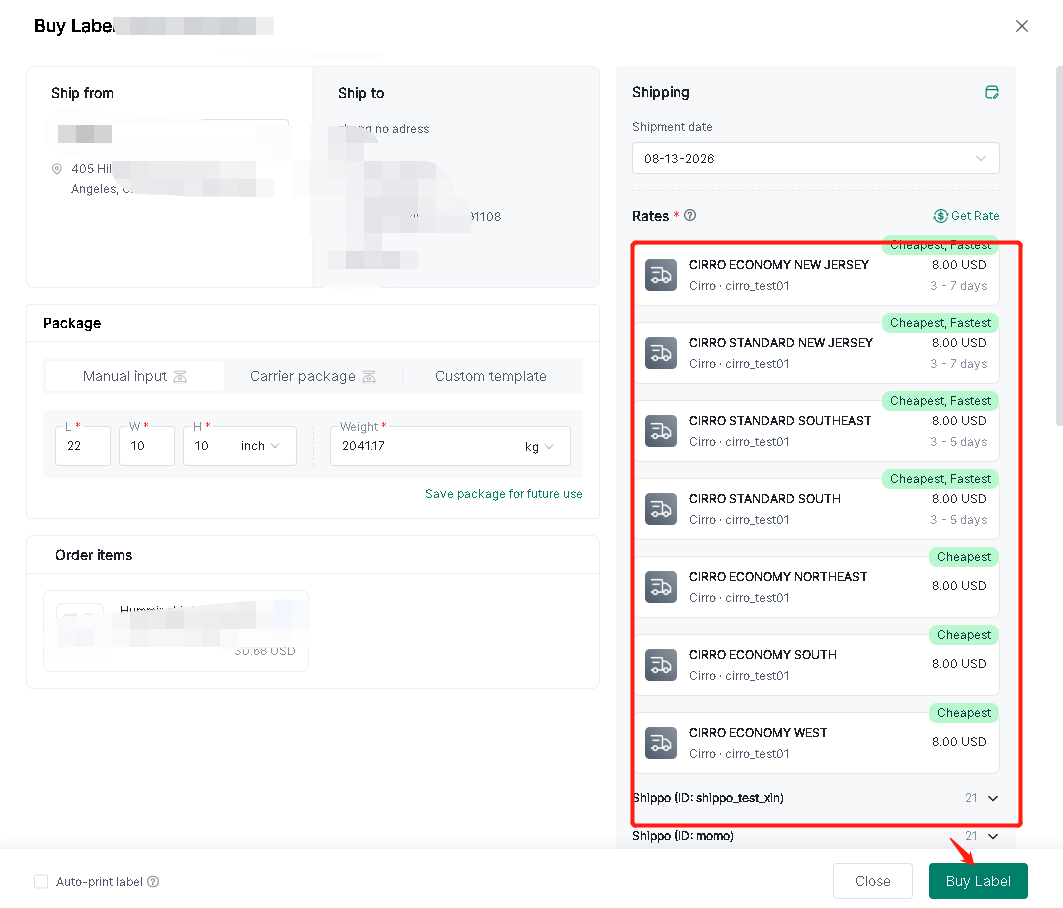
4. Finally, Click buy label
(2) Batch action
Note: When processing orders from certain platforms, you must first filter them. Orders using platform shipping (eg: TikTok Shipping) and Seller shipping methods cannot be processed simultaneously.
Before selecting orders in bulk, you must first filter them in the Shipping services filter bar to select orders of the same type for batch processing.
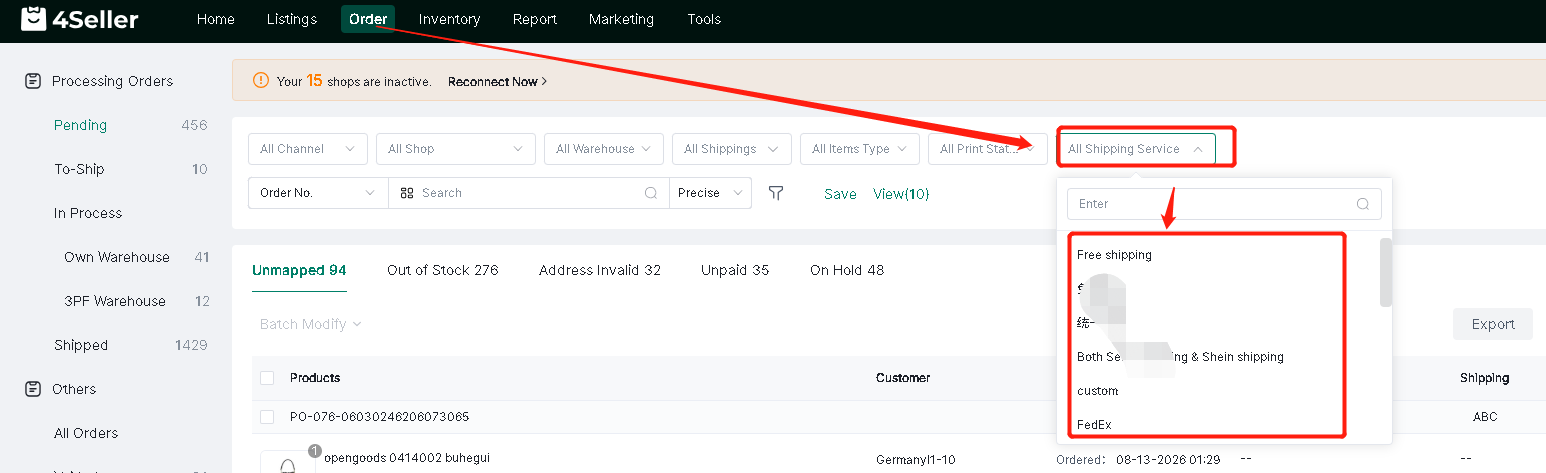
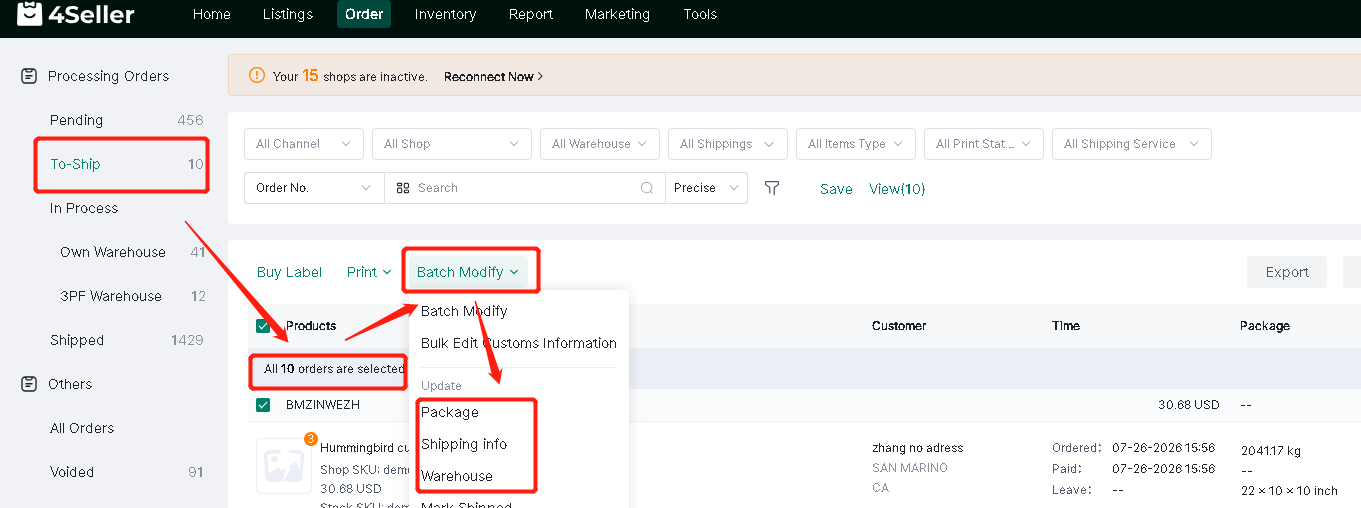
After filtering orders, batch update information such as package details (weight can be automatically synchronized after weighing with an electronic scale), logistics information, and warehouse information for the selected orders.
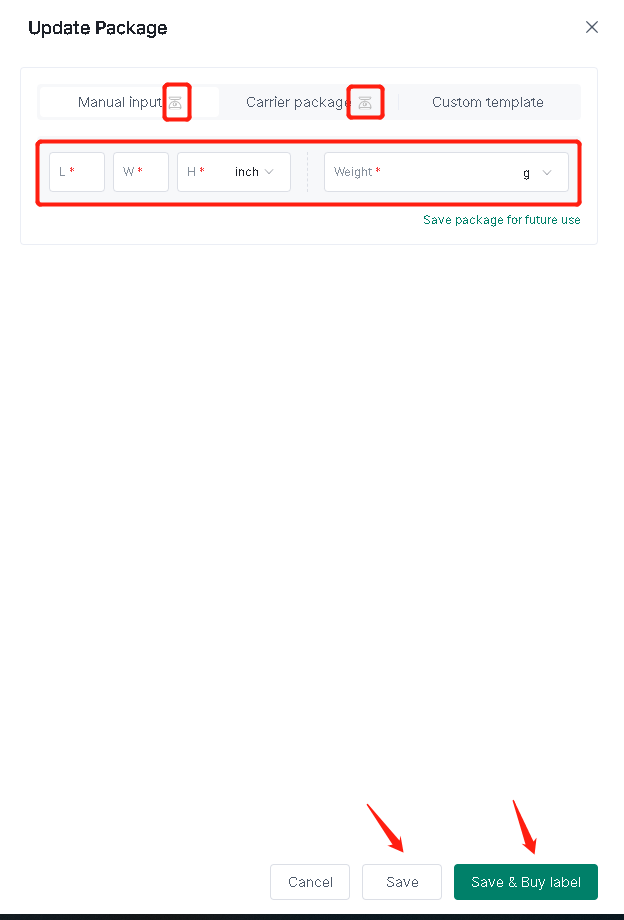
On the package update page, you need to fill in the package's weight and dimensions, and then click save or save and purchase a shipping label.
On the update shipping information page, please select a logistics service, and then click Save or Save and Buy label.
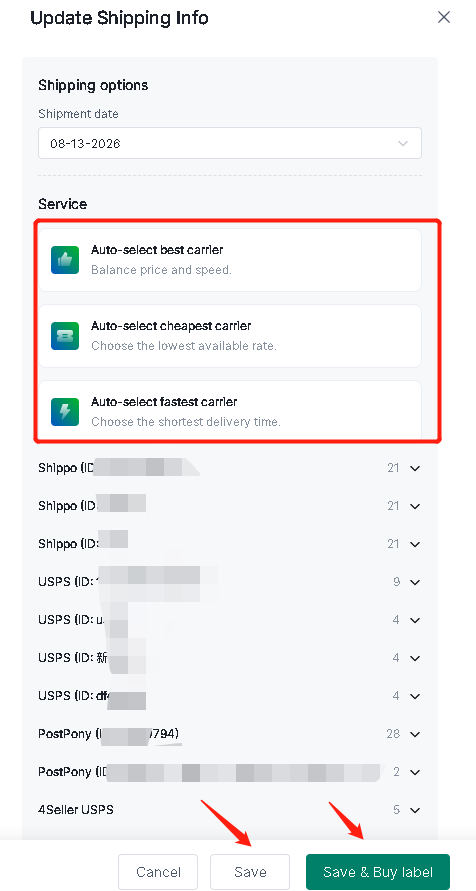
After filling in the information in batches, you can buy shipping labels in batches.
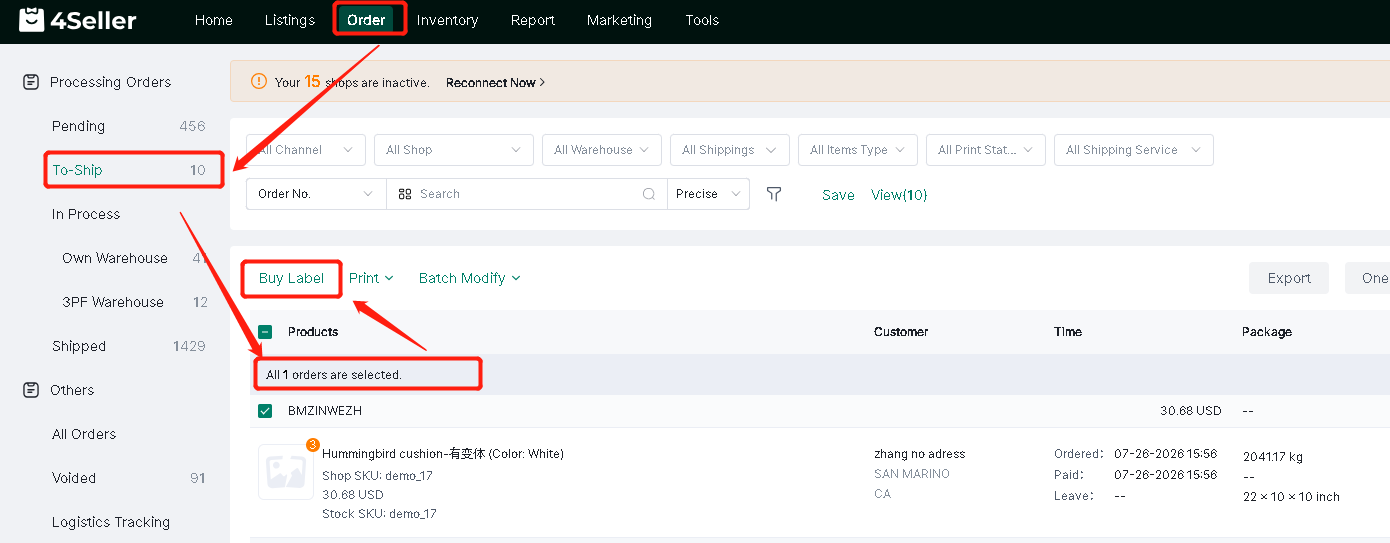
(3) Batch Modify
Select multiple orders in batches -- click Batch Operations -- Batch Edit
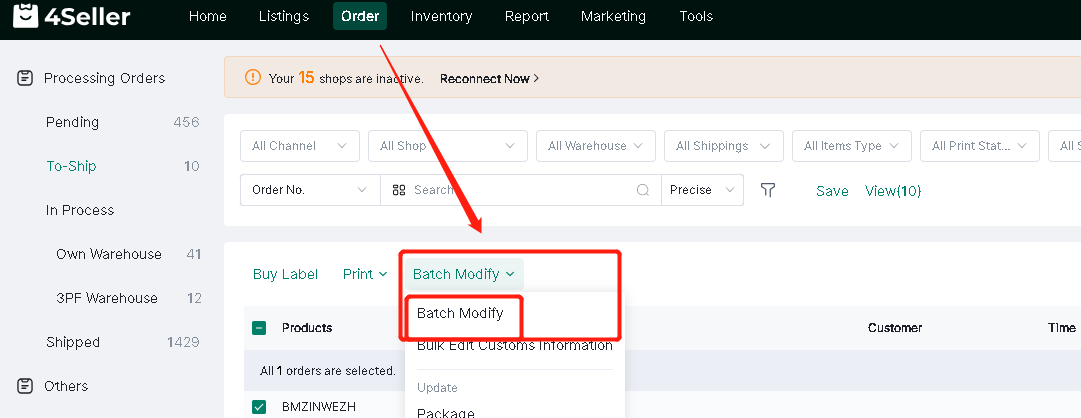
Entering the batch editing page allows you to fill in information in batches before purchasing shipping labels.

Step 3.4 Order Processing--In process
After purchasing shipping labels, the order will be processed under the "In Progress - Self-built Warehouse" status.
1. Success status indicates buy label successed.
2. Failure status indicates the buy label failed.
3. "Obtaining Labels" status indicates the application is in progress.
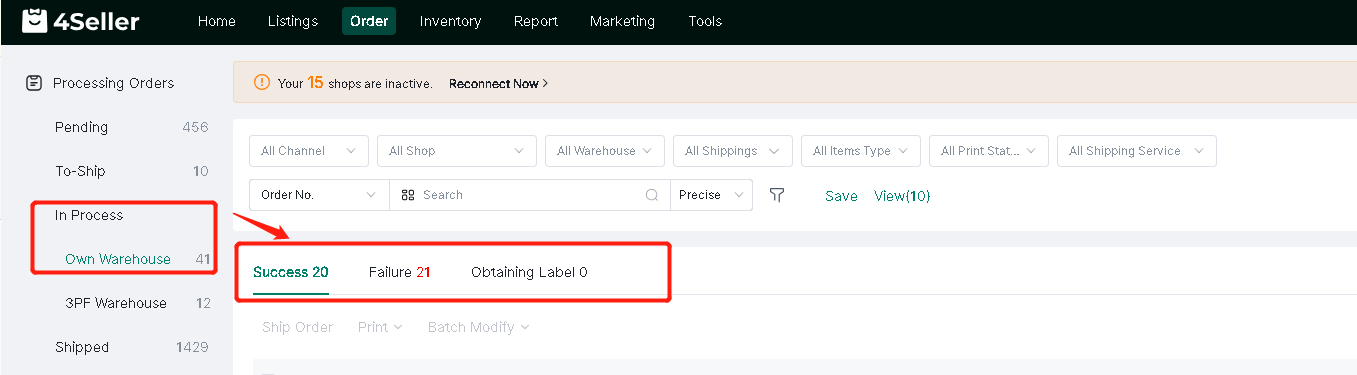
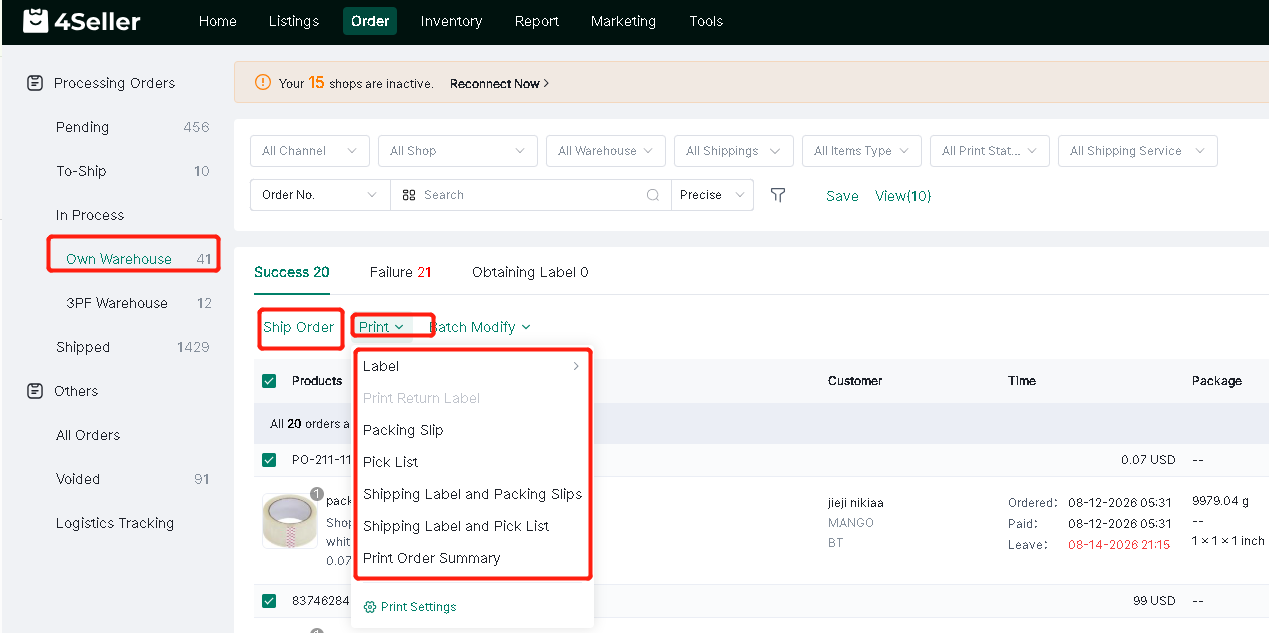
For orders in the successful status, you can click to print the order form, picking list and other information. Click Ship to automatically synchronize the tracking information of the order to the platform and transfer the order to the shipped status.
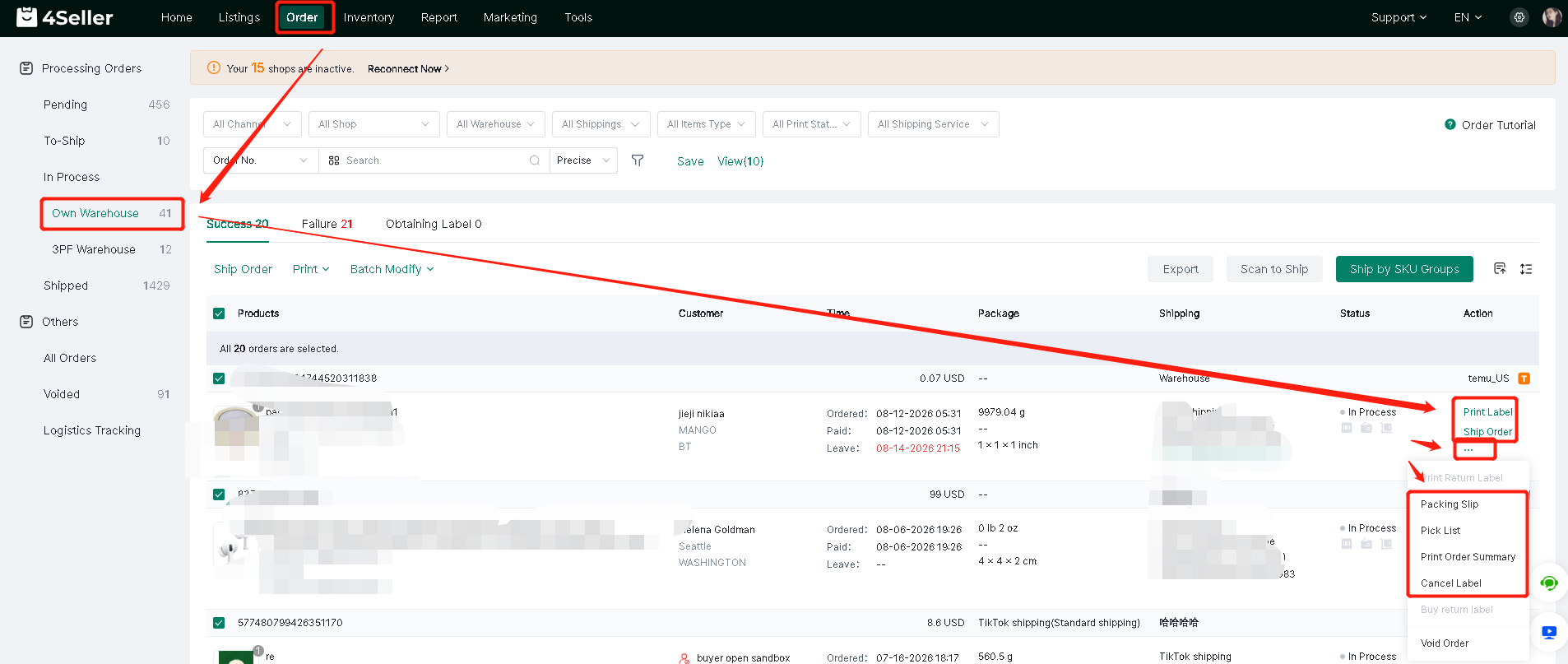
It also supports batch operations, such as batch filtering of orders and batch shipping, printing, etc.
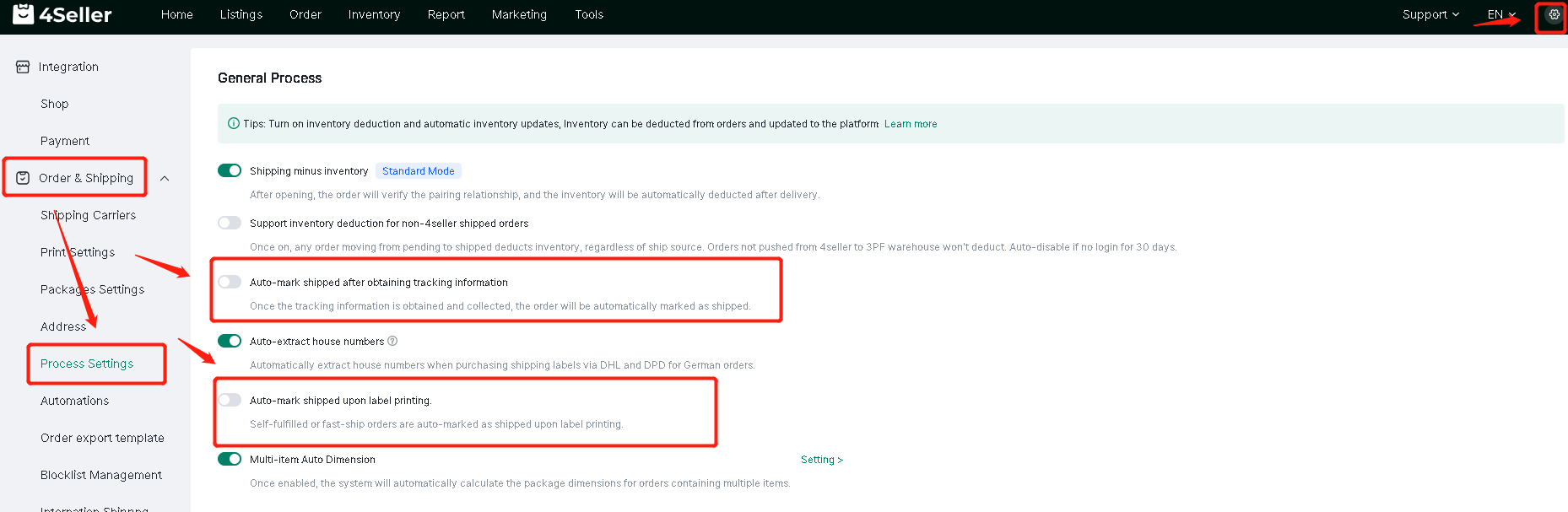
You can set up automatic order tracking until the order is shipped. Follow the steps below to set it up.
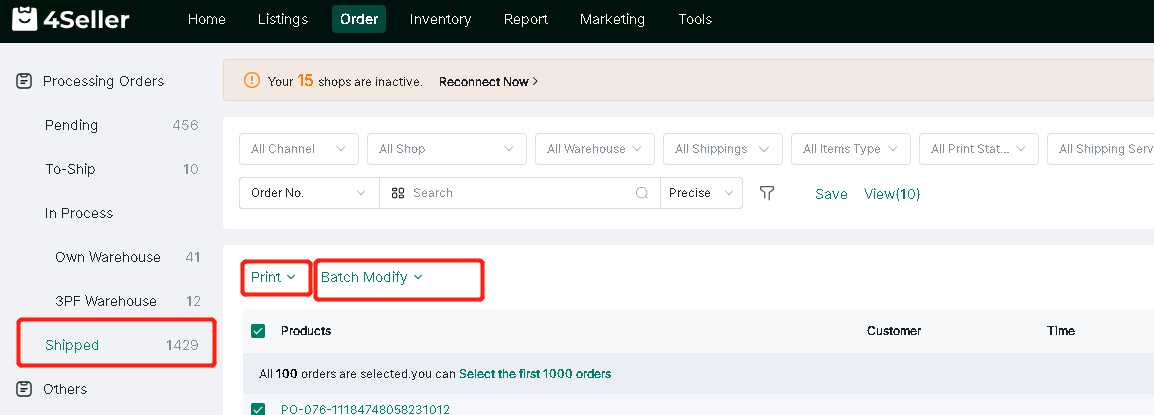
Step 3.5 Order Processing--Shipped
Once the order is processed, it will enter the "shipped" status, where you can perform other operations such as printing.
Any problem just feel free to contact 4Seller support team: support@4seller.com